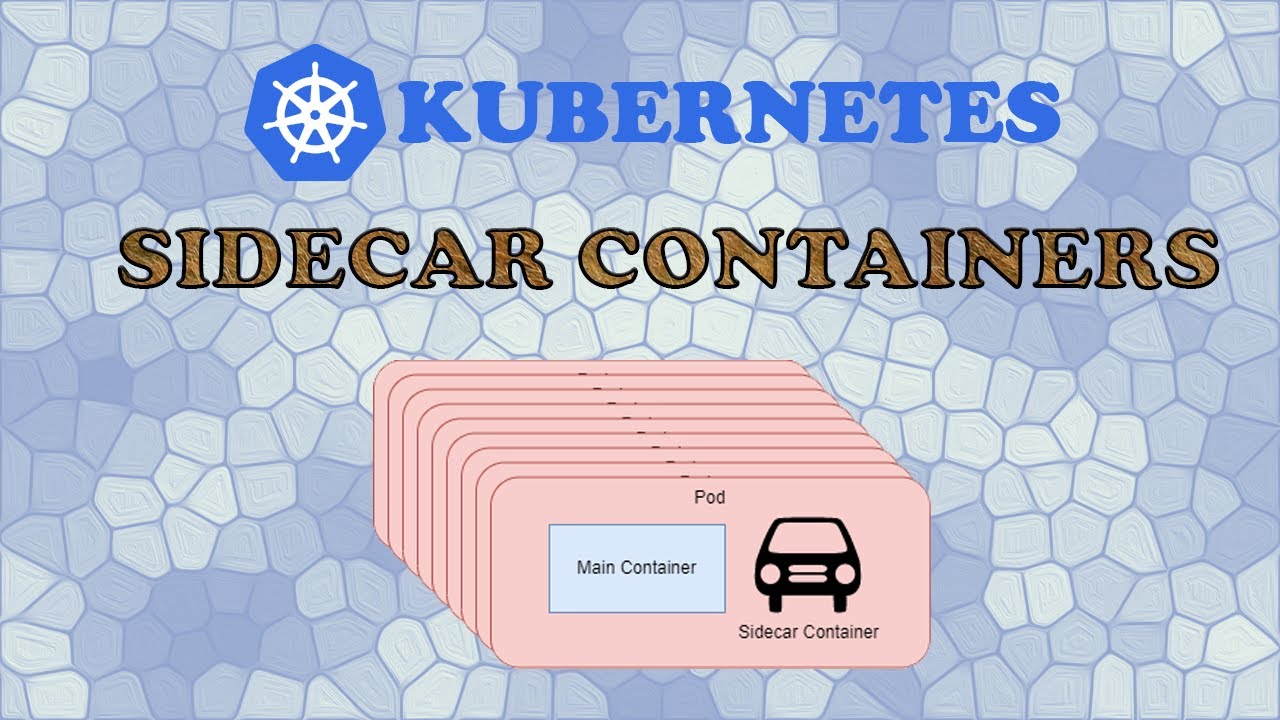
hello everyone welcome back to my channel my name is push and this is video number 11 in the series CK 2024 so till now we have covered a lot of fundamentals of Docker kubernetes we have seen pods deployment services and few other details and in this video we'll be looking into multicontainer pods and few other related Concepts so the comments and likes Target of this video is as follows I expecting at least 120 comments and 28 likes in the next 24 hours please help me do that and also I don't see a lot of you sharing your learnings over social media platform such as LinkedIn or Twitter please do that please help me spread the word so that others can also take the advantage of this learning opportunity and uh yeah and that's the only request that I have please support me with this and uh I'll keep uploading the videos like this and I'll make sure that I complete this series within the time frame that I have committed all right so thank you so much uh for your support till now and uh with that being said let's start with this video okay so let's quickly see what exactly is multicontainer POD and then we'll move into the demo so let's say you have a pod running on your kubernetes cluster and it has one app container which is let's say engine X so this is your app container okay and now we can have additional containers to support this this app container these containers could be like let's say we have a container over here and these containers could be an init container an init container or initialization container that actually runs before the app container to do certain task right or this could be a sidecar container side car container that runs all the time with the app container and it provides certain input or it takes certain output from the app container it is also referred to as an helper container right so you can have multiple containers with either of those so let's say we have this U additional container running and let's say this is an init container okay so what it will do it will run certain task so whenever cuet sends the request to the cont to the Pod for the initialize ation that let's start the Pod it will first start the init container so the first container that will be started is init so as soon as the init container completes and it finishes its work then only the app container will be started so starting of app container is totally dependent on the init container and it works uh according to the app container so whenever app container restarts stops init container goes goes down with it so it works in conjunction with the app container and it shares the resources of the Pod so let's say we have allocated some memory some CPU some storage to the Pod so that resources all those resources will be shared among all the containers inside that pot okay now let's uh get into the demo and let's see how it works okay so I am in my visual code editor uh let me full screen it and I'm going to create a new file and I'm going to call it P. L okay so let's start writing this file and I will be explaining as I'm writing so um I'll start with API version for the pod which is V1 and then we have kind which is POD then we have metadata with the name and labels I'm sure these are now kind of make sense because we have practiced it enough and I'm sure you don't have to really look at the documentation to write these things to write a basic manifest or to run the basic commands if you're still facing that issue where you have to look the documentation again and you have to check out those links again so um you know make sure you practice more so that it will save some time in the exam so let's give it a name my app okay and give it the labels let's use the same thing my app my app pod okay now the main part is spec inside spec as we have seen earlier we have a list of containers so our first container will give this a name and we'll call it my app container okay and then we'll use an image of busy box this is basically a generic image provided by kubernetes and maintained by the community and it does a few basic tasks for you and we'll see um like in the later videos as well we'll be using it more more often only um till here we are good till here um we this is what we have done earlier as well now let's see the concept of how we can use the environment variables inside the kubernetes right so this is our manifest inside container we have name image we can expose ports as well over here and we can also specify environment variable that will be within the scope of your pod so for that you can use EnV okay and hyphen because this is also a list you can have multiple environment variables so give it a name and let's give the name first name and then a value so name and value and it is also a key value pair uh give this a name give any name let's say bu okay now this is how we'll use the environment variable okay first let's see and test this thing so I've have created the file so Cube CTL create hyphen f and then P. M okay it says it's been created getp okay because we are not doing anything inside the part we are just using the busy box image that is why it is Crash loop back because it actually is the type of image that does a specific purpose that run a task and then it exits so that is why it is not showing anything so maybe we'll add few more details later on okay so we'll leave it to that for now and let's uh delete this board okay and let's proceed further with the uh multiple containers like we'll specify the init containers so at the same level of container we specify init container with c as capital so init containers it is again a list as you can have multiple init containers so let's initialize our first init container and give it a name call it init my service okay and then inside that again we're going to use the busy box image version 1.
28 and then we'll use something called as command and argument let's see how it works okay so command is the command that you have to pass to your container okay so run this command execute this command so this could be a simple uh shell command this could be a simple Unix Command right so for that uh you use the format as sh and then comma pyph C because you will be passing the command that is why you are appending it with c and this is the format you put that in square brackets okay and then sh hyphen C so you are separating the command with the comma and both of those will be inside single codes right so this is the command and now you have to pass certain arguments to that Command right so that arguments will go over here in the argument section right and uh it uses the same format so now we'll run a command so let's say this is the init container that is dependent on the service to be created okay so if we remember the service video that we have looked earlier in that when you expose a service your service would be listening on that particular fqdn so uh your service do namespace name do cluster. loal and something like that right so what we'll do is we'll do uh an NS lookup command and NS lookup command will only work when the service is available and exposed right so for that let's write uh the command over here in the single codes again so I'm going to do until NS lookup okay and my service because this is the service that we'll be creating do default do SVC do cluster. local where default is the namespace name okay so it says until this command Returns the result okay do something so let's say uh do Echo waiting for service to P up okay and then colon because with colon we are separating the command and uh do waiting um service to be up and then sleep for 2 seconds and then done after done you add the single code uh over here we don't have to really write the codes okay so uh done you have to specify because we are using an un Loop so it will work until this and then it will break the loop once it is able to get the result from ANS lookup okay so this is the command that we have specified now uh let's add the command in the main container else it will fail so we go over there let's use command okay and you can also combine the command and arguments together I will show you how we can do that so over here let's do sh comma and then we have hyph C okay the same way that we have specified the earlier command we don't need to give the brackets we are already inside the bracket and then comma the argument so the argument is let's say Echo the app is running and we'll add the logical and and sleep 3600 so it will uh sleep for 3600 that means the part will keep on running for the next 3600 seconds right so that it will not exit or it will not go in Crash Loop so that's what we have added so you see over here we have separated the commands and arguments and over here we have placed that in the single line so that's both are one and the same thing it just over here we are passing the arguments to the command with a separate line okay so now our yaml is completed let's apply these changes so cctl create hyphen FP okay it says um there is an error at line 18 I might have made a mistake let's see 18 okay over here this is probably due to I might have made a mistake over here somewhere around these lines line 18 or line 19 although it is showing the error line 18 but it could be like um one or two line above and below so let's uh have a look at this ARS uh okay I guess this is the reason so I have an extra single code over here it should be within the single codes but the entire line so it starts from here and then it should end after the done okay now let's try this again okay now it says the Pod is created so let's have a look the status okay so if you see now it says let me clear the screen and show this again so it says now ready is zero out of one that means one pod is not ready and it says init zero out of one that means the init container that it have only zero is available out of one unit containers so it is not running it is stuck in initialization state let's do a describe on this pod describe pod my app okay so it says over here let me drag it over here okay so it says successfully assigned this to the cluster and then it says the image already present on the system else it would have pulled it and then it created the init my service container started the container okay this is the init container but again it's stuck in the initialized Iz ation State because it is waiting for the service to be provisioned first okay and if we go up so here's the here's the status it says reason of the main P the main application P to be stuck is POD initialization and here's the command that it ran sh hyph C Echo and this is inside the arcs or inside the uh command that we have specified then um let's see okay so this was the ARG of the other command inside the init container okay it says it is running that means the init container is run running but it is not yet completed because it is waiting for a condition to be satisfied right and uh the status is pending for the application pod and yep here it is now if you want to see the logs you can check Cube CTL logs my od my app okay so here is the log now currently we only have one init container if it would have multiple init containers then you can also pass the value of that particular container as iph C and let's say uh the name of the container let's say this one okay my app container is is the application container and init container is the init service so let's give this a name okay now this is the logs from the init container okay it is trying to do NS lookup on the host name on the fqdn and it is throwing the message that waiting for the service to be up cannot resolve this service which is my service default as we see local and so on and it is keep on doing that after every 2 second because we have added sleep to in the command as well right so this is what it is doing now let's do one thing let's create a deployment Cube CDL create deploy and let's give this a name engine X deploy using the image engine X and Port 80 okay so deployment is created get deploy it is up and PS are up as well it has one single replica now the next is we have to expose this currently if you see the status it is still stuck in init this is the my app pod and it is stuck in init container stage it is stuck in initialization and that is why the main application container is not ready so let's expose the service and this is looking for the service uh let's see which one my service right in the default name space so so Cube CTL expose deploy and let's give this a name my service this should be the name that this is what the Pod is looking for okay I guess uh the syntax should be deploy and then uh the name of the deployment uh to which the service will be exposed to right so the name is engine X deploy iph hyph name is my service and let's expose this on Port 80 okay exposed now if we do K get pods it is still stuck in init but if you wait for some time now you see it says pod is now initializing that means the init container has completed and now the my app container is up and running so let's see it again see my app is now up and running because the service is now exposed now we can do NS lookup on the service name because it is now provisioned so I hope this would have made sense now so first it try to initialize the container the init container init container did it work init container actually did the NS lookup so if you see the command over here init container did the NS lookup on the service host name and until it gets the response it keeps on trying after every 2 seconds right and it keeps on printing this message waiting for the service to be up waiting for the service to be up and as as soon as the service was up as soon as it C the response from the service it actually completed the init container and it actually initialize the Pod so the main application pod is now up and running if we want to check the application logs of init container so let's have a look so this is the init container logs command so now you see now it is getting the response back my service.
default. SVC so here is its respective IP and after that it stopped printing that message because after that in it container job has been done it it got completed so that is why it stopped printing the messages after that now if we do uh Cube CTL uh get pod and um if you remember we used an environment variable so if we do let's see if it has print EnV so K exec hyphen it hyph hyphen so you remember how we used sh command to S into the server because we at that time we open the shell terminal for that container right we actually did the SSH into the Container or we opened a shell terminal into the Container right but we can run any arbitrary inline command as well in place of s so for example let's say print EnV we should print all the environment variables inside the container so if you see all the environment variables and let's see if we have our variable which we created here it is first name right so the environment variable that we set and rest of the environment variable is the default variables that it set it take it from the control plane and set it accordingly and from the deployment and this one is what we set it is our own custom variable so in place of print en EnV we can do s okay we have now entered inside the container and now we can actually enter not just one container it currently defaulted to my app container but we can enter inside the init container as well for debugging Purpose with hyphen C and that syntax that we saw so now we are inside the container Let's do an Eco on first name the variable that we set okay we see that environment variable has been set so I guess that's what we wanted to check and the way we have created a single container over here single init container here we can have multiple init containers for multiple reasons so let's say let's copy this and let's create one more all right so now we're here and we'll make some changes so because this is a list right it goes like this with the hyphen sign so we have one in it service and then let's call it my DB and use the same image but instead of my my service we call it my DB we'll create another service for that and it will basically do the same thing let's save this file and apply this change Cube CTL apply hyph F P.




![[Interview Question] How to Increase/Decrease Pod capacity on each Node inside Kubernetes Cluster.](https://img.youtube.com/vi/udx7wHmYdrE/maxresdefault.jpg)