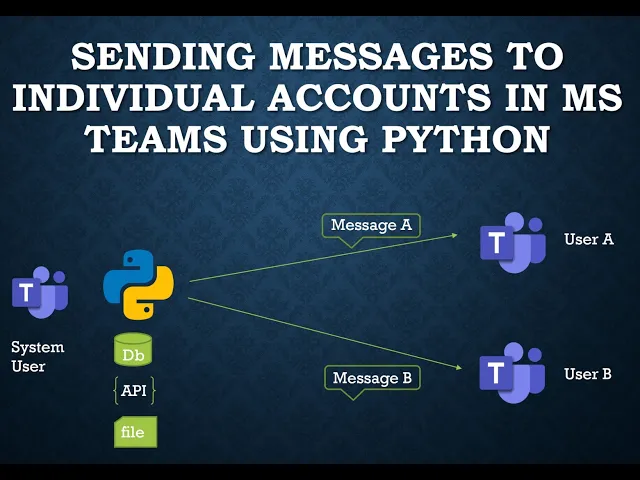
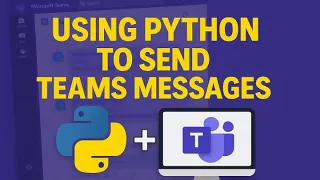
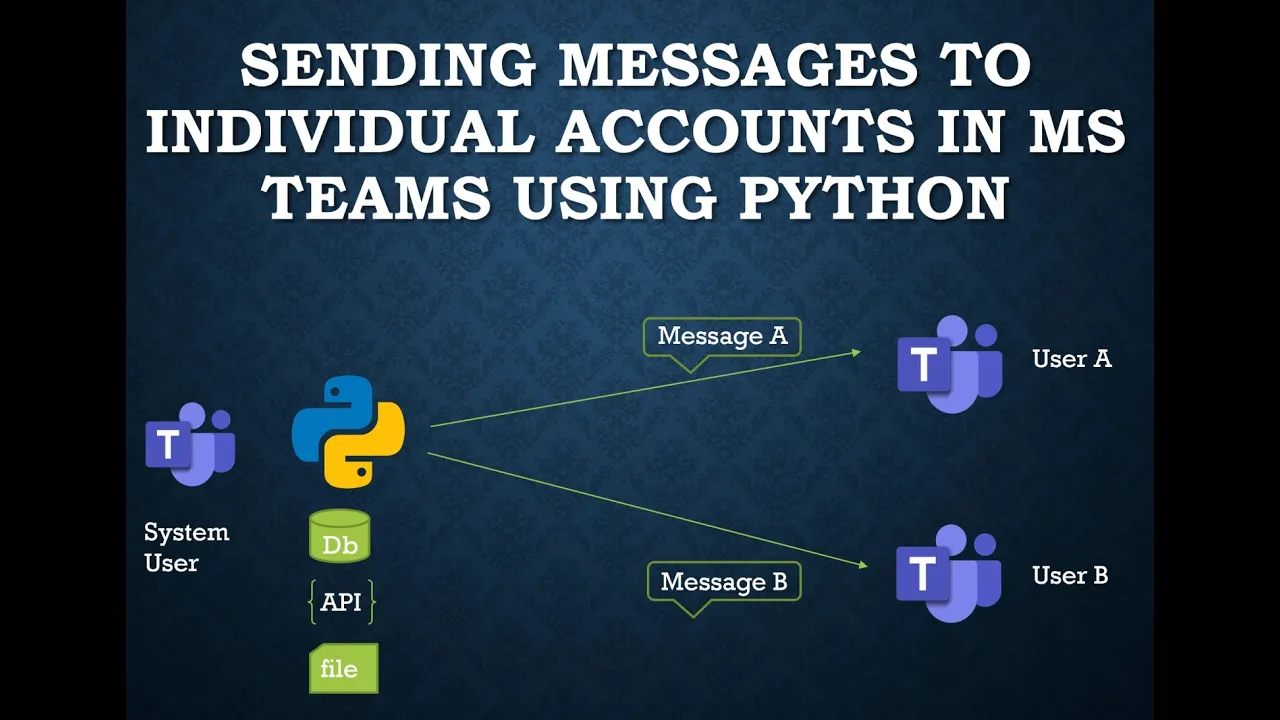
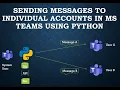
hello everyone uh today we will discuss about how to send messages to individual accounts in Ms teams using python so consider this scenario shown here uh let's say we have a bunch of messages that we need to send to some individual uh Ms teams accounts maybe those messages are stored uh in some DP or we might need to fetch those messages from apis or some local file so uh this is how we could achieve this first we need to perform some in setup we need a Microsoft 365 business standard license for that we need to
have a system user and we also need to disable the MFA for that system user so I already uh created some users here let's have a look so the system user for this is this one um I have created this system user to transmit the messages I have uh set the display name as notifications to actually uh create a field for a real use case okay so I will use this user to actually trans the messages and I have some other users as well so this is my root user I will not be using this
one so this is the user I will set up to receive the messages so what will happen after running the python script this notifications user will send the messages to the user joho which is a normal user so as this user will transmit the messages I have to disable the MFA you can see in the authentication methods there is no MFA in place and for the other user which is John do um we have MFA enabled here so it also has a Microsoft authenticator integrated those are our users so let's go to the slide again
now we have to register an app and we also have to provide some permissions so let's uh go through that process now let's go to the homepage of Microsoft ENT adment Center from home we should navigate to the applications section here and let's go to registrations section so let's go to all applications and we don't have any applications here right now so I will click on register and applications button and let's just provide a name here and let's just keep the other setup as is and just hit the register button okay so we have successfully
created the app and now according to the slide we have to provide these two permissions from Ms graph API okay so let's just go ahead and do this uh let's click on API permissions we already have one permission let's go and add other ones so let's just select this one and this is very important we should always select the delegated permissions okay not the application permissions so we can see there are lots of permissions here let's search for our desired ones so that okay there is chat. create let's just add this and let's go ahead
and add the other one which is chat message. send delegated permissions get let me okay so there is this chat message. send permissions let's add this one as well so these are the permissions that we need for the script work we actually don't need this one so just let's go ahead and remove this one okay so this step is complete now let's go back to the slide now we have to Grant admin consent for the API permissions so let me explain this one so what will happen the script will act on behalf of this systems
user okay so that notification user that I have uh showed you let's just go again all right so as I said I will use this uh notifications user uh as the sender of the messages okay so that's what the script will do the script will act on behalf of this user so we have to provide necessary permissions and grants for this to happen so for this what we need to do we need to click on this grant admin consent for Aros just go ahead and Grant this consent yes okay it is done so now we
have to allow public client flow so to allow public client flows we need to go to U authentications section and here is the allow public flow option okay let's just go ahead and set yes and then hit save okay so these steps are complete now so I think everything is set up for now let's go ahead and see what's in the next section all right so now we have to write our code let's just go ahead and start coding okay all right so our app is set up we need one value from this app setup
page that is client ID okay we need to just copy this and use it on our code I am using Google collab here so this is the client ID and I need username username let's copy the username from here and paste it here also name the password for this user so we are using username password method for authentication and the password is and we need to install some packages so let's just go ahead and install this package all right so we also need to add uh requests okay this package is already installed in the collab
environment that's good okay so let's just uh see what is actually there for the authentication process uh we need to use this class this class is available from aure uh identity library and we also need to use this scope and those are the end point that we will be hitting for creating the chat and sending the messages so let's just copy this base URL because this is the URL for graph API let's also create a variable for the Bas URL okay so I think those are the global variables that we will need so let's just
run this let's create uh another section from Azure identity word okay if we execute this line we will have a credential object and this credential object actually can be used to fetch the token let's provide the scope so this is the scope that we need to provide so this part is the base URL and for sl. default is the scope part let's go ahead and just P the token now we'll use this credential object token and then we need to actually use this token property to get the actual token and now just go ahead and
print this all right so we are successfully able to actually fish the token now so let's just go ahead and create the headers these are the headers that we will require so let's just go ahead and create the payload that we need to send to Microsoft craft API to create the chat so for that uh we look at the Microsoft documentations all right so let's just copy this uh payload and use it in our code all right okay let's create a global variable oh and this is the value for this o data type and use
this one instead of hardcoding this each time um we need to specify the users we want to send the messages so this user will be our sender Let's uh paste it here and another user that we have John do will receive the message so let's copy his username and paste it here this is called UPN or user principal name okay I already uh logged in in two user accounts here let's have a look on those now so this is the account of this notifications user and this is the user principal name okay so this name
has to be matched here this is another user which is John Do's account and the user principal name for this account is this one and it should uh the second item of this dictionary um should match this one as well so how the flow works is first we need to create a chat object and then using the ID of that chat object we need to actually send the messages to create the chat object we have to send a post request so okay we need to actually convert it to ajason object and then we'll be able
to use this dictionary ntion let's run it again okay so this is the chat ID that has been created so we will uh send a message from this notifications user to this John do user using this chat ID the that ID we just created previously so that's the URL now we we also have to provide the headers the payload is ready now all right fingers cross let's just run this code okay all right we heard the notification Bell there so we were able to successfully send the message here so this is the message that was
sent from notification account to this user account right okay uh let's send another message maybe this time there is another task that needs to be completed before deadline okay let's just see how it goes uh we need to run the code again and let's see all right so we received another message and the code actually transmitted the notification successfully so yeah that's it guys uh we can IM in more use cases uh regarding this one as many companies in the world use team for internal Communications so if there are some work use cases where some
external notifications or reminders needs to be transmitted to internal Workforce or staff this method can be utilized there as well so that's it for now if you guys have any suggestions or questions feel free to reach me out and if you think this is useful please share it with others as well so that's it thanks for watching this video take care