if you're new to editing video i can understand how that can be very frustrating and just a daunting task every time you make a video but what if i could tell you that that doesn't have to be the case because i believe like with anything in life when you get the foundations right that you can actually grow and succeed in whatever it is so that's why in this video i'll be sharing my five simple steps to editing any video so that you can start crushing your edits today let's go you gotta just press record hey
what's up it's omar's corey with think media and this channel is all about helping you build your influence here on youtube and sometimes we actually do that by sharing the best tools whether it's cameras lighting or audio as well as some editing tutorials so that you can level up your edits and get people to stay and watch your video and so if you're interested in that be sure to hit that subscribe button but the first thing i would encourage you to implement into your workflow is to get organized like this is before you even open
up the program and so here i have my macbook pro i'm just going to start a new folder and actually like to title it with the date and then the video title and so today is 2022.03 15. and then i'm going to title this how to start a podcast and so we're just getting uh ready to edit and then we're going to open up the folder and create a folder inside of it called a-roll now this is gonna be all the footage from your talking head like what you're seeing right now this is talking head
i would throw this clip into my a-roll folder and then if you have b-roll meaning footage that shows what you're demonstrating or anything else other than your a-roll or talking head video that you would throw it into a b-roll folder in this example i won't necessarily have b-roll up front but i'll show you how you can get some without having to shoot it yourself however now that i got my folder all situated and ready to go i can drag my clips in from either my smartphone or my sd card now quick tip is if you
are running out of space on your computer or laptop i really would encourage you to invest into an external drive and specifically i love using ssds uh this samsung t7 ssd is two terabytes large and it's very small and one of my favorite things about ssds generally speaking is that they're just really fast and so i'll post links to some of our favorites down in the description below but this is if you are running out of space or you want to keep your files on a drive this is probably the best way around it when
it comes to video editing but as you can see i just use my desktop to create that folder now i'm going to throw my sd card into my computer and then i'm going to drag this a-roll into the a-roll folder i'm going to open up this folder go to private i don't know why sony does this to their files but this is what sony does and here are my two talking head videos as you can see right here i made a video on how to start a podcast but just in one sitting went through it
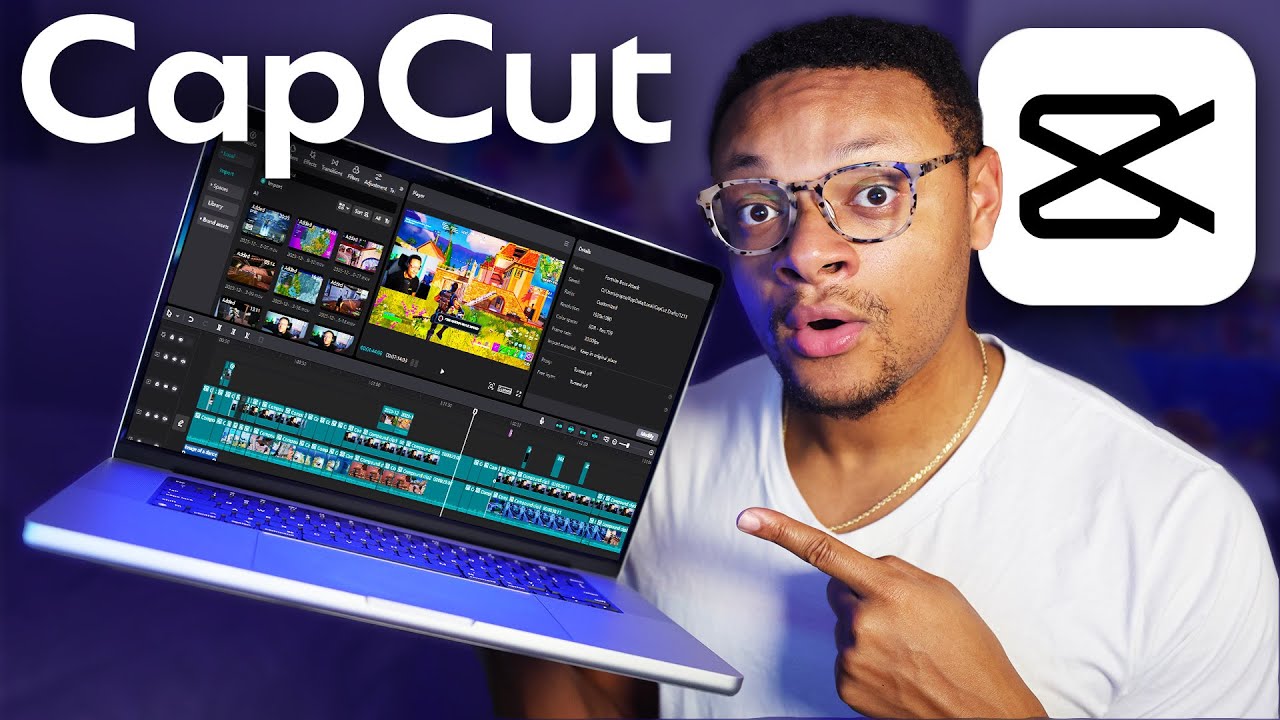
so i'm just going to drag this into my a-roll folder now once all your footage is dragged over you can now open up your editing software of choice and in this video i'll be using camtasia camtasia is actually the sponsor of this video but what's so cool about camtasia is not only is it a video editor it is also a screen recorder for beginners most people if you have yet to edit your first video you need a simple and easy editing experience camtasia works for both pc and mac and if you could see yourself using
this software then be sure to check out the link down in the description below you could try camtasia for free and if you're ready to actually invest into it then you can actually save 10 off we'll post all that information down in the description below now the next thing you're going to want to do is set up your edit once your software is open you're going to go to file save as and you're going to save your project into that folder that you actually created in step one and so we're going to go to how
to create a podcast and then i'm going to title this how to create a podcast i like keeping all my files in one folder because if i offload it eventually into an external drive or a backup solution then i can just reference this folder and i'll have everything i need now once you've done that you can import your media and in this case i'll import my a-roll that i had dragged over and i got the two clips so i'm going to select and import once the clips are imported we can then drag both of them
into the timeline and now you can see in our timeline we have our project this is the process in editing that i like to call trimming down the fluff and essentially every software has what is called a splice tool or a split tool and i think it's really important that you learn the shortcut on how to access that uh here on camtasia command t on a mac actually splits the clip as you can see how i'm doing it right now and now i'm just going to watch through my video and take out all mistakes like
ums and pauses and things like that and one little quick tip that i like to do is i actually like doing this part of editing backwards because usually my best take was my last take and so if i took the last part of a idea or something i shared on video chances are that was the best take but if i'm editing chronologically i'm just gonna find a lot of my mistakes and then think that i actually had a good take when in reality the last take was the best take now just to show you an
example of what i mean by using this slice slash trim tool backwards in your edit as you can see right here in my edit uh this with everything uh without it trimmed down it's about 37 minutes long uh but if you zoom in and this is the end of my video because if i'm editing backwards here is the end i could see that i messed up right here the fifth step and i messed up all right here the fifth step the fifth step but i can see that i start to get consistent audio right about
here so i'm gonna hit the command t tool uh on camtasia which splits the clip and then another thing you actually might want to do is hit the magnetic tool and i'll show you what it does it now i just need to find the moment that goes right before the fifth step uh in this edit so i think right here is where i'm at content but with that being said the fifth step so now i know that's a mistake so i'm going to just go right before it and i'm just using the spacebar to start
and stop by the way i'm going to hit command t and then literally i'm going to delete this and as you can see it just uh because the magnetic tool is on it just bumped it up to the front so here we have a clean edit right here for great valuable content but with that being said the fifth step after you've edited your podcast boom and you can also like click and drag to trim like any unnecessary edits you want but i'm gonna actually go through this edit trim it all the way down as far
as i know this should be about a nine minute a-roll sequence but let's uh with the power of editing jump to that moment three days later so i just finished trimming down my a-roll and i'm at about nine minutes and 30 seconds uh editing our own mistakes that's like 20 minutes of mistake see i'm not perfect guys but nonetheless if you get to this point you're actually ready for the next step and that is to add b-roll now b-roll is just the supplemental footage that you add on top of your a-roll hence why it's called
b-roll that just enhances whatever it is you're talking about and you can actually shoot your b-roll yourself and maybe come up with a b-roll shot list a lot of times that what we'll do with our tech gear reviews but in this case i didn't because i knew i wanted to use what is called stock footage and honestly one of the coolest things about editing video is that you don't have to shoot all of your video you can actually use what is called stock footage which techsmith assets for camtasia is a super cool database that offers
over 20 million video clips templates songs and more and when you use both camtasia and techsmith assets it's so easy to find the clip you need just search using the keyword and in my case i'm making a video on podcasting so i just search the word podcast find the clips i want to add into my timeline and just hit the camtasia logo and it literally just loads it right into my project i love this workflow because it saves a lot of time i just need to focus on delivering good content and i can just add
footage over it let's say i'm talking about editing and you want to get better at editing video you can actually use these clips that i'm using right now on top of my a-roll therefore it being b-roll but this is the phase where you would want to do that throughout your video now if you add b-roll into your project and you don't need the audio coming from that video clip you can simply click on that clip and mute the audio and therefore you can just use the video portion without having to use the audio now the
next foundation to editing your video is to add text and we love adding text here at think media whenever we're sharing tips or talking about a specific product because not only does it break up the video with a different visual element but it actually calls the audience to now read the screen rather than just look at the screen and what i love about camtasia is they make it super easy to add moving text usually you'll have to add a special effect or something but camtasia has different templates where you can just add it on top
of your video put in your text and then you're good to go another cool thing that you can do is if you want to use the same kind of text consistently whether that be the color and the font and things like that is you can actually save presets in most editing softwares in camtasia it allows you to create a template for your future text so you don't have to constantly recreate it and we like using a specific font and white box with black text or sometimes black box and white text but because i can just
save it i don't have to recreate it in the future which is super nice and convenient now in your edit when you get to this point after trimming down your a-roll adding b-roll adding your text i want to encourage you to watch your edit through just watch it with good eyes and make sure you didn't make a mistake you didn't leave a mistake inside of your video or maybe you did a spelling error in your text just look for those things because the next step is to now render your video and this is when it
puts it all together and gives you the final file of your video to then be uploaded to youtube when i render my videos i put them in the folder that i originally created for this project and sometimes i have different versions because sometimes we check and revise and do other edits but i just put them all in this folder so i can reference it in the future a quick tip here is when you are rendering your video just to make sure your settings are consistent throughout it so if you shot a 4k video you can
make sure you export a 4k video if your frame rate was 24 frames per second or 29 frames per second just make sure your render matches your project file as well as your video files all the way through and then you're gonna have a super nice crispy video what's so cool about camtasia is they actually allow you to export your video directly into your youtube channel with their built-in integration which saves a ton of time you don't have to export the video onto your computer then drag it onto youtube you can just completely cut down
that process to one click and just like that you just edited a great video you know when you really boil it down to the foundations it really could be a lot more simple than it actually seems and if you actually could see yourself using camtasia be sure to check out the link down in the description below works for pc and mac and i would just encourage you to just get one percent better with every video you edit and maybe you know i didn't really touch on music in this you know tutorial and that's because i
don't think it's necessary but if you want to get one percent better and add music to your videos you can click or tap the screen and learn how to do so but thanks so much for hanging out i can't wait to see you in a future video peace