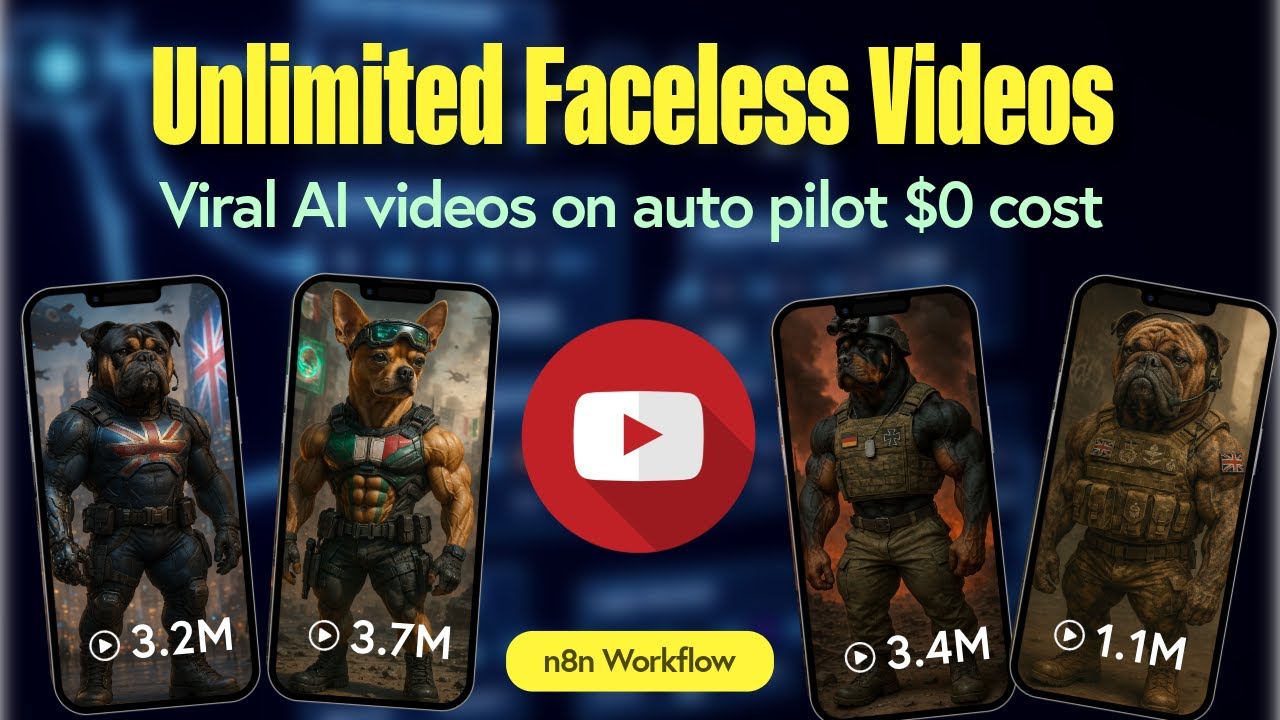
I just built this air agent system to create these retro future jazz music videos that are getting millions of views this account for example has already got more than 55,000 subscribers but only has something like 32 videos and the estimated monthly revenue is around $5,000 us per month so you can just imagine once this process is automated how powerful this could be and we can generate the ear music video like this [Music] if you are interested in building an AI fedo system like this please keep watching as I'm going to share this AI agent system to everyone step by step learning about AI agents is one of the best uses of your time given the demand for it so invest in next few minutes with me and watch till the end because this might just be one of the most important skills that you can ever learn by the way if you're new here my name is Andy if you're thinking okay but how do I do this myself no worries I got you I've put together all the resources prompts and workflow templates you need in our anying no code premium Community this means you don't have to start from scratch you can literally import the template into NN and start running it today we also have a growing community of AI creators who are sharing new strategies every single day so if you want to connect with others doing cool automation stuff you love it here you can find the link in the description below all right let's talk about how this AI video system works first all you can basically give any theme to this famous AI music generator sunno for example I gave it futurism retro Jazz it then creates different songs and you can create 10 songs for free every single day after creating the songs we can upload to super base for storage the reason why we need superbase is that soono doesn't provide any API yet and we found those are existing socalled sunno API profilers are not quite stable yet if you have any good music generator that provides API please feel free to comment below as well after we generate the music we will generate the AI image then we'll turn the images into videos and finally we'll combine everything together to in the final video all of that happens fully automated runs daily or even every hour if you wanted to and it's fully customizable to the niche of your choice okay so let's dive into this the framework of what we'll be setting up today is provided in these workflow there are basically four steps first get AI music generated from sunno second generate AI images from fleux third turn the AI images into videos through Minimax fourth we're going to render the final feto so let's dive in and go through the NM workflow one by one all right so let's get started so first step we are going to get the AI music generated from sunu then we are going to generate image from flux and we will generate the AI video from Minx and we'll finally render the final video so let's dive into the first step first so you can see this is the schedule trigger we can search it from here the purpose of this is to um run this workflow on a specific timeing inter full for example we are going to run this at midnight once per day okay for example we can play this run this okay and then we are going to add this workflow called edil this one the pen icon and then we can rename it into configuration so it's where we can um State the number of fetos that we are going to have for example in this demonstration we are going to use uh four fetos this means uh we are going to generate four images and then we're going to turn them into four videos so we use menu mapping here then we click test step all right it's done and then when you see this um icon is his referring to http request okay we use post method for the URL we are going to use this um why are we going to use super base uh the reason is that we are going to get the music from the specific storage and it's easier for us to use superbase storage and we are going to get this URL from here this one um we are go we can go to Project settings data API and you can find a project URL and then you copy and then after that we can add SL storage slv1 slob slash list slnn and then we are going to have predefined credential type super base API and we are going to add the super base API here again for the host we can copy and paste this project URL for the secret key we can refill this and copy the secret key and paste it here that's how we can set up the super base API then we enable the send body we use Json as the body content type using Fields below we have limit 100 as a value offset zero preix we leave it empty then we have this completed Okay the reason why we can see this output now is is because we have already run this W once and we have pinned the data and on your site first of all you need to go to soono and then register your account you can register for free they have um food credits renew every day so that means 10 songs for free for for every single day and then um we can go to sunno song description we can type for example future some ritual Jess then we can after generate the uh music we can download it download This MP3 audio after we download this we can actually track and drop and upload to the storage and how we can find the storage we can click this storage and then uh um create your new bucket for example we have created one for NN so that's why we can't have this songs upload here so you can upload all different songs here then we are going to click test step then you will see all this output here okay for example let me unpin and IUN run test step now great uh the purpose uh for pining data is that it's easier for us to debug because um we don't want to run the whole workflow again every single time because we may need to spend money for generating images or generating the videos so we would like to pin the already generated data so that we can just debug uh or just fix the other notes instead of keep generating the videos or music uh or the images every single time all right so we have this workflow completed then we are going to add another note called filter we can search it here all right then we can click this so we can just drag and drop this name okay and then it ends with MP3 because you can upload different uh files here but we just want to get the file names and with MP3 so make sure that we are getting the music files all right again then we are going to add another notes called aggregate this one we're going to combine and fill from many items into list in a single item let me run through run of this as well okay then on the left hand side you can see these are UT items and uh we are trying to integrate individual Fields this one for the input field name this is the name basically we can just try and draw like this yeah then we can click test step yeah it's working and then for this node again we choose Ed fils and then we have um we can rename it by clicking this pen icon randomly select music for example we have uh let's say we have 100 songs here we can just randomly P the music and then we will use men mapping um for the fields to set we're going to use music and we have string and this is the URL that we copy from here again it's from Project settings data API and then URL project URL basically you can also copy this um from our community if you are community members you can copy from this post and the purpose for this as you can see it is the file name of the MP3 file which is this okay so um for this one we are making sure that uh we are getting the random number I mean we getting the random song from this database so you can just copy and paste this and then the name length it means like um how many items there so we're just randomly picking a number there because the format is like this um we can Chason oh let let me try and drop this one you can see Zero basically what we're trying to work on here is trying to randomize the number that is going to shown here it's just that um in our example we just have one song but if you have more songs we are going to randomly generate a number here so that the the songs will be randomly picked so that's how it works all right then we are going to uh unpin this and click test step okay so we have the output here and Next Step let's save it first all right for the Second Step we're going to generate images from flux for this note we are going to get it it here and search for llm basic LM chain and then for model we're going to add it here we can add it here and then we are going to use open router chat model linked with open router for open router we can go to open router. a register and then for documents we can just paste the API key so how are we going to API how are we going to get the API key first of all let's log in API key and then we can create API key here after you create API key you can just paste it here it's very simple and we can use uh DPS DPS chat here then we are going to have output parsel we are going to add here and this time we're going to choose structured output paror for example you can choose here you can add here we can choose structured output poser and then we are going to choose generate from Json example this is the image prom list and for our community members we can also copy and paste it here all right so for this generate image prompt we click inside when we can enlarge it basically we are going to um copy and paste this prompt we can copy here if you are commun remember you can just copy the prompty uh if not you can just take a look at this um here and you can take your screenshots here basically the first part is to generate um how many videos so we can go back to configuration track and drop this part then you will see the number um this is the style that we want you can also change it and to to your own Niche and this is the air process example output Key tuning principles sample prompt sample prompt two sample prompt three sample prompt 4 okay so this is the structure of this prompt then um we are not going to run this test step because we read last time so we have pinned this data so that we can keep the output consistent so this is the problem that we have okay but on your side you can click this tester remember please enable this required specific output format then we are going to add the note called split out okay by the way for the pin you can right click this and unpin open okay and then for this note again we are going to se sear for for the split out note and then we can ED it here the fil to split out output image prom list we can try and drop here again okay no other fields and then we can click test step okay we can see this is a uh splitted out list then we are going to add another HTTP request note here is for generating images through file AI so we're going to use post method this is the URL you copy and paste it here q. run/ AI flux flux pro version 1.
1 then we use generic credential type head off for the account we can go to F Ai and then um we can go to API Keys add key and then we click this pen icon we can put authorization is name but for Value we need to input key space and then paste API key so what I mean here key space and then copy this key and paste it here so remember remember to add key space before pasting your key so that's how it works for the file account then we enable send body then we choose Json as the body Cent type using fils below for the prompt we can just uh drag and drop this one drag and drop this one as you can see the some the same image size you can just change it in the way that we want for example we choose landscape 169 for the image size we can actually um select a value from the API documents so for example we choose landscape 169 you can change it to square HD Square portrait 43 portrait 69 so we choose because we would like to have the long for video here so we choose landscape 69 and then you can click test step as we have already um generated um through F already so that's why we pin the data so we don't need to spend the money again uh so we can process this the following note and we are going to uh add weight so to be safe we can choose uh 30 seconds uh wait for 30 seconds so let's say we have already um ran through this note let's click this it's literally just uh process for 30 seconds um so because we want to make sure that we have enough time to generate the image for example if you have more than maybe 50 images I I suggest that you can have more have longer time for this note okay because we just have four images uh 30 seconds should be enough for us and we are going to add another HTTP request note here this one and then we change the name as get F uh F get image because we have generated the image from uh fil using the fux pro model we are going to get this image we are going to use this URL q. run fa AI flux Pro request and then we need the I so we just drag and drop the ID here all right and then um head off fill account everything is the same okay then we just um uh for example let's say we have already run through this note as well so that's why the data is pinned and we can actually take a look at the image here so we can just copy paste it here so we can see the image like this and the second image okay this is the second image great then we are going to the third step which is to turn the image into AO using Minimax all right for the third step we're going to generate AO from menax so we are going to add another HTTP request note here we have the post method URL you can just copy can paste this we use q. run fx/ video01 image to video and then we are going to use gener credential type and basically the authentication credentials is the same as previous notes then we are going to enable send body we use Json as a body conton type using fils below for the specifi specified body for the prompt we're going to use static shots um it's the simple one you can click expression and then type static shots then we have image _ URL we can just drag and drop this then we can click test step and on our side we have already run through this already and we have pinned this data so that we can move on to the next step and we are going to add another weight note here to make sure that um the workflow got enough time to process the videos to generate videos so in this case um I just put 1 minute you can put longer time or shorter time and then we are going to have and another HTTP request note we're going to use get method this time because we have already generated the video uh from fil using the Min Minimax model so we are going to request and get the um video back the credentials the authentication settings is the same then after you click test step you will see on the right hand side the output so you can copy and paste the URL and we can see the demo here this is the animated video turn from video to um turn from image to video using Minimax then we are going to add another aggregate uh note to aggregate everything so we have individual fils here we you we will use Fe TR and drop this video yourl here then we can click test step so we can see everything aggregated here then we are going to render the final video we are going to add another HTTP request note but this time we're going to use OT code um API OT code.
com uh for free users you can have um 10 credits per month U is for free uh for premium use you can have 100 uh credits per month basically it means 100 videos rendered and we are going to use um video generation music video so we can go to OT code uh. com and then we can go to um dashboard and then for documentations we can see the music video here great this is your do this is the documentation and then for the credentials we're going to use generic credential type query or remember it is query or not header or it's query or and then you can click this pen icon to set up we can input apore key as name for the value you can just go to API keys and just copy this and paste it here okay then we can have um enable the send body Json as a body Cent type using uh Json to specify body okay then um we can go to see these are expressions we can actually check it how here so we have the type data background URL media list photo style as you can see it is still red is undefined in the result area so we can actually rename replace this with first it means that we going to return the first item output by the node so we going to select this and we got the MP3 here great so we have the background URL background music it means and the media list uh which are the the videos and also um the style ready great then we can click test step as we have rended already so we can see the process is completed on the right hand side and then we can add another note call waiting note as well we can choose for some 3 minutes to make sure that um the video is successfully rendered then after that we can proceed to the next note uh which is another HTTP request Noe as well okay uh we are going to use G method here and for the AP for the URL we can just get um api. andot code.
com and then uh API function SLV generation SL progress and then we can just Str and drop this Json ID okay and authentication for the credentials is the same using query all any no code and on the right hand side after you process this step you will see the status is done and then the UR as well and we can have this last note HTTP request note uh to rename it as the download fing and then we are going to um use this URL api. any code.





![Building AI Agents: Chat Trigger, Memory, and System/User Messages Explained [Part 1]](https://img.youtube.com/vi/yzvLfHb0nqE/maxresdefault.jpg)