[Music] well welcome back to the fundamentals course if you remember last time and we were doing an exercise where we imported that liferay archive file um into our existing website and in this exercise we're going to examine some of the features that that provided us by importing that lar file we're going to take a look at a couple of things here we're just going to sort of briefly examine the page fragments the blogs that were imported and then how we can publish those blogs using the asset publisher that happens automatically and dynamically using that widget
and then finally we'll look at an application display template we're going to do the following things in this exercise we will start by viewing those imported page fragments that you can use to compose any web page as well as viewing the blog posts and then we'll even take a little try at editing that home page to include different fragments see how that process works and then finally we're going to edit the asset publisher configuration and sort of see how we can edit widgets and library dxp to filter or just in general change what's displayed with
a widget and then if you have time you can go ahead and try out these bonus exercises for example you can try to create your very own new fragment and then go ahead and try to edit the home page to include that fragment or alternatively you can just edit one of the existing fragments from the existing collection and then go ahead and try to also edit an existing fragment text on the home page now this won't actually change the fragment but it will change what is displayed on that given page so it will be specific
to that page and then you can try to create a new blog as well and that should update in your asset publisher widget so let's go ahead and get started here so let me go over to my browser window i have logged in as our josiah copeland system administrative user again over here we have the personal menu so i can demonstrate that process real quickly one more time so we can sign in as josiah copeland and i have my not very secure password a here to log in oh and i forgot that he's not at
the library domain he's at livingston so i'm going to go ahead and change that sign in and once we've signed in now all of a sudden we see those menus we talked about previously the control menu the product menu and we'll be using those here so first let's go ahead and examine what pages are now in our site so if we go over here we can see that after importing that lar file we now have three pages the home page as well as two widget pages including travel blogs and search now if you go over
to the site once more you'll see we have this navigation menu that we can configure since we're the admin and that's why this little blue box shows up here and you might wonder why there's only two sites here well the answer to that is because even though we have three sites one of these is configured to be hidden from the navigation menu widget if we were to check this then go back to the site we would see that it which would display so that's just a little tidbit there if you're if you're curious so let's
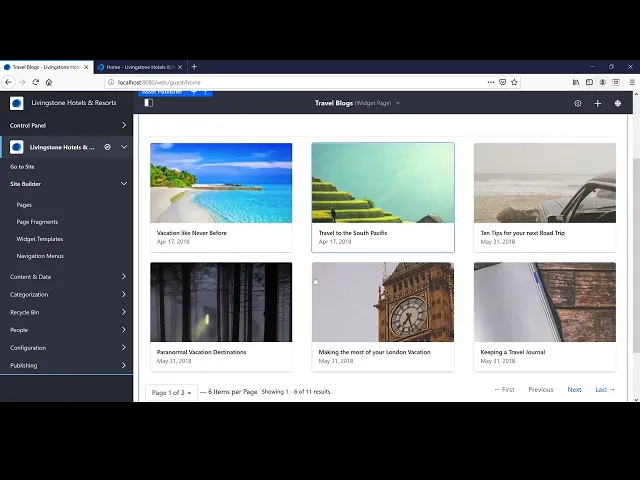
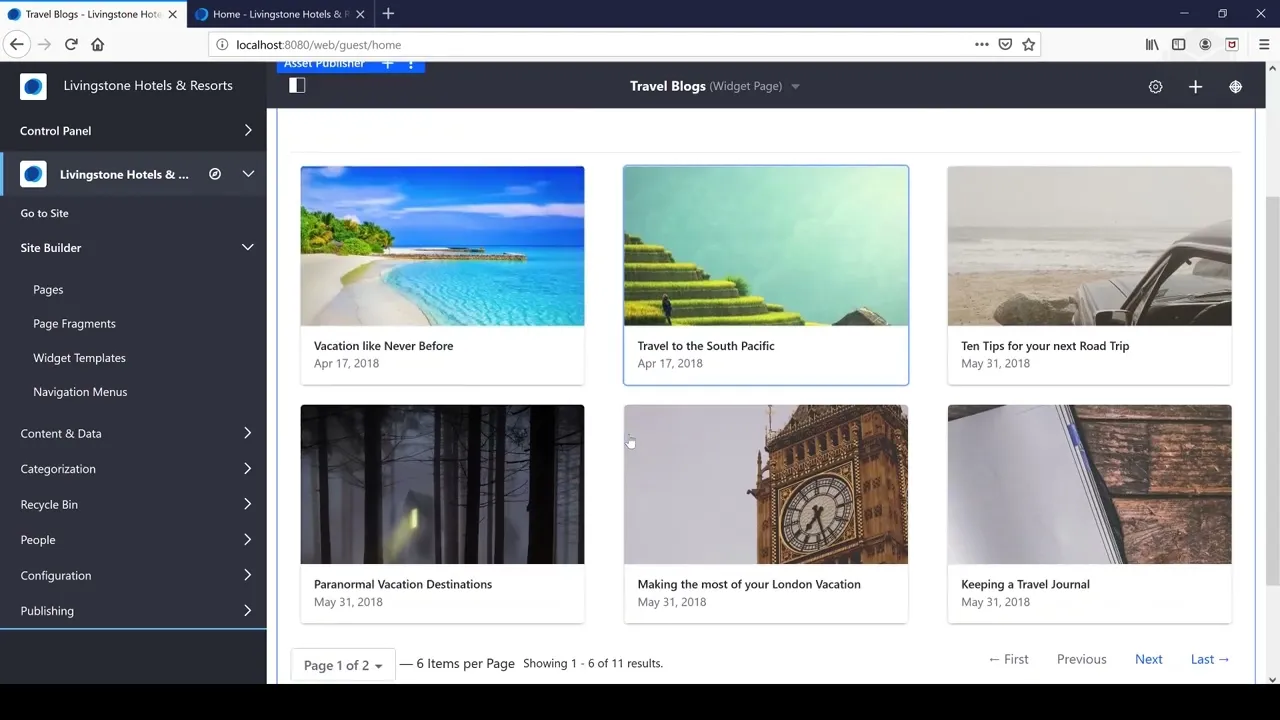
go ahead and go back to the site and we can see there are these two pages on the travel blogs page we have the asset publisher and this is displaying blogs dynamically anytime you create a new blog it will be displayed here there's no no need to go ahead and edit this and add it in it will just automatically display we're showing currently six items per page now out of 11 results and we could pat go to the next paginated page and see the rest of them so where are these blogs actually located so if
we go over to content and data under site administration we can see that we have blogs here as well as other kinds of content and from here we can see as well all the list of blocks a regular user is not going to have access to this panel over here but as an admin we can have that access so this is a list of 11 blogs and then if we go back to the site we can see those same blogs listed in this publisher now i'm going to go ahead and jump to that last point
while we're here where we said we want to edit that asset publisher to display only blocks and really this is not going to change anything right now because if we actually look at that asset publisher here and we go ahead and go over to configuration we'll see that well okay it's actually specified to only show blog entries right now and that's because i edited this previously let's go ahead and set it to any and see if that makes any difference in the total number of results we press save we get that success message after that
we're going to have to exit out of this configuration menu and nope no change in results and that's because all we're displaying here is blogs that's really the only kind of asset that we have on our website right now if we refresh this page again no change in results what we can try to do is to demonstrate what this does is we can try to change this to some other type of asset for example wiki page and now we see that our asset publisher is totally empty so that just shows space some basic configuration for
the asset publisher okay i'm going to switch that back to any for now so let's go ahead and take a look at these page fragments here so this home page is quite long it's composed of many different page fragments we can investigate those page fragments as an admin by going over here to the site administration site builder page fragments section and from here we can see a collection called livingston front page and within here we have a total of 10 different page fragments that have already been created for us we can examine those edit them
perhaps if we want to using html css or javascript and then we have the visualization of that page fragment here i'm going to go ahead and go back well now that we've seen the the page fragments let's go ahead and go back to the site and at the current moment we can't edit anything here so we're going to go over to the control menu at the top and we're going to click on edit from here we can see that we now have this cursor that's sort of not enabled when we're up here and that's going
to be because if you click on this you'll see it says this area is defined by the theme to change the theme settings we're going to have to go to look and feel configuration so we're not going to worry about that right now the point is that this is established by the theme but there are some things that we can edit on this home page so you'll see as i hover over this i have this this pop-up here that says main banner that's the name of this fragment i can go ahead and remove that and
that's pretty safe to do because at any time you can go ahead and click up here on discard draft and that will roll it back to whatever was published or saved last so if i do that i'll see that okay i'm it's back here the main banner is back in action let's go over here on the right and we can see that collection of page fragments that was created for us and we can see them all listed here at any point in time we can drag and drop these now you'll see that blue sort of
line appear between the top of the page and this page fragment or we can put one here for example scroll down put featured packages here and you put another one right here just to show how that works and then again if i want to remove it i'll just go up here and then whenever you're satisfied with your changes you just go up here to publish click that button and you get that success message down here in addition let's say that you want to customize a specific page fragment for only one page what you can do
is go ahead and just double click on that section of the page fragment and you can just start typing there i've clearly shown that this main banner has been edited if i publish that there we go you can see it and if i now go back to the main banner and add this in again here it hasn't changed at all right the text for the actual page fragment is still the same so that allows you a little bit more fine-grained customization of specific pages so we viewed the imported page fragments we viewed the blog posts
we've tried editing the home page a little bit and we've also tried configuring widgets let's go to the next video [Music]