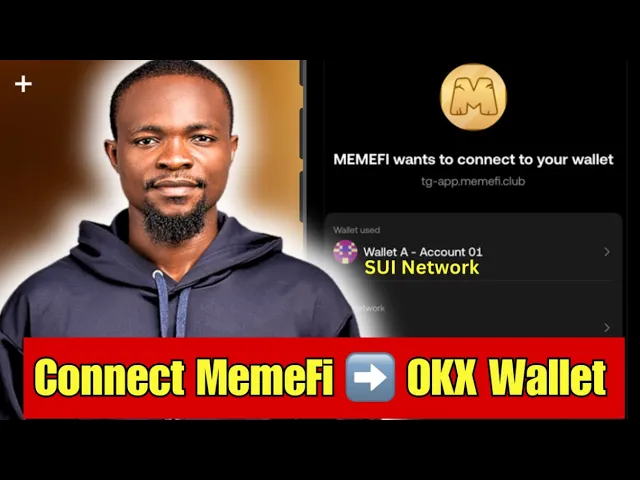
how to connect your mire to oks wallet with the S network mire recently adopted so you need to watch this video very carefully because once you make a mistake you might not be able to recover from the mistake I'm very serious this time around if you make a mistake you might not be able to recover from the mistake so watch this video very carefully as I do this step by step so now the first thing we want to do is we want to download the okos wallet yes you want to download the okos wallet so
the first thing you are going to do is go to your Play Store or Google Play store or whatever where you download app on your phone so just like this search for oks so you are going to see oks wallet oks exchange oks whatever just click on anyone the three things is still the same thing so once you click on it it is still the same thing so click on oks wallet so you're are going to see oks buy crypto BTC and uh uh BTC and crypto so now make sure you download this app on
your phone or your Android phone or your iPhone so once you download this particular app you are going to have it on your phone just like this so so you're are going to see it on your phone being here so I'm going to open it right now and you are going to see sign up or login don't sign up or login yes don't sign up a login because Nigeria is has been restricted from using their exchange and you can see it is under exchange right now so Nigeria has been restricted from using the exchange so
you cannot even sign up or login all you need to do is switch over to wallet because wallet is what we are using switch over to wallet which is right here yeah once you switch to wallet you're going to see we have a new app already so the two app is inside the same application the wallet and the exchange is inside the same application so we are dealing with wallet right here so now you can see we have create wallet and we have I already have one so if you have an oks wallet already you
are going to click on I already have one and if you don't have okos wallet already you can click on create one uh if you have oks wallet already maybe the one you use to check your eligibility so you need to go and copy the seat phrase from that one and import into this I already have one so once you click on it you're going to see import with seed phrase or private key so if you don't have one already you can just click on create wallet so now let's click on create wallet and here
it says seed phrase wallet so you're are going to click on create now now so click on that it's saying creating wallet so just wait for it so here our wallet has been created our wallet has been created so here to copy or save your SE phrase you know I talk about SE phrase SE phrase means that you see we do not register for you to log in your oks wallet the SE phas is all you need to always log in because we do not register with username or password we do not register with email
we do not register with uh username we do not register with phone number so to always login wallet wallet does not use email or password to log in wallet we use seat phrase so that is why I said you can import your seat phrase from your previous account so to see your seat phrase just go to this particular place here you can see on the screen right here here just click on that place you are going to see backups so once you click on backups uh you are going to see wallet a not backups just
click on it and here you are going to see C SE phrase seat phrase so you just click on the seat phrase and it says why should I back up your wallet is a decentralized wallet so you just click on continue and just wait for it to go just click on I understand St your seat phrase somewhere offline where people cannot see because anybody that have access to your seat phrase can log into your wallet so it says backup seat phrase now so here if I review what is here you are going to see the
seat phrase inside but this is just a test wallet I'm not using it so I'm going to reveal is just tap on it and once you tap on it it is actually going to show the seat phrase so my seat phrase has shown but you cannot see it on the screen because uh the Privacy is there so that is the seat phrase so you need to copy it or write it down they say write down seat phrase so um just click on continue and they're going to ask you to confirm what you have read what
is word number two so you have to select what word number two is they ask you for word number five you have to select what word number five is word number number 12 you have to select it and click on done which is right here so I have uh confirmed my seat phrase it asked me for what is in number three so I input it and number six I input it and number nine I also input it make sure you you write your seat phrase down in the first place please write it down because you
might not be able to screenshot it so write it down in a sheet of paper so you can able to bypass this uh confirm your seat freas so now uh I'm going to click on done I'm going to click on done so if you having issue with all these it's not connecting please use a VPN probably connect to uh us or Germany on your VPN if you're having connection issues so now I'm going to click on done and we are done with uh oks like this now we need to connect our mfi we need to
connect our mfi to oks so the next thing you're going to do is you are going to go to your Mile right now so basically you need to connect to a VPN to be able to do this thing very well you need to connect to VPN so right now I have connected to VPN you can see I connected to satu on my VPN which is windscribe so if you don't have a VPN you need to download a VPN so right now just make sure you have opened this uh uh uh oks wallet now we need
to go back to our mfile right now so once you on mfile click on N which is right here you can see n right here so once you click on end you are going to see this particular task called connect oks wallet onu connect oks wallet onu so just click on it connect oks wallet on TW so you're going to see check the task so click on check the task so so once you click on check the task it's going to bring out the link for you so just click on yes on this particular link
which is right here so once you click on yes it's going to open so it's going to open and say connect mfi wheni want to connect to your wallet so just click on connect wallet the S network has been connected right there you can see one network you can see if you open it you're going to see the S network which is right there so now all you need to do is click on connect wallet which is right here so just click on connect wallet so once to do that it says connecting and just wait
for it okay want to open your telegram okay so just do like that just wait for a couple of seconds so it says approve in wallet you can see app please approve in wallet just go back to your oks and wait for it just wait for a couple of seconds so here you are going to see please uh signing this message so signing this message Network s and the wallet whatever just click on confirm which is right here so once you click on confirm you can see mfi has been added right here mfi has been
added right here so now go back to your mfi app and just wait for it couple of seconds it says thank you for completing the task return to the game so you have actually completed the task right now so that is how to connect your mfi with oks like I have said make sure you own your VPN but there's a strategy of uh owning the VPN so now let me just tell you the strategy of owning the VPN so that you are not going to be banned or disabled on mfi so now to own your
VPN or not be disabled on mfi or probably telegram so make sure you have opened your mfi already before you own the VPN yes don't own the VPN before you open your telegram make sure you have opened your telegram open the mfile so just use the VPN to connect your mire to oks because without VPN you cannot connect your me mire to ok years in Nigeria so I hope you understand the step so make sure you watch this video step by step to understand what I just explained so thank you and I'm going to see
you later in another video and I will be saying bye for now