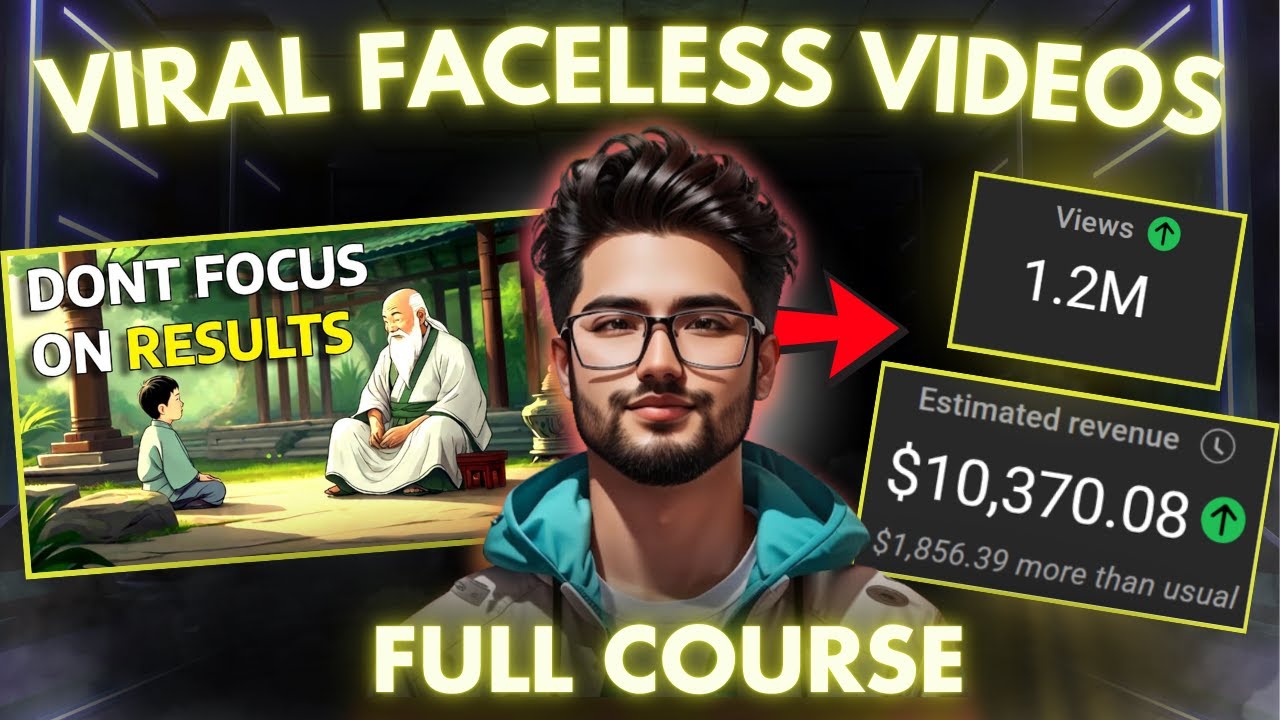
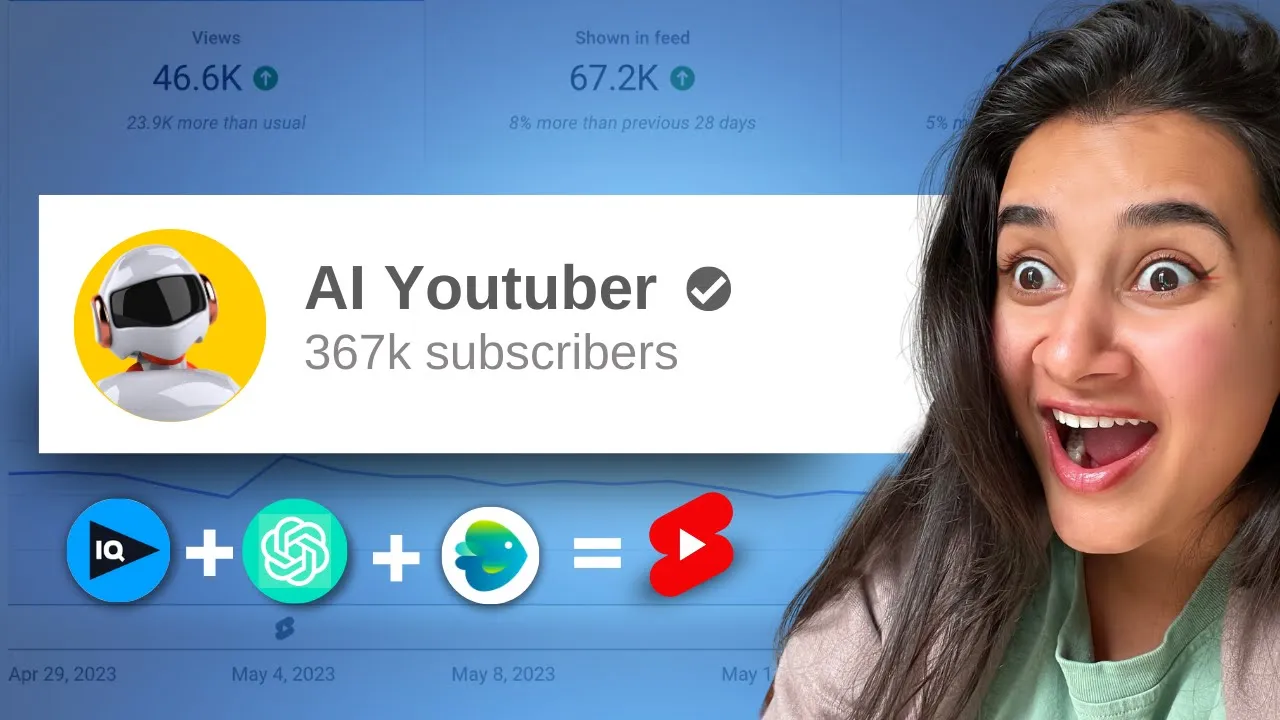
This YouTube channel makes videos completely using AI, and the results will blow your mind. It gets over 6 million views a month and makes anywhere between $2,000 to $27,000 per month. That is insane, and that is why in today's video, we are going to recreate this approach and create a brand new YouTube channel from scratch, completely using AI tools.
So make sure you hit subscribe, and let's get started! The AI's first task is to find a niche for our channel. Now, this is super important because the niche determines everything—from the topic of our videos to the style of editing, as well as who our audience is going to be.
So for this, I am going to use VidIQ and their AI Coach, specifically, which is a tool that is very similar to ChatGPT but has been trained better for the YouTube algorithm. We'll start by asking it to suggest the 50 best YouTube channel niches, and we want these to be faceless so that we don't even have to worry about AI avatars or having a face on screen. So here's how we'll write the prompt for that.
This is a pretty cool list! Out of this, I like the option of creating a personal finance and budgeting channel. I think it's a very popular niche on YouTube, and we want a slice of that pie.
Next, we want to sort out the branding for our channel, which includes the name, the display picture, and the banner image. Let's start with the name. We'll once again go back to VidIQ's AI Coach.
Give me a list of gender-neutral names. "Morgan" sounds like a good one. Now, give me 10 YouTube channel names on personal finance and budgeting by someone named Morgan—"Money with Morgan" is actually really nice!
And while we’re at it, let’s also ask it for the channel description: "Write a first-person YouTube channel description for an AI-run YouTube channel named 'Money with Morgan,'" and then we'll just add it to YouTube. I absolutely love that! Now, for the second leg of this journey, which is the profile picture, we are going to use another AI tool, which is DALL-E.
Just log in with your ChatGPT credentials and type in your prompt in the prompt box. We just want a cute robot face here, and this second one actually looks lovely! Now for the banner image, we want to have a fun, catchy slogan that urges users to subscribe.
So I'm going to ask VidIQ again to suggest a few catchy banner image caption options, and I really like this one: "Money dog just got fun! " To turn it into a banner, I'm just going to put this text on a teal background in Photoshop to match the color from the robot profile pic. And with that, our branding is completely done by AI!
Insane! Now, the next task for the AI is to come up with solid video ideas that we can get started with. Again, VidIQ is a great tool to use here because it offers something called daily ideas if you're on the paid plan.
If not, you can just ask the AI Coach for ideas for your channel. We'll be creating YouTube Shorts since they have a better chance of performing well and have less room for AI error as compared to longer videos. And this is the prompt we are writing: "Give me 10 YouTube short ideas for a channel on personal finance and budgeting.
" Now, out of this list, I actually want to go ahead with "Five Budgeting Tips for Beginners. " Now we get to the heart of the matter, which is creating the actual videos for the channel. Now, any great video has five components: script, visuals, voice-over, text or captions, and music.
The great news is that we don't need to use multiple AI tools for each of these components; we can do all of this just by using InVideo. Let me show you how! I am going to start by logging into my InVideo account and then go to the text-to-video workflow.
Here, we want to choose a vertical template, so I'm just going to select the portrait aspect ratio from the menu on the left, and then we'll just scroll through to find a template that we like. Now, at this point, I just want to pay attention to the transitions and the text styles because I don't want to have the hassle of editing those later. The rest can be customized very, very easily.
Now, once I have the template selected, I am going to click on "Use Template" to go to the editor. Here you have the canvas area on the right and the script box on the left, with an option to get AI's help for writing your script. In the prompt box that opens up, we will give the AI a prompt for the type of video we want.
For the first one, I just want a simple five-point listicle on the best budgeting hacks for beginners. Remember, how you write your prompt determines the quality of your script and therefore your video, so we need to ensure that we include a few key details in the prompt: the type of video that you're creating, the length of the video, the topic of the video, the tone of voice you want, and what kind of details you want the AI to include to make the script rich and informative. I find that on InVideo, separating each of these key details with a semicolon helps the AI give you a much better result.
Now, once you press enter, the AI creates a script in real time. Now, if you don't like the way the script has turned out, you can give the AI a fresh prompt. And keep at it until you get the version you like.
I actually quite like this version, but we are just going to clean it up a little, breaking up the bigger sentences. With that, our script is completely ready. Now, to actually turn this into a video, select the premium media checkboxes on the bottom of the script box, and then click on "Create Scenes.
" InVideo will then automatically find relevant stock footage from premium sources like Shutterstock and iStock and turn your script into a video. Now, this might not always be 100% accurate, but you can easily replace the default ones with new ones. Once the scenes are created, the next step is to replace the default template media with more relevant clips.
For this, we are going to use InVideo's inbuilt media library to find relevant clips and images. Simply go to the "Video" tab in the left menu and search for the kind of clips you want. We want ones that are related to money and finance, obviously, so make sure you use a few different keyword combinations to get the right results.
Once you find a clip you like, simply drag and drop it onto the canvas. This will open a pop-up window where you want to hit "Replace. " This will open up another pop-up window where we can trim the duration of the clip to match the duration of the scene.
Select the option at the bottom of the screen that says "Trim video to fit scene," and then click on "Add," and your media will replace the template default. Now, you will need to do this for all the scenes where a media change is required, and then we move on to adjusting the text. Here, we only need to make minor adjustments, like resizing and repositioning the text on the canvas.
This is a step that you will need to do individually for each scene. Once that's done, you can just select a particular text box on any scene and then use the menu on top of the canvas to change things like the font, the color (with this option), add effects using this little wand icon, and even change the animation. I actually like all of those things for now, so I am going to let them stay as is.
Now, the great thing about these options is that once you do it for the text box on one scene, you can just select the option of applying the change across the video. Once your media and text are finalized, we move on to adding the voiceover. With faceless videos, this is a major step in improving retention and getting people to pay attention.
Now, within InVideo, adding a voiceover is also super easy to do. All you need to do is select the voiceover option at the bottom of the screen, and this will switch you over to the editor workflow. Here, all you need to do is select the automated text-to-speech voiceover, which will open up InVideo's library of AI voices on the left.
We have added a lot of new realistic and human-sounding voices, so make sure you pick your selection from those. This is the selection that we are going with: “Hey everyone, here are five budgeting hacks for beginners that will help you save money and become financially free. ” And that actually sounds pretty good.
Then just click on "Generate Voiceover," and InVideo will create your voiceover for you and add it as a layer on the timeline, even syncing your scenes to the timing of the narration. Once that is done, all that is left to do is change the music. If you do like the default music track, you don't need to touch it; but if you don't, you can just go to the music library on the left and search for tracks based on mood or genre.
We need something with beats, so I am going to look at the hip-hop music tracks. Once you find a track you like, simply select the existing track on the timeline, delete it, and then click on the plus icon next to the chosen music track to add it to the timeline. Now all you need to do is reduce the volume of the track so that your voiceover is audible.
For that, select your music track on the timeline, then choose the volume and fade controls on top of the canvas. Yes, just lower the volume to between -20 to -25 decibels. Make sure you give it a listen before you finalize.
Now, once you've locked all your elements, it's time to preview your video. Simply click on the play button underneath the canvas to view what your video looks like. “Hey everyone, here are five budgeting hacks for beginners that will help you save money and become financially free: 1.
Track your spending and create a budget based on your income-to-expenses ratio. 2. Cut down on unnecessary spending, like eating out or streaming services you rarely use.
3. Use cash envelopes to manage your spending and prevent overspending in certain categories. 4.
Consider shopping at discount stores or second-hand shops for clothes and household items. 5. Automate your savings by setting up automatic transfers to your savings account or investment portfolio.
Start applying these hacks in your life and watch your savings grow, and follow for more. ” This has actually turned out to be pretty great! Now, once you're happy with the results, go to the top right corner of the screen and hit "Export.
" We suggest exporting in 1080p for the best results. If at any point during the process you face any difficulties or are not able to figure out how to proceed, you. .
. You can use this chat option right above the timeline to speak to our 24/7 support team; the response time is less than 30 seconds. Alternatively, you can also go to help.
invideo. io to refer to the massive library of resources that we have on using InVideo. Now, once your video is rendered, you can download it and then upload it to your channel.
Here, you can take advantage of IQ's help to come up with interesting titles and catchy thumbnail ideas as well. So, don't forget to check out this video next to learn how you can bulk create 30 YouTube Shorts in a day using AI, and this one next to learn the best AI tools you can use to aid your YouTube growth.
![How to start a faceless YouTube channel with AI [1 HOUR COURSE]](https://img.youtube.com/vi/FI9lM_5xhzA/maxresdefault.jpg)