okay so on today's video i'm going to show you how you can easily change your background or scenes within obs by simply just setting a few shortcut keys where you could change to a variety of different scenes and scenarios all with the click of a button so let's go ahead and get into this video and see how we can change scenes within obs welcome to another episode of geek outdoors.com on this channel you'll learn how to be creative and i'll teach you the tools you need to create so be sure to hit the like and
subscribe button to help the channel create more content like this so switching scenes within obs is a fairly simple process once you've already created and set up all your scenes and so if you're brand new to obs and you're not familiar with what scenes are i do have a video that shows you how to use obs and how to set up scenes and i also have an entire obs playlist as well so if you wanted to see that i will leave that in the description air below and so typically whenever you set up scenes i
have here the way you switch them right now is manually you would have to manually click between scenes and that's okay if you're only going to be recording it you know like one scene at a time but if you're doing a video especially if you do like gaming type video where you need to switch between a variety of different scenes then doing it manually this way it's really not the best way to do it and it's not going to work whenever you are recording your screen and then all of a sudden people see you bring
up obs and switching these scenes manually and so the way in which you'll be able to change this is by using the hotkey feature within obs and so all you have to do is go down here to settings and once you've done that you'll come to this section called hotkeys and here you just scroll down to the bottom and now you see all the scenes that you've already set up and about the only thing you have to do is go here to switch to scene and then you could assign the key or key combinations that
you want to switch between scenes and so for me i keep it really simple i've just assigned numbers to each one of these so if i press number eight it'll switch it is seeing number two it'll switch you this scene and you get the idea and once you've put in your hotkey combinations all you have to do is click on apply and then okay and whenever you get back to obs now you can use the new hotkeys that you've assigned to easily switch between scenes on the fly within obs for serious youtubers check out tubebuddy
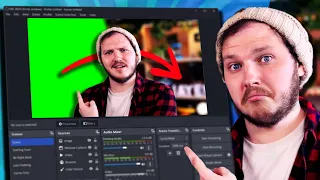
the premiere tool news at geekoutdoors.com get more done today by checking out the affiliate link in the description area below and as you can see this is a very powerful feature that you can use especially if you're the type of person who likes to do these on the fly game streaming videos because i think a lot of people who are game streamers use this feature a lot and so that is it on this video on how you can actually switch things within obs and if you are interested in learning how to use the green screen
feature of obs like what i have here i did create a video on that as well and i'll leave that in the description as well if you wanted to learn how to do that so if you actually had any thoughts in this or any other ways in which you use obs be sure to leave that in the comments air below and if you didn't want to see more of my obs tutorials and tips the playlist is in the description area so as always if you did get value out of these videos be sure to share
like and subscribe and if you're a creative geek like me and you want to get exclusive access to more content that i don't put out here publicly on my youtube channel then join my goal content creators group where you're going to get content like this and more for all the creative geeks out there and the best part is all of this is free simply head over to the link below check on page and sign up for my go content creators group