[Music] hello and welcome in this video we're going to be taking a look at how we're able to add pages using a page template let's go ahead and get started so first thing we're going to do no matter where you're at we're going to click on the menu button over here towards the top left once the menu expands we're going to be clicking on the site selector it's going to be this compass looking icon right here once you click on the site selector we're then going to be selecting my sites from my sites we're then
going to be selecting global once we're here in the global section it should by default send you over to site builder followed by pages if it doesn't feel free to navigate over there once you're here we're going to be clicking on the blue plus button over here on the right hand side to add a new page template so since we're in the global context whatever page template we create here will be made available to all of our sites that we create so since we're creating a new page template here on the global site or global
context whatever sites we currently have or create in the future this page template will be made available to all of them so let's give this page template a name so the name of the page template will be hotel landing page if you want to add a description feel free to do so i'm going to use the description that's within our instructions if you don't want to add a description that's okay too right just so that we we have an idea of what exactly is this page template used for once you're all ready go ahead and
click save so now that we've created the page template itself let's go ahead and go into it and configure it so let's click on hotel landing page and from hotel landing page let's configure it by clicking on the gear up here at the top right once we have that selected we're going to be selecting the one two one column so we're going to have it so that that middle column is 50 50. so make sure you have that selected and then from here let's head over to the look and feel tab uh what we'll do
from here is click on the radio button that says define a specific look and feel for this page once we have that selected we'll then scroll and we're going to change the current theme we're going to change the current theme over to the fjord theme that we uploaded from the previous video so once you have that selected go ahead and scroll down and then click save by clicking save this not only saves what we did at that look and feel tab but also in the previous tab with the what we call layout template all right
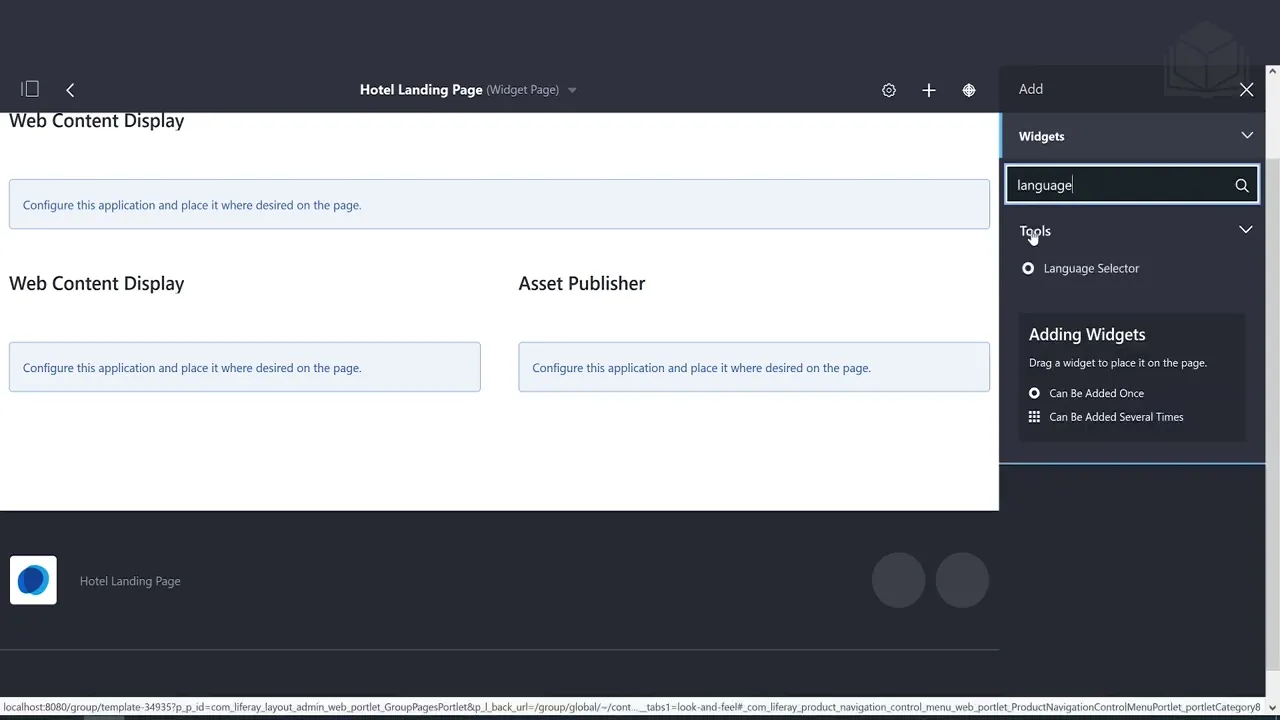
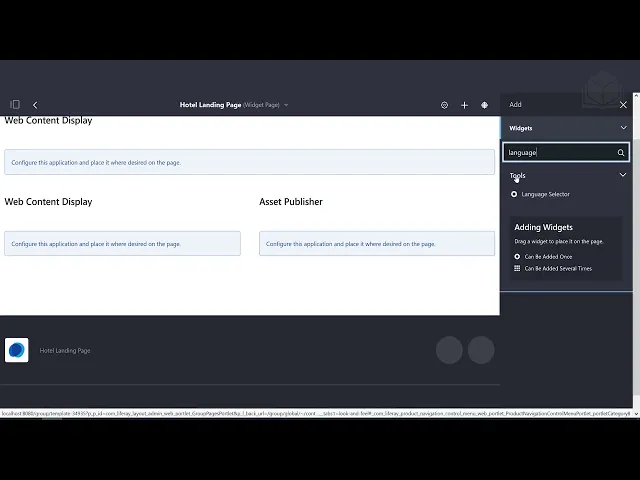
still making some configurations here let's add a couple of widgets to the page so we'll click on the plus button up here at the top right to add a few widgets so once we click on that plus button let's head over to highlighted and then from highlighted we're going to be selecting the web content display on the web content display we'll go up here at the very top and we'll use our imagination and pretend that we can see that a layout template one split in the middle and then one at the bottom okay we'll then
use the web content display one more time to add one here to the left hand side of that middle section right the next widget we're going to be using is that asset publisher putting it on the right hand side of that middle column and then finally one last widget we're going to be adding at the very bottom of the page it's going to be the language selector right if you want to use the search bar like i am feel free to do so you can type language and then it'll show up it'll be under the
tools section adding that at the very bottom very good feel free to exit out of that ad and then we're going to click on the back button again everything that we just did on that page adding the widgets is saved automatically so no need to worry about clicking a save button all right so finish creating our first page template let's go ahead and create another one so clicking on the blue plus button here on the right hand side creating a new page template we first have to give it a name asset publisher page feel free
to add a description if you would like right again you don't have to add a description if you don't want to but it's good practice and then clicking save all right let's go ahead and configure that new page template we created so clicking into the asset publisher page we're going to click on the gear up here at the top right i'm going to toggle back over to the general tab and we're going to select one column from one column let's go ahead and click save all right as you can imagine based off of the name
of the page we're going to be adding a widget the widget is going to be that asset publisher so heading over to the highlighted section you can put it on the page and there we go very good so we've created our second page template all right so now that we've created a couple of page templates let's go ahead and see them in action so let's head back over into the menu from the menu i'm going to click on that compass or the site selector and we're going to head back over to the livingston hotels and
resorts site from here let's head over to site builder and then from site builder we're going to be selecting pages we're going to be adding a public page clicking on that plus button that lines up with it and then from here let's click on global templates from global templates we should see the two page templates that we've created let's go ahead and start off by using the asset publisher page first so we have to give the page a name the name is going to be livingston gallery right so we're creating a new page based off
of the page template so in this case whatever widgets whatever configurations are on that page template is being applied directly to the page that we are creating but i'm going to go ahead and click save just to solidify any of the changes that we've made so we can navigate to the page itself let's head over and click on this go to site button over here and then you can see up towards the top we have in the navigation menu that livingston gallery clicking on that link brings us to the page itself so very good and
we have a couple bonus exercises over on the right hand side so this wraps it up for this video and i will see you in the next video



![Upbeat Lofi - Power and Energize Your Workday - [R&B, Neo Soul, Lofi Hiphop]](https://i.ytimg.com/vi_webp/ONcY0BM5EAg/mqdefault.webp)

![WordPress Tutorial For Beginners 2024 [Made Easy]](https://i.ytimg.com/vi_webp/kYY88h5J86A/mqdefault.webp)