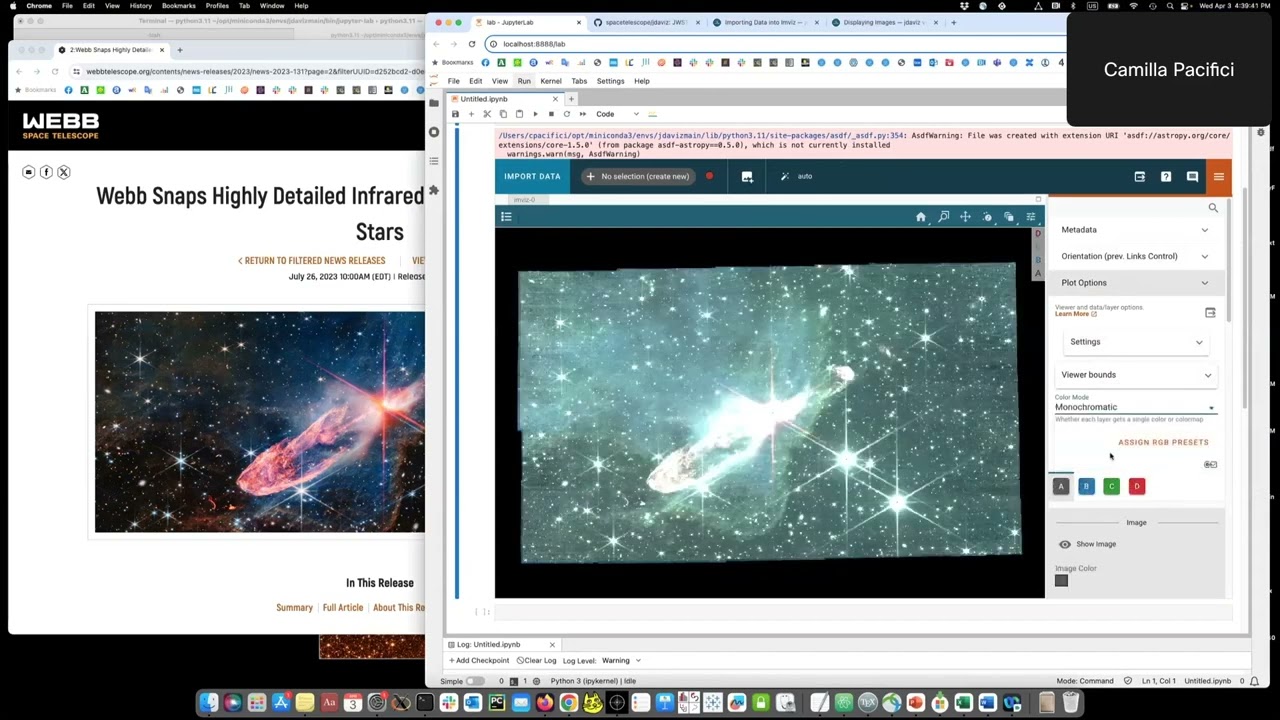
This video is the third in a series on ImViz. In the previous video, we showed how to open two images in the same window. Now, we will demonstrate how to open two images side by side into separate windows and link them by WCS.
We will first define a new window, also called a viewer. Since we already loaded the F770W data into ImViz, we just need to load that data set into the second viewer. Like before, we apply the same cut to improve our contrast.
You can see both windows have data loaded, but the data are not aligned. Next, we open the plugin toolbar in the upper right of the tool. There are a number of functions that can be applied to manipulate the data.
Similar commands are also possible using the API within the notebook. In this case, we will align the images in the two windows by their WCS coordinates. Nothing happens immediately, but once an image is manipulated in this case by zooming, the two images become aligned.
In our next video, we will demonstrate how to interact with your data using the tool itself as opposed to using the notebook. We will explore the plugin toolbar.