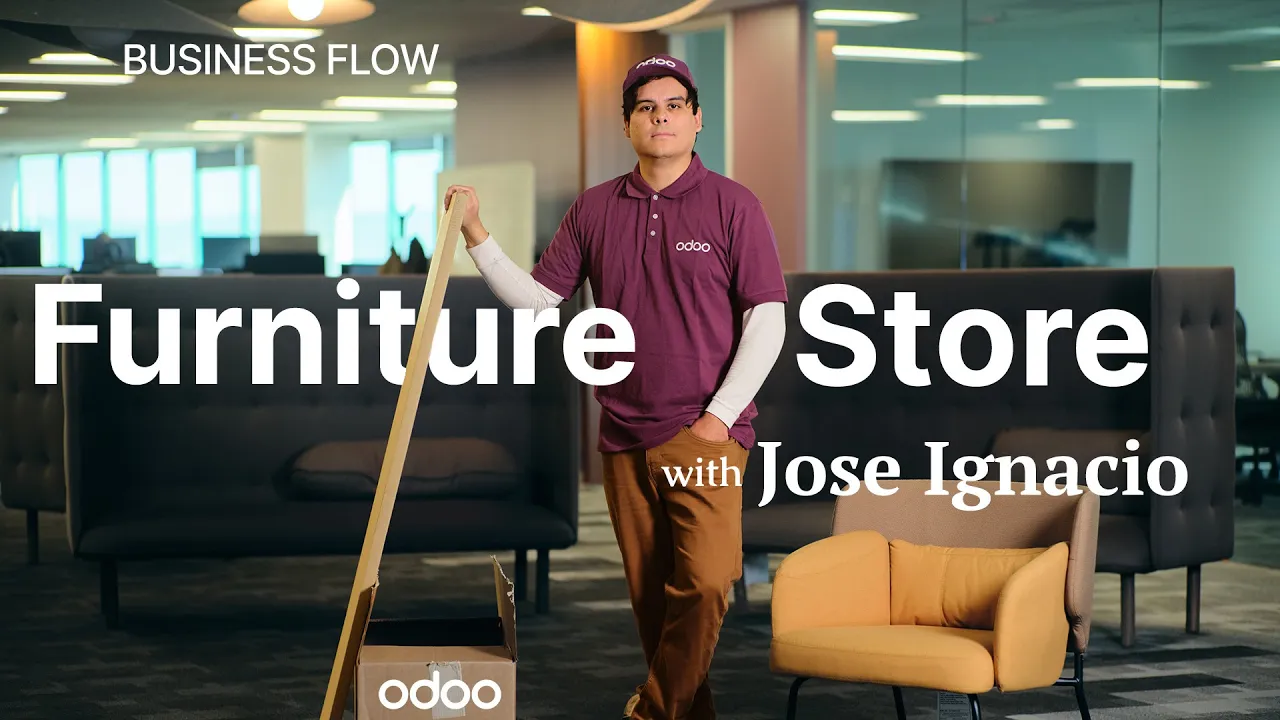
hello doers my name is Jose gasio so for this business flow we're going to be discovering how Cozy home manages its furniture store using ODU Cozy home sells upscale furniture and home accessories from kind of stuff like in this room like sofas low tables like over there you know for your living room maybe even stuff for your beds and nightstands for the bedroom however let's not get ahead of ourselves talking about furniture because before in anything marketing comes into play the marketing Department's role is to create a leads for the sales team and there are
many different ways of doing that so let's start with our main one building a website for Cozy home so enough chitchat let's get right into this database okay de so here we are on our website's homepage you're going to select Ed in the top right corner just to get started customizing it so as you can already tell we have selected our own theme already for the website but we can always change our themes or edit the colors as well inside of our website editor so on the right side of the scen over here we have
our web editor there's blocks customization Tab and as well as our Theme tab I'm going to click into the Theme tab because I just talked about how we can switch themes so let's hit the button that says switch theme and okay to proceed forward now o immediately takes us over here to where we see a very beautiful view of all of our selectable themes from here I can choose any one of these and if I hover my mouse over them gives me a quick little scroll so I could see what's going on and in this
case I think I like the one that I designed already and I want to further customize it so let's hit X out of there I'm just showing you that in case you wanted to change it up just want to show how easy that is all right let's start building cozy holm's website with odu's simple drag and drop functionality so to start I'm going to select edit once again and right now I am over here in our blocks I'm going to be adding a few of these building blocks very first one I want is an introduction
I'm going select this one because it has a quote we are the best company ever this is going to be important and you'll see why soon enough let's go back again once to the blocks okay so we have our intro let's add some columns following that and once again we can always pick what types of columns are specifics that we want and this one right here that has selections well that relates the most to what we're selling which is products and then finally moving on we're going to have some text because I got a lot
of pictures going on this one's pretty good so we have seemingly built something already that looks pretty good it's coherent let's edit some of these things and our style so we're going to start with a cover up at the top so now I think it's time for us to change the title which as you could tell I'm just clicking things and it just lets me edit them awaken your inner designer man this is actually incredibly easy okay and then let's also edit this nice little subtext that we have right below it we hand pick Furniture
you will love beautiful you know what I don't like this button that says start now it doesn't feel as modern R is going to say discover it's very mysterious and it works as a button and if we would like we can actually even use AI to be a better copywriter I mean look at this we are the best company ever so if I highlight it right there and I'd like a suggestion for it all I have to do is select the AI button over here under the customized tab at the very bottom and just like
that I get a few better sentences and then look at that right there I think we want this one and it gives you a few other options like in my case let's lengthen it I need people to know o oh my God now we're cooking it's like Jose ignasio didn't even write that and furthermore than that I think we need a little bit more of a serious color change I can change the text and button and colors as well so to do that we're back over here on our website editor on the right hand side
and for the background I'm just going to select somewhere up here and you see this little bubble right there next to background if we select it we can start to change our colors and we immediately see changes as we're hovering them if we' like once we find something that we like we just select it and I'm going to click that one because it looks even cooler now look at this we're just cooking all right I can actually also edit the button colors as well we want a little contrast we want to basically redirect people so
if we go over here and we select the link right there we can edit the link that this button is going to take people to and you could paste it right there if you would like to for the time sake I'm not going to do that right now I just wanted do to see what else we can do so let's move a bit forward all right now we're here at our column block below and I would like to change one of these pictures just to show you because even better odor provides us with a database
filled with royalty-free images I can use no need to use another site or app it says easy as just a quick in my case nice little double click right there on this first image and then if we search for the word furniture look at that I have a whole bunch of stuff appearing you kind of want to match that style so I'm going to go with this I don't know this black chair o for elegant that's beautiful right there that showcases everything for you but in my case let's assume we're going to go back in
there I already have an image that I like to use if I wanted to I just upload it here and it'll appear below I've done that ahead to save us some time with this nice little frog chair that I had right there and seamlessly it's immediately pasted right there and it's really easy for the rest of these so let's move forward though so you might be asking yourself what else can we do well remember that text block that I just added well here if I wanted to if I highlight some text I can actually add
a short story about Cozy holm's Mission now I could do that very manually and try to come up with nice anecdotes or if I wanted to I could just highlight the text that I have like this do the slash chat gbt right there boom we can actually use chat GPT to create a paragraph about our company so I'm going to give it an option to create a paragraph on cozy Holmes commitment to 100% customer satisfaction like that it's created it but this seems incredibly long people won't read it so I'm going to say please shorten
it and just like that it starts thinking and boom now we have it now he's cooking okay let's inser that by just selecting the insert button right there and just like that it's right there so options like this are what really helps us help you this means that someone with zero design skills whatsoever can just use this feature and create pretty awesome Pages that's some money saved and you Flex that DIY muscle o doers so finally once that we're all done with everything that we've done here we're just going to hit save in the top
right corner always save the one thing you need to do okay now once that we're done with this look at this ah it just looks so cool everything is there and now you might be asking yourself what will this site look like on a mobile device so to check that out I'll actually just click on this little mobile phone icon in the top right corner and just like that look at that it automatically changed the placement for all of our pages and everything H I love this it almost feels like a whole new website but
I think it's time for us to work on other site pages so to get there we're going to need to click on that mobile icon once again bring us back over here to the front to our desktop view okay so the co home website is going to start to get visitors pretty soon however they don't want people to just visit the website and you know be a window shopper we need conversions on those visits so that they can become leads and business opportunities for a sales team so to do that we're going to create a
basic landing pages so it's a call to action page so we're going to select new and page and landing page is perfect we're going to go with the very first one and we're going to name this free shipping yep we're using that tool perfect we've also selected the option or by default to have it added to the menu so it's pretty easy to find so immediately we're going to change some stuff here first of all this should say free shipping with a question mark because remember we're trying to get them to think about it so
for this next part I'm going to put register below for free shipping on the first order pretty simple and like all things inside of the website builder deleting is just as easy as creating but this is a pretty basic page how are they supposed to fill it out well let's select the blocks over here on our right side and then we want to be able to add in a form so it's going to be a contactform that we're going to put right there perfect um I think I need one that has Aries to fill in
so let's go with this one so fill this below we we will send email with a code to follow perfect now we can move forward with all of this so the very first thing I need to make sure that I change here inside of our website editor is I need to change what the action that will happen when visitors press the submit button below so by selecting it now I'm able to edit it so we have a few different options available Cozy home wants the form to feed all of the information that they're going to
type inside of here into the CRM app creating a lead that they can follow up on so we're going to set this form's action to create an opportunity it's way more efficient than receiving the information by email and manually entering everything into the database so to confirm that underneath the customize tab over here you see right here where it says action we're going to change it to create an opportunity and then you can further select a sales team and A salesperson and it's just that easy okay once that you're done with that and you set
the sales team in the salesperson any leads generated by this form are automatically assigned to the team and salesperson configured inside of here so in our case let's make immediately the phone number needs to be required I need to be able to talk to people so we just select this little toggle down here and now it's required so this is just so the customers can submit the form without entering a phone number and then moving forward I see one that I don't want required so now showing the opposite will make that not required and it's
the company that is something we don't want mandatory and you can tell which ones are by the little asterisks right there let's move on to edit some of these things further so let's look at the subject one over here I kind of don't need this question so we're going to change the label on it what are you interested in this way they can kind of fill it out and then it gets us a little bit easier and finally for this one below over here the your question I think it's time for us to change this
so for our type on this one I actually want this to be Tagged so I can select that right there and look at that visitors can select which Furniture types that they're interested in these tags are then configured inside of the CRM app finally once that we're done with all of this everything looks good all we have to do is hit save in the top right corner and then we're still not done because you need to publish this so that people can see it immediately and let's see what this looks like for a customer so
I think it's time for us to fill out the form to creating an opportunity directly in Cozy home CRM so in a customer window over here we're going to see this free shipping and select it and then I think it's time for us to fill this out really quickly so here we are on the main CRM dashboard and I happen to be a salesperson now so let's remove any filters just to make sure we get a good board's eye view of everything and as you'll notice under the news stage we can see the lead that
was generated from the website from our very real customer a moment ago so from here the nice part is the sales team first tries to qualify this maybe they propose something thing they've called them they've messaged them and once the lead has moved forward they make the offer and then hopefully everything goes well and it's won and we see this nice little thing right there but I'm going to put this back right now because we haven't done any of that yet don't get ahead of yourselves so let's actually click into it because we're going to
edit this and we can actually see all those changes that I did right there so here furthermore inside of the chatter we can actually see a comment in Spanish by one of our Spanish co-workers we can easily translate it if we hover and we click on these three dots and we select it right there but I happen to understand Spanish and as another footnote on this translate option you have to set this up prior because it won't work without the proper setup and that's just being honest so moving forward they've let me know at this
point that they don't actually think that we sell quality Goods but I'm going to tell them otherwise this is a good note all right now let's edit some other things so from here we can add our expected revenue and this one happens to be $1,000 as he told us this person wants to spend a lot of money so if we wanted to we could even check the web pages that they viewed if we click on this page view smart button over here they went directly to contact us because they are a straight shooter so let's
head back using the breadcrumbs over here which happen to be Victory breadcrumbs so right now I want to talk about the fact that we have a lot of modern Integrations inside of ODU CRM application let's go even more modern and let's send a what'sapp message to see if the potential customer wants to have a phone call with the salesperson we can actually even use a preconfigured template to make that happen to do that we select the WhatsApp button there's our template right there for our CRM lead and we don't need to change anything we just
hit send right there and boom there we have it right over here at the top now since everything was ready to go everything went through pretty quickly but let's say the potential customer agreed and we can actually schedule to a meeting to do that we can do it directly here from the opportunity all we have to select is the activities button up here at the top and we can do our to-do in this case this one as I said is going to be a meeting and we're going to just do I don't know phone call
with customer perfect okay I'm going to select open calendar we're going to pick a random time tomorrow that's not too late and not too early and once the world set from this popup let's make the subject for it cozy call just CU it is cozy furnace everything else seems good so we'll just hit save and close and there we have it now we're going to jump back over here over to our opportunity so let's once again predict that it went well after the call and the customer is interested in purchasing some products in that case
we can actually send them the quote directly from here by selecting new quotation over here at the top then we can get started so I think it's time for us to make sure that we can do this quotation properly now they've told us the products that they want they would like our bed frame they would also like our mattress they'd also like our nightstand and I hope you keio doers are seeing something that I'm seeing right now they've told us they want one of everything so from here we can actually directly view the availability by
selecting on this little graph icon seems we have a good bit of everything else and some of our stock for some of the other ones were actually not doing great they happen to be in red right there so what does that mean we can see that we currently don't have enough wardrobes or nightstands over here to go forward as the icons were in red but if we wanted to we can still actually go forward and through with this even if we don't have the products in stock we can proceed with our quotation by selecting over
here send by email and then once that we do that we can get started with our template over here or if we'd like to we can write it up on the fly but for the sake of time I'm going to leave this as is and just hit send now once that we do that we get over here see in the chatter a nice nice little I guess I would call it a bird's eyee view of everything that's happening always and we can also see our PDF right here if we'd like to for a quotation it's
always good to see these things just to know hey did I send that quotation maybe I didn't now we can assume that they would pay online in the customer portal validate the order with an online signature by email or even WhatsApp in this case let's once again go modern new school whatever you want to call it let's assume that they messaged us on WhatsApp to confirm the order no problem let's manually confirm this quotation by clicking in our case confirm and then once that we're done with that it's a sales order and let's also send
them a confirmation message on WhatsApp because we're super cool by selecting inside of here WhatsApp button there we have our sales order copy we send it on over and boom just like that awesome everything once again by default was sent and now we could see right here that everything went through great now the sales team's job ends with the creation of a sales order and since Cozy home doesn't have everything in stock right now we need to fix those ones that we saw in the red the procurement team needs to take over those are the
folks who will approve the necessary purchase orders to replenish their supply so again moving forward in our timeline we are now at the procurement team and they happen to be inside of the inventory application because we can access replenishment from here we select up at the top our operations and then replenishment automatically here we can either click on order which will just do it once for this one and that will generate the necessary purchase orders to fulfill our confirmed sales orders or if we would like to we can also automate orders the second option enables
Cozy home to ensure that they always have a minimum and maximum quantity of a product in their inventory we actually don't keep extra wardrobes in stock due to their size so for the wardrob we're actually just going to select order in this case and that one is good to go and we have our purchase order and it tells us up at the top right and that helps us automatically know hey we don't have to worry about that we can click on that link blue text over there to go directly to it but we still need
to take care of those nightstands now for the nightstands we actually always want to have some in our warehouse because those suckers sell like hot cakes so let's go ahead and automate that procurement so let's set the reordering rule with a minimum in this case of 10 and let's set the maximum in this case to 30 it's a pretty good number right there and now we're going to select automate boom and just like that this means Odo will generate a request for quotation whenever the ninth stand inventory goes below 10 in order enough to have
at least 30 in stock and that's pretty cool now the procurement team has to validate the request for quotation so I think it's time for us to head on over to the purchase application so we've gone and moved from our reordering rules at this point to the purchase application because if you recall we have a request for quotation and here we can click into it now we can also see immediately that wood Corner happens to have if we look at this expected arrival area a 100% ontime delivery rate meaning all their previous orders arrived on
time impressive and it also gives us a quick inside look at how our vendors are doing however in the event that you want to ensure that your vendor will deliver on time again to avoid disappointing your loyal customer you can actually make sure that happens by also sending a confirmation to them which ends up happening before the promised receipt date to confirm that the products will will in fact be on time this saves you time and for that always make sure that you have this check boox ticked right there and then you can also change
the date as well in our case it's 5 days before but with all of that locked in we can go ahead and confirm our order and we're done so now that my hat's changed it's time for the inventory Department to take over so the nice thing with this team is that this team manages the received products they have a list of products to be received and a list of products to be delivered to customers the inventory team itself can manage the stock either through the barcode application or our inventory application for our example we're going
to be moving between both but before that inside of the inventory application select configuration and settings head on over to the barcode section inside of here let's make sure that Barcode Scanner is checked off as well as the ability to show quantity to count because it's pretty useful depending on the location now underneath the barcode scanner section you'll notice we have the option to print barcode commands if we'd like to and to set the default nomenclature or our own barcode n clature if we would like to and that defines how information is transformed into a
barcode for more on that check out the docs or the video specific to that type of thing because we don't have enough time to cover it all in a short time during this video so before we can even go about scanning we need to make sure that our products have barcodes we don't want to be sending the wrong items out so to achieve that we could click here on configure product barcodes but we're going to do it from the product itself just to give you a different look at that so we're going to select products
and products then select our n night stand because it's one of the items we're going to be talking about today so here on the product form on the right side of the general information tab we have our barcode field inside of here if we click on it we can type it in directly if we'd like to or if the item came with a barcode and you happen to have one of these bad boys we can actually just scan it directly and something cool happens it's automatically input so you can also add these to operation types
packages packagings and locations I'm going to be sure to leave links for you guys to see all of that below so I'm going to go repeat that for another item but let's save manually quickly and go over to our wardrobe which was the other item because I want to show you something cool so now we scan this one right there once again it's been automatically input but this one since we have a different item that we used it was able to have our own internal notes including a category section and more information see it's a
pretty powerful tool that even allows you to save time no one had to type that in and now that we have these done we can proceed forward and accept items the think it's time for us to go talk to some Warehouse people I'll see you there and then once that you have all of those barcodes set up and everything you can assume at this point that I happen to be the warehouse employee who is scanning these in they've all come in now here we are inside of the barcode application let's tap on operations receipts and
select that order from wood Corner okay so here's where it gets kind of cool so now let's assume that we have our barcode gun and we start getting our items there we go as we set up the the barcodes ODU automatically detected there is our wardrobe and now we probably have to go run and do 31 of these nightstands right but we're not going to do that because we can skip ahead and we did our mental math to count right there and then once the you're all done from here you can go ahead and hit
validate and just like that very quickly everything was received so now it's time for the accounting department to shine the first thing that they actually have to do is pay the vendor Bill we got to pay our bills so here we are inside of the purchase application and we want to open up that purchase order that was related to the products that we just received so from the purchase order we can directly create a draft vendor Bill since we already received the products from the vendor so I'm going to select create Bill and then once
that I do that I want to actually set the bill date too in our case we're going to set it to the current date which just happens to be Monday and then once that we're done with that we can actually not have to fill up anything because ODU did everything for us we simply check that the bill amount matches as well as the purchase disorder amount and then we can confirm the vendor bill from the top left corner and we're done now the next step is to pay the vendor and of course we can register
payment easily on the vendor bill so we just select pay and then we select create payment right there and would you look at that now we have this very nice Banner that tells us it's in payment it lets us know everything is done we'll then reconcile this when our bank statement comes this month so we've received everything and we're back over here at the inventory team so inside of the inventory appli you'll see we have one to deliver under delivery orders when we go inside of there look at that our product availability is green this
means that we're ready to proceed with sending this out to the customer so that once that we get everything packaged out the only thing left to do is actually go up to the top left corner and hit our validate button and then once that we click that you'll notice if you look at the chatter we have a very nice SMS message that went out to let them know that their product is shipped at this stage everything moves to the accounting team so after paying the vendor Bill the only thing left to do is invoice the
customer so let me show you how that's done real quick so here inside of the sales application we just jump into our previous sales order and you'll notice we've delivered stuff but we haven't invoiced anything yet now to quickly do that if we wanted to we can just select the create invoice button up at the top left but we actually do things in a faster manner by doing them in batches so to do that and creating our invoices for all of our completed sales orders we select to invoice at the top and orders to invoice
from here check off the ones that you want to invoice all at once and select create invoices and then from here you can create a draft perfect once that you're done with all of that it's already created and now we just need to send them out for that we're actually going to head out of here even though we can continue here I'm going to show you something else so inside of the accounting application over here we select customer invoices you can actually find the one that we needed today so here we have our draft one
now using the uh action menu up at the Top If you would like to you can immediately send a WhatsApp message and then once that that's done we assume that everything was good to go and we confirm it up at the top and now we could print and send it we can also just do other manners by email and that type of stuff but we usually use all of these methods to increase our chances so I'm going to select print and send and then once we do all of that we're good to go and then
once that everything is done we assume a little bit of time has passed we've received the customer's payment now we can select pay up at the top and we can create our payment and everything should be good to go hey doers before you go now that we're at the end I wanted to cover some of the important areas of the configuration since this happens to be a furniture store video we have to talk about the products themselves because this is where a lot of the supply chain specific actions are going to be happening in ODU
it's very important so I wanted to bring it to your attention so here in front of us we have the cozy bed frame now for our products I wanted to talk about the general information Tab and the product type we've selected goods for our product because it happens to be a physical item that we want to track our inventory for for things that are non-countable like nuts screws Bolts Etc you would uncheck that box if you didn't really care about specific inventory records and then if we select our purchase tab over here you notice I
have a vendor and a vendor needs to be listed here in order for ODU to automatically create rfqs to restock this product also known as reordering rules Beyond just having a vendor I wanted to mention that as a seller you should keep these lead times which we happen to have uh right here at the the end right there you want to keep those in mind because they can affect Logistics such as when a product is set to arrive at your warehouse and do to that to your customer as well this means you may want to
go with vendors that have shorter lead times if it benefits you more to have it arrive a little bit earlier or who knows maybe a VIP customer ordered something and you want to get it to them and below that you'll notice we have the control policy over here and we happen to have it set to on received quantities meaning they are built based on the quantities we receed from the vendor and let's go over to inventory over here okay here on the right hand side you control other aspects of the product such as its product
Dimensions like in our case we have weight and volume as well as these are needed for shipping connectors so back over to the general information tab we also set our invoicing policy to delivered quantities meaning the system will only offer to invoice the customers once the products have been delivered this is a pretty common setup specific to B2B transactions like you would see in a net 90 agreement for example other than that that concludes our video thank you for watching in and I appreciate you go grab a snack this was the longest video go grab
dinner