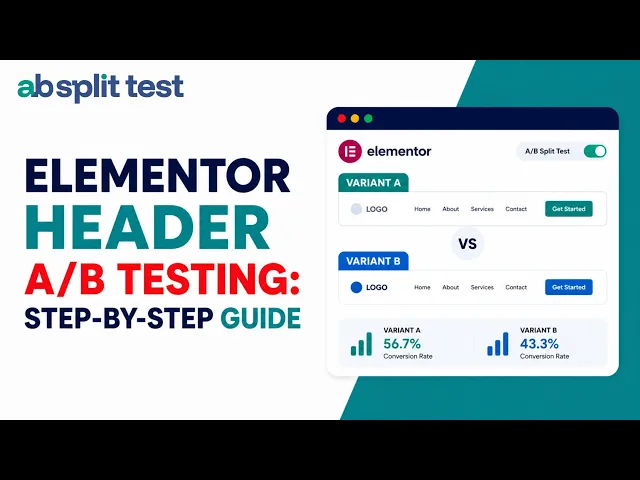
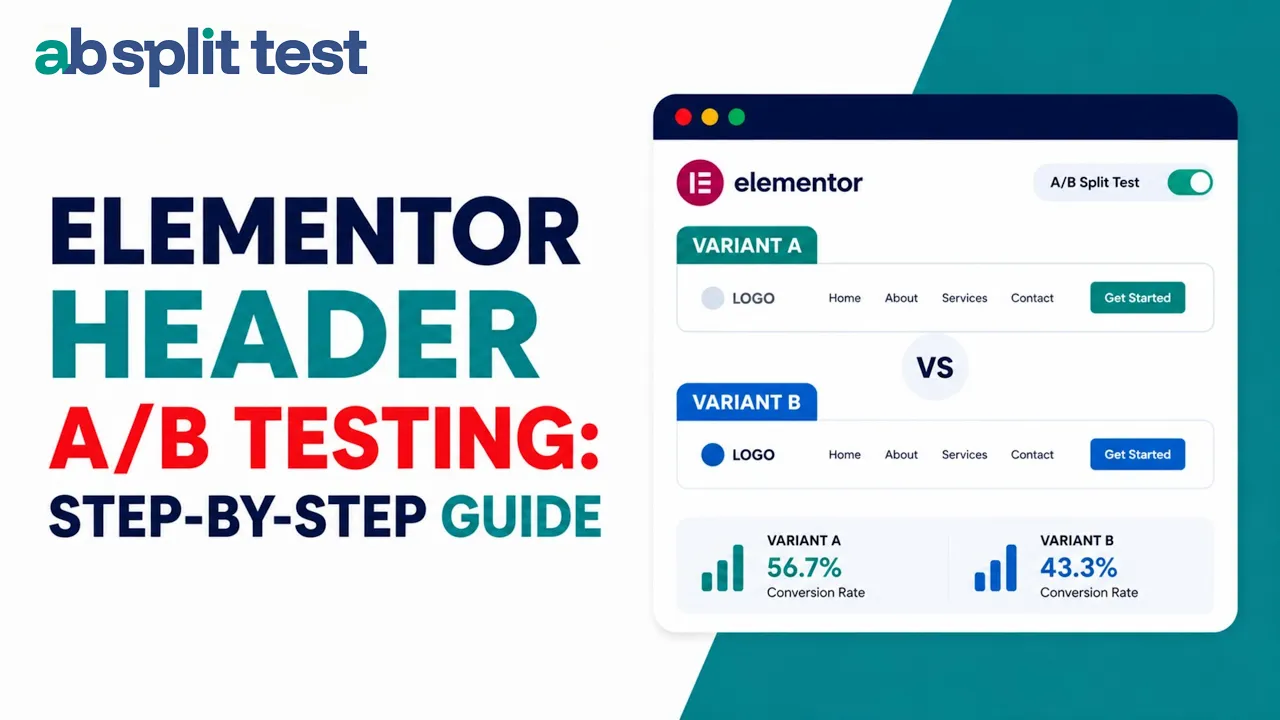
In this video, I'll show you how to split test your Elementor header or any theme builder part using the AB split test plugin because small changes in layout, colors, menu items can lead to huge differences in engagement and revenue. By setting up a split test, you'll see what actually works best for your customers. So, here we've got a header built with Elementor.
All we need to do is edit the header. And while we're doing this in Elementor, it works exactly the same whether you're using blocks, fullsight editing, bricks, Elementor, Beaver Builder, Beaver Themur, Oxygen, Breakdance, WP Bakery. You can even just put CSS classes if you've custom coded your own headers or footers.
Now that's loaded, we can see here is the header. So let's click into its settings. We'll go advanced absplit test and we will create a new test.
We'll give it a name heading test and our goal will be when someone clicks on an item in the heading. So let's go on element click and it's any elements in there. Now there's a bunch of different conversions you could use.
It could be anything at all like a page visit, a checkout time active. If you're a developer, it can be a conversion pixel or JavaScript. or you can keep it simple with something like text on page.
But for us, we'll just use this here, which will choose any A elements, which are any links inside a header. Save and start the test. And we're ready to create our variation.
We could just duplicate this section, but since we're using Elementor Pro, we've got a ton of great sections available for us. So, let's choose another header here. This one looks fun.
Let's insert it. So what we do is we place it directly next to the other element and then we tag these elements. So we go back to our first one where we created our test and you'll see it's a heading test.
We'll call this one simple. Then we can go to our other element here and we'll tag it as a new variation. So we'll go here, we'll call it header test again and we'll call this variation double because there's two rows.
Now, because there are two rows, we'll just tag both of these rows with the same variation name and they'll get shown at the same time. Now, we've done that, we hit publish and it's ready to go. Let's check out the site and see how it looks.
Here you see the original. If we go to the AB split test menu item here, we can go to heading test and we can click on double. And here we'll see is the double layout.
And we can jump back to the simple version again. Now, we let this test run for a while until we see how many users click on each element and see which variation triggers the most engagement. Let's check back in a second.
Okay, we'll see here that the test has been running for 4 minutes. It needs at least 7 days. Most split tests need to run for a little while to collect enough data.
But you'll see here already we've got the double variation has received four visits and two conversions with a conversion rate of 50%. And the simple version has had five visits with the same two conversions. So that's a conversion rate of 40%.
Now, it's far too early for that to be a concrete bit of information at all. So we've got to wait another few days before we have enough information. Anyway, that is how you split test a header in Elementor.
You can download the plugin for free from absplitest. com. Everything that I've shown you can be done with the free plugin.
Download now and make more money with the same traffic.