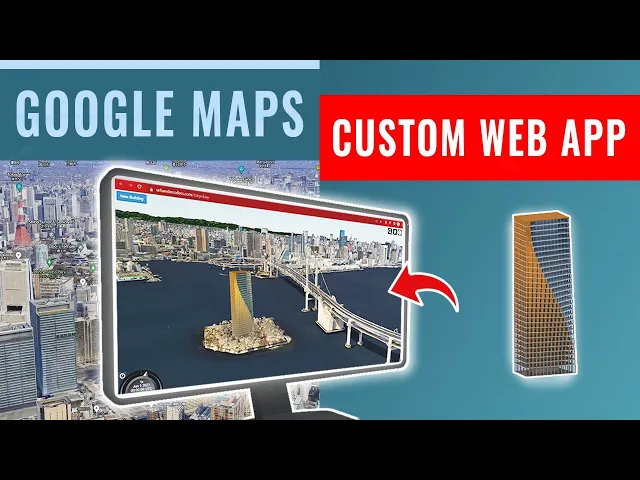
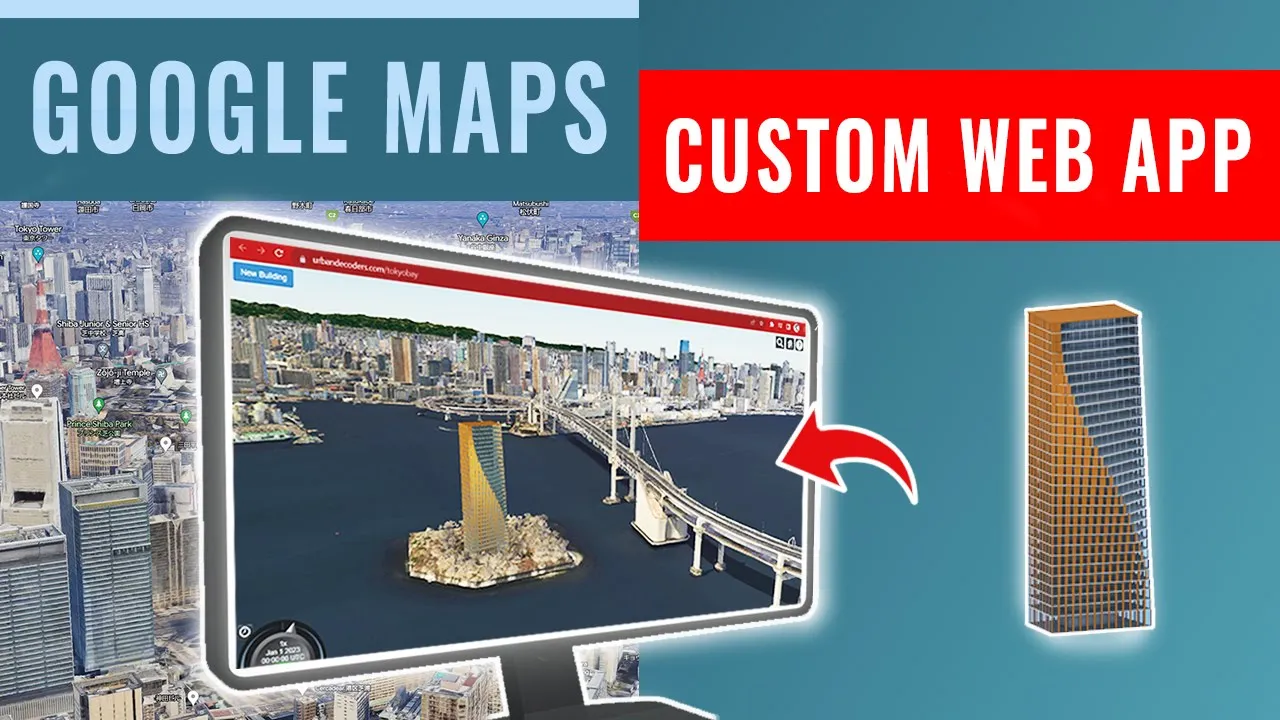
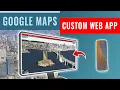
I would go through today how to take your building models and create 3D web apps with Google Maps 3D tile set you can geolocate and position your models from a variety of 3D software and chart various options this video is just an intro and covers the basics however you could go much further implementing other Urban data and model information into your Google Maps C I'll take advantage of the portability of a web app in the previous video which you can find in the description below I showed you how to use Google Earth power set in
combination with unreal 5. where you can also import your model so I also recommend you take a look at this video we will mainly be using two Services the first is cesium.js platform for geospatial data there are other versions of cesium for other platforms for example Unreal Engine but the JS version is specifically for web use and then of course we'll use the Google Maps API to stream the 3D higher data to our app for the making this web app needs some coding knowledge I have simplified the boilerplate code so all you need to do
is adjust three settings in the script so nothing complicated which I will take you through step by step first I will prepare and Export the sample model to be placed and located in our Google Earth map for this example I'm using a rhino mod which I've applied some basic textures series takes a number of model pipes you can see on the documentation over on the site here however I found that the gltf works well and for software such as Rhino and Revit you can install plugins to export the gltf formats and right now I installed
the shapedriver plugin which allows this too so simply I just need to select my model both export and then select the format over here the ship diver gltf give it a name and over in the settings or turn on materials yes normals yes and texture coordinates yes also make sure that the version is the GL tf1 simply hit enter under season.js documentation webpage you can find all the basic code and written steps to set up an app which this tutorial is based on so take a look here if you want to learn more I've just
condensed this process with this tutorial along with the code I've prepared a simple boilerplate template over the urban decoder GitHub so if you go to the link provided in the description you can clone or download the script into your code or you can simply copy and just paste this into a new HTML file so this example I'll use vs code so I'll make a new index.html or paste it in here so in this code you only need to edit these three variables so the first is for building ID but this is for the model that
we're going to upload and the other two is for the access token and the API key which I'll go through next I would also advise for you to install the extension or live server so that we can run this locally so starting with a model we're going to be using cesium hostess the cesium iron is a platform produce spatial data where you can upload your models and data which is then hosted and streamed anywhere the ones who made an account here you can click on open IO and it will take you to the main dashboard
the first two need to create an access token a click up here and create a token just give it any name and press create so I'll pay on the right you have this token so what you need to do is copy this across and just make sure you don't share this with anybody and then you go back to your code and for your Ion eform access token you simply just replace this area here next if you go back to my assets you can upload the model that we downloaded from rhino so clicky press add data
add files and the select art owl or the kind of data select 3D model how as 3D tiles upload once it's uploaded you can preview the model of it and all that is left is to adjust the location so you click this button a bit just how set location and for this example we'll be going back to Tokyo let's find the secure Bay area of tsukiji so when you are in more or less the area that you want you press next and then you can just adjust model with the gizmode to the spot that you
want I know there's a small island down here which I will just base the model and then you can also adjust the rotation once you're happy with the location just press save and with that your model is gear located and uploaded so all you need to do is copy this ID number over here and back in upload just paste it for your building ideas finally we need our Google Maps API key which we'll paste over here so first we go over to the Google Cloud console where the link is in the description below you just
need to go through the steps of creating an account or you can watch my previous audio and cesium video which goes through this in more depth if this is already set up on the Google Cloud console you can go over to the API and services and make sure the map Powers API is enabled and if you go to keys and credentials you need to have to create a new credential for this I already have one is you can see the maps API otherwise you have to go up there and press space new API and it'll
generate a new one once again do not share this key of anybody and just copy it and then paste it into the last part with that you have everything that she needs to host the model on the Google app on the web to test this you just right click and you press open with live server and like that it will zoom straight into your model it's already loaded I think that's exactly how we set it up on the cesium item an update is a sub button which allows you to calculate on and off as you
can see the order that okay Bay Area this is just a very basic app I've showed you how to upload your own models your space sheet with this HTML code you can upload it to your own website or server and give the web links few clients although this is just scratching the surface of the capabilities of cesium into your spatial data you can add far more useful features such as Urban data model metadata and City infrastructure I'll be looking into these areas in future videos along with Concepts smart cities so be sure take a look