Good morning. Today, two figures will make you understand the importance of SEO, whether with the Hostinger site builder, with WordPress, or with any site builder. First number: more than a billion.
This is the number of sites that are currently available on the Internet. Second mind-blowing figure: 91%. Of these billion sites available on the Internet, 91% have between 0 and 10 visitors per month.
This means that the remaining 9% take almost all of the visits for themselves. And you are going to tell me, Olivier, why these 9% take everything and not the remaining 91%? Quite simply because of SEO, or thanks to SEO, thanks to SEO.
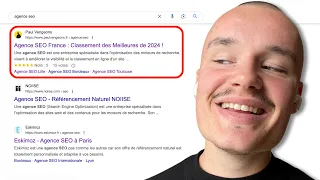
Be careful though, SEO means ensuring that you are part of the 9% of sites that are visited. But not only. The goal of SEO is that you appear also and above all in the first results of the first page of Google searches.
Well, you're going to tell me, Olivier, it's not just Google, there are other search engines. But Google still accounts for 92 to 93% of all Internet searches. So, it's good to actually be on Google as a priority.
So, I use the term SEO in two words. What is SEO? SEO is an English term, Search Engine Optimization, in other words optimization for search engines.
The French term is actually referencing. But if you look on the Internet, the anglicism SEO is used much more often than the term referencing. Please note that the majority of SEO is done when you build your site, when you create your pages, when you write your articles, when you import your photos.
And don't worry, SEO is simple, it's extremely effective, and it's completely free. Today we are going to see how to do good SEO with the Hostinger site builder. But all the tips, all the information that I have given you here, are also valid for WordPress or another site builder.
Come on, enough chatter, let's go straight to my screen. So here we are on the Hostinger site builder, on a site that I created as part of my very first tutorial on the Hostinger site builder. Of course, I'm not going to start from scratch.
So, if you don't know this tool yet, you come back to the home page of my YouTube channel, and you go down here to the playlist section. And I just created a new playlist called “Hostinger Site Builder”. Just click on it, and there, on the right, you will have the first two tutorials that I created.
There will be others, don't worry. For now, I explain everything: how to create a blog, and even how to create multiple blogs with the Hostinger site builder. And I also did a second very complete tutorial using the free tool offered to create an online store.
You can list up to 500 products, and there is no commission percentage. It's really worth the effort. So today we see SEO.
Then there will be other things to see, such as making a multilingual site from the Hostinger site builder. But that will be for a future tutorial. So let's get back to our subject.
We will therefore see SEO, referencing, from the Hostinger site creator. So, of course, when you create a site, you're going to create pages. Here, I have already created four: welcome, living in Thailand, Thailand visa, contact.
We will create a new page and see how to reference this new page at the same time as we create it. So I'm going to the tabs here, and I'm going to click on "Site Menu". We have the four pages here: home, living in Thailand, Thailand visa, contact.
We go down and click on “Add a page”. Several models are available here. We're just going to create a new empty page.
And when you create a new page, you will directly have this window, this submenu which will open, which are the page parameters, which are also the SEO of your page. So, the first important reference is the name of the navigation. So, this is the name that will appear in the menu.
Here it is also the name of the page. For now, we have "New empty page". It's marked here: "New empty page".
And I would like to make a page to present, for example, the flowers in my garden. So, of course, here I could mark, for example, "Flower from my garden". “Flower from my garden”.
And look here at the top, it says "Flower from my garden. " On the other hand, is it good for SEO? Who do you think is going to go to Google and type in “Flower from my garden”?
It's unlikely that many people will Google this type of term. So, rather than marking "Flower from my garden", I will mark "Flower from Thailand". So.
In terms of SEO, there is a greater chance that someone will type “Flower from Thailand” than “Flower from my garden”. At the bottom here, the URL of the page. The URL is what appears here in the navigation menu.
For now, these are numbers and letters, but these numbers and letters can be replaced by the URL that is marked here: "flower-of-Thailand". And this URL, I will also change it as part of my SEO. So, already, the “of” doesn’t have much use in terms of SEO.
On the other hand, I could mark here “flower dash orchid dash”. Be careful, we never put an accent, right? No accent, no diaeresis, no punctuation.
It's just a term, a hyphen, and another term. Besides, in terms of the term “flower”, I am going to remove the “S”. For what ?
Because most of the time, when people search on Google, they rarely use capitalization, punctuation, and plurals. They prefer to use the singular rather than the plural. So, “orchid flower”.
I'm going to type "garden-dash-Thailand", and I might add other things. That's it, like that, at the URL of my page, I also have certain key terms which are registered. That's general referencing of the page.
But look here, also very important: we have “social image”. We click on “social image”, and I can add an image. This image will not appear on my page.
This image, as listed here, social images may appear on social media or in text messaging apps when you share your URL from your site. I'll give you an example right away: we're going to go back to my YouTube channel, and by. .
. I choose here the video that I made on the 100% free online store. I select the video, I then select the link, I copy it.
I go, for example, to my Facebook, and on my Facebook, I will simply mark “online store tutorial”. I don't forget to put a space between "online store tutorial" and my link, and as a result, I have an image that appears, it's the famous social image. I'm coming back to my site, so "social image".
I could add an image, and I'll look for an image that's already in my library, where I'll search, directly upload the image that I want to publish as a social media icon. I don't need it right now. And this social image, in addition to being present, for example, on the social networks in which you are going to share this link, but look here, I take for example Google, I typed "thailand flower", and look, at the level of "thailand flower", not systematically, but look at certain search results, we also have a photo that appears, and well, this photo, you will also have it if you add the photo here, at the level of the social image.
So, you create a page, I strongly advise you, one, but to fill it out well here, and to put a social image. We can now click on “save”. You think we're done with SEO from this page?
Not at all, we can still go much further, we must go further. For the moment, we have the name of the navigation, the URL, we have the social image, but that is not yet enough. I close the site menu here and look at the bottom, we have the three little dots, the site settings.
I click on it. Very important: Site settings. You will see, in the Site Settings, we have an SEO tab here.
In this SEO tab, we have the general SEO, we will see it just after. I go down, and here we have the pages that have been created: Thailand visa, contact, welcome, living in Thailand, flower of Thailand, precisely the page that we have just created. And look, at the Hostinger site creator level, we have a green box here.
This means that the home page has been well referenced. On the other hand, my other pages have not yet been referenced or are poorly referenced. We will properly reference one of the pages, "flower of Thailand", and subsequently, I could reference my other pages: Thailand visa, contact, living in Thailand.
So, I select "Thailand flower". It says “Thailand flower listing, tell us more about this page, page description”. So, I mark “discover the flowers from my garden in Thailand”.
Well, he tells me, for the moment it's good, but we can add a little more description. The goal is to have three green lines here. Here it is: “discover the flowers from my garden in Thailand, Thai orchids, tropical trees, exotic fruits, all in a green setting located in the northeast of the country, with a smile on the banks of the Mekong”.
So, this little description also served me to place as many keywords as possible that could be typed by Internet users. And this description will not particularly end up on my page, but you will tell me, Olivier, but then what is the point of typing a description that does not appear on the page? Well, we're going to come back here on Google.
And remember, so we have the social images that can appear on Google, but also everything I just typed here is the text that we find here at the bottom. So this is why the description is important. It is this description that will appear on Google search engines.
So I go back to my description of the page, we click on next step. From this text, he took out keywords, and he told me, well, select three keywords for this page. It's not "flower from my garden", I don't want it.
Orchid, Thai, yes. And why not “tropical trees”? My three keywords having been chosen, I move on to the next step.
It gives you an overview of what will be published on Google: "discover the flowers of my garden in Thailand, Thai orchid, tropical trees, Patti, patata", you will have the link and you will have the full text here at the bottom. We can modify the SEO title here, for example. I find it too long, so I 'm going to remove that part.
I'll just leave it "discovering the flowers in my garden in Thailand". And in terms of the meta-description, I could also modify it so that we see the whole thing. For example, I'm going to change "north east", and I'm going to leave "located in the Land of Smiles".
So, I'm going to search for my text here "north east", I'm going to turn, and I'm adding "smile". And like that, my description is visible in its entirety, because it's never pretty when it's cut in the middle, when we add three little points like that. So there you have it, my page level SEO is complete.
There, Google robots will be able to analyze, understand what it is about, and suggest my page when people do research about flowers in Thailand, orchids in Thailand, tropical trees in Thailand. Finally, there you have it, my site will be offered in the search engine. Now, we're crossing our fingers that we'll write a quality article, and that it will be placed at the top of Google, at the top of the first Google search page.
I click on “Finish”. So it tells me here, great first step: add an SEO title and description, that's great. We are going down.
It eventually suggests to me if I want to add new keywords, I can put others there. For the moment, it says "use only one H1 title", well, there is nothing that is done for the moment, so that's why it cannot say that my page is well referenced , because there is no text yet, there is no title yet, there is still nothing that has been put inside, there is not even an image. But precisely, this concept of title, we will see it further on the referencing of blog articles.
I can close this for now, we're going to quickly go back here to the site settings, to SEO, and there to check if everything on your site is correctly completed. So, the title of your site: give a title, choose the language of the site, OK. And you see, at the “flower of Thailand” level, there is not yet the little green circle.
For what ? Because I don't have any text yet, I haven't put any photos yet. So, it's completely incomplete.
There, for example, if I compare with "home", it tells me "great, the SEO on the home page is 100% done". There was indeed the addition of an SEO title, there was indeed a description, and there was indeed an H1 title. The H1 title is the main title.
I close it, and here is the famous home page. There, I removed some photos, that's why they don't appear. And precisely, speaking of photos, photos have a very important impact in terms of SEO, and this is what we will see right away in this chapter.
So, for the photos that we are going to publish on the website creator for SEO, the work is already done upstream. To do this, you go to your favorite photo editing software. For my part, I opted for Photopy, which is a completely free alternative to Photoshop.
Besides, I have done a whole series of tutorials on this software. The link appears here at the top of the screen, and anyway, any useful links to what I'm talking about in this tutorial will be present at the bottom in the description. First step: I import two photos, “open from computer”.
I am in "Maes Roch number 3", and I have here "pollen 2" and "pollen 3", two photos in JPEG format. I click on "Open": photo number 1 in square format, photo number 2 in vertical format. First step, of course, check the size of the photo.
Here, in my opinion, it is much too big. So, "image", "image size". And indeed, look, a height of 2560 by 1440 is for a website.
There, if my goal is to place the photo on half a page and put text on the right, well a format with a width of 700 pixels will be more than sufficient. So, in terms of width, I'm going to change 1440 and I'm going to put 700. Automatically, the height is set proportionally to 1244, and I click on "OK".
We look at the second photo: "image", "image size", 1080 by 1080, same topo here. This is just for an illustration that will go on the left side or right side of the text. So a width of 700 is still more than enough.
The height is adjusted and I click on “OK”. The size of the images has been reduced, so automatically the weight of the images has been reduced. We will now also compress the image, while of course maintaining the quality, which will again reduce the weight of the image.
And remember, I have already explained in a tutorial on image compression: the lighter the image, the faster the site will load and the better you will be referenced by Google. So, the weight of an image is also part of good SEO on Google. We will export the first image: "file", "export as ", here, we will choose the WebP format.
This will give me a photo that will weigh 38 kg at the base, when it was in 1080 by 1080 format, it was 1. 2 m. So, you see the difference in weight: 700 by 700.
Check the quality carefully, I personally put it at 70. I can put it at 100, you don't really see the difference, but look, the weight goes to 655. So, I reduce the quality to 70%, which drops the weight to 38 kg, while keeping the quality of the image, which is more than sufficient quality for the vast majority of websites.
And I give it a name to easily recognize it when I need to download it. That's it, I marked "Lotus insect square format 700 pixels", I click on "Save". I record in “my rocks number 3”.
Next photo: "file", "export as WebP". “Lotus vertical insect”, see a format of 44. 7 kg, while the initial photo was more than 2 m away.
I click on "Save", and still in "my rocks number 3". That's the first part of referencing a photo: reducing its weight. But you'll see, it's not over.
We have a second extremely important part in terms of photo referencing. And to do this, we will return directly to the Hostinger site creator. Here we are.
Now I can go down here to Site Settings. We have the "Referencing" button, but this time, it is the "Media Library" button just below that interests us. We have the library, the media library, the image library, but it can also be the video library, PDF documents.
There are already several photos that have been uploaded. Now we're going to go up here and upload files. I go to "my rush number 3", where the photos that I have cropped are located .
And we actually have “Lotus insect square format” and “Lotus vertical insect”, both in WebP format. I select the two photos and click "Open". The photos are uploaded and you can do the SEO work either here immediately or later, when you drag a photo into an article or on a page.
I show you how to do it directly from here. For example, here I take the photo "Lotus insect square format" and look when I go to the photo, there is a "detail" tab. I click on “detail”.
I have the name of the file "Lotus insect square format" - well, there is a small mistake, but it's not serious -, 700 pixels, the file type, WebP format, the path, the dimension, and here is the tag which is extremely important, the "alt" tag. Why is it extremely important to populate the "alt" tag? But quite simply because search engine robots, when they regularly visit your website, they will see that in certain places, there are photos.
So, the robots are not yet efficient enough, although it is evolving, to see what exactly is in the photo. For them, they just know it's a photo, but they are unable to know what's on it . The "alt" tag here will give them the information of what's in the photo.
So, I'm going to put several key words, or even sentences, and each key element I 'm going to separate them with a comma: "lotus flower", "water lily". And look here, there is no problem to put capital letters, to put serious, circumflex, acute accents, whatever you want. I click "Save", and I can close.
We will now go to the “Thailand flower” page. We're going to add a section here, we're going to put an empty section, we're going to click on the little plus here to add an element, and we're going to add, for example, an image. I slide, I release, I don't need it anymore, I close it.
In terms of the image, I'm going to position it here by B m path, and now I'm going to click. I have an image here by default, I click on "Edit Image". I'm going to go get my image, so I click on "Replace Image", and now I'm going to go and find the photo here, "Vertical Lotus Insect".
I click on “Select”. In terms of style, I can reset the proportions, so I have my photo in the format I had initially decided. I'll come back to "image", that's it, I'll close it for now.
I'm going to click on "Add image element" again, I slide right next to it, I release, I close here "edit image", "replace image". I will now take the square format. Styling-wise, I reset the proportions, great, I'll close that for now.
I go back a little. There you go, my two photos are side by side like this. So why did I put these two photos here?
Look here, I have this square photo that's selected. I click on "Edit Image", and look here, the "alt" tag is already populated. I can even add elements.
So, I know that my photo is well referenced, the "alt" tag is filled. Now, I go to my other photo, "edit image", and there, however, I haven't put the "alt" tag, I haven't yet filled in the elements, but it's not a problem since you can do it directly from the Hostinger site creator. So, either we can do it in the media library, or we can do it once the photos are placed, but the most important thing is that it gets done.
Just here below, we suggested the use of "Lia" - yes, that's nice, but for now, it's in English. So, “Lia” will study your photo and will put keywords based on what she sees in the photo. I click, and it just says "a bee on a blue flower, with a bee on it".
Well, it's not the best yet, and anyway, we need it in French. So, I enter my keywords. So personally, I prefer to enter my keywords directly from the photos on the Hostinger site creator rather than going through the media library, because on the media library, we have the "Save" button which appears constantly, it is extremely unpleasant , a problem that we don't have here.
Also note that the number of characters is limited. You can't write a novel. There is no point in putting keywords excessively anyway.
So there you have it, I'm closing it. I can click "Save". I go up here and I can click "Add Section".
We're going to add an empty section again. I'm going to add an element called "text". I release.
So, here we are in a very important part of SEO: the text. Text, whether for a page or blog articles, text is essential for SEO. This is even what can determine the success of your site or its failure.
We will see a formatting here very quickly, and I will end this tutorial with a series of very quick tips, but which are essential for the success of your website, for the success of your future SEO. So, at the text level, we will already format it. Here I'm going to expand the space, I'm going to align it with the photos.
It is very good. I'm expanding the space on that side as well. That's it, it fits well with the photo.
So, I'm not going to write all the text. I have already prepared in advance. I picked up a random text about lotus flowers .
I'm going to copy it. I come back here in "edit text". Ok, I'm there, and I'm doing "paste".
Redo a little layout very quickly. I'll remove the spaces and I'll meet you right after. There you go, we already have our text here.
I'm going to select "justify" at the text level so that everything is well aligned. Look here, all the alignment, it's well done. And when you write a text, it is very important to put titles and subtitles, whether it is a text for a blog article, whether it is a text for your page, you absolutely must have a main title.
In this case, the main title is "Lotus flower: meaning, symbols and history". So I select this title and I go to the styles. And in terms of styles, I'm going to select it in H1.
So, I'm not going to go back to "section 1, section 2", well H1, H2, how I did the layouts, all that, you will find it in the very complete tutorial on creating a blog. But what you need to remember are the famous titles: “Title 1” H1, “title 2” H2, “title 3” H3, and so on. So the main title is H1.
I click on it and automatically the formatting is done. We know that this is an H1 title. Never more than one H1 title per page or per article.
My little introduction here, there, in terms of the text, well it's a text which is in paragraph format, whether it's paragraph 1, 2 or 3, it doesn't matter, I calibrated it in the same way, that is to say a 16 pixel font in taoma format. All this is explained in the tutorial I told you about just before. Then I select here, it's a title number 2, "The history, the symbolism of the sacred lotus flowers of India".
So I select, I go to the style, and I put H2 title 2. I go down and here I have another title that I want to highlight, "The history and symbolism of the blue lotus flowers of Egypt". I select and it will also be a title number 2.
Inside these number 2 titles, for example, I have in India, in China, in America, I could put subtitles, so put H3s. But if I don't need it, at the bottom, you can add a line: "To find out more, contact us". I select "contact us", I go to the links.
Here, linked to a web address? No. And there, down here, I have the list of pages, and I'm going to link it to my contact page.
Will I open this contact page in a new window? No, this is what we call an internal link here, or also another term called meshing. These are links which allow you to travel between the different pages of your website and have a good link and allow you to travel from one page to another or to encourage people, for example, to put a link.
an article to another article so that they stay longer on your website. It is also very good for SEO. If you don't put a link that way, you can go to "add an element", you can add a button.
I release and at that moment, the button, well you will link it, for example, in the same way to the contact page. You will replace the name of the text with "contact" and people, when they click on it, will arrive directly on the contact page. But all of this is also detailed in the tutorial which talks about creating a blog with the Hostinger site creator.
I come back to what we were saying. So we created a text. I'm closing this so as not to be bothered.
So we created a text. In this text, whether for a page or for an article, we have included an H1 title. The main title.
We save. Now I go back to my site settings, SEO. We are therefore on the “flower of Thailand” page.
I'm going to go down and look now, "Thailand flower", before it was orange, now it's changed to green. I click and it tells me, “well done, the page is 100% referenced”. For what ?
Because I added an SEO title, description, this is what we saw at the start of the tutorial, and then, because I used an H1 title on the page. Here he explains to you why it is important, the H1 title. There is also here, you click on the little arrow and it gives additional information.
Don't hesitate to read this, it will help you find out a little more. I close and we move very quickly to some really essential advice, essential for the success of your website. Try to publish articles regularly in order to keep your website.
At least one article per month. This way, Google will see that your site is active, updated regularly. It will be more likely to highlight your site rather than another site where there has been no activity for several months, or even several years.
Only one H1 title per page or per article. More than one H1 title and this will be considered over-referencing, a kind of spam, and the page or article affected by this overabundance of H1 titles risks never being featured. For the length of articles, at least 500 words.
If you can more, don't hesitate. On the contrary, quality articles with 1500, 2000 words or even more will be favored by Google. Place internal links that lead to other articles that might interest your visitors.
The longer visitors stay on your site, the more Google will judge your site to be of quality. If you have a Youtube channel, don't hesitate to add your videos. This will make your visitors stay longer and Google loves that.
There are of course additional methods to reference your site, to gain visibility and above all to be prioritized by Google to appear in the first results of the first page of search engines, but hey, all this can be part of another tutorial . Here, the goal was to show you the basics, the essentials. Do it automatically by creating your pages, your articles.
It may seem tedious, but in the end, it becomes automatic. And then, the goal of the game is to be visible. What's the point of making a site of the fire of God if no one can discover it?
Don't hesitate to like this video and we'll see you very soon for a new tutorial. And until then, have a good week everyone and bye bye.