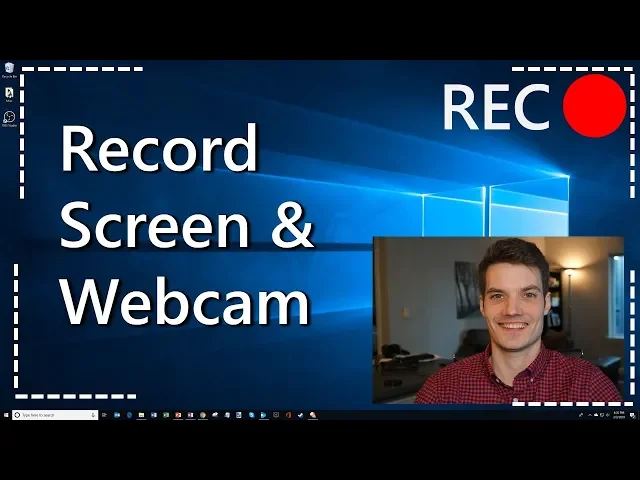
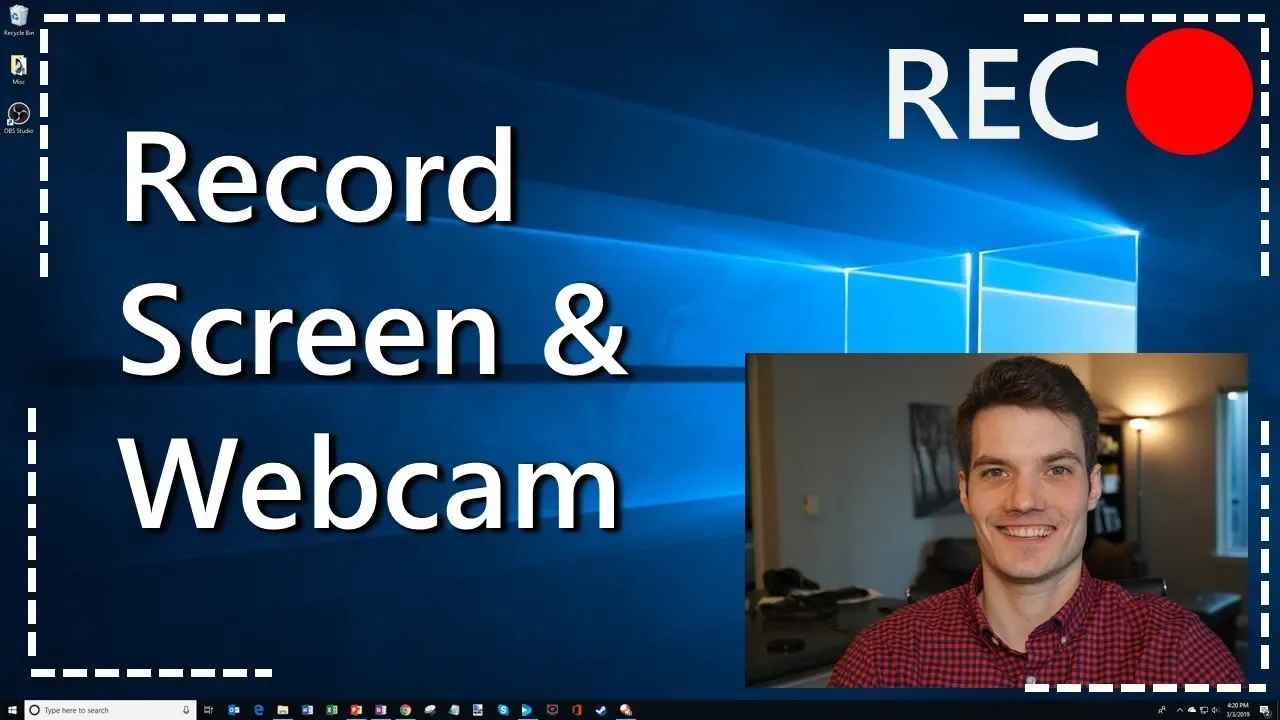
hi everyone my name is kevin and today i want to show you how you can record your computer screen and a webcam at the exact same time it's completely free it works across windows mac and linux whatever your os is this will work okay well let's jump to it here i am on my desktop and what you're going to do first is you're going to open up a browser so i'm just going to open up a new browser and we're going to go to the website obsproject.com now you have lots of different screen recording software
out there you have things like easyvade you have camtasia many of them cost money some of them have ads some of them even have malware ob obs this is something that when you read on different forums and you ask about what is the best screen recording software this is one that always bubbles up to the top and this is one that people tend to universally recommend first up is you're going to choose the operating system that you're on i happen to be on a windows computer so i'm going to click on windows and then the
download will kick off so here in the bottom left-hand corner you see that the install is going on so i'm just going to let that complete um if i had a gigabyte internet connection this would be done already my internet's not that fast um so we just need to sit here and wait a little bit i feel like we need to play the jeopardy music or something [Music] i think it's done now all right uh here do you want to allow this app to make changes to your device yes i do so i'm going to
minimize my browser and i'm just going to go through the install steps here i get a license agreement uh looks good let's go with it and it's just telling me where it's installing it's going to be about 234 megabytes it's going to be obs studio sure let's go ahead and install and that's extracting the package and installing the app and as soon as it's done what i'm going to do is i'm going to say that i want to launch it as soon as this finishes installing i hope all of you are going to be recording
fun things like hopefully hopefully you're going to be playing games with a webcam on there or maybe you're doing tutorials like this one so here it looks like it finished installing i'm going to go ahead and launch this will bring up obs studio so this is the default screen that you get when you first launch it it might look a little complex but stick with it i'll walk you through how to set it up so you can record your screen and webcam at the same time so the first thing that we're going to do is
you'll see that a scene is set up you'll also see that you have sources so what we want to do first is we're going to click on the plus button because we want to add a source so i'm going to click on plus and what we want to do is first we want to capture the desktop here so i'm going to go down and this is called display capture this option here this is my display that's what we're capturing so i'm going to click on display capture i'll i'm sure i'll leave the default name that
we have and then here it pulls in my display into there and it looks like it shows me the resolution that it's recording it and i'm going to click on ok so there you can see what the screen recording is going to capture so i have my display there but i don't yet have my webcam so how do we get the webcam on there and what we're going to do is click on the plus button again for sources this time i'm going to go down to video capture device that's what's referred to as my webcam
it's a video capture device i'm going to click on that i'll just leave the default name there and what's nice is it detects that i have this microsoft lifecam hd 5000 connected to my computer so i'll just go ahead with that one i could also go through i could configure the video um i could adjust the different settings but all that looks great so i'm going to click on ok now you can see my desktop here and it shows my desktop image in the back and then i have this webcam image it was kind of
neat as i could drag this around so i could make it really big so you get lots of kevin hey guys or i can make it smaller so here i'm gonna make it smaller a lot of times what gamers do is they'll kind of create like a little square and then you put it down in the bottom right hand corner and then yeah i just have this little square down there a few of the other things that i wanted to walk through let's click on file and i'm going to go up to settings a few
other things that you should know is i'll click on output one of the things you'll see here is by default you have these different recording formats by default it goes to flv i like it recording to mp4 because my video editing software that i use accepts mp4 files so i'm going to go ahead and select that and then you can also see where it puts your video files so here it's sending it to my c drive to users kevin and then videos um here i could also browse it and see where the videos go but
that all looks good to me but what we're also going to take a look at is you'll see in this mixer area you have a few different options i have my desktop audio so this is if i'm playing a game or if i'm running a program that's the basically the system audio or the machine the sound from the computer i also have this mic auxiliary down here and you'll see that this this this color bar is going up and down this is my microphone for my webcam so i could i could adjust the volume by
moving this scroll bar down here but i'll just leave it on high so i get both the camera audio and then i also get the system audio on there and then over on the right hand side i can click on start recording so i'm going to go ahead and hit start recording and oops i'm going to click on start recording and now it's recording my screen so if i minimize it i won't see the webcam down there but the webcam is very much recording so since we're since this is a video where we're going to
record my screen and capture video i'm going to i'm gonna load up a game here this is a game that i recently picked up called park attacked it's a similar to roller coaster tycoon but you build a an amusement park so here we are you should hear the the audio from the game you should also hear me talking as well i'm gonna go and load a park that i worked on before mystic oasis this is a theme park in the desert and i feel like since i'm doing one of these screen recording videos with my
webcam i should i should add some interesting commentary as i'm playing my game but here we are on my big map you can see my amusement park uh let's see i'm gonna turn off my speakers so that sound doesn't uh mess with my voice recording but here you can see the uh this theme park i built here's a wing coaster um look at that thing flying around and you should see my picture down there and oh boy look at that free fall tower man that thing would be scary to go on i wonder how much
are we charging people to go on this oh charging them six dollars to go on this ride um that's uh that's kind of pricey but hopefully it's fun and then oh here's a free fall coaster so there's a little section that just goes straight down so that's that's pretty intense but yeah so this is uh this is my amusement park hope you guys like it okay so enough of the enough of the playing we're going to go back to the desktop maybe one of these days i'll do some game playing we'll see and put up
videos so i'm going to go ahead and quit this and go back to the desktop so i'm going to open up the obs software again here you can see i'm back on my desktop and i'm going to click on the stop recording and that that now successfully recorded that game that segment that i was playing but this will work in any type of application if you're in a full screen game it'll work if you're in an application it'll work if you're in the browser so any type of software it'll be able to capture um so
i stopped the recording what i could do is if i click on the file menu i'm going to click on show recordings and here's my recording i'm going to pull that up real quick yeah so so there you see i'll turn the speakers back on so there you i could hear myself talking uh but here i could go through i could see the game and so there you see my video um on top of the screen capture um and so it kind of worked just as expected um probably not really the the best game video
person right now but we could work on that but yeah so that that's as simple as it is obs studio it's a obs studio great piece of software like i said before it's free it's open source no ads it's very powerful even beyond just video recording uh you could also do things like streaming onto twitch or facebook youtube it also doesn't live streaming it's extremely powerful but this is just some of the simple functionality that you could use to capture your computer screen and also get a webcam on there at the same time so kind
of a cool combination anyway hope you found this video useful if you did love it if you could share a video that you make using this feel free to post it in the comments if you want to see more videos like this hit that subscribe button that way you'll get a notification anytime new videos like this come out and if you enjoyed this please give it a like i'd really appreciate that it really makes my day when i see a light come in but that's it also just want to call out i do read all
the comments that come in i also reply to a lot of the comments that come in uh one of the funny ones that i've seen recently is a lot of people think i look like connor murphy um i think i probably do i've looked at pictures and we do have resemblance unfortunately i need to work on my body a little more before i could say on the complete package but right now i'm probably a skinny version of connor murphy anyway hope you enjoyed this video i will see you next time bye