[Music] hello and welcome back to the building with app sheet series i'm christian schalk a google developer advocate and in this episode we'll build on what we started in our last episode by showing how to use multiple tables together in app sheet we'll also cover some other useful new concepts along the way let's get started so in this next demo i'll be extending the tasks application from the prior episode i'll show how to connect the tasks table to a new owner's table using an app sheet reference additionally to provide better visibility to the owner's data
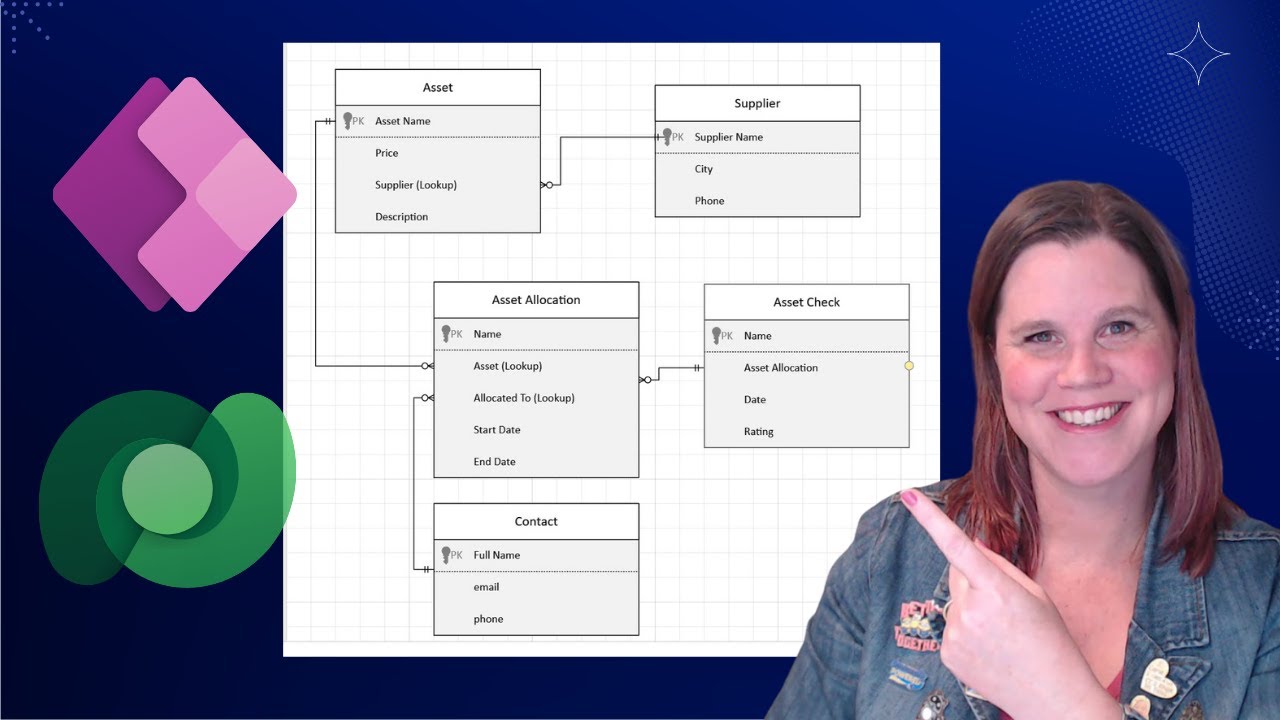
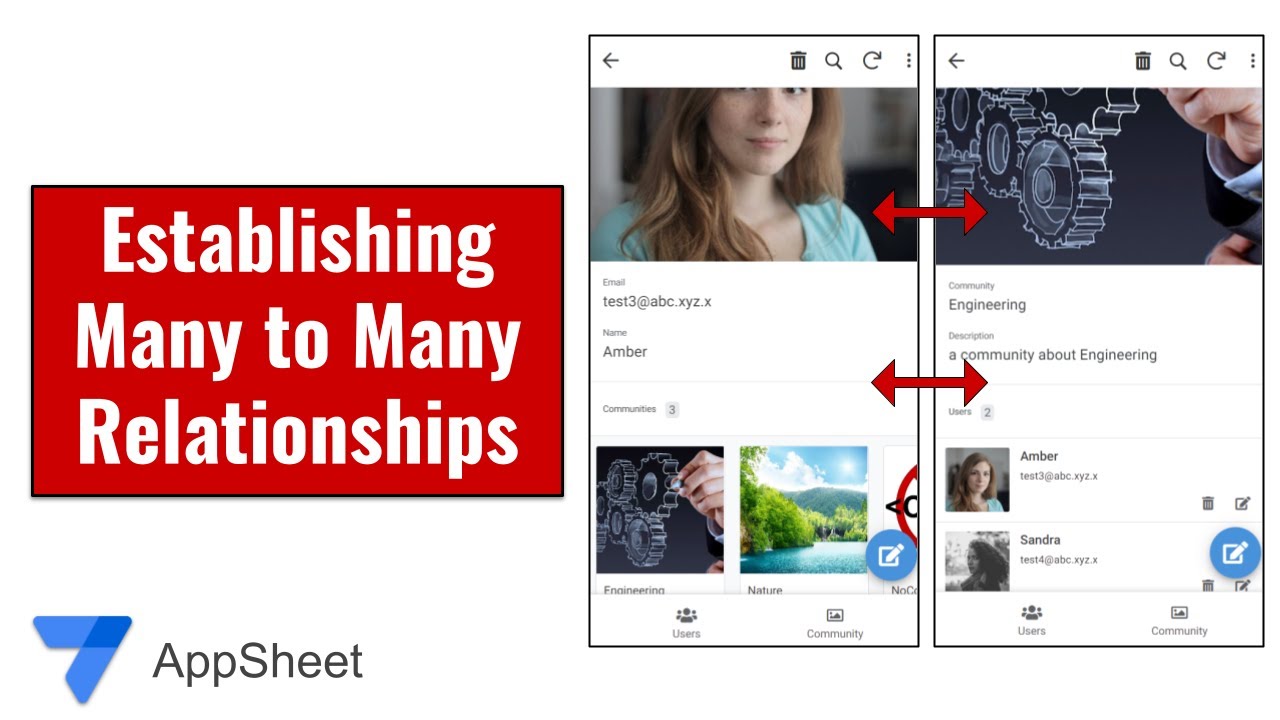
i'll add and customize a new owner's view before jumping into the demo though here's some more information on app sheet references and relational data app sheet references allow your apps to support relational data in database terms relational data simply means that records in one table refer to one or many records in another table this is important because business apps pretty much always have relational data app sheet references are implemented with a special ref data type which can be applied to a column in a table that refers to another related table for the ref column to
work though it needs to have the same name as the other table is referring to you'll see in a moment that app sheet can automatically recognize relations in data and apply references automatically incidentally this works the same with either sheets or sql databases let's now return to our tasks demo app and extend it with a new owner's table so here's the underlying tasks sheet that we used in our prior episode but you'll also see that i've updated it i've added a new owner column here and this owner column now also refers to this new owner's
table so they're essentially the same name the owner column referring to the owner's table except for this owners table now has the full information for each owner and because it's the same name appsheet will then recognize that these two tables are related so let's go ahead and test that we'll generate a new application so you select the app sheet create an app option directly from google spreadsheets and we'll now set up a new application in app sheet and so here we are we have our new app it's fully functional but you'll see that it only
has the tasks table so it gives us the option to add a new table for owners but before i do that i want to show you something very quickly let's take a look at the columns and so here's the columns for this tasks table it all looks you know as we'd expect and we can see the owner the data type for the owner column is of type email so now um i'm going to create a new table for owners so let that take a few seconds and it will generate the new table and now we
have both tasks and owners together and before continuing i'm going to take a quick look at the columns again for the tasks table you'll see that the owner column as the data type has been updated to ref whereas previously it was email but now it's a ref and it's a ref data type because it's now referring to a owner's table and here's the orders table that the column is referring to and these columns all pretty much match up but you'll notice that there's a new related tasks column and this is actually a virtual column so
let's open that up to explain this a bit more so first off it's a virtual column meaning that it's calculated on the fly and it's using this app formula which is essentially just using this ref underscore rows function to link the tasks and owners table together and so that is what allows these tables to work together all right so now i'm closing up the data and let's the tables that is and let's take a look at the app so the app itself it has the of course the task information but now you can see i
can see the owner of the tasks and i can even drill down on individual owners and see their related tasks so this all works perfectly good although i think i might want to update the app a little bit i want to make it so that i can start from an owner's view meaning that i can see all the owners in one view and be able to drill down on each owner individually so how would i do that well it's actually quite trivial all i have to do is click on the ux tab here and then
click on new view so now i have a new view and i'm going to name it owners and for this data i'm going to of course select the owners table and now it's just a matter of customizing this new view and so i noticed like in this particular case i'm going to use the deck view so that gives me a nice ui that i can see all the odors in one glance i can also change the position of the link so in this case it's set to the left side i could try it out on
the right side or just switch it back over the left side here or where i want it okay and finally if i wanted to maybe toggle a few other features like for example changing the image shape i could select the round image but in this case actually i'm going to go ahead with the square image so that's basically it those are all the updates i'm going to do for this particular app at this time and let's go ahead and try out the app a little bit so starting with the owner's view that i just added
i can say click on a particular owner and drill down on the respective tasks that this owner owns and maybe i want to update a particular task complete budget proposal that is and so let's go ahead and change a few things here so i'll go ahead and click on the edit link and maybe i'll set the due date to a later date and then i'm going to go ahead and reassign the owner to to be someone else in this case i'll select susan spencer to be the owner so then i'll click save and now it's
momentarily syncing back to the spreadsheet so let's take a look at the data inside the spreadsheet so here we have the same task and you'll see that it's got the updated date and it's also got the updated owner so you can see in rather just a few trivial steps i was able to create a fully relational database web application without much effort at all so for more info on app sheet google cloud and google workspace check out these links and also in the description below and for more videos like this make sure you subscribe so
you don't miss out thanks for watching