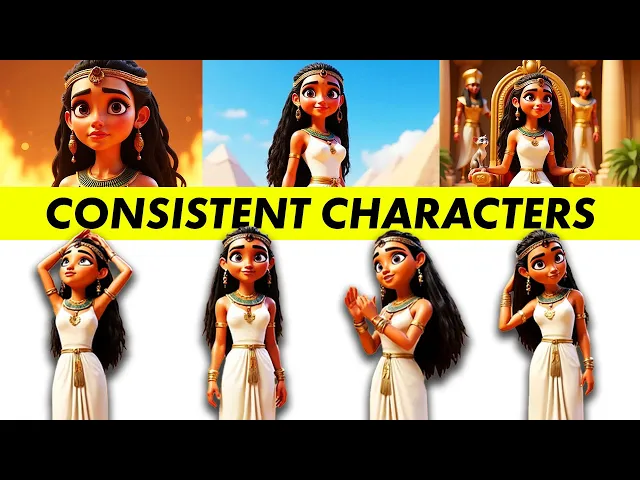
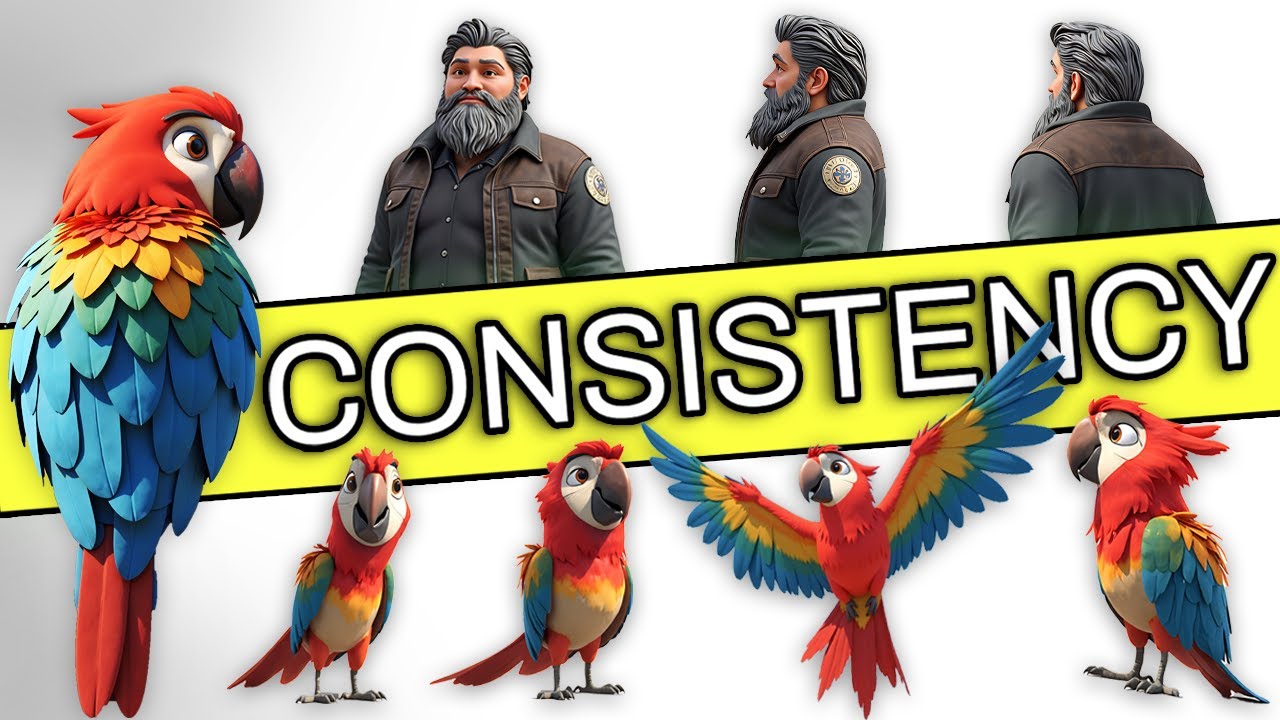
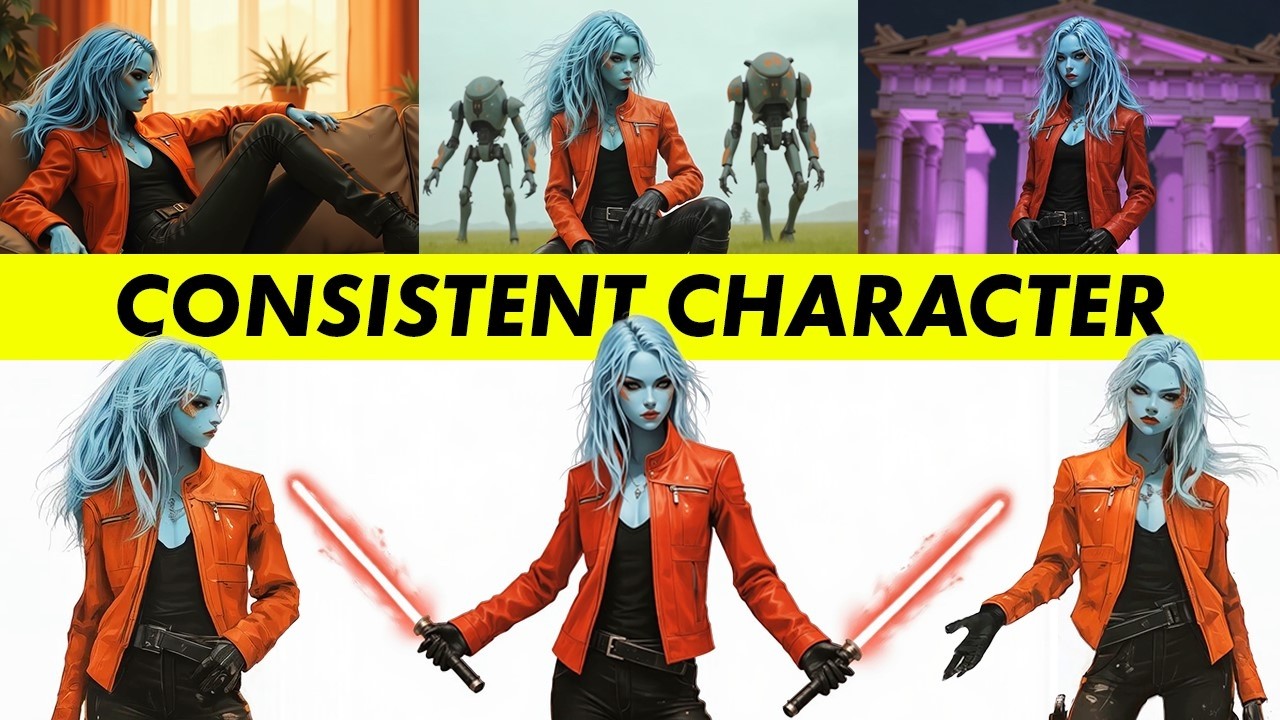
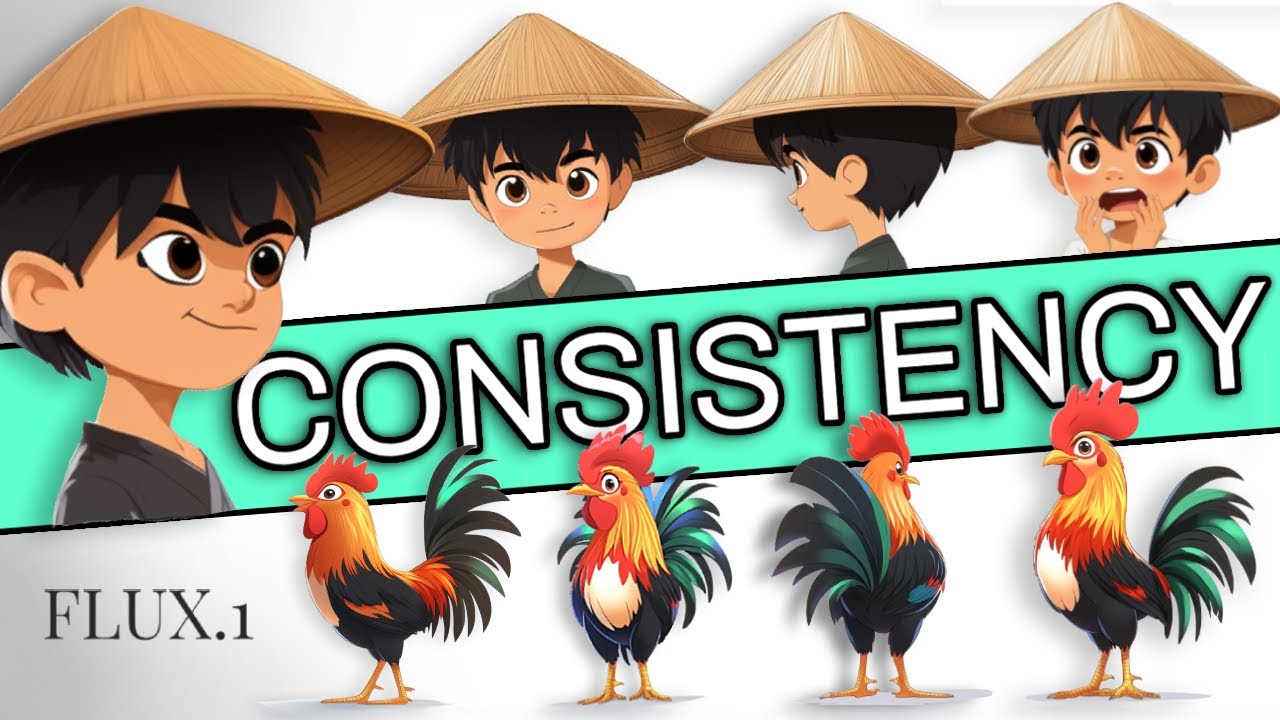
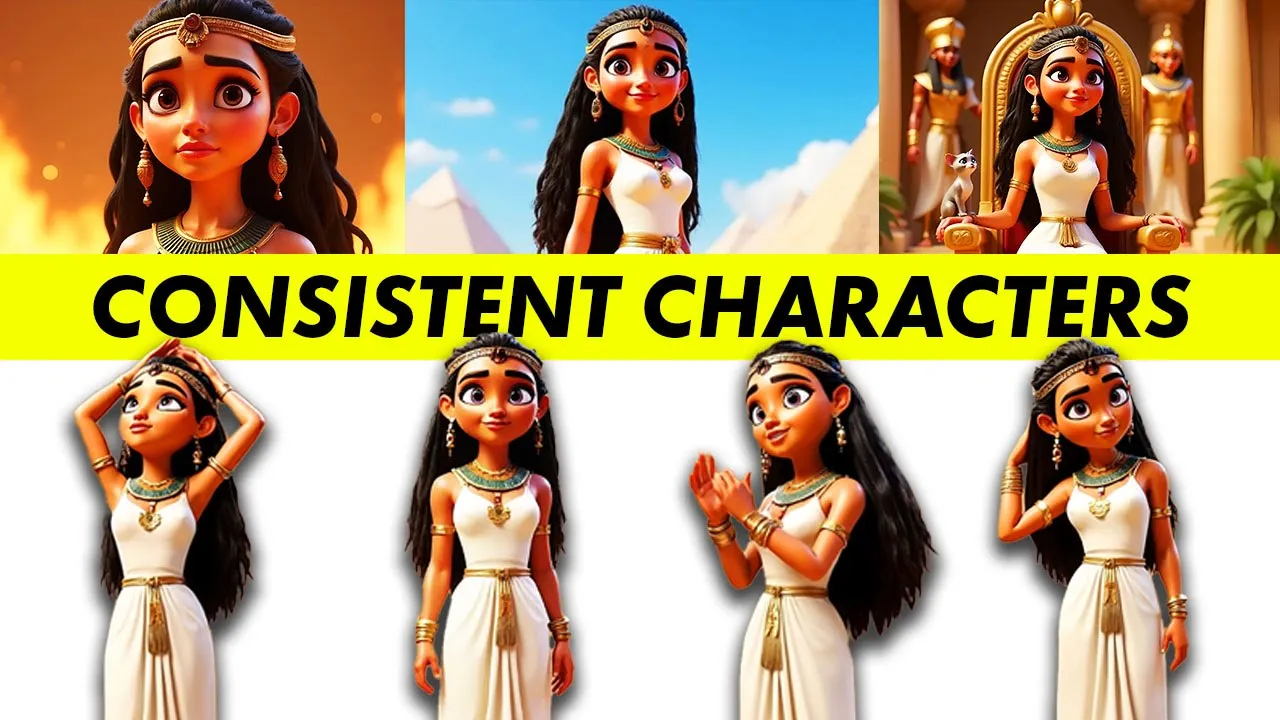
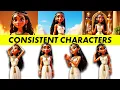
it's easier than ever to create AI stories with consistent characters inside of them I made a 3D animation with Cleopatra the Egyptian queen and Mar Anthony her partner in crime and I'll show you how to easily create AI stories with your characters inside of them we'll start by making images of just a single character first and then learn how to add extra consistent characters into the scenes I'll even show you how to customize their facial expressions or change the clothing that they're wearing to fit your story better but first let's take a preview at the
3D animation we create Cleopatra Egypt's last queen was more than a ruler she was a force of nature when she met Mark Anthony a powerful Roman general their bond became legendary it was a love of passion and power a union that sought to challenge Rome itself but their ambition made them enemies of Octavian Rome's future Emperor at the Battle of actium their for is found we'll see the full completed 3D story at the end of this tutorial let's learn how to generate illustrations of consistent characters I'm using design for this character tutorial it's an AI
image and video platform I'll post the links in the description let's go to create a new project for our AI story I'll give it a name and then choose the aspect ratio for the images you can change this later I'll start with 16 to 9 to begin with the first thing I'll do is make an a model to generate the Egyptian Queen Cleopatra so we're going to use this character feature right here and a couple different options for creating characters pop up I don't have an illustration for Cleopatra just yet so I'll actually need to
start by generating a character sheet for her a prompt with a description of her appearance Cleopatra the Egyptian queen wearing a white linen dress with golden jewelry dreadlocks with beads with an Egyptian headdress and a large necklace purple eyes 3D you want to tell the AI some specifics about the clothing details then we'll need to select a visual style to create the character in I want a 3D animation and there's this new design 3d render which is a default but I actually preferred the pictures I got using this cozy 3D stop I just thought that
the characters look much better in them let's use a wide aspect ratio and leave the generation mode at fast the images can be enhanced later on I created a bunch of different examples for her here's a design I liked and it's got a couple different angles over to get a better view of the character double click and add it to the canvas now let's teach the AI to create consistent images of this character use this build character button right here and we'll give her a name Cleopatra then just train the AI character this takes around
20 to 30 minutes when I used it I've already trained a model for Cleopatra which you can see in my character Library so let's use this one this brings up the prompt interface where we can start creating pictures of her there's two different boxes here one with an automatic AI generated description of her appearance and one below for the scene she's in which we'll use to describe what's going on around her I want to show her as a powerful ruler so we'll put her on a Golden Throne inside a palace there's a small Egyptian cat
sitting on her shoulder plants around her there's an Egyptian Soldier wearing golden armor in the background when it's finished generated double click on the images to add it to the main canvas by the way these images are generated pretty fast usually in less than a minute one of the problems you'll run into is controlling the character facial expressions if we take a look at the images I use to Trend AI they all show her smiling but I don't always want that I try to prompt her with a sad expression but that doesn't work very well
this is supposed to be a depressing scene what we'll need to do is use this expression edit button and we can go in and make specific edits to her facial features I found that eyebrows play a pretty big role in how she looks so let's make her sad by lowering the eyebrows also close her eyes a little bit and let's change her mouth a bit so it's also closed and kind of drooping downwards I didn't spend too much time on this but you get the idea also you can go back and check the prompts you
used using this info button on top of the images by the way make sure you subscribe if you want more in-depth AI storytelling tutorials just like this one so we've got one character down now let's add in our second character his name is Mark Anthony and historically known as Cleopatra's lover this time I'm starting with only a single image to demonstrate how to use your own characters from anywhere now we could train the AI model using just our single image of Mark but to get the best results we'll need to use multiple character photos so
what we'll actually do is go to this AI video tab which will help us get more screenshots of Anthony I'll use a clean video model which is also the default let's put Anthony inside here and let's get a couple shots of him turning around just a little bit with a prompt subtle motion he looks around and that looks pretty good for the video this is a pretty useful way to get extra character frames download that video we'll go to this site called frame extractor to get the individual images you'll need to specify the interval and
how many frames you want since this video was 5 seconds I'm going to ask for 50 frames at 100 Mill seconds for the interval which is going to process the entire 5-second video If you have a 10-second video you'd want to use 100 frames then we can pick and choose from all these screenshots we want for the specific character images once I've got all my character images sorted out I'll use the same process as training Cleopatra except this time with the name Anthony and the new character images hit this refresh button to create a new
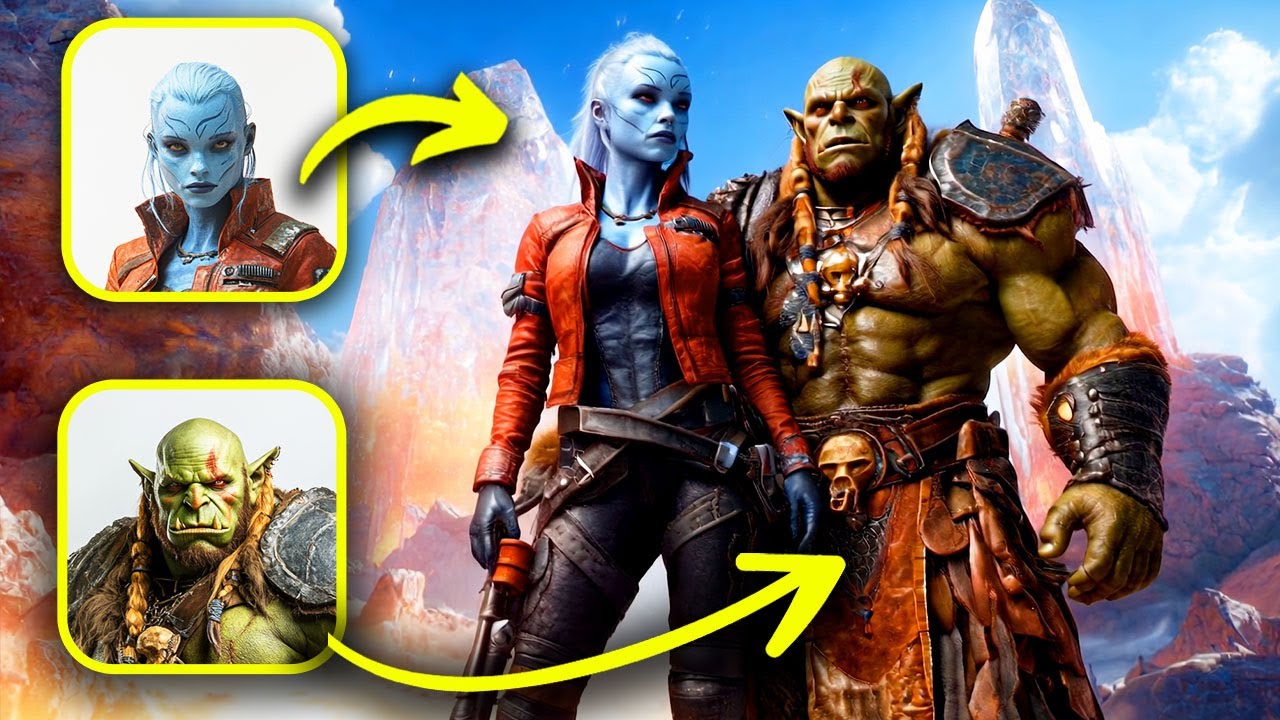
character and we'll train a model for Anthony so now I've got both cleop Pat ra and Anthony to put both of them inside the same image we'll need to start by creating an image of Cleopatra and a placeholder character and then paint over the placeholder to insert Anthony into the frame so I'll start with this image I prompted for Cleopatra having lunch with a man and to add our second character onto here we'll use this character feature again this time selecting the insert care pitol I use this eraser brush to draw over the area of
where I want him to be added into which is going to be the purple regen then inside create a character pick Anthony and I'll prompt for Anthony sitting at the table he's looking happily at the woman in 3D cartoonish style this will take a little longer to generate than normal images maybe a few minutes and we end up with four different images to choose from with both of our characters inside you can create all sorts of different character interactions using this tool I think the results are really solid even from different camera angles [Music] something
else you might need is to change the clothing the characters are wearing depending on the scene that they're in in this shot I wanted him to be wearing armor changing the prompts works okay but it's not great so what I'll actually do is use this image editing tool called select and then using the lasso selector draw around the region of his clothing in the prto ask for he's wearing Roman legion armor dirty and scratches three PR cartoonist style and that's a much more fitting look for the battlefield that he's off you'll probably also need to
generate some extra images to fill out the rest of your story so we can do that using this text image tool remember the Cozy 3D style I used from earlier and will create some images for the background scenes like the Egyptian pyramids I really really do like this Coy 3D style I think it fits really well for 3D animated stories we can also create other character like an angry Roman general to download the images right click go to save image like I said before you have the option of upscaling here since I'll be turning these
into AI videos it makes sense to increase the resolution a bit to get the best results I finished with the illustrations and I've sorted them out to turn into a 3D animation I'll use the AI video tool again let's pick an image for this scene that having lunch together and falling in love I come for they look lovingly into each other's eyes gently holds her hand and I think that'll fit perfectly into the 3D animation let's take a look at what the final 3D story looks like with all the completed scenes and characters in the
heart of Egypt where the Nile's Waters nourished the land and Pharaohs left their Mark Cleopatra Egypt's last queen was more than a ruler she was a force of nature when she met Mark Anthony a powerful Roman general their bond became legendary it was a love of passion and power a union that sought to challenge Rome itself but their ambition made them enemies of Octavian Rome's future Emperor at the Battle of actium their forces fell facing defeat Anthony took his own life heartbroken and Knowing Rome would soon claim her Cleopatra made one final defiant Choice dressed
in Royal robes she allowed a venomous ass to bite her choosing death over humiliation with her passing Egypt fell to Rome but their love became Eternal a tale of power sacrifice and a queen who dared to fight for both her kingdom and her heart design does have a free plan where you can use some of the preset default characters but to train your old characters you'll need a Creator plan which is what I used they do have discounts for students so if you have a doedu email account make sure to sign up with that if
you want to learn how to write the best prompts for your AI videos to create amazing AI animations go watch this tutorial right here [Music]