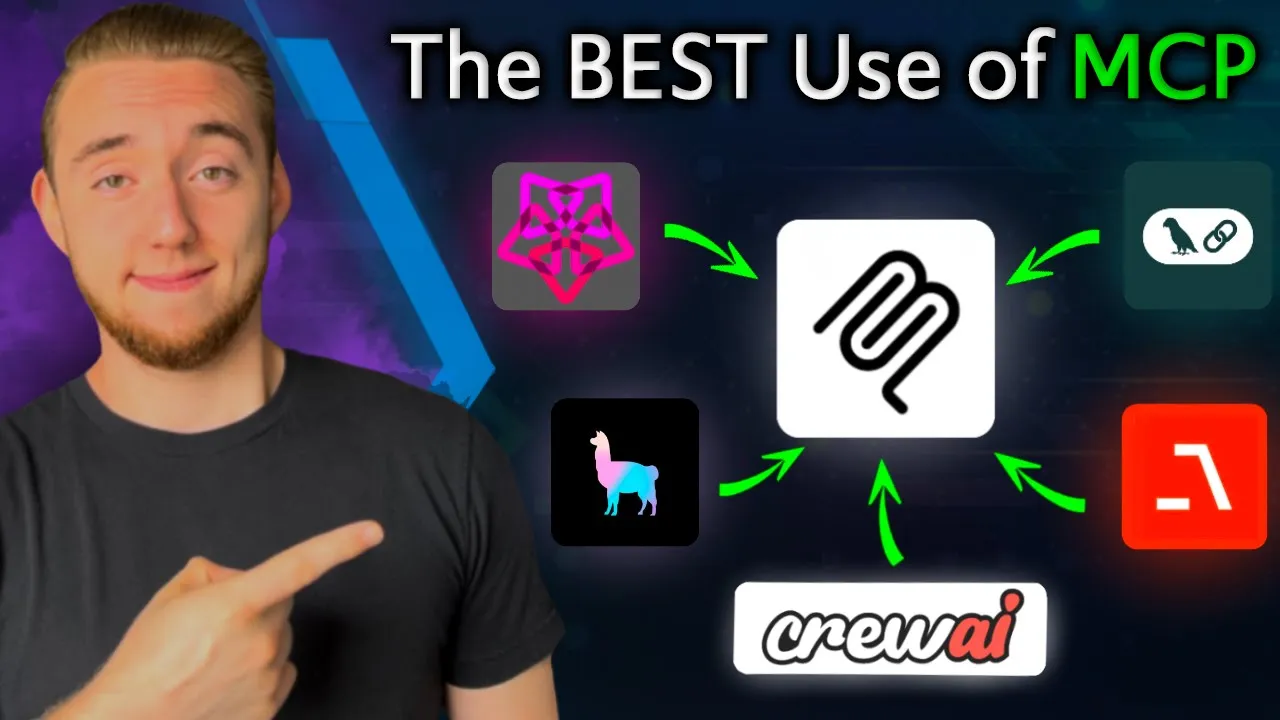
the model context protocol has everyone fired up including me because of the way that it standardizes giving tools to llm with it creating powerful AI agents that can practically do anything on your behalf has never been more accessible however as powerful as it is it's pretty limiting when you have to use applications that natively support mCP like claw desktop wind surf or cursor the true power comes in building our own AI agents you and I both know that but how do we integrate mCP servers with our own agents so we can use these tools for ourselves and that my friend is the million dooll question because then we can build our own front ends and apps we can integrate mCP servers with other tools that we built for our agent we can even pick and choose the different tools that we pull from these servers you can see that this is when really the possibilities become truly Limitless and you're in luck because integrating mCP servers with your own AI agent is exactly one going to show you how to do in this video we're going to use pantic AI as our AI agent framework but what I'm going to show you how to do is going to apply no matter your framework and even if you don't want to use one at all and the best part is it's actually pretty simple and if you follow along with this video and you take the template available for you in GitHub you're going to be able to do all this for your own AI agents in less than a half hour really exciting stuff so let's dive right into it so if you're not familiar with mCP I would highly recommend checking out this video that I'll link to above where I did a very comprehensive overview but now what we want to do is take all of these beautiful mCP servers that give us tools for all these different services and just like we can very easily inject these into an app like CLA desktop we want to bring them into our own AI agents and so if we want Brave web search for our agent or we want our agent to work with a GitHub or rag through chroma all of these different servers we can configure them for our agent just like we can do with claw desktop and I'll show you how to do all of that and I even have an example of this that I want to show you really quick cuz this just shows that we can build a custom front end for our agents with mCP so I took the agent that we are about to build together I turned it into an API endpoint for the live agent Studio platform that I've been working on and so I can ask it something simple like search the web to get the latest news for mCP and this seems simple at a surface level just like a lot of the other agents that I built on my channel but it's using the brave mCP server under the hood and so I did not create this function myself for it to search the internet with brave and I've always done that in the past and I have all these other servers hooked in as well so I can say what local files do I have and I can use the local file mCP server and I have sqlite as well and it's so easy to extend the configuration to add in any servers that you want that are from this list and there a lot of other ones that aren't on this list either and so it's just that easy to add functionality into your agents now that's why mCP makes tools so accessible so if you're curious how I figured out all of this I just used two pieces of documentation so here in the official mCP docs I went to quick start for client developers this shows you at a high level how to create an mCP client with python and then a more in-depth example that I referenced even more is this one in their python SDK GitHub repo and this shows you exactly how to set up an mCP client so you can configure your servers in the same way that you would for something like Claud desktop or winds surf with that CLA config Json file and so I followed all this to a just so that you know that what I'm about to show you is really following the best practices that anthropic is laying out for mCP and so with that let's dive right into the code so here is the GitHub repository where I give you everything you need to connect your mCP servers to your custom AI agent right now using pantic AI in this example but I'll show you later how you can make this work for any framework that you want to use and at the root of this repo which I'll have Linked In the description by the way I have this readme that walks you through everything you need to get up and running yourself and the best part is I have this quick start at the top where in just four steps you can take what I've built here this custom mCP client that works with your Frameworks and you can bring it into your own project and so first you just need to copy the mCP client. py script this is the custom client that I created so you can take this script and bring it into your own project and then the only dependencies here is pantic AI or whatever framework you are using and then the mCP python SDK itself so just install these with tip and then we can move on to setting up our configuration and I did it on purpose where I made it so that the way that you configure your mCP servers is exactly the same way that you would do it for another application like CLA desktop so just making it as simple and standardized as I possibly can for you so I have this example in the repo for what this config would look like this should look very familiar to you if you've used mCP before and the way that you know how to set up each of these individual servers is you just go to the GitHub repo that lists all of these servers you can click onto any one of them and then in the instructions like for the brave search mCP server for example I can scroll down and then it gives me the usage with claw desktop add this to your config. js you can follow the exact same instructions just copy this config and bring it into your own Json file here that is it and then the very last step is to set this all up in your python code so you import the necessary things from mCP and pantic Ai and then with this function right here it is only four lines of code we create an instance of our client we load the servers based on the configuration file and obviously set this to the right path to your own mCP config.
js and then we get a list of tools by starting the connection to each server with our client and then when we create that instance of our pantic AI agent and it's going to look very similar for for other Frameworks the way that we pass in our tools is just this right here so all of the tools that we got when we connected to our servers and we listed all their tools under the hood with this call we're just passing that in for the list of tools to our pedantic AI agent and then in your main function wherever you want to use this agent you just have to fetch it with this line of code and that is it so you now have an AI agent built with pantic AI that has access to all of the tools from our servers that we defined in the Json it is that simple and in this repo I also have examples for how we can use this within an AI agent and the first thing I want to show you is what it looks like when we have a pantic AI agent not set up with mCP and then we'll contrast that with how simple it is with it and so in this example we get our environment variables to define the model we want to use we set up our dependencies for pantic AI just all standard pantic AI stuff we Define our agent and then for all the tools that we want to give our agent we have to Define individual python functions for all of the capabilities that we want to give it and so in this case we're just giving a single tool to our agent for it to be able to search the web with the brave API and look at how much code this is for just a single tool and if we really wanted to make it something like our mCP agent where it has dozens of tools from all these different servers we'd be creating dozens of different functions and that gets very cumbersome you can see how without mCP there is just so much code that we have to create for all of our agent capabilities and and so contrast that with mCP take a look at this this is the same implementation for a pantic AI agent but this time we are leveraging that function that I showed you in the readme to hook into our mCP servers with our custom client and then use those tools for our agent instead of having to Define individual functions ourselves it's so much less code and we have way more tools available to us and that's the beauty of standardizing things with mCP we don't have to create the tools our elves I mean we still can if we want but we can reuse what other people have made for us and that's not really possible without something like mCP providing that standardization and then the way that we interact with our agent it's still the same way under the hood I mean these functions in our our main function here is pretty much the same and so there's nothing crazy magical or different going on here but that's good because we still want to work with our agents in the same way just make the tooling easier to set up and that's what mCP does for us and so now I can go into my terminal and run this basic mCP agent and you'll see that at the beginning it'll load our mCP servers like we see right here and now I can ask it something like I have this example here search the web to find the newest local llms and just this is just to prove to you really quick that it can connect to those mCP servers under the hood because all of the descriptions for each of those tools are given as a part of that prompt to our pantic AI agent just like when we Define tools the old way with our code so I'll just give it a little bit and there we go yep gave us a markdown search the web to find the latest local llms so yeah super super neat the sponsor of today's video is Cosmic up an allinone place where you get access to all the best llms under one subscription and it's only5 for the first month and so 03 mini Claude 3. 7 Sonet Gemini 2. 0 flash thinking you get access to all of these and you don't have to pay the more expensive separate subscriptions and there are other apps like Cosmic up but what makes it stand out is that there are no rate limits for over 30 of the best llms and it uses the direct API for all the different providers and so all that together I've not seen before so over in their app Cosmic up.
me you'll be presented with this interface that looks very familiar to us and that's good because at a core we want all the same functionality of Claude and GPT but Cosmic up just provides that and a lot more so I can have a conversation with it like I normally would in a chatbot I mean look at how fast this is even for 03 mini and then if I click on this drop down I can see all the different models available to me there's everything that I would want and I could even do something like start with a Reasoner llm and then switch to something faster like GPT 40 mini in the middle of a conversation and something else that they have that I don't see a lot is you can use folders to organize your different chats which is super neat and then they have all the core functionality that you would expect like uploading files for your images and PDFs you can use image generation with mid journey in Dolly you can do web search improve your prompts with an llm chat with your voice it is the package that has it all as far as platforms go to quickly give you access to all the best llms Cosmic up is definitely at the top of the list and if you're not convinced at this point you can try it for free you won't have access to all of the llms but you can use GPT 40 mini CLA 3. 5 Hau and mistol unlimited for free just to get a feel for the platform so I'll have a link in the description to Cosmic up definitely go ahead and check them out and then this really basic implementation and this non mCP version I'm going to remove these from the repo just to clean it up but I have a more robust implementation that I'll leave in the repo that actually streams the output to the console as the agent is producing the response token by token and so if you want to run this full example I have instructions for that in the readme so if you go past the quick start you can dive into what it looks like to set up your environment variables to actually have an llm hooked into this agent so this is a full example whereas the quick start is just at a high level how you can bring this into your own project so I hope that makes sense and then the other thing I want to show you how to do is build this custom mCP client because when you take this client script into your own project you can change things up to make it work for other Frameworks for example so I want to show you how I built this so you can know how to customize this to your own needs because in the end this client is just a starting point for you I want you to take this and run with it and so let's dive into building this from scratch and there are some more complicated parts to this that I just learned by following the documentation that I showed earlier from anthropic things like handling our resources when we crash our application or end it manually we want to make sure that we also tear down our mCP servers and so you'll see some lower level code for that but I'll call out the important details that are really worth paying attention to so the first thing we're going to do is import all of our libraries and configure basic logging then we'll create our class that will represent each of our individual mCP servers and the first thing that we want to do when we initialize a new server is we want to give it the name and then also our configuration so file system would be our name and then the configuration would be these lines for example with our Command and arguments and then we also have a session defined this is where we store that connection for the client to this specific server and then again some lower level code for the resource cleanup stuff and then we have a function to initialize the server connection where we're going to create our Command again based on the type of server if it's a python Docker or JavaScript mCP server and then we'll raise an error if there is no command defined otherwise we'll Define our parameters for the mCP server so we have the command then we have the arguments and then if it's something like the brave server where we have an API key as an environment variable we'll Define those right here as well and so now that we have the parameter set up just using the studio server parameters object that we import from mCP now we can actually make that connection so a little bit of lower level code to create that protocol to connect to the server through the client make that session and then finally we can initialize it and so this is a little bit more of the complicated part to the code so don't worry if you don't understand all this you can just use this template that's why I'm saving you a headache here getting this all implemented for you but yeah the important thing is at the end of this function we now have this session that we set right here for our client session so we now have have that connection to our server and then we handle any errors as well and then we have our all important function to take the tools that we have for our mCP server and convert them into the format that we need for pantic AI and so it's very easy to get these tools from an mCP server we just take that session that we just initialized with this function and we call the list tools function it's that easy we get a list of tools and then we can use a helper function to convert each one into the format that we need for pantic AI which Speaking of that that is going to be this function right here so we take in an mCP tool and then what we get out is a pantic tool and you can create a similar function to do this conversion for crew aai or Lang chain or your own framework whatever you want to do because all we do is I'll just kind of throw these out all at once here is we create a couple of functions that we need to work with this tool and then we Define an instance of the pantic tool class and so we have this function to actually execute the tool on once we want to use it in our agent and then we have the name we have the description of the tool so the agent knows what the tool is all about and then we have this prepare function and so this is where we get the Json schema for the function so the agent knows the parameters like if we're creating a local file it'll now know that oh we need to give the file path and the contents that we want to put in this new file or for searching the web we need to know the query that we are using for the web search and so all that is defined in the parameter here that we just pass as that last argument and that's it for this function we now return an instance a converted instance of the tool specifically for pantic AI and that's how we get this tools array in this other script that has the format so you can just pass it directly into our pantic AI agent instantiation and then we have a cleanup function that I'm not going to cover in detail here this is how we tear down the mCP server when our application is done and now with that we can create our mCP class and this is where we manage all of our different server connections and so in our initialization function we create that list of mCP servers that's this class that we just finished creating and then we have our configuration the list of all the tools that we pull from these servers together and then another lower level thing to manage our resources and then in our function to load servers this is where we pull in our configurations so we open up this Json file and then for each of the servers that we have here we're going to get the name which is like file system or Brave search and then we also get the configuration and so that's everything within that Json object for one of these servers like this is all the config for brave this is all the config for the file system and we just create an instance of the mCP server for each of those items in the Json and then to actually start each of these servers begin that connection for our client we have this start function and so we're just going to Loop through all the servers that we pulled from the config and initialize them it's very very simple and then we can call that create pantic AI tools function to get a list of the tools from that server converted into pantic AI so we'll get that we'll build up this list of tools handle any exceptions and then finally return these tools and so when we call this start function within our other script that's this right here that's how we're getting that list of pantic AI tools back and so the hierarchy of this is we call client. start and then within client.