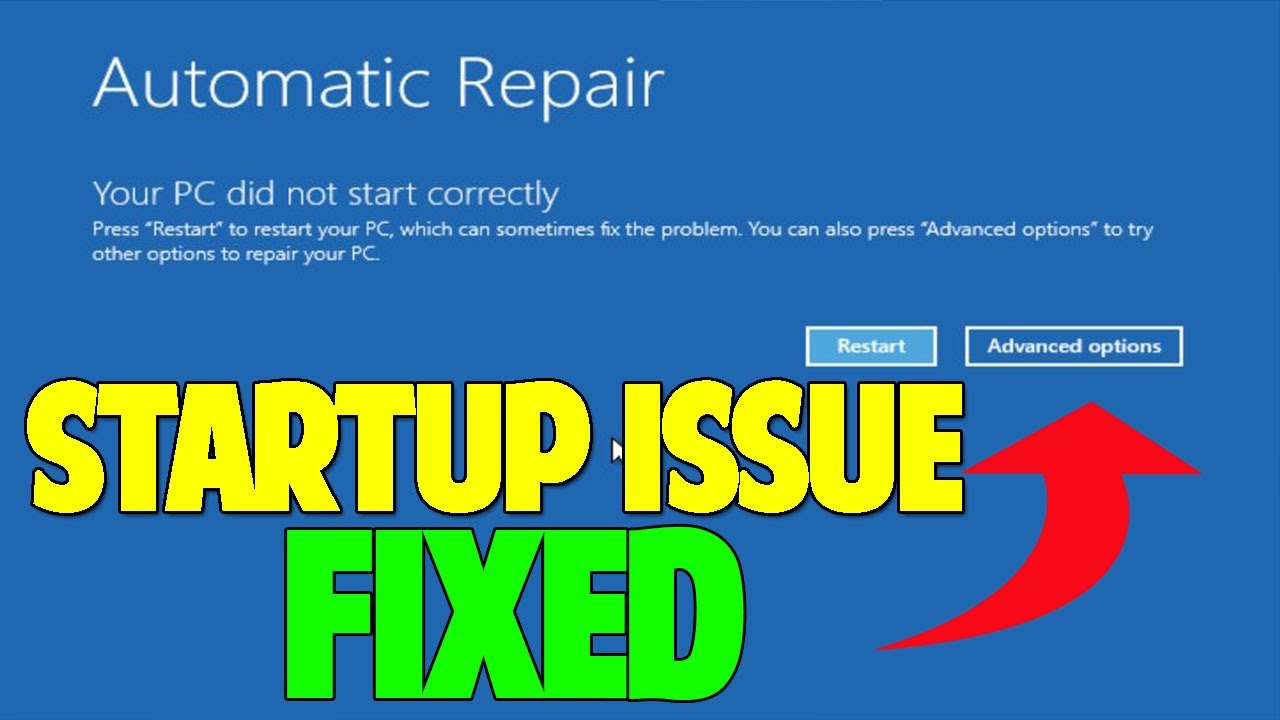
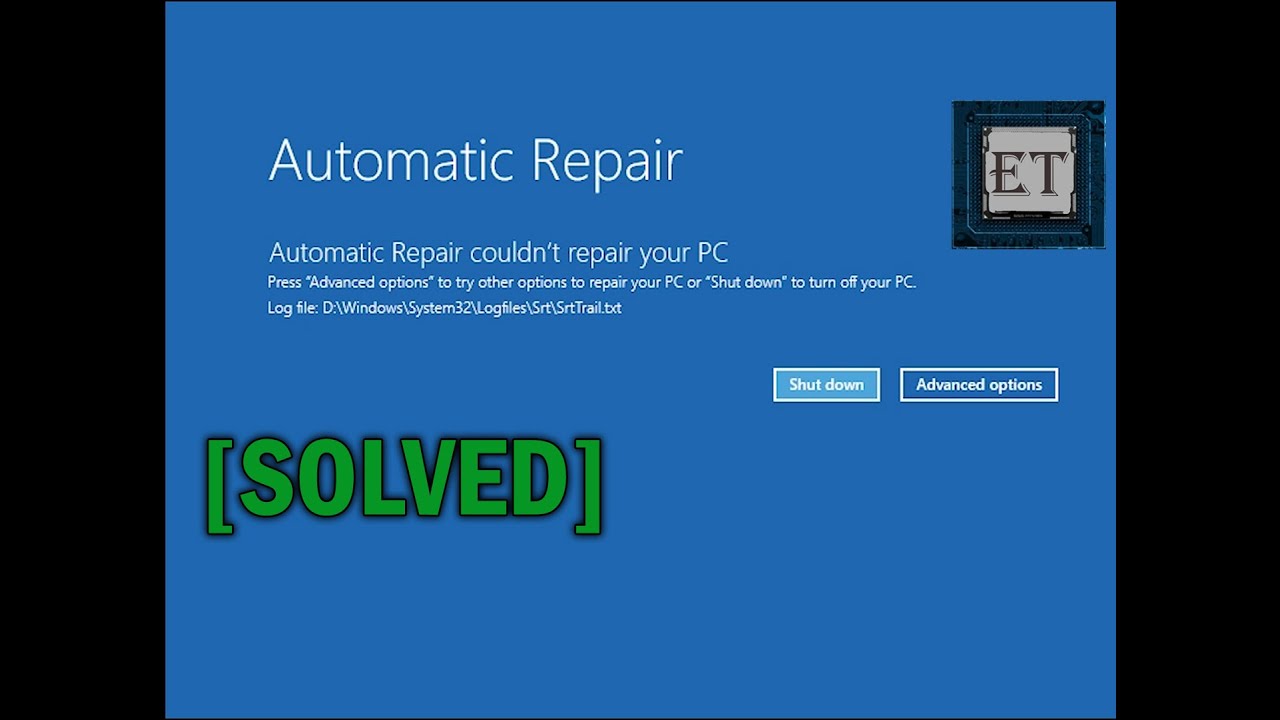
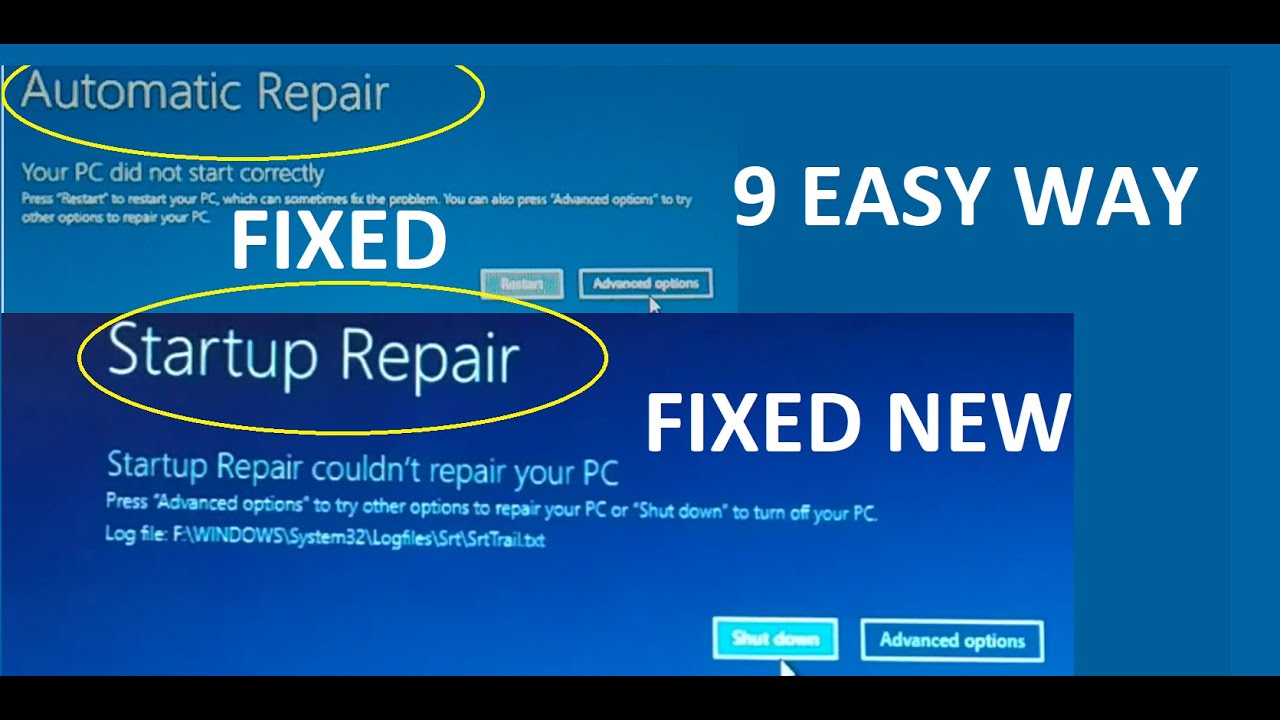
so you're having problems starting your windows 10 up you go ahead and start it says hey startup repair fails to actually repair your computer and you're just in this continual boot loop you followed the other YouTube videos about restoring registry and they just don't work so in this video we're gonna rebuild that startup partition of Windows 10 I'm gonna show you how to actually do that and let's go ahead and jump on the desktop and get into this this video is brought to you by CD in 77 the content delivery network used by space agencies
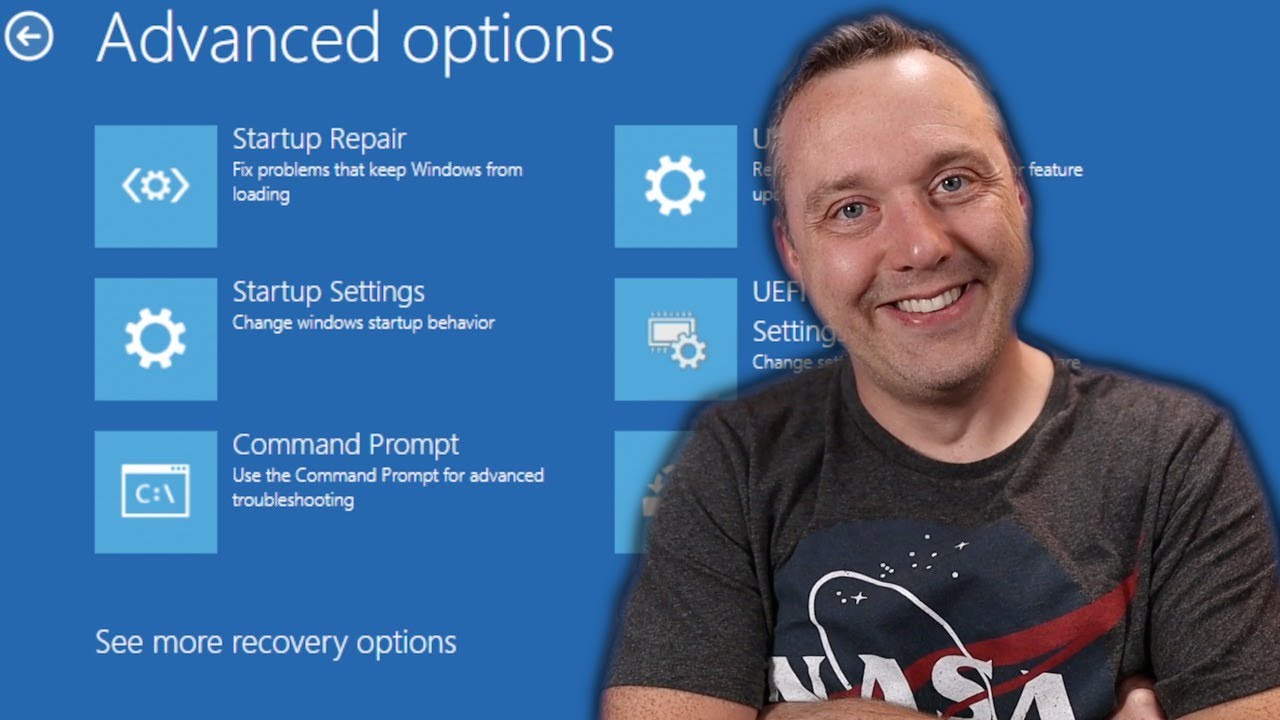
and CentOS I'm also amusing this on Chris Titus comm to speed up my website so if you're interested in this click the link in the description ok so here's your Advanced Options from your boot screen you get like this you could reset or go to advanced and you go to advanced you hit startup prepare try this first obviously but more often than not this is gonna fail so what's your next options now every other YouTube video out there says to do a registry restore the problem I have with this is most of the actual restore
options have been disabled by Microsoft these days after October 2018 and 1803 in past Microsoft Windows 10 stop doing registry backups which is a huge problem so what do we do in what do we do if we have a broken startup and that's what I'm gonna cover right here and we're gonna rebuild our system reserved partition so let's go into our command prompt and this will go ahead and launch into it if you don't have this you can also utilize installation media however if it pops up on your startup you can also do it from
this section as well so I also have an installation media so I'm gonna show both in this we're gonna first start with hey we're having problems booting in we're gonna not use installation media and then I'm gonna also show the other way after this one so we get in here we're at the command prompt and we want to actually repair our system so first thing we're gonna do is go disk part and if you want to follow along here I can went ahead and created a copy/paste kite basically so you can pull it up on
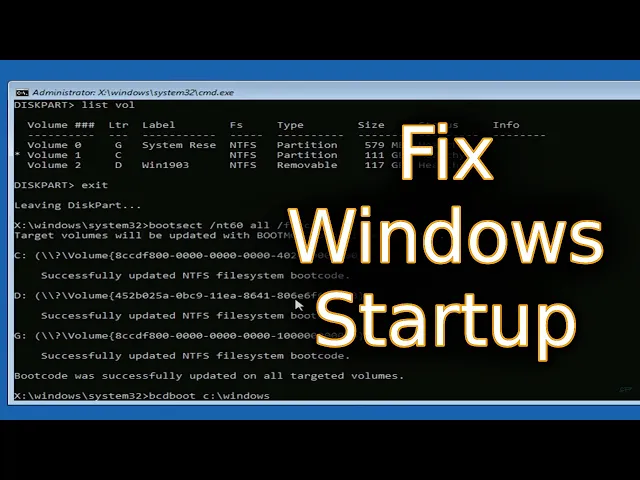
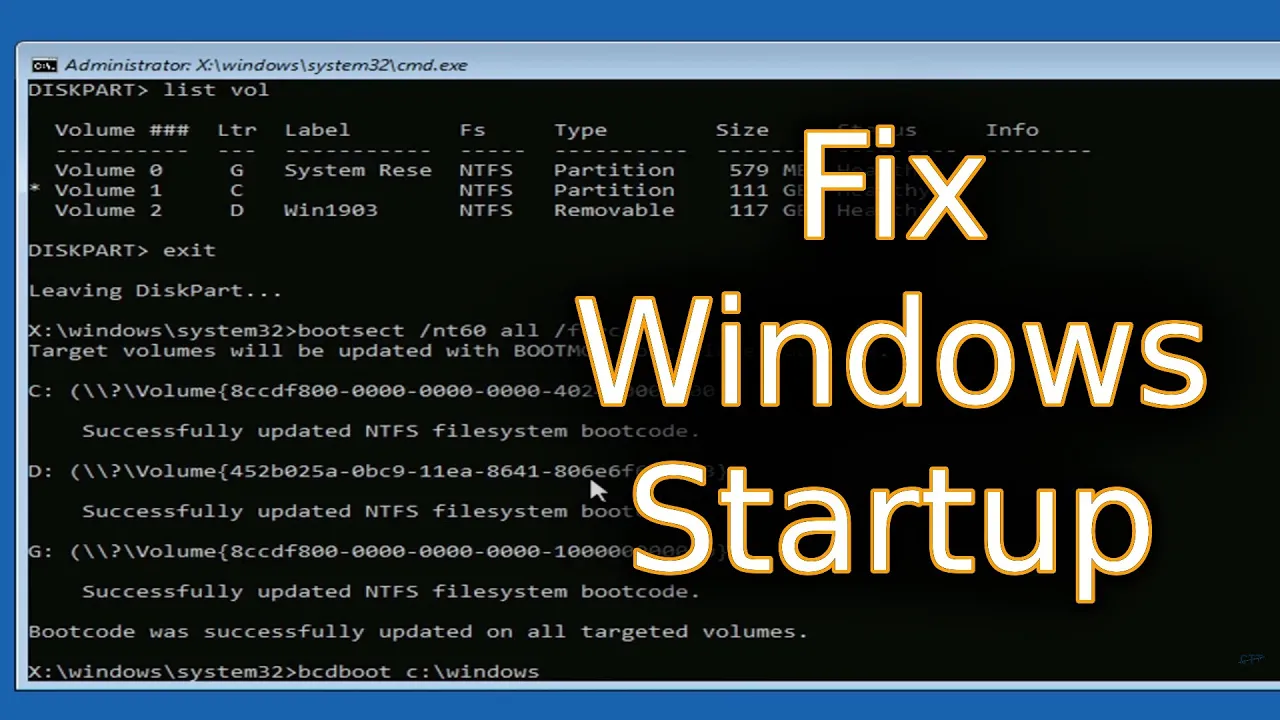
your phone or a secondary computer if you like and then easily see all these commands I'm typing and so you don't have to actually write them all down so we're in this part and we want to begin our repair for first we need to select our first disc so we'll go select disc zero once we do this will list the volumes on the disc with list vol and you'll notice several different things here we have three volumes that it displays letter D is actually a removable media you can see it right here so this is
actually my USB Drive with version of Windows Windows 1903 to be precise and that one we won't be touching so remember letter D however you'll notice that system reserved which is actually our boot partition is letter C and then letter E is our main partition which has windows installed on it so what we need to do is first rearrange these so C would be the windows partition and E or G whatever any partition would be system reserved it doesn't matter so much on the actual lettering of the system Reserve because it doesn't technically get a
letter when it comes to Windows but C just remember that should always be our system so we'll go ahead and fix this real fast so will first select vol 0 which is system reserved and then we're just gonna sign this a different letter instead of G so we'll just say it's sign space letter equals G : this assigns that and now we need to select volume one selects the main system partition which right now is labeled II we want that to be C so let's do the same thing assign letter equal C : so now
we should have the proper mount points on all our drive so if we do list of all you'll see that G is now system reserved in C is our main system so this is good we can exit disk part by just typing exit and now we want to set all our boot sectors across all our drives on here so this will set them all to NTFS which is the windows standard so let's do that type boot sect - in t60 all - force hit enter this goes ahead and sets all the boot sectors properly now
we need to do a rebuild of that system partition so let's say someone went in and deleted all the files in that system partition this would rebuild and repopulate all those files so we can do this by going BCD boot our Windows partition which we just labeled our system see remember us assigning the system drive see windows space - ford slash s and then the drive of our system partition or system reserved which we labeled G and then we do space F all and then we hit enter this rebuilds all the boot files and now
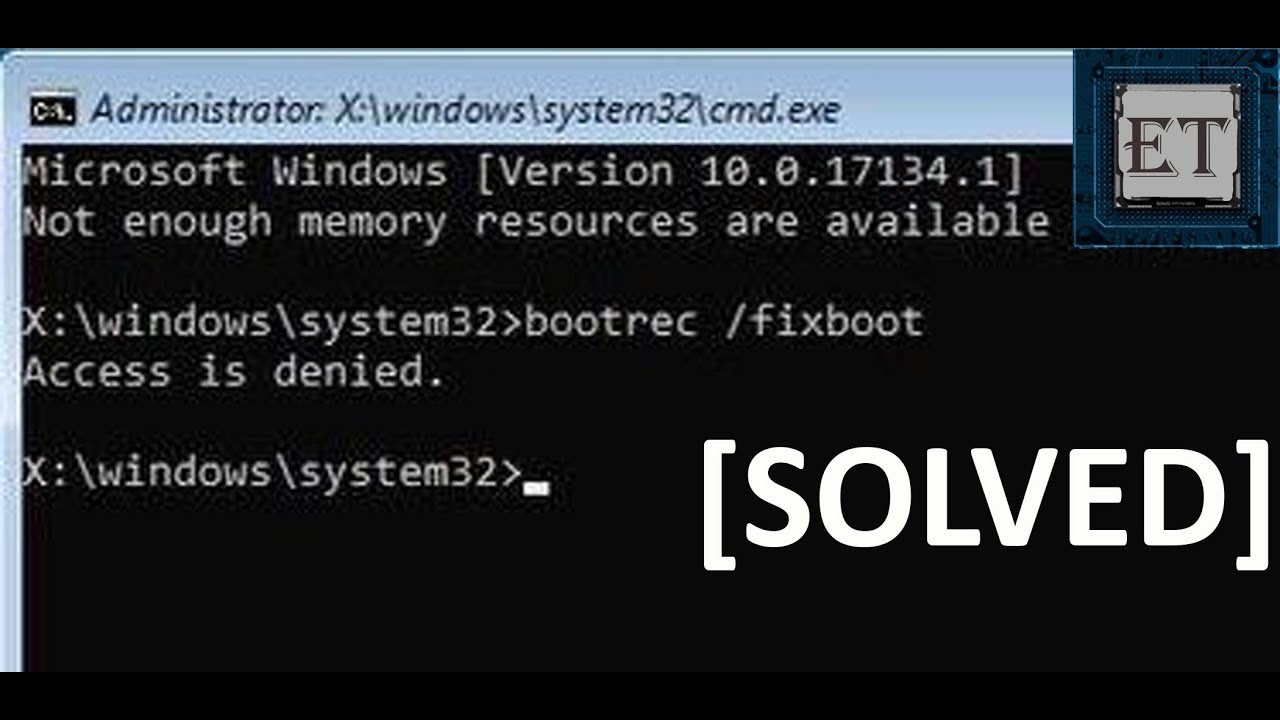
we can do a simple rebuild so now we need to build our master boot records we'll do boot Trek now this is where you see a lot of other guides pickup but they missed this first part which really messes things up so we'll do bootrec four slash fix MBR and then we'll do boot wreck fix boot and if you get an access denied that is ok I've noticed that this is kind of almost like a bug in the repair cycle but it does repair properly even if you do get this access denied a lot of
times and then finally to end all this out I like to do boot wreck rebuild BCD and this usually rebuilds the Boot Record now this didn't actually identify any windows installations but that's ok again it seems like in the latest versions of Windows they've almost broken this functionality to where it's not reporting properly but I noticed it still does do a good job of actually fixing the computer so let's go ahead turn this off we're gonna go ahead reboot alright so you'll see the reboot here and from this reboot it should go ahead and boot
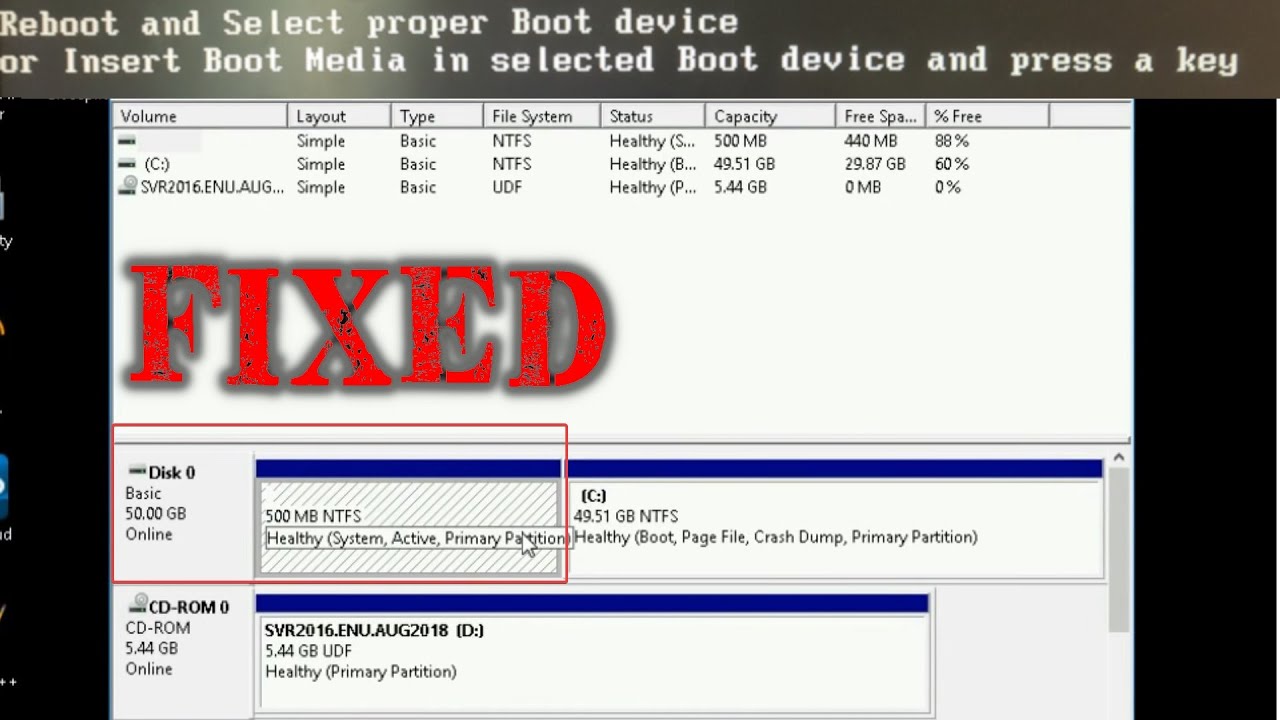
back into Windows just fine now I want to go ahead and go over actually booting in from installation media because a lot of times the startup partitions just broken beyond all of says hey can't even boot into a Windows partition ok so now we're going to show a broke start up things so you see the operating system was not found' tried disconnecting any drives that don't contain an operating system and press ctrl Alt Delete to restart you'll just do this and I'll just continually do this over and over it'll just print this message you have
no version of Windows for this instance you need a USB Drive with Windows 10 loaded so you need to get a second computer load that up just go to download windows from Microsoft and create your own secondary boot on a USB so once you have that Windows 10 on a USB you can continue from here so let's go ahead restart I have that USB Drive in and we'll go ahead and try and repair it from this starting point so it's starting back up we'll hit f7 for a boot menu I've seen the boot menu be
f11 or f12 or even f10 it depends on the system but just know it's usually an F key usually f5 or all the way through f12 depending on that if you can't find the boot menu key usually f2 or delete will get you into your BIOS and you can menu select your drive from here so I have a SanDisk USB Drive that has a basic version of Windows now remember we're not wiping out windows or reloading it we just want to repair that startup partition alright so here is our basic install screen now a good
little shortcut to get around this and get right into our command prompt from our installation medium is to hold shift in press f10 this brings right into here and then we can start typing and all our stuff so what what I'm gonna do is just repeat all the steps and I'm gonna fast-forward through this because it's gonna be the exact same steps as I followed at the first part of this video [Music] all right I've now put all the commands back in in that exact same order again check the website link is in the description
chris titus comm for this how-to guide of rebuilding your entire boot sector so with this whole boot partition rebuilt we can go ahead and exit this and go ahead and exit our installation media and let this computer reboot on reboot it should load right back into windows as you saw we wiped out pretty much the entire boot partition and and now it's just simply rebooting back into Windows after rebuilding it so this is the whole from the start to the end rebuild of a Windows boot partition now one last thing I want to leave you
with a lot of other YouTube videos I said showed how to restore a registry backup however Windows 10 no longer does registry backups as of like about a year year and a half ago so we want to probably re enable this feature so you can actually utilize the repair steps in those YouTube videos to repair a modern-day Windows 10 system so I'm gonna show you that real fast as just kind of a bonus here at the end we'll go ahead and go start run we'll type regedit and then from here we'll go into H key
local machine B System currentcontrolset ctrl come down to session manager and then configuration manager now configuration managers doesn't have anything in it however there was in an older version of Windows 10 everything before 1803 October 2018 ish and before had a backup of the registry so we want to re add this functionality so you can utilize that other fix should something happen to Windows you'd have a backup of your registry so we'll go D word 32-bit value and then we type capital e enable capital P periodic and then capital B backup and then we just
change this from a value of 0 to 1 and then we simply reboot so we'll go ahead and I'm gonna show a reboot just to make sure we didn't mess anything up but this we'll help with the enabling periodic backups of your registry so if you ever did need to restore your registry it would actually do something so that she gets you sorted for now but you're probably gonna run into more problems down the road because it seems like Windows 10 just gradually keeps getting worse that's why a lot of my content on this channel
is geared towards Linux desktop on why I'm wearing this shirt because I absolutely love it and I've recently converted in the past year it's amazing how far it's come especially in gaming but with all that said let me know your thoughts down in the comment section below and a big shout out to all my patrons without you I couldn't make videos like this one and I'll see you in the next one