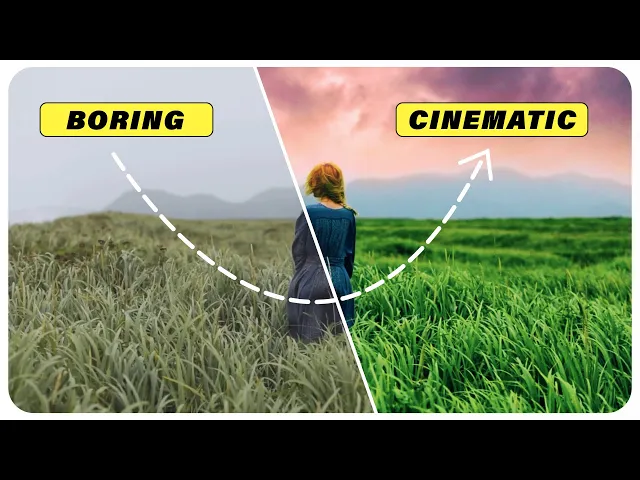
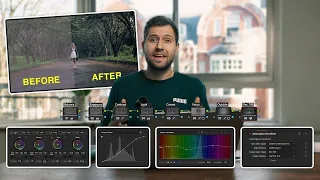
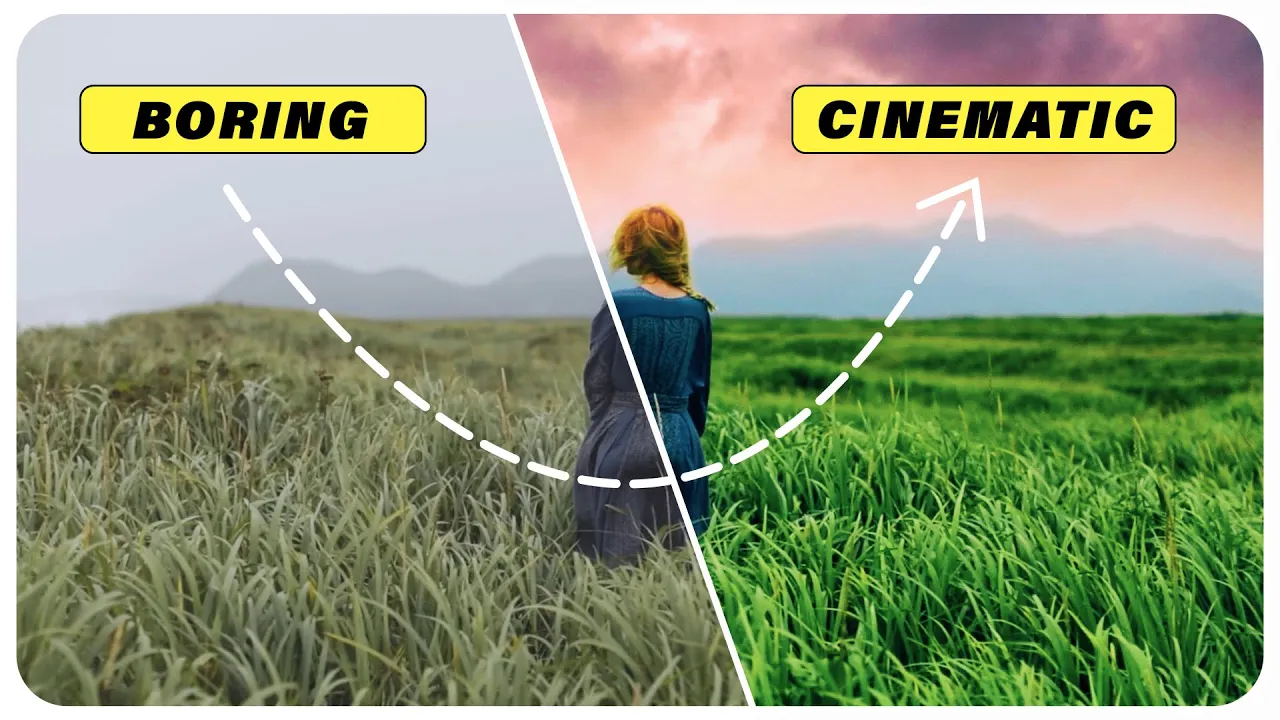
[Music] thank you [Music] seventy percent of the footage we always have the sky sky is the biggest part to make your videos normal to cinematic so now we are going to change the color of the sky make a new adjustment layer drag the adjustment layer above the clip then select this adjustment layer move to the effect controls tab under the opacity effect select the pen tool and create a mask only in the sky just like that [Music] then increase the mask feather around 100. [Music] now go to the window menu and open the lumetri color tab inside the lumetri color tab click on basic correction for my clip I like to change the sky temperature to warm color adjust the tint a little bit magenta and increase the saturation increase the Highlight a little bit and turn down the shadow so it was our before and this is after for the next step I'm going to use a cloudy Sky if you want these footages for practice you can download them under the description link and this cloudy Sky resolution is 4K so right click on it and select the scale to frame size so it will adjust with your sequence settings then move to the effect controls Tab and decrease the opacity 50 percent again select the pen tool and draw a mask around the sky [Music] now increase the mask feather around 200. and move this mask little bit up and increase the opacity to 100 percent or you can use the opacity 70 to 80 percent so as we can see that cloudy Sky color doesn't match with my sequence so again move to the lumetri color Tab and increase the temperature to warm color tint to magenta then bring up the highlight and turn down the shadow increase the white level a little bit now I think it looks better also we can add a little bit gaussian blur on the Cloudy sky so move over to the effects Tab and search for gaussian blur apply it to the sky layer then move to the effect controls tab under the gaussian blur effect increase the blurriness and there we go and the last step is color grading before going to this step let's talk about the sponsor of this video so are today's video sponsored by Cinema grade Cinema grade is a powerful plug-in for color grading or Cinema look and it's a modern and simple color grading plugin that will help you to faster color grade your videos you can get this plugin for Premiere Pro DaVinci Resolve and Final Cut Pro X and it's available for Windows and Mac OS you can check out the cinema grade under the description link and you can use the special coupon code nm20 so you'll get 20 off for a limited time now let's see how to color grade the video by using the cinema grade plugin first make a new adjustment layer then drag and drop the adjustment layer above your clip when you install the cinema grade plugin you'll find it inside the effects tab so move over to the effects Tab and search for the cinema grade then apply it to the adjustment layer now go to the effect controls tab under the cinema grade effect click on open controls so this will open up a new Cinema grade window when you move the mouse pointer to the left Arrow key here you will get the color panel again move to the right arrow key and here you'll get the correction panel also you can pin up this tab by clicking this little pin icon and the bottom Arrow key for the video timeline for the top part you'll get some light and color icons and I'll show you one by one how to use them so first click and hold on the little arrow key of this icon here we'll get two options exposure and Shadow mid-tones highlight also we can use the keyboard shortcut for all of these effects for exposure just click the E button on your keyboard then click anywhere do you click and drag up or down to change the exposure for the quick undo click Control Plus Z next option is the shadow mid tone and highlight and here's the exciting part just click on the brightest part on your clip and drag up or down to change the Highlight brightness I like to increase the Highlight brightness a little bit then click on the shadow area and drag up or down to change the shadow brightness again click on the mid-tone area and drag up or down to change the mid-tone brightness also you can watch the before and after by clicking on this little I button and the next icon for the contrast and pivot click anywhere and drag up or down to change the contrast [Music] and the third icon for the color temperature color tint and auto white balance if we click on the auto white balance this will automatically adjust the white balance for your clip for this clip I don't like to use Auto white balance so click Control Plus Z so we can select the color temperature and click anywhere then drag up to warm it and drag down to cool it I think it looks perfect for me and inside this icon you'll get saturation and in Shadow mid-tone highlight select the saturation click anywhere and drag up or down to change saturation then select the shadow mid tone and highlight and here we can change the saturation for shadow mid tone and highlight area [Music] and the last icon for the Hue saturation and Luma adjustment so click on the specific area you want to change the Hue and drag up or down to change the hue [Music] and there we go also we can watch all our changes to correct panel so it was before and this is after then just click on apply and next option for the shot matching when you are using the multiple clip then you can use these colors to make group of your clips and easily you can match the color for every clips and the last option for the final grading to the look selection click on the looks and here you'll get 100 plus professional Cinema look presets let's select any preset and click on accept [Music] and if you think it's too much move over to this Arrow key and here we can change this preset intensity [Music] in my case I think it looks perfect then click on apply and close this window and that's all for the color grading let's watch the before and after [Music] for the next one I'm using this image first I'm going to make a mask around the sky so move over to the effect controls tab under the opacity select the pen tool and draw a mask around the sky zoom in the program window so we can make the mask properly I just speed up this part so you don't have to wait [Music] [Applause] [Music] when our masking is done make the program window size to fit as we can see the sky only so under the mask 1 just click on inverted now we are going to use this cloudy sky you can download the image and the sky footage under the description link now move this image one track above then add the Cloudy Sky bottom of the image layer and I need to adjust a little bit of the sky layer click Control Plus K to make a cut then delete this left part of the sky and adjust the right part of the sky with our image layer but as we can see there are some little edges of the image layer so we need to reduce the mask feather to remove this edges select the image layer under the effect controls tab use the mask feather as around two or three now we need to adjust the temperature of this image layer so move over to the lumetri color and I'm going to cool it a little bit to adjust it with the sky color tint a little bit green and the next step is color grading again I'm going to use the cinema grade so make a new adjustment layer drag and drop it to the timeline and apply the cinema grade effect on it then move over the effect controls tab under the cinema grade effect click on open controls now I'm going to increase the contrast a little bit then we are going to adjust the light from the shadow mid tone and highlight let's dock the shadow part a little bit increase the Highlight area and turn down the mid-tone brightness and the last one for the hue I just changing the sky color a little bit and there we go now click on apply then move to the final grading here we are going to use a cinema looks preset let's zoom in the preview size a little bit I want a desaturated faded look I think this one will be perfect Fuji velvia 100.
now click on accept this one looks amazing but I want to decrease the intensity a little bit and there we go just click on apply and close this window for the last step we need a little bit movement because this one is a still image and it looks so boring so nested all of the layers [Music] and select the nested sequence move the time indicator to the first frame under the effect controls tab make a keyframe on the rotation set the rotation value to negative three then move few frames forward and change the rotation value to 3. and move this second keyframe to the last frame of the sequence as we can see it's rotating but there's a little Gap so make a keyframe on the scale and increase the scale size 110. move few frames forward and set the scale value 120.