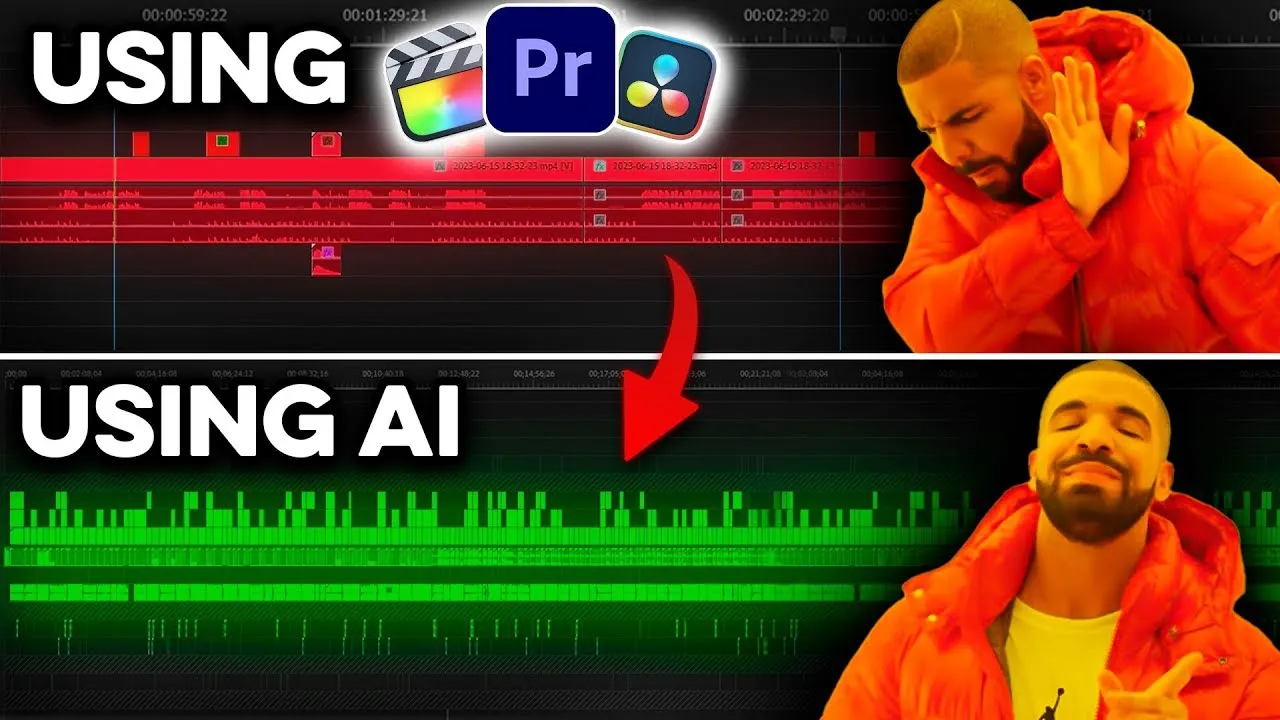
the biggest struggles creators face is video editing editing good videos is not only hard to do but it also takes up a lot of time if you are a complete beginner when it comes to editing videos then you got two options you either teach yourself a complicated software like Adobe Premier or theol or you hire an expensive video editor but thanks to AI there is a third option because with this new AI video editor that I'm about to show you you can start producing videos fast all you need to do is you need to upload
your footage and the AI will automatically cut out your mistakes it will take care of the Ms and the ass and it will also remove the silences besides that it will remove any background noise so your audio sounds nice and clean and it will add some subtitles in there so anyone can read your videos and lastly it will even correct your eyes so if you're looking at another monitor then it will still look like you're talking in front of the camera now these are all big ones for creators like me and maybe yourself because this
will save you so much time the tool that I'm talking about is called feed IO and in this video I will show you exactly how it works so if you want to follow along with this tutorial then make sure to click the link in the description down below and let's get started once you looked in this is the dashboard that you will see and Ved is an all-in-one video editor but for this video we're going to go over to AI edits so here you can see all the features that they have to offer now the
first thing you always do when you start editing your videos is you remove out all the mistakes so that's what we're going to do right now so I have this video right here where I'm just getting started I have my intro in there and I need some mistakes removed as you can see I first check my camera I check my monitors and then I do some testing and then I have my recording so all of this needs to be removed now for this what we're going to do is we're going to click on remove silences
and here we can start uploading or footage so now I have my clip right here and I can just upload it like that and now my footage will be in feed now on the left hand side we have our magic tools and the most important one to me is either the magic cut or the remove silences feature because these features will automatically cut out all the mistakes or the silences from your video now the way it works is as follow you simply click on Magic cut then you click on continue and now it will start
taking out the best takes of your video it will remove all the mistakes the pauses all the parts where you're not talking in front of the camera and then it works a little magic on there and your video is done so as you can see my raw video was 1 minute 40 and I made a lot of mistakes in there and now it has cut it down to 49 seconds and basically it looks like this if you are deciding between chity and perplexity then you don't so as you can see it has removed the mistakes
that I had at the beginning so if you go back then you can see like here I'm just getting seated I'm looking at my monitor then here I say something to my editor then here I start talking so it removed out all of this it made some Cuts as well as I sometimes repeat myself or sometimes I make a mistake and I start the same sentence over again it does all of that for you now if you don't make many mistakes then removing the silences make me your best bet the way it works is you
just click on remove silences and then literally instantly the silences are removed so we only have Parts where some noise is within your timeline so basically that means that you're just talking there if you're not talking there those parts will be cut out now that we've used the AI to cut out the mistakes it's time to clean up the audio because as you can hear if you are deciding between CH and perplexity then you don't I am using the wrong audio here I'm using the audio from my camera and not my microphone like this so
what we can do now is we can go to the clean audio section and this will basically enhance your audio but it will also remove any background noise so let's say you start recording your video and then someone in your household is using the vacuum then you want to cut out that noise this feature right here will do that for you and it will also clean up the audio if you have lowquality audio this is perfect for Zoom calls for example when you guest have a lot of noisy background noise as I'm in a studio
right here which is soundproof I don't have that issue but what I hear often when I'm on a zoom call is these Echo noisy background and that's what you can remove with this feature right here the other day my girlfriend and I were talking about JT and the way she used so here you can hear the difference that my audio is a bit enhanced the other day my girlfriend and I were talking about J T and the way she and that's what you want to have if you don't have a good quality mic now I
want to show you another feature which is a game changer when it comes to creating content because because I use for example my screen a lot when I'm talking to you guys even right now I am talking often to watch you guys but I'm looking at my screen down here with the eye correction tool you can avoid all of this so the way this works you upload your footage I have my footage right here and then you click on eye contact and then it will apply this feature for you and now you can see the
before and the after of applying this tool now I'm looking directly into the lens of the camera and now I'm looking onto the side of the camera to look at myself on the monitor of that camera so I can see if I'm correctly like in the frame and another thing I often do is from going to the side of the camera is going down towards my screen so right now I'm looking at my screen so I can see what is going on on my screen I can read my script and I can see everything but
that's not very personal as you can see so the best thing you need to do is you need to use this tool to add ey correction so you always look look at the person in the eyes the reason why this is so important is because you want to have that personal connection with your viewer because let's say if I was looking at the side like this all the time you will be like what the hell is this dude doing like while he's talking and most people when they're talking have the tendency to either look around
in the room they don't look into the lens and they either like looking on the screen because they have to read something but you want to avoid all of that and that's what this feature will help you with so you no longer have to force yourself or train yourself to look in that lens because even after a year of me talking in front of a camera I still have this issue a lot now thanks to this AI that issue is solved the last thing we need to complete our video is some goodlooking subtitles because let's
say you're on the train and you don't have your earbuds with you then you still must know what's going on with a video but you know those YouTube subtitles they suck so for that I would suggest using some subtitles within your video now the way you do that is you go to subtitles then you pick which language is being spoken so for me this is English now you click on auto subtitle in English and it will just transcribe your video then it will add subtitles and now it looks like this right now I'm looking into
the camera now I'm looking on the side monitor of my camera and now I'm looking at this screen below you can easily change change these subtitles if you want to so now we have them looking like this but you can also change them to this one this one or this one you even have like this karaoke one that's that's going on right now but yeah you can pick whatever you like I would like to keep it simple so I might be going for more something like like this for example but the choice is up to
you now that your video is done you can export it so we click on this button right here and then we click on export video but before you do that another thing you might want to do if you want to reach a broader audience is to translate your videos into a different language because right now as I'm talking to you I'm only reaching English-speaking people but let's say I also want to Target the Spanish market then what I can do here is I can go to Ved I can go to settings and then I can
translate my voice I say what's the original language English then I can say translate it to Spanish now I can pick which which kind of Spanish I'm using so let's do for example Colombia then I can choose what type of speaker I have so for me I'm going to go with a Mill and then I can change my language into a Spanish Colombian accent so now we can duplicate and translate it and now we have the same video but in Spanish now this is awesome for if you want to reach new audiences like Mr Beast
for example so here's a short example of what it sounds like frequent and that's just the surface of what you can do with v.o because if you go back to the home screen then on AI edit right here you can see that you can also clone yourself with AI and that means that your face and your voice will be cloned and let's say you have a bad day you can still create videos now if you want to try this out yourself then I would suggest clicking the link in description down below and there you can
try it out for yourself if you like this video and you want to see more videos like this then make sure to subscribe and watch the video that's on the screen right now if you want to see more useful AI videos