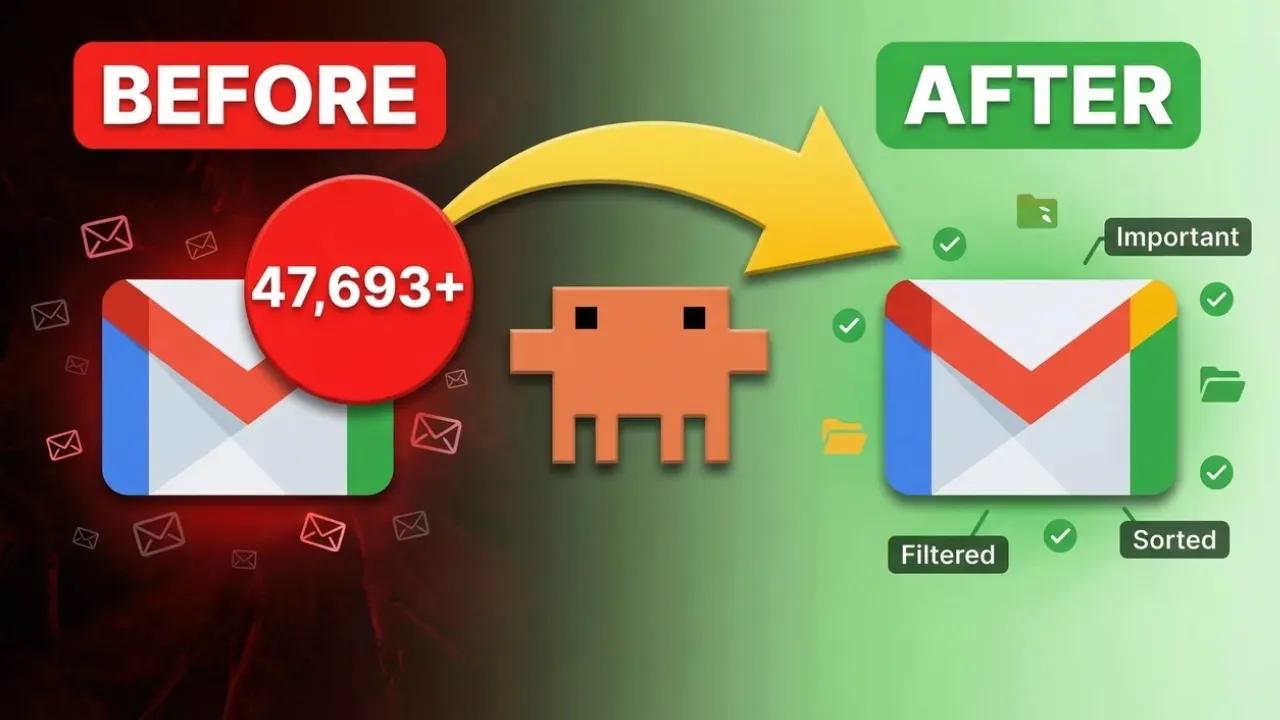
Claude Co-work might be the most powerful email management agent on the planet. I used it on one of my inboxes with 3,600 unread emails. And in about 5 minutes, it not only cleared the inbox, but created an entire label management system for me.
Let me show you how. We'll go through the technical setup, which is super easy, and anybody who's non-technical can do it. And then we'll cover how to actually do it on an inbox that I already have set up with over 47,000 emails.
And at that point, you're probably going to cancel all of your other AI subscriptions and move over to Claude. Better switch. Just kidding.
You probably already are smart enough and switch to Claude. But all personal opinions and perspectives aside, I'm going to show you the setup process now. So, if you don't already have a Claude subscription, that's okay.
You can still watch through this and decide later if it's something that you want to switch to. And the second thing that you're going to want to have open is your email inbox. This is the one with the 47,000 emails that we're going to go through and filter everything through.
Taking a look at Claude Desktop. If you don't already have it installed, just go ahead and Google Claude Desktop. Download the app for your computer.
And one of the greatest parts about Claude is that you can use it in the terminal. You've probably seen some of my other content of using it inside of VS Code to build apps, to build websites, all sorts of things. You have that capability inside of the desktop app as well.
But what we're going to be looking at today is the most wonderful feature of Claude Code and probably one of the most underrated features called Claude Co-work. It's basically Claude Code without all the technical hiccups. And in order to use it and connect it to your email inbox, you're going to come down over here and you're going to come to your settings.
And we're going to look at this section here called connectors. Once you get to this page, you're going to look for browse connectors. And we're going to look for Gmail.
It's probably the first one that you're going to see. You'll click connect and it'll boot open a page here. You'll click continue and then you pick the email that you want to connect.
Go ahead, select all. Click continue. Open in Claude.
Bada bing, bada boom, like magic, it's connected. So now when you come back to this page, you'll see that there's a configure button and you'll know that it's connected. And then click configure and look at all these options here.
Mark them as always allow. Same thing here. So that when we use claude co-work, we can take all the actions necessary to clean up this stinking inbox.
I also want you guys to look up the Claude and Chrome extension and add that. It should show up here like this. and you would just log in with the same Claude account that you're using on the desktop app.
And you'll notice on that same connector page, the Claude and Chrome is included. You don't have to configure anything. It'll be enabled.
If it's not, just enable it and it'll actually connect to your Chrome browser. The reason you need that is so Claude can go in and actually create a label management system for you on your browser. This connector just allows it to basically read all your emails, organize everything, and give you a report if that's something that you would like to do.
And you want to prompt Claude something like this under co-work. Let's organize the email inbox. I need you to make sure everything is marked as unread and create a label management system for my all my emails and create the following labels from the screenshotted picture.
And obviously, don't make any mistakes. So, uh, when you take a look at this, I already did have Claude Cohort go through and organize some labels for me on this one. So, I just went ahead and screenshotted those and I said, "Use the same system and implement it on this inbox.
" And it's totally up to you, but I believe Sonnet 4. 6 is powerful enough to handle the email management stuff. But if you want to opt into 4.
6 for optimum work processing, you can leave it as such. So now I just had to clarify this was the inbox that we were going to be using and it booted open the claw and Chrome extension. So it's taking a look at everything here.
It connected to the API so has full access and it's going to go through and create some labels for us. Now while that's working I do want to show you guys the Google calendar and Google Drve connectors here. So if you have the Claude app on your phone and you're on the go and maybe you don't want to go in and ask Siri.
Siri sucks, right? you just want to talk with Claude and ask it to maybe create a couple events or update a calendar event, you could do that straight from your phone with the Claude Co-work app. And I actually did this the other day at the gym.
I had a message on Slack and I was like, let me just create an event. I didn't want to go into the Google calendar events. I just asked it to create a new calendar event for me.
And it already had uh the emails connected. So, I said, "Hey, for these people, set it up, send it out. " And that's all I had to do.
And for that same event, maybe there's some files that I needed to share with some of my colleagues. It has access to my Google Drve. So, I could just be like, "Hey, yo, send these files over to these clients as well so that they have the materials before the meeting even starts.
" I didn't have to do anything manually. I just spoke with the AI and it had the connectors here. So, using co-work, non-technical things is a beautiful thing.
And that's why I believe Claude is at the forefront of all these AI companies out right now. Not the only reason. You guys have probably seen my Claude Code stuff.
I absolutely love Claude Code. If you guys would like to see some of my other Claude Code content and how I use Claude Code inside of VS Code, go to my channel and check out some of my other content. And if you'd like to continue seeing more content like this, like the video and click subscribe.
I do about two videos a week on Cloud Code workflows and templates. So, let's fast forward and let this thing rock. All right, so it seems like it did a full sweep.
I cleaned up some of the emails that I had and I cleaned up some of the drafts. Um, I deleted some of the extra labels that I wasn't using manually. Um, but yeah, categorized everything.
So, all my new emails that are coming in now will be tagged accordingly with these labels. So, then I can go ahead and just track each one of these labels or folders individually. So, if you do want to create like some sort of automation that basically gives you some feedback on your daily emails, maybe like for the past day, you could actually do that through Claude Code.
You can create some custom scripts. Um, I do that in VS Code. Um, but I'm not going to dive too deep into that.
You could also use nan, but as far as using it as a daily assistant, like if I go on my phone and I I want to go ahead and say, "Hey, just give me a report of the past 24 hours. Is there anything urgent or business opportunity related that I might have missed? It'll go through.
It'll read the the tags to make things even easier for itself and give you a full report. Like if I did that here, it'll I could ask it to create a spreadsheet or just a tracker of what I might have missed. So, there's a lot of capabilities with co-work and I believe things are only going to get more and more intense in a very, very positive way.
But that concludes this video. So, I hope you guys got a tremendous amount of value out of it. This is just one of the many ways you guys can be using Claude Co-work.
Like I said, check out some of my other content on Claude Code if you're curious. And if you'd like to dive a bit deeper with me and my team, you can feel free to join my school community. It's the first link in the description below.
I have all my Claude Code resources, workflows, templates, all tagged there. I have a lot of free playbooks in there as well. There's never any pressure to upgrade to either premium or VIP, but if you did choose to do so, I do have a full course on how to build your SAS product in 90 days and get your first paying customer.
Also have a full-blown social media course that I'm working out with custom workflows that are only for premium and VIP members, as well as a bonus agency playbook. So, if you did want to get your feet wet, start learning about the market and potential prospects that you can sell high ticket AI systems to, consider joining the premium side. But in any case, I had a blast making this.
Comment below with any feedback that you guys have and really anything that you guys would like to see me cover as far as AI systems or AI products go.