Let's be honest, managing your businesses. Social media accounts is pretty much a full time job, especially if your business is as a service provider, like a social media manager or a content creator for brands. So I'm always on the lookout for the best tools that are going to save you time and make your job more efficient.
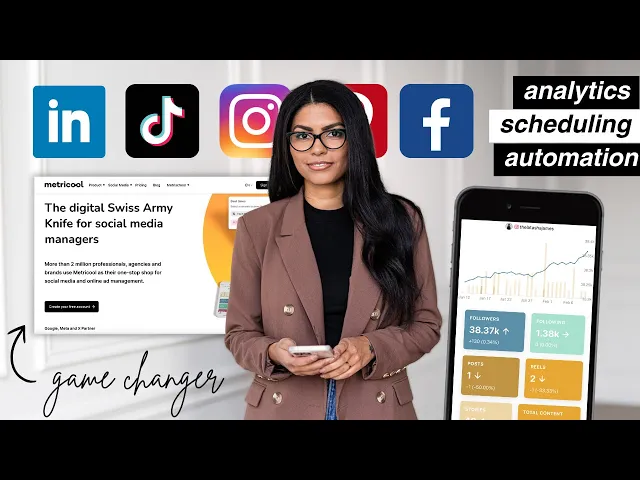
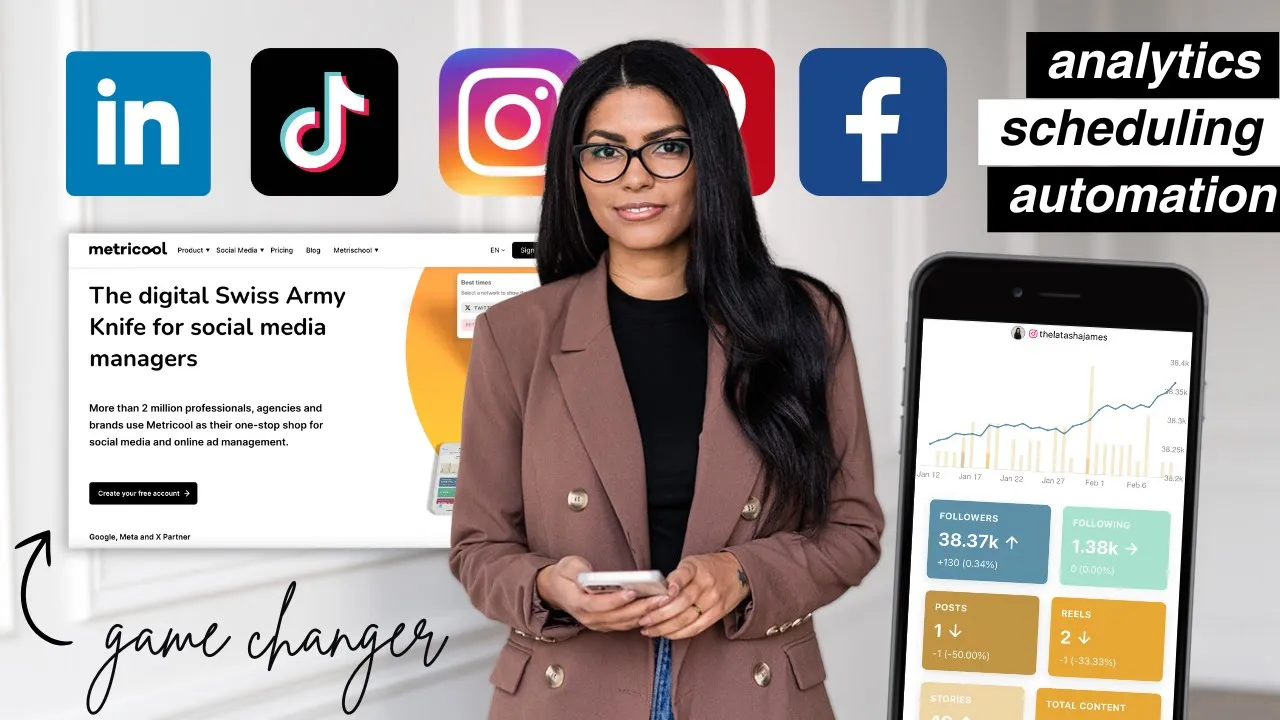
And today I want to talk about my. all time favorite tool for social media management, which is MetraCool. Now, MetraCool is, yes, it's a social media scheduler, but it goes so far beyond being just that.
According to their website, they're the digital Swiss army knife for social media managers. And this tool enables you to do so much from yes, scheduling and publishing content, but also coming up with ideas for content, analyzing your content. Running ads and so much more.
I've talked about Metraquel plenty of times on this channel. They are a sponsor of my podcast graciously, and you can always use my code Latasha to try out their premium plan for free for 30 days. So I'll be sure to leave that link down below.
But today I want to really open up the hood and give you a deep dive into all that this tool can do because truly. It's very powerful. We might be here all day.
Make sure to check the timestamps. If there's a particular feature that you want to see, the first thing that you're going to do when you sign up for Metropool is you're going to start adding your social media platforms. So to do that, you'll want to click on the hamburger menu in the top right corner and go ahead and let's start with brand settings.
Actually, um, what's cool about the you. That's the, um, the other part of the pro plan that I'm on at least their pro plan is you're able to have multiple different brands. And this is really important, especially if you are a social media manager or an agency content creator, anything like that.
Or even if you're maybe an influencer, a content creator who has personal accounts, and then you have like public facing accounts, you want to make sure to separate those into different brands. So we're in the LaTosha James brand. And on my settings, you can see I've got.
The brand name, and then if you click over here on connections, this is where we do start adding in our profiles. So as you can see, I have most of my profiles connected. The only ones that aren't connected are, uh, platforms that I don't use or don't have or don't actively use, but.
You follow the prompts. You just simply click on it. Like if I wanted to click on Twitch, I don't have a Twitch account, but it would just prompt me to log in and authorize MetroCool and I would actually, maybe I do have a Twitch account, apparently have a login saved.
Let's see if this works and then I'm going to authorize it and most of the platforms follow a very similar. Method process of, of getting hooked up. Um, so yeah, so you'll do that.
And now when we go over to this metrical logo, that's kind of like our home button. We'll start seeing all of these platforms populate. And what it defaults to is kind of like an analytics view.
So here we're on Facebook. I never post on Facebook. So.
Uh, don't be alarmed if the numbers look bad, but um, but yeah, so we can scroll and we just get a quick at a glance for how our social channels are performing. I really like this view, again, as a social media manager and content creator myself, just to be able to get in here every day and just do a quick scroll, like, all right, things are looking good. You know, if I were to see, oh my gosh, everything is down.
On Facebook, everything is down on Instagram and I'm managing this brand's Instagram account. I might be like, something's wrong, you know, like what happened? Let's see how we can flip this around and adjust the strategy kind of in real time.
But assuming everything looks pretty standard, it's good to just kind of get a quick glance, look at it and go on about your day. Now, when I sit down and do a little bit deeper analysis is weekly. So every week I'll go through our core social media platforms and I'll really dive into these numbers quite a bit.
And particularly what I like to look at, this is my Instagram for example, is I look at the list of posts. You can change the date range up here using this calendar icon. So I might say last, I'm scared, I'm scared of what it's going to say because I have not been posting well at all.
All right. Not terrible. And you'll be able to get a little bit of a deeper dive into the analytics and say, okay, this real, it got.
2. 6K views, it reached 2. 6K people, I didn't put any paid advertising behind it, this how many likes, this how many saves, shares, comments, interactions, and so on.
And I'll just be able to, you know, take down sort of a weekly running tally. Which is always helpful to do another thing that is a part of this section is you can add competitors to this view so you can see that I've added some. These are really just kind of demo.
I feel like I did these for demo purposes, but all you do is you click on add and you add in a competitors Username, Ollipop is not a competitor, but I'm just going to add it in. And there we go. It shows up there.
What I like to do is I like to add myself in there as well, so that I have myself ranked against them in this view. And then you'll be able to see like, okay, here's how we stack up against all these different brands. Um, And what's really helpful about this is, you know, it can help you get like the low hanging fruit, if you will, like, for example, I'm seeing, okay, I don't have as many followers as the future or I love creatives.
Uh, the future is posting 16 reels in a month. I'm posting two, you know, um, I love creatives is posting for Ollie pops posting nine. So what does that tell me?
Post more. You can also open this up and get more stats on your competitors so you can open it up. And.
Be able to view some additional information about their brands, about their, you know, engagement, their interactions and so on and so forth. So yeah, you'll be able to see all of your analytics at a top level from this tab. All right, let's just keep going to the next tab, which is the inbox tab.
I'm going to go to a YouTube because those are all public. Um, just don't want any private DMS showing, but what's cool about this is the inbox feature allows you to. Manage your inboxes, manage your engagement through MetraCool so you're not having to open up the YouTube studio app or youtube.
com or Instagram, the app on your phone or anything like that. And this is particularly helpful again for teams so that you can have multiple people responding to things and really have like a true customer service strategy. So, um, Oh, this is very nice.
Somebody left me a very sweet comment on YouTube. Um, so there's a lot we can do here. We can just respond.
Oops. Here we go. We can just respond and say, thank you so much.
Um, we can also pull from our saved answers. So if we click on that, I don't have any setup for YouTube yet, just cause I like to respond really like naturally and organically, but let's just say, um, you know, maybe people often ask about courses. So I might say, here's a list of all of my courses.
And then you link the course platform. Let's just go ahead and do that. And then now.
If we click on saved answers, I could just pop that in there and I don't have to type it in every single time, which is really nice. So you can also flag things in here. So I could click on the eyeball to resolve the comment, meaning that no response is needed.
Like it's been handled. This is, again, very helpful for when you have customer service situations. If somebody's like, Hey, I lost my login to my course or whatever.
You know, we want to make sure that that is handled. And then once it has been responded to or resolved, you can click the checkbox. Again, really helpful for yourself, but also if you're working with a team, so people know, all right, that's been handled.
We don't need to move forward with it. Um, so that's the inbox feature. You can use that for a bunch of different platforms.
Every social platform has a little bit of a different. Permissions and settings with this. So, uh, like LinkedIn, for example, does not work for personal pages, inboxes, um, and so on.
So play around, figure out what can work. And, um, yeah, I find this to be super, super helpful. Oh, another thing you can do is you can add user notes.
So if this comment or like, let's say this person had a complaint and they were really upset, I could leave a note just to remind myself and or my team that. Hey, um, this is a customer, you know, she was unhappy with the previous purchase. So let's make sure we really take care of her or whatever the note might be.
Or maybe I just need a reminder of like, what is she, you know, what are they talking about? What are they referring to? Oh, they're in this round of SMMA, uh, and things like that.
Okay. Now planning. Planning is probably the section that I have showed you all the most.
Um, let's, I want to go to a blank section with nothing planned, just so you can kind of. See what it looks like what you will see when you first sign up. Okay, so we're into March 2025.
It's wild that but it's gonna be March in a month, actually. Wow. Um, but yeah, so this is probably the section that you all have seen me demonstrate.
The most, and this is really like the scheduling side of things. So we've got a calendar. We can do a few different things.
We can choose our calendar view if we click on these three dots here. So if we just want to see the day, we want to see the week, or if we want to see the month of March. I typically, so I start my content scheduling by looking at it in month view and I might say like, isn't Easter in March?
When is Easter? Oh no, it's in April. Okay.
Whatever. Let's just say March 20th. We're going to have a sale.
I might just click on that date and I might post hold for Big sale. And I'm going to save this as a draft. Boom.
And so that way I have like these calendar blocks and I'm, when I'm going in week by week to schedule or month by month or whatever, I know. Okay. That's when our big sale is starting.
Let's make sure to post content across all these platforms. Then when it comes time to actually schedule week by week, then I'll look at the calendar view as a week view. So I might click on this.
Then now there are so many things you can do here. Let's start with the basics at the top here. We've got our social platforms.
So obviously if you just click on different platforms, they will populate, you know, and that means this post is going to go out on blue sky and on LinkedIn, for example, and maybe let's do threads as well for Instagram. Obviously we need multimedia. So if we click on the multimedia button, we can add an image.
And add a video. There are also integrations for Adobe Express, Google Drve, and Canva. So you can pull content from those different apps if you use them.
They also have stock images, stock videos, and GIFs. So there really is like no excuse not to post because even if you don't have a ton of content on your phone or whatever, there is content available for you. So for the sake of this, I'm just going to go ahead and pull in a stock video.
Um, I'll just pull this in. And then from there, you can do a bunch of different things. Again, within MetraCool, you can edit the video.
Now, obviously, we're not going to be adding like intense transitions or anything like that, but you can crop it. Uh, you can change the size. We can do some fine tuning, like we could bump up the exposure, contrast, so on.
We can add a filter. We can add a sticker. We can draw.
We can resize it. Let's go back. Um, and then you can also just clip it, crop it, um, trim it, I think is the right word.
So it's 30 seconds, maybe, or that, that's a minute, maybe we want it to be 30 seconds. So I'm just going to click on save. For Instagram specifically, we can tag people on Instagram.
So I could tag at the LaTosha James or whoever is in it. We can tag a product. If you have shoppable products on your Instagram, we can also upload a particular video thumbnail for Instagram.
So you know how in the feed view of reels, you're going to see a thumbnail. Well, we might not want just this boring like ocean image. We might want to design something in Canva, for example, and upload that specific cover there.
Um, or you can select a cover. So again, this is just kind of a landscape shot, so not a great example, but if we had a video where I was like talking and there were captions on screen and I wanted it to show at a certain point, I could drag it to that particular point. I can also tag the audio on Instagram so I could say freelance Friday podcast.
As I sometimes like to do, and then you could also delete it and start over. So that is how you would upload your multimedia content. And then this would be the caption that shows.
You can do the same thing for stories and for posts, stories are going to show up a little bit differently, but you kind of get the, the deal of how those functions work. Now, I want to also show down at the bottom, in addition to multimedia, we've got things like emoji. So, you know, we can find our emoji quickly and add those to the caption if we wanted to.
We also have hashtags. A hashtag searcher, which is pretty cool. So, you know, it'll show you the volume of each of these hashtags.
If we look here, if you're like, I'm not sure which hashtag to use, maybe you would just start typing in like ocean and see, you know, obviously I probably know ocean isn't a great hashtag to use because there are 74 million posts within that hashtag, but I might get inspired and say, all right. Cool ocean or made of ocean or whatever, that might be a better hashtag to use. And this is available for Instagram and for Tik TOK.
We've got first comment. This is one of my favorite features at just generating engagement. You know, um, if I post this cool image of the ocean, I might say, what's your favorite beach, for example, and that just stimulates conversation.
It gets people to really start thinking, Hey, uh, let me leave a comment here. We've got location tag, we've got a URL generator for campaigns so that these are to generate UTM codes. It's kind of advanced level tracking and analytics, but if you are able to do that, if you know about that, if your team knows about that, this is great because you'll be able to determine the source, the medium, like where exactly your traffic is coming from.
We've also got an AI assistant and a save text. So AI assistant, um, there's so much that we can do. So we're starting with this very basic, boring caption that I just wrote off the top of my head.
Well, what we could do is we could lengthen the text if we wanted to. So maybe like, that's pretty short. So let's just ask it.
Can you make the text longer? And bada boom, bada bing. Uh, I might also want to change the tone of it.
Maybe I want it to be, um, kind of. Humorous, let's see. I'm not super funny.
I kind of have a dry humor. So let's see. All right.
And then let's just pretend that we like this and we can click on use text. It's going to replace my original text. Boom.
There we go. And then once it's in your scheduler, you can, you know, tweak it, edit it. Delete things as you see fit.
So that's really nice. And then the last thing that's in here is the saved text. So what I use the saved text for is actually for hashtag libraries.
In my course that I sell, it's called the social media management toolbox. One of the things that I use in there, a template that I provide in there is a hashtag library document. So that way, You can do some research when you first get a client or work on a brand yourself and find the hashtags that are going to be the most successful for you to use the most frequently.
So what I start with that toolbox document and then I actually add those into a saved text. So I'll say hashtag library. For podcast studio.
And then, you know, it might be like podcast, Detroit podcast, Ann Arbor, et cetera. So then you save this and now I could just click on it. Oops.
I want to do this at the end though. Um, click on that and then it's just going to automatically add all my hashtags for me. So that's how I like to use it.
You could also use it if you have just like recurring captions that you use over and over again. Hey, make sure to check us out. Here's our hours.
Um, here's where you can find us, those types of like general things that you just want to reach for frequently. You can get to your social platform specific presets as well. You can add collaborators.
You can decide if you want to show the real on feed, you can boost the post if you would like to. Um, So that means that we're just adding some budget to it, if we wanted to do that, and You'll also want to decide whether or not you want to auto publish it. I always auto publish my scheduled posts unless there is an additional detail that I want to use, like the Instagram editor for, for example.
So if I wanted to add music, like trending music, or if I wanted to add a sticker or a poll or something that is not available in these features, then what you could do in that case is you could turn off auto publishing. And you can actually click to schedule it. And what will happen is if we click on notifications, presets, you'll determine or decide which phone or email address you want a notification to, you'll get the notification, the post will be queued up for you, but it just gives you that last glance so that you can decide if you want to add music to it or whatever.
Additional feature that might be. You can also send these posts for review, which is huge. I was so excited when they added this, a bit, this feature.
So once you do this, um, I'll show you how to add reviewers, but you'll send it over and then they will have the option to approve or reject the post. So this could be great for, for example, um, if you have a client and they like to review posts. If maybe you hire an intern for a social media management agency and you have them create all the posts, but you as the owner want to be able to approve things, any type of collaborator like me and my friend Ryan have a podcast together.
So maybe we would want to approve each other's posts just to make sure that we're in alignment about everything that goes out since we are a team. So to do that, you'll go into your. And then you'll click on the title, the brand, and then you'll click on the brand menu.
Again, and you'll click on user management. So we're going to go ahead and add them. And what you can do from here is you can decide which of the brands this person gets access to.
So if this was a client, let's pretend this was the client and the client was social media management toolbox. Well, I'm going to just give them access. I'm going to give them client access to social media management toolbox.
However, if this was an intern, Learn Who is going to work on all of my different accounts, then I might add them to all of the accounts. And I might say that they are a, um, editor. And you can adjust these and you can kind of play around and that will determine basically, do they get approval?
Do are they able to add to the content calendar, reject things, approve posts, and so on and so forth, but we're just going to leave that as is. Okay, so one of the other features that I really want to show you within the planner is auto list. This is a very, very cool, uh, feature, especially if you want to like automate and just make your life so much easier.
So we're going to click on new auto list. We're going to call this, uh, again, let's just call this podcast studio. That's what's on my brain right now.
Uh, so these are going to be all posts that support the podcast studio. I think this is really great. If you have an evergreen offer, you know, you have something that's available all the time, like the podcast studio, Hey, come to this website and book the studio.
Hey, here's a course, the social media management toolbox, for example, that I offer every day of the year. Um, it's great for that kind of content, like evergreen content. So what you're going to do is you are going to choose which days and times these posts go out.
So I might want to say that I post every other weekday. You know, Monday, Wednesday, Friday at 830 AM. You could do more.
You can do like multiple posts a day. You can do as much as you want to and then you can determine, uh, which platforms it's going to go out on. I'm going to say it's going to go on Blue Sky and Threads.
And then you can go ahead and do. You can upload your posts a multitude of ways. You can add from a CSV file.
If you want to build out an Excel doc, a CSV first, and just like write them all, have a good old content writing day and then upload them. You can connect it to your LinkedIn RSS. You can insert posts manually, or you can add posts with AI.
So inserting posts manually, uh, you know, that might be. The studio is open Monday through Friday, book here, very jankily written. Um, I would write this a lot more professional, obviously, but you can do all the same things that are in the scheduler or the planner.
You know, you can adjust this. You can make this better with AI, for example, let's make this better. I'm gonna just pretend like this is good.
We're gonna change art studio to podcast studio. Boom. And there we go.
Um, but yeah, you can also click on add post with AI and you can just say like, I want to promote a podcast studio booking link. Let's let it work. It's magic.
And basically what's going to happen once we have our posts loaded up in here is Autolist cycles through these posts for you. So it will keep posting them until you say stop. So you are automatically, you know, setting yourself up with some content to go out without having to sit down in front of the computer every day, every week and make it happen, which is really cool.
So there we go. We're just going to use that text, use it and generate posts. Wait, oops, generate another post.
I wanted to add it to the post. Oops. Alright, well, we've got a bunch of posts now.
Um, I clicked a little extra button. But yeah, so there we go. And then, um, let's see.
Here we go is where the global presets, you can decide if you want this to repeat or not. So once we've cycled through these three posts, I would recommend adding a ton, you know, like adding like 50 or more. But you can decide if once they've cycled through those posts, if you want to keep it going, or if you want to add a fresh batch, so that just depends again on how evergreen the offer is, you don't want to.
You know, post the same thing over and over and over and over again, but over and over again is okay, especially if you tweak things a little bit. Okay. Let's go over to smart links really quickly.
This is the, the third, fourth, actually the fourth big tab on, uh, metropool. So this is basically a little mini site that you can use for your Lincoln bio, which is amazing. I won't spend too much time on this because it's pretty intuitive, but more or less, you can just click on the buttons and you can decide what you want to link out to.
What I really like about this is you can enable or disable links at any time. So for example, this one says new social media management is toolbox for notion. It's really not new anymore.
Like I had this at the top of my, um, smart link once when it was launching, but we're not doing, you know, we're, it's not. So I'm going to go ahead and disable that and I might want something else at the top or like, this is an even better example, live class from April, 2024, let's go ahead and disable that. Or we could just delete it entirely if we wanted to.
So it makes it really easy to adjust these links. And then you also get analytics on them. So you can see how many clicks each of those buttons are getting and so on.
Okay, let's go over to ads really quickly. So we've got. Uh, we can add meta ads, we can add TikTok ads and we can add Google ads.
Now I just have my meta linked up here because I don't do Google ads or TikTok ads. I very rarely do meta ads as well, but I just wanted to add it in here so you could see what you could do with it. So you can first off see all of your campaigns again for a quick at a glance.
This is really nice, especially if you are, maybe you're a social media manager or you're a content creator, but you were not actually responsible for. The day to day management of ads for your client, but you'll still be able to see like a quick, at a glance look at what's performing, what's going well. So you can be.
knowledgeable about it without having full control of it necessarily. Um, but you can also create campaigns. So you can go through just like you would by going through Meta's business manager and you can launch ad campaigns right here through Metropool, which is really amazing, especially if you are newer to running ads, it makes it really easy.
Like it takes away some of the complexities that exist within Meta business manager. And yeah, it's also just like simple, you know, you can literally run the whole business essentially through metrical without having to go to external apps. So obviously you just have to make sure that your meta account is connected, that you have all the right permissions and all of that.
But I love that about this tool. Okay. I want to go back really quickly to analytics and we're going to scroll down to the bottom and look at the reports tab.
This is truly, I, It's hard because there are so many amazing features of Metricool, but I think reports are my favorite just because reports used to take me so long for clients, like, I would be so meticulous, I'd be taking screenshots and doing all, you know, I'd have my calculator doing all this math, and it truly is done for me now in Metricool. It almost feels like I'm cheating, you know? So what you do is you decide on the, uh, first, the timeline.
So we'll do, yeah, January. Language, but language will be English, and then we can pick a template. Obviously, you have to create your own templates to start.
Um, so I'll show you how to do that. We'll click new template. And first, we just want to decide what we're going to look at in this report.
So, um, I'm going to say I want a summary. I'm not going to do web because I don't have the website connected. Um, no Twitter because we don't have Twitter or X connected.
We'll do Facebook. We're not going to do meta ads. Um, throw ads LinkedIn.
No Pinterest. No Google ads and no Google business. No Twitch either.
No TikTok ads. So you'll decide like which platforms you want to see. And then if you click on these also on each of these tabs, you'll be able to choose What you want to see.
So like, maybe I want to see overall growth. I don't need to see post viewed. I don't need to see demographics.
Um, I just want to see like impressions, clicks, posts, interaction, rankings, et cetera. You can kind of, you know, it takes some time to set these up, right? Cause you want to decide what is actually important to your client.
And it might, your, your reports might be different for each client. You might have like a report template for client A versus client B. Client A is very conversions focused.
Client B is very awareness focused. So choose accordingly. But once you have that, you will just click on, um, you'll choose the background and logo.
So again, you can add your own logo or, you know, you can remove the logo, whatever you want to do. I'll just keep it to the default metrical branding, but definitely recommend adjusting this by client so that it looks really fancy. Or you can put your own logo, you know, so it could be, Hey, the Jameson park.
report and it just looks super polished and professional. You can decide on your background image, your body, all of that stuff. And then you can, you know, make the title, whatever you want it to be.
So, um, this will be the monthly social media report. That's what it'll look like. And then you can adjust the colors.
So this is cool too, because again, you can add in your own custom branding in here to make it feel very, just bougie for lack of better words, you know, like make it feel really Lux and important and special to your clients. But I'll just use metricals branding and I'll show you what these look like. We'll close this out for a second.
I'm going to just choose the Instagram insights and we will click on generate. Power or generate PDF or PowerPoint, whatever you want to do, and then you can download it and scroll through and that's what you'll see. As you can see, I have my online business launch lab logo uploaded, so it's a little custom, but yeah, and then this is what I share with my clients on a monthly meeting, and I, we talk through it.
I say, hey, here's what worked. Here's what didn't. Here's what we should do more of, what we should do less of, and so on.
And then we can also choose to receive these reports automatically. Game changer. This is what I meant by like, it's done for me is I want this exact report done every single month.
Well, you just click on it and you choose that it's gonna go out on the first of every month. You're gonna get it by email and um, there you go. And you can choose what email it's being sent to.
So I send it to myself because I like to look at it. First, uh, but you could send it directly to a client or again, you could send this directly to an intern, a team member, if you wanted to, again, maybe I'm a control freak, but I like to see it first and then I can forward it along to my client, but, um, you could do whatever you wanted. There's also some additional features down here.
Like the hashtag tracker is really nice. So for this, you can, uh, track any hashtag for a particular event, for example. So let's say that I have a conference or, you know, an event, I could load up the hashtag in there and get analytics for that.
Here's an example actually. Like here are some saved hashtags that I have. And then I can click on analytics and this is what it will kind of give me.
It'll show me where the hashtag was used, who the top users were. So really fun. Again, if you want to do like a giveaway, for example, and say, um, post the most, you know, whoever posts the most with this hashtag wins something.
And then there's a brand setting, um, tab down here, which we already kind of went through. You can also get to this through the menu. So.
Those are the biggest features of metrical. I am sure there's probably something in here that I missed because it really is so powerful. But those are the biggest things, the most common features that I find myself reaching for.
Please let me know down in the comments if there's any of this that you want me to go deeper into or share more demos of. I'm very happy to. And again, be sure to give Metrical a try.
It is such a powerful tool, whether you are a freelancer, a content creator, a small business owner. I think it has just truly changed the game for me and my business, so you can always use my code LaTosha to get 30 days free on any of their pro plans. I will leave the link for you down below.
Thanks so much to Metrical for being a valued partner of the channel. And uh, yeah, let me know if you have any questions or want to see anything additional and I will talk to you in my next video. Bye.