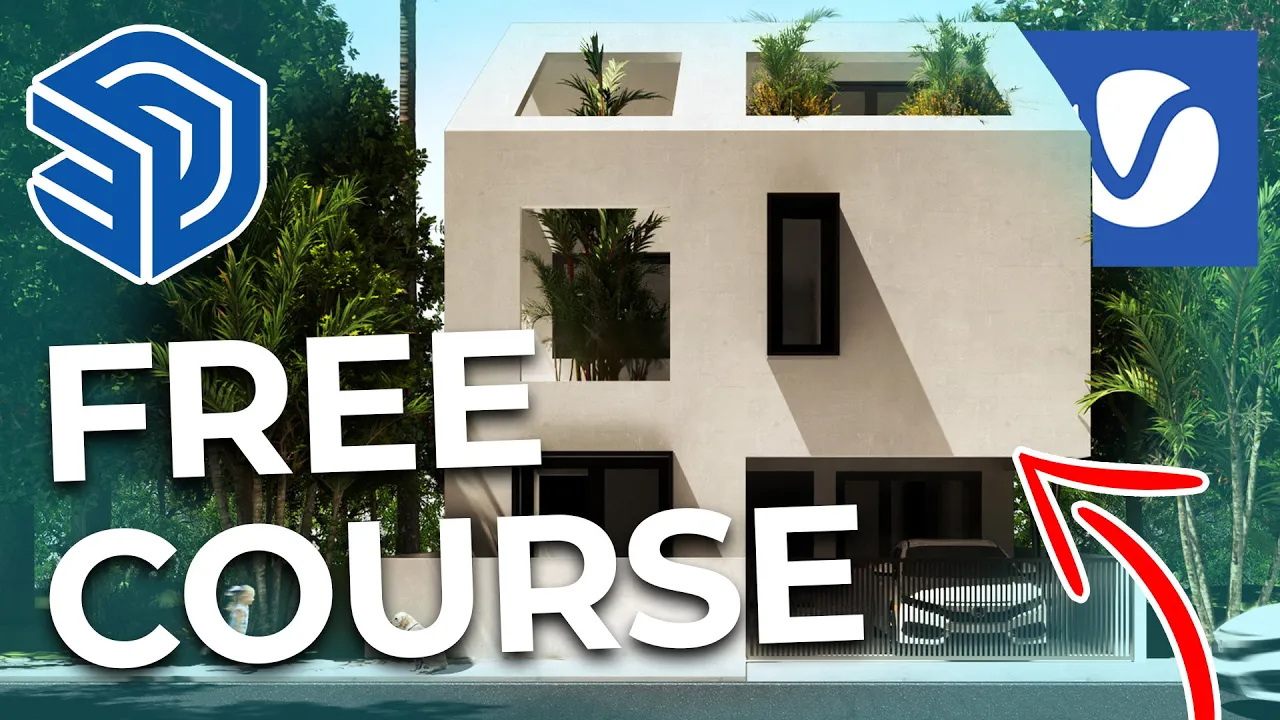
Hey there welcome to the complete SketchUp and v-ray course for architectural design where you will learn how to model and render a modern contemporary residential home and yes this course is designed for the absolute beginner who has no knowledge of SketchUp and VA my name is Manish and I'll be your instructor for this course I've worked with SketchUp for over 10 plus years as an architect and I am Happy to share my architectural expertise with you so you've come to the right place this course consists of the first half of a full course called the
complete SketchUp and v-ray course for architectural design and you'll get access to 18 free lessons this course has amassed over 400 plus 5 Star reviews on udemy with an average rating of 4.7 out of 5. so you're learning from one of the best courses on the internet if you'd like to access the full course Head to the link in the description now in this video we will start off with the basics and show you how I use SketchUp and its various useful tools then we will learn how to import CAD drawings into SketchUp the right
way create walls and openings in SketchUp model the floor slabs the roof slabs modeling the doors windows balcony doors and railings create stairs in SketchUp create a glass facade modeling the site creating terrains for our model and Finally adding trees using the lob work plugin now this is a 30 40 house so you will learn how an architect things and designs and you will also learn some amount of Basics about vastu in a residential project I will be explaining that as I teach modeling in SketchUp in this video now there's a whole lot more in
our full course where you will learn to finish this residential project and create Amazing architectural renders which you can then further use these skills to enhance your carrier business and build a strong portfolio in the architectural industry if you like to access the full course head to the link in the description also please do not forget to like And subscribe as it keeps us motivated in releasing more awesome content for you all including courses videos blogs and a whole lot more now without further Ado let's jump straight To the course [Music] [Applause] in this video
I'll show you guys how to install SketchUp Beauty and our essential plugins so you can click on the link in the description where you get access to this Google sheet which consists of our main softwares and plugins along with their links so next to SketchUp just click on the Link it opens the SketchUp main website now you need to select what you want SketchUp for if you are a professional you could select professional or if you are in college or school you can select higher education I'm going to click on personal you need to log
in or create an account I'm going to create an account now you can sign in with Google as well and now you need to select options for Which you want to use SketchUp for my interest is going to be architecture click on I agree if you want them to send newsletters and spam you you can take this on I don't want the newsletter so click on continue to my apps and now you can download the appropriate software for now case we need SketchUp Pro so we can click on download next to SketchUp Pro and now
we'll start downloading after Downloading is done you can open the setup and now you can click on the exe file to run the setup and now you can choose your installation language and click on next it's always a good idea to not install softwares in your C directory because your C drive would get full so always make an additional drive and install it in that drive so I'm going to Do that now I'm going to change it to my f Drive make a new folder I'm going to install it to my G Drive and then
click on install as you can see at the time of recording this video Let's SketchUp 2020 is already released so you can go ahead and install SketchUp 2020 and use it for this course as well and then you can click on finish it would be similar for sketch of 2019 As well now if you would like download the previous versions you can click on the Sketcher 2019 link and this will take you to the downloading older versions page of SketchUp and now you can click on the 64-bit windows 10. for SketchUp Pro 2019.3 and this
would install SketchUp Pro 2019. we're now going to download and install v-ray so again for v-ray you can just Click on the video link click on try free comes with a 30-day trial same for your SketchUp which comes for 30 days you can now log into your account if you do not have an account you need to create an account I'm going to quickly create an account and also put in your name and once you've entered your details you can click on create account you also need to go to your mail account And activate using
the link which they send to you so go to your mail and go to the mail and click on activate account now with that activated you can sign into chaos Group website Okay now click on try search for video for SketchUp and click on download video for SketchUp trial they also ask for a number so you can Type in your number if you are from India you can type in your Indian number or you're from another country you need to type in your appropriate number and click on get verification code after you've entered the OTP
you will be bought to this page and now you can select what you fall under in my case it would be individual and then click on start my trial now and then you can click on download Trail You can download the appropriate v-ray version as per your SketchUp version now since we've already installed SketchUp 2020 we can use v-ray next for SketchUp up to 2020. you can install it even in 2019 as well so click on download for Windows if you're using Windows or you can use download for another OS if you're using Mac after
the download is complete you can open the setup file by clicking on the Setup Okay now click on I agree install it for SketchUp 2020 if you have multiple systems in your office or home you can use the various form where you used other systems in helping you render faster you can also switch on chaos Cloud but it would be extra if you want to render on the cloud now click on next you can leave these settings as is and click on install now You also need to install various swarm so click on I agree
you can uninstall any previous versions and then install the new version and then click on finish we also need to install the chaos Cloud so click on I agree to your install now and click on finish in case your v-ray crashes and all that you can send them a report so you can take on help us improve video For SketchUp and once you're done you can click on finish we're now going to open SketchUp 2020. note the same process will be you followed for SketchUp 2019 as well so you don't have to worry too much
click on I agree and click on continue need to sign in to access your subscription and then click on start Drive we're going to open a simple template so click on simple inches Make sure you click on allow access and this is a SketchUp interface we have our main tools here and we have our default tray here which we're going to use often in this course and we have a new person as well hey guys welcome back to yet another video now in this video we're going to install our SketchUp plugins so you can open
the Google sheet which contains all the links to the plugins we're going to start off by installing Solar or not which is a plugin to change the north axis in SketchUp so you can click on this link to open it up and now you can click on download if it asks you to sign in if you're not signed into extension warrows you can sign in as well so this is our DOT RBC file which is basically a SketchUp plugin file I'm going to move this to my SketchUp plugins folder do maintain a SketchUp plugins folder
which contains All of your RBZ files so I'm going to paste it in here I already have the plugin but I'm going to replace it anyways just to show you guys I'm going to open SketchUp I'm going to go to Windows and click on extension manager now I'm going to click on install extension browse to the directory which contains my plugin which is my SketchUp plugins folder Search for solar North and click on open if this window box shows up you can simply click on yes and now the solar plugin gets installed into your SketchUp
window so I'm going to dock this to the top menu similarly I can install the other plugins as well so I'm going to open bezier's plan now so click on this link to open bezier spline so this is the sketchification website You need to login or register to the website to download the plugin I would suggest that you register because it's a useful website which contains a lot of useful plugins used by a lot of SketchUp users so once you've logged in you'll get the option to download I'm going to click on download and again
move this plugin to my plugins folder now I'm going to go back to SketchUp go To Windows extension manager and click on install extension select the plugin and click on open so that would install the plugin and if it doesn't show up what you can do is go to view click on toolbars so this is the view toolbars now you can simply switch on bz toolbar so that is our bezier spline plugin and we can dock it on top similarly you can go ahead and install These other plugins like curviloft simply click on download and
install it directly into your SketchUp by going to extension manager you can also download and install plugins directly in the SketchUp software so for that go to Windows and click on extension Warehouse now we can search for a plugin for example solar or not click on this and click on download and install you need to sign in to continue that is Another way to download and install in SketchUp but sometimes sketchification plugins don't show up in extension Warehouse so in that case you need to go to this sketchification website search for the plugins here or
use the links provided in my Google sheet and install them accordingly now there are some plugins which are not part of sketucation or the extension Warehouse one of those plugins is logbook so you can open the log work link I'm going to click on store and now we have planskate freebie which I'm going to add to cart we can check out here so click on checkout and now you need to fill in your details type in your email address click on I agree you can also create a password click on I have read and agree
to the website terms and conditions and you can also if you want subscribe to the newsletter and once you fill in all your Details click on purchase now you can click on plans get freebie installer for Windows so click on this and then start downloading your plants it is around 500 MB so you're going to wait for it to finish we can now right click on law book and run as administrator to run the setup file make sure you also close SketchUp before you run the setup file now click on next click on I agree
click on custom And click on next and you can install logbook to the various software that you have installed so make sure you install it for SketchUp 2019 or 2020 and then click on next to finish also you can put in your destination folder and once you put in your destination folder you can click on next to complete the installation so I have already installed logbook so I'm going to click on cancel So once you've installed logbook you can open SketchUp go to view go to toolbars search for your logbook plugin so you have logbook
here you can switch this on and this is our log work plugin now the VA plugins don't show up you can simply show them as well so go down and switch on v-ray plugins as well so I'm going to switch on all my video toolbars and I'm going to dock it in place so you simply need to hover at the Bottom drag it and hover at the bottom to snap it to the menu and then start dragging all your plugins we can now install Artisan tools so we can click on the link to open it
up for Artisan tools we need to download it from the main website so you can use the free 15-day trial get trial license click on get 15 day trial click on accept And click on checkout you also need to put in your details and you can switch off the newsletters if you don't want to receive any newsletters from them and then click on next and then click on submit Auto you'll then receive a mail with the installation instructions so this is a mail which you receive from Artisan tools you can click on the download link
to download Artisan Tools first click on download Artisan RPG move to your main folder which consists of all your plugins go to Windows extension manager and click on install extension and finally we can install our Artisan tools so you can select DM artisan and click on open so this is our Artisan tool now to activate it you can click on ADD license Add your mail and then the license key and click on activate license and now you can start using the Artisan tools as well so I hope you found this installation video useful we're going
to be learning how to leverage all these plugins in this course to create our home I'll see you guys in the next video cheers hey guys welcome back to yet another Video now before we proceed to the course I just want to show you how to access exercise files so you'll find the exercise files Link in our Google sheet which should be part of the external resources for this video in the previous videos as well so once you open Google sheet you can scroll down and find exercise files for every section we're going to click
on this link to open it up So this is our Google drive folder with all the sections in separate folders so you can either download the entire section by right clicking on the folder and clicking on download or you can also go to the folder and go into the video for example import DWG and right click and click on download as well so all the SketchUp files in this exercise files folder is saved in the 2016 version because v-ray next is supported only From 2016 version and up so I would suggest that you download the
latest version of SketchUp or have any version which is about 2016. I will be adding more sections and more folders to this exercise files as in when we produce new sections in the course so that is a quick tutorial on how to use the exercise files I'll see you guys in the next video cheers hey guys welcome back to yet another Video now before we proceed to the course I just want to invite you to our exclusive Facebook group for this course which is called the akyan SketchUp Student Center so you can open the Google
sheet which is found in our external resources for this video on the previous video and if you scroll down you'll find Facebook group you can click on the link to open it up and then you can click on join I'm already joined because I'm the creator Of this group so as soon as you join you can given your introduction a lot of students have given their introduction and where they're from and it's great to hear stories from around the world and how you guys are learning SketchUp and video and then we have monthly competitions we
put in Daily content for you guys so a lot of useful resources and more in this group and I would definitely recommend you guys to join this group So please do click on the Facebook group to join and I'll see you guys inside the Facebook group as well alright so we're going to start the course with an introduction to SketchUp in our next video so I'll see you guys in the next video cheers hey guys welcome to the first section of the course which is an introduction to SketchUp SketchUp is a very simple software to
use so we're going to jump right into it And learn the basics by the way the reason why we inverted this image is because in a record for the camera from outside it mirrors back in the recording all right so to kick things off let's open up SketchUp so double click SketchUp 2020 to open it up now as soon as you open SketchUp this is the first dialog box which opens up you need to choose your appropriate units So for this course we're going to be using architectural millimeters and for those of you who are
not familiar with architectural millimeters no worries I will be converting them to feet and inches every now and then I have good experience working both in feet and inches and millimeters as an architect in Bangalore India all right so to start things off let's open architectural millimeters so you can just click on it and it opens it up So as soon as you open SketchUp this is what shows up which is our top menu and our right default tray and our left large toolset bar in some of your cases the large tool set bar doesn't
show up so in that case what you can do is go to view go to toolbars Now search for large tool set bar you can type L just select anywhere and Type L goes to large tool set switch this on so it shows up here on the left and then Click on close and now you can dock it to the left as well alright so to kick things off I'm going to show you the main tool in SketchUp which is going to use a lot which is our select tool which is this black mouse pointer
on the screen and this is our canvas where we're going to do a lot of the modeling and this of course I don't know what her name is but generally every version has a new SketchUp figure I think her name is Laura so we can Delete Laura for now so you can select using your select tool select Laura and click on delete on your keyboard you can press Ctrl Z to undo in case you want to bring back what you've accidentally deleted and you can also delete stuff using the Eraser tool so I'm going to
start using a lot of shortcuts in this course because shortcuts is the right way to model and also makes you more efficient as a 3D modeling machine So press e on your keyboard to activate the Eraser tool and now if you left click and just drag whatever comes in the path of the Eraser tool gets deleted you can also see now I'm in eraser tool and if I want to switch back to the select tool I can simply press spacebar on my keyboard so that reverts back to the select tool and also you can see
that I'm orbiting to orbit we use the middle Mouse button so you can simply Click on the middle Mouse button and hold and then drag left to right so this helps in orbiting within your scene and we also have band so when you orbit and when you hold shift on your keyboard it converts to pan and you can easily pan within your scene as well so play around with orbit and pan we're going to use that quite a lot in this course as well so we're going to start off with the basic modeling Tools in
SketchUp our First tool is the line tool so we can select the line tool from a default tray on the left which is line or I would suggest that you use the shortcut which is L to activate the line tool now the line tool activated you can click once this is the origin of the line and now you can click the second time and then that creates a line you can also create line at a certain distance now Type L again to activate the line tool Let's draw a line from here now I'm going to
give a distance of around 1000 mm which is 1 meter so type in 1000 and then press enter so this line is 1000 mm and you also notice that when I was drawing the line that it drew on the green axis so there's three main axes in SketchUp which is your green axis your red axis and the blue axis and you can always snap to these axes while Modeling in SketchUp so I'm going to delete this line so now press L on your keyboard to activate the line tool again so click anywhere on the canvas
now if you want to snap it to the green axis we use the left Arrow key so the left Arrow key snaps it to the green axis and now again you can type in your value and you can see that wherever I hover it always locks it to the green axis so now I'm going to type in my value again thousand five hundred So that's 1500 M which is 5 feet 1000 mm is around 3 feet 4 inches now I'm going to draw another line this way now to snap it to the red axis I'm
going to use the right arrow key so it snaps it to the red axis and now again I'm going to type in my value which is 1800 mm which is around 6 feet and now back to this axis now I'm going to press left Arrow key to snap it to the green axis and now you can notice That I can snap it to the edge of this line instead of typing in the value again so now I'm going to Simply use this Edge as a point of reference and click so it creates a line which
is 1500 mm and finally if you click here again to close it creates a face on your SketchUp model as well so every object in SketchUp has a face and Edge so this is the face and this is The Edge now if you double click on the face it selects both the faces and edges Now the most important in SketchUp is making a group because we're going to be using groups quite a lot in this course and is Paramount to modeling efficiently in SketchUp so double click on the face which selects both the lines and
edges if you select only the face and right click you cannot make a group so make sure you double click to select both the faces and edges now right click and click on make group so that makes a group now go into the Group so to go enter the group now you can see that this group is a single entity it's not separate anymore as I'm clicking once so to enter the group you can simply select the group first and then double click to enter the group so you can see that it creates this dashed
line outside so it means that we are inside a group and now I'm going to give a projection which is our first 3D in the model so to make a projection in the model or a push we use a push pull tool So press P to activate the push pull tool or you can click on the push pull tool from a large tool set it's also part of the menu bar as well so now I'm gonna select the surface and you can see that when I hover it starts to create an extrusion we can type
in a value for our Extrusion I'm going to type in 1500 mm and it creates a height of 1500 mm so this is our box Now I'm going to press escape to exit the group so again you can see that since it's part of a group it's a single entity and when you press eraser tool and drag the whole entity gets deleted so that's the importance of a group let me just show you when this group is not a group and when it's exploded so I'm going to make a copy now so to make a
copy you press M so m is the move tool so press M to activate the move tool You can see that this is the move tool now press Ctrl to make a copy you can see that the move tool has an addition sign added to it so now I'm going to use this reference point so it starts to move the Box the control key is to make a copy if I press Ctrl again it removes the addition sign and you cannot make a copy but it does move it because we're using the move tool so
press Ctrl to make a copy and then place the group so we have two copies now now I'm going to Explore this group so select this group right click and click on explode so now if you use the Eraser tool and let's say you delete this line this line and this group you can see that rest of these entities remain in place and this group gets deleted in its entirety so it's important that you model in groups because when you model a larger building and larger space and if they are not in groups you're Going
to end up with a lot of extra lines and edges there are various other important positives to making groups as well which I will be explaining in this course so that was a small introduction to SketchUp in the next video we're going to talk about components rectangles circles and the other relevant tools which we use and we're also going to be assigning shortcuts some really cool shortcuts which is going to improve your Workflow as well so I'll see you guys in the next video cheers hey guys welcome back to yet another video so in the
previous video I spoke about something called components towards the end of the video so this is a group now what is a component so I'm going to make a copy now so press the move tool again M for move press Ctrl to make a copy use this point as a reference and place it here now I'm going to make this copied Loop Into a component so right click on the group and click on make component I'm going to call this box and click on create now I'm going to make a copy of this component and
not this group so select this component press M and press Ctrl to make a copy and now I'm going to show you something even more cool in SketchUp which is array so array also happens with the move and control key to make copies so click once click the second Time you can also type in a value say you want to give a distance at around 2500 mm and press enter so that makes a copy at 2500 mm from that reference point now without clicking anywhere else type in X and type in 10. and now press
enter so that array is the Box in 10 times and you can make multiple copies 10 times so I spoke about components right now let's say you want to make a change to each of these boxes so you need to go into each Box and make the change right since we've made it a component if I enter into this component and use the push tool now so press P to activate the push tool I'm going to push the surface in front you can see that all the similar components changes as well whereas this is a
group so let me just quickly show you what happens in a group as well X10 enter and if I enter this group and push it out it doesn't affect the rest Of the scene because these are separate groups so you need to understand where you need to give groups and where you need to give components we're going to be modeling a house so I'm going to be showing you the various areas in a house where we can use both components and groups one example is when you're creating a railing it's always a good idea to
create a component because every section would be same in a railing so that was competent and that was Copying it multiple times as well now let's say you want to copy this till here and divide it equally by four or five so I'm going to copy this group here so it is similar to using the move and control and using the X tens so instead of using the x10 you use the Divide button so again activate the mode tool by pressing M on your keyboard you can also find it in a large tool set here
press the Ctrl key to make a copy now Click once and drag it till the edge where you want to divide the line or space equally and then place the group by clicking once now press the slash sign on your keyboard and type in 10 and press enter so that device that space equally by 10 items we're now going to learn how to make rectangles in SketchUp which is very simple so press r on your keyboard to activate the rectangle tool or you Can click on the rectangle tool from here in a large tool set
bar now click once and then click twice so this is created it in the correct plane I'm going to create again another rectangle now you can see that it doesn't snap to the correct plane so to make it snap to the correct plane we use the top Arrow key so that snaps it to the blue axis And now you can also type in a dimension for your rectangle so we're going to type in 5000 comma thousand two hundred so thousand two hundred is around four feet I'm not really sure how much 5000 mm is I
think it is around 13 feet I'm not really sure and then press enter so this makes 1200 along the green axis and 5000 along the red axis so now you can select this and make it a group so right click make Group and this as well so right click and make group so to make groups is two steps we make a rectangle first double click right click make group now what if you want to simply just select the face and press G on your keyboard and then it makes a group automatically so that's because I've
assigned a shortcut to make groups to assign shortcuts we go to Windows Go to preferences now go to shortcuts search for your filter I'm going to search for make group so we have edit slash make group here now select this now go to shortcut and press G and then press the plus button now we'd ask you whether you want to assign the shortcut click on yes and click on OK so now each time we make a rectangle double click and press G it makes a Group automatically so we cut down one step where we need
to right click and make group we can also assign few other shortcuts so let me show you the importance of those shortcuts so again go to Windows preferences shortcuts now these are the various shortcuts that I use in my modeling so search for hide now we have edit hide here so this is going to be F2 so you can simply assign by pressing F2 on your keyboard and Pressing the plus button then we have a night Hall which is F4 unhide last which is F3 and we also have down this list view slash component edit
slash height rest of the model I'm gonna assign a shortcut called J for this I'm going to quickly show that to you in a bit and my last shortcut which I have assigned is x-ray so type in x-ray and assign a shortcut why we cannot use x because we use it for our array multiplication and once you've assigned All the shortcuts click on OK so now let's check out all the shortcuts in SketchUp so if I select this group and press f2 it hides that group if I press F3 it's unhides the last hidden group
now if I select these you can also notice that I'm selecting multiple groups now to select multiple groups you press Ctrl your keyboard it activates the plus sign and you can select multiple groups if you want to deselect a particular group You can press Ctrl shift and that changes to the minus signs now if you click it deselects certain groups whichever you don't want to select now with this group selected I'm going to press f2 and now if I press F4 it highlights all of it I also want to show you that if I go
into this group and make another group here press G make a rectangle and project This out I'm going to hide this inside this group I'm going to press Escape to exit the group so I've hidden the group inside the group by going into the group and pressing F2 and now I've come out and now if I press F4 or F3 it doesn't work the reason why it doesn't work is because this group is hidden within another group so go into the group and then press F3 or F4 and then it Highlights the group within the
group so let me show you what group within the group means so in our default tray we have outliner so if you click on outliner we can see that this is a group within a group so a group within a group is also called a nested group we can have multiple nested groups within groups and we can also have multiple nested groups within a nested group and again within a Group so the hierarchy keeps increasing but I would suggest that you keep it to a maximum of three or four now let me show you what
J does when you're modeling in SketchUp so go into this group now if you press J on your keyboard it hides the rest of the model so this helps in modeling a certain element in your scene without the other elements having to interrupt you whenever you're modeling So this helps whenever you're modeling an interior space and you want to hide the rest of the walls or Windows you can simply enter a particular group and press J so it toggles visibility and you can go ahead and start modeling your scene now I'm going to press Escape
so exit the group and x-ray mode is similar to your wireframe and 3ds Max and AutoCAD so press y you can see the ends of your Faces and edges as well so it helps in snapping to certain particular Edge which cannot be seen at a certain camera angle so those were our shortcuts and those were our components you also learned how to make rectangles I'm going to quickly show you how to make circles as well so press C to activate the circle tool or you can press the circle tool here so click once and now
you can type in a value of say 1200 now let's say you want to make a Circle at the Y Z plane so we're making circle at the X Y plane if you learn mathematics to a certain extent you would understand what I'm saying no worries I'm going to show it to you right away now with the circle tool activated you can press the right arrow key it snaps it to the red Axis or the y z plane and then if you press left Arrow key it activates to the green axis so now I'm gonna
just hover over the edges Because if you go to the center you're not going to find the center point so hover over the edges and then you can see that the center point shows and now if you go to the center you will find the center so now click once and then you can click the edge of the circle to make another Circle and there's one cool tip which a lot of us use to make a sphere in SketchUp which is using the follow me tool so I'm going to press spacebar to go back to
my Select tool now select this face now click on your follow me tool so the follow me tool doesn't have a shortcut so we need to choose the follow me from our large tool set bar so this is a follow me to click on that so with this selected click on this and then it creates a perfect sphere we can also reverse the face because it's always important to have the white face facing the camera because that's where the material will be applied to Select both edges and faces you can see if I double click
it only select the top part of the sphere so select everything within the sphere you need to Triple click so click three times quickly and then it selects both the sides of the sphere and now you can right click and click on reverse faces so that makes sure that the White surface is facing you and that's why the materials are going to be applied to in SketchUp as value I've seen a lot of Students modeling with their blue faces facing the camera it's a very bad idea to do that always make sure you're reversing the
faces now in this case you can see that the blue face is facing us generally what happens is when you project it out the blue face disappears or what you can do is select the face and right click and click on reverse faces so that makes sure the white face is facing you as well So we've gone through the main modeling tools in the next video we're going to go through the remaining ones which we use quite a lot which is the scale tool rotate tool offset tool and tape tools among many other one I'm
also going to give you a brief introduction of our default Ray which we're going to use quite a lot in the course as well so I'll see you guys in the next video cheers [Music] Hey guys welcome back to yet another video of our introductory Series in SketchUp so we're going to go through the remaining few tools which we use quite a lot in SketchUp so one of those tools is the rotate tools so to rotate your group or your rectangles you can select the rectangle now press Q on your keyboard to activate the rotate
tool or you can select it From your large tool set bar you can see that we cannot find the midpoint for a rectangle so we need to draw a reference line first so I'm going to do that so press L to activate the line tool and draw a reference line we can always delete that reference line later now you select the group or your rectangle press the queue tool or the rotate tool on your large tool set bar find the midpoint of the line So that is our point of reference which we're going to rotate
from now we need to use our angle reference point as well so this is going to be our angle which you're going to rotate from which is a red axis so click again second time and now you can either click or you can type in a value so I'm going to type in 45 and press enter so that rotates the rectangle by 45 degrees So that is the rotate tool and we can also make copies using the rotate tool now let's say you want to make a copy this way so I'm going to select the
rectangle again activate the queue tool which is the rotate tool so click once so this is a pointer reference if you want to be more accurate you can go ahead and draw a line and then use that as a point of reference but I'm simply going to show you how to make multiple Copies along an angle so with our point of reference selected I'm going to use the point of angle so I'm going to use this Edge as the point of angle and now if I press Ctrl it makes a copy so I'm going to
place my rectangle somewhere here and type in X into 10. so that rotates it by 10 times how cool is that similarly we can also divide this so I'm going to select all of this you can see that when I selected I'm dragging from the bottom right to the top left so there's two ways to select in SketchUp so one of those ways is from the top left to the bottom right and the other way is the bottom right to the top left now what happens with the top left to the bottom right is whatever
is within the box of this selection will get selected so these four cards got selected and from the bottom right to the top Left is whenever an object comes within the path of this box selection it gets selected as well so you can see that some items are not within the box but they still get selected because they come in the path after selection so I'm going to press Ctrl shift to deselect these rectangles and this rectangle as well and click on delete now let's say you want to rotate it Along an axis and also
divide it equally so activate the rotate tool place it at a point of reference now click the second time to choose your angle reference press Ctrl to make a copy place it here now use a slash tool on your keyboard and divide it by 10. so that divides it equally by 10. now I'm going to show you how to use the scale tool so select the group and press s on your keyboard to activate the scale Tool so that activates all these Edge points now I can use this Edge and reduce the size by 50
percent to reduce it by 50 you need to Simply type in 0.5 and press enter so that reduces the entire Box by 50 percent you can also scale it back so type in 2 and then that brings it back to the 100 percent Now let's say you want to mirror it to the other side so again to mirror we use the scale tool so select this group press s on your keyboard I'm also going to apply a material for you to make you better understand the mirror tool so select this group go to materials in
our default tray which is on the right select any material and then once you select the material the bucket Tool activates automatically and then you can just click to apply the material now if you want to change the size of this material you can go to edit in the default Ray under materials and then you can see that we have a size here I'm going to change this to 600 which is 2 feet and that changes the size of the Paul card dots now go back to your scale tool now to mirror it I'm going
to use this point which is the middle of this side I'm going to mirror to this side so drag to the other side now you need to mirror it by hundred percent you press minus 1 and press enter so that mirrors It On The Other Side by 100 percent and finally we have offset tool as well now let's say you want to make an opening in this group or box so go into this component press J to toggle usability now press F to activate the offset tool Or you can click on the offset tool from
your as well so there's two ways to use offset tool and the best way is by selecting the face first and then clicking on the offset tool now you can see that it hovers over these points so now you can just simply click within the face so that creates an offset and I'm going to give an offset of 100 mm so I've given an offset of 100 mm and Now if you've been wondering how to make openings in SketchUp it's simple since you've already created an offset here I'm going to create an opening now so
activate the push tool with the face selected now click on the face drag it to the other side and then simply click anywhere on the back side of the group that creates an opening how cool is that Since it's a component it makes the change on all the similar components imagine if this was not a component and you had to go to each and every group and make that change that would be your total disaster and a lot of time wasted so we covered materials in the default Ray we're not going to cover it much
because we're going to be using v-ray materials more than just the materials in our default Ray but one aspect of material tray which we use a lot is Changing the dimensions which we change mostly in our SketchUp materials we also have other materials which you can try you have Roofing we have tiles woods but the way I work I would like to add materials in our v-ray acid editor first and then edit it out we also have something called entity info so the entity info gives details of every group and component in your SketchUp model
so you simply need to select the group and it shows up here and you can also change the tags and layers for this group by changing it here so you can see that we have tags if tag doesn't show up in your SketchUp it's most likely you're using the older versions in SketchUp 2020 they'll change the name of layers to dads so you can simply click on this so we don't have any tags created so once you've created tags you can change the tags so go to Your tags which is again in your default tray
click on the plus button I'm going to give a name of random one and this is going to be random two and the third one is going to be random three so now I'm going to randomly select certain groups I'm holding the Ctrl key to select stuff now with these groups selected go to your tags and change this to random one Now if I hide random one in our tags layer it gets hidden automatically and it won't affect your scene even if you press F3 F4 because it's hidden in layers so please be wary of
that and I'm also going to hide certain other groups so select all these groups assign it to random two height random 2 as well so you have only random three left so I'm going to select all of this to a box selection from top left to bottom right To select all your groups and rectangles and assign this to random three I'm going to show you something cool which we also use in our interior design scenes where you want to show multiple options for say for example a bathroom we use tags and scenes so what is
a scene scene is basically your camera angle in SketchUp so to set a scene you can go to scenes on your default Ray and click on the add scene button so that creates a scene Which also populates here on the top left I'm going to create a scene from another angle and click on the plus button so this is our scene one which is the first camera angle and scene two the second camera angle and finally a third camera angle right click and click on add this is another way to add a scene instead of
adding it from your default Ray you can right click here and click on ADD So it's created three scenes and now in each scene I'm going to hide certain layers so I'm going to hide say for example random three and show only random one and you need to also update the scene because it doesn't change now say for example if I click on scene one without updating it goes back to the original options so make sure you update it so to update it right click on the scene and click on Update so now if you
go back to scene one it retains the updated changes now go to scene two I'm going to show you random 2 in this right click update and scene 3 is random 3 which is already present so now if I go back to scene one this is option one option two and option three and three different angles In the next video we're going to explore some more few options in SketchUp and I'm also going to show you a bonus in the next video where we're going to export out a sectional view in SketchUp and use it
as a section in AutoCAD so you don't have to go to AutoCAD and draft out all these elevations in sections separately That's The Power of SketchUp where you simply create a 3D model and SketchUp and use SketchUp models to create your elevations in Sections so you're going to quickly run through that in the next video and then we jump to the most exciting part of the course which is modeling and rendering are 3D house I'll see you guys in the next video cheers hey guys welcome back to the final section of this introductory series you
can open this model from the exercise files shared to you in our Google drive or on udemy so to make a section in your model what You need to do is go to tools and click on Section plane so this is our section plane where you can make a cut wherever you like in your model so I'm going to make a section now so click on this part of the plane so that makes a section we can also assign a section so call the section one and click ok so that automatically makes a section plane
now select the section plane and Press the move tool and drag it in so you can see that that creates a sectional View so this is a 3D section which you can use in case your architecture students and you want to show it at the 3D Angle now if you want to take it into AutoCAD what you need to do is select the section angle right click and click on align View now I'm using the pan tool to hold the shift button and the middle Mouse button To pan so this is again in perspective but
we need to make it in proper section so to make it in proper sectional view go to camera and click on Parallel projection so that makes it in a proper sectional View also makes a section of our car which we don't require so press f2 to hide the car and now you can right click and click on ADD I'm going to add another scene so click on create scene I'm going to move these trees out a bit so go into the group and move these trees out and now what we need to do is simply
export this model out you can see that this is not modeled accurately so there are some lines which may need adjustment in AutoCAD but these are good enough to go as a base reference before you model it out in AutoCAD and it also comes out accurately with the correct Heights as well if you modeled it correctly in SketchUp so make sure you model your SketchUp model correctly as well which we're going to learn in this course now go to file and click on export and click on 2D graphic now if you want only an image
from the SketchUp model you can change the option to jpeg or PNG but in our case we need AutoCAD drawings And the AutoCAD DWG file is only available in the SketchUp Pro version so make sure you install SketchUp Pro and only then it shows up so click on AutoCAD DWG file go to your directory where you want to save this file you can also rename this sectional View you can also change the AutoCAD version by going to options you can change whichever option you want I'm going to keep it at AutoCAD version 14 and leave
the rest of the options as Is and then click on export so it's exported into AutoCAD and I'm going to open AutoCAD and show it to you how it looks in AutoCAD so we can select the AutoCAD drawing and click on open click on continue opening DW file and you can see that it comes in perfectly with all the lines and rectangles it also comes in with these trees if you don't want these trees to show up you Can simply hide them in SketchUp and then export it out separately as well similarly we can also
export out elevations so to export out elevations we need to right click on the section Pane and click on activate cut so that deactivates the section plane now go back to camera standard views front so the front view is on this side so we need to take the left view so go to camera standard views left so go to camera standard views Right finally we have our scene we're going to hide the trees for now so to export this out as an elevation you can hide our cars as well and the cycle make sure it
is in parallel projection mode create a scene go to file export 2D graphic call this front elevation and click on export So now if you open it in AutoCAD you have your front elevation as well and it comes in perfectly with the dimensions as well we need to change the size of the dimension but this is not an AutoCAD course so I'm going to skip it for now so it's a 10 feet height slap to slab house and we're going to model that in this course so that is a quick tip on creating Sections and
exporting it out in AutoCAD you can also export it out as a PNG if you want to show it off in your presentation boards one last thing which I would like to show you is the shadows and it's very important to understand shadows in SketchUp so you can see that we have a green axis red axis and our blue axis oops you can see that the model is clipping and there's a lot of students who complain about this as well where They say that when they zoom out it starts to clip the reason behind that
is because we're using the parallel projection mode so we go to camera and switch to perspective and the clipping goes away and coming back to Shadows the green axis is always pointed towards the North so this is north south east and west so to activate the shadows in your scene you can go to view and click on Shadows you can see that this creates a shadow On this side that's because the green axis is pointed towards the North and then the South red axis towards East so north south east and west this is the Evening
Sun so the shadow is falling from this side and if you want to adjust the shadow settings you can go to your Shadow settings here on your default tray you can see that this is the Evening Sun which is around 2 30. if you change it more it becomes bigger so you're going To make it to the morning sun and we can also change our month here to make the Shadows longer or shorter depending on the month so that's how you create shadows and it's always important to understand your not south east and west Texas
if you want to change the North angle to say this side because you don't want to rotate the model rather you want to change the axis we have something called solar North so go To view click on toolbars and activate the solar North plugin so this is solar North activate that this is a plug-in where we can change the north axis in SketchUp but it's always important that right off the bat your green axis is pointed towards the north now if you want to change the axis you click on the second set not tool now
click once and then change the axis accordingly so you can see that the Shadows also change Automatically so now the north is pointed towards this side so north south east and west and since this is the morning sun it's falling from the East side so that's a quick tip you can notice that we have these two annoying vertical lines that is coming from our v-ray acid editor so I hope you've installed the v-ray plugin for SketchUp so to make it show up in your SketchUp scene go to view toolbars And scroll down you're going to
find v-rays I'm going to switch on v-ray for SketchUp v-ray lights v-ray objects and v-ray utilities we also have an additional plugin called lob work so go to law book and switch that on as well and finally our solar North as well which is already active I'm going to quickly dock this to my main menu so drag the v-ray toolbars and place it on the top Need to hover for a bit for a new space to show up and then you can dock your rest of the plugins as well now to hide this this actually
comes from our camera settings in the asset editor so the asset editor is the most important part of v-ray which is going to be talking quite a lot about in this course in section three so click on the asset Editor to open it up So this is our asset editor now to hide these lines you go to settings and you go to render output we have save frame so if you switch this off the save frame also hides we're going to be talking about it in depth so do not worry if it confuses you for
now that was just a small introduction to vire because those lines are annoying me as well so I hope you got a gist of an introduction to SketchUp we didn't cover all the tools because it's not really required but if There are certain tools or plugins that come up we're going to be covering it in this course the main idea for this course is to get you up and running with designing and modeling a beautiful looking house and you will be able to do that well on your way after you've completed the course so I'll
see you guys in the next video cheers hey guys welcome back to our first section of the course so in this video we're going to learn how to import our AutoCAD plans into SketchUp now before we import the AutoCAD Blends into SketchUp I'm going to quickly run through the basic necessities what you need in your AutoCAD plan we don't need everything to be important to SketchUp just the basic ones so that we're good to go for our modeling as well I think in the US they start with the first floor and then the second and
third but in India is generally the ground flow first flow and second floor so it's Always G plus 1 G plus 2 G plus 10 and so on and you can also notice that I've deleted all extra Dimensions so this is essentially a working drawing which I've boiled down to just the bare necessities so we have our walls our Windows our furniture our car and our road we can also delete our furniture if required if you don't want to see that in SketchUp and these are the bare necessities that we need to import into our
SketchUp and It's also important now if I rotate this plant in AutoCAD so you can press shift and the middle Mouse button to rotate you can see that my plan is perfectly horizontal in some cases there would be lines at the top let me see if I can give a line like that so generally it's called a thickness so I'm going to give a thickness of around say 10 feet so you can see that that automatically creates a 3D line now if you want to make this to zero which is just the line At the
X Y plane go to your front view so gently shows up like this so do a selection by clicking once here and drag select to the top left again whatever comes in the path will get selected right click go to properties change the thickness to zero so that makes sure that everything is in 2D now go back to your top view rotate this as well these are our three plans the ground flow first flow and Second floor and we're going to import this in SketchUp so type in controllers to save and AutoCAD and close so
I'm going to open SketchUp double click SketchUp to open it up I'm going to select architecture millimeters because that's what we need for this course we can delete Laura so select her and delete now go to file click on import I'm going to change my format to AutoCAD File format select the file now let's say your units is in meters you need to go to options and change the model units to meters and then it Imports it correctly but in our case it is modeled in millimeters the AutoCAD plan so I can simply select the
AutoCAD plan and click on import so that brings in the AutoCAD plan now if you want to check the size to cross check whether it is in the correct scale activate the tape measure tool so press T on your keyboard to activate the tape measure tool or you can click on the tape measure tool as well so now you can click once and you can hover on the second point and you can see that is 152 mm which is exactly 6 inches so tape measure tool is a pretty cool tool which I've not covered in
the introductory Series so there's three benefits to the tape measure tool so I'm going to quickly make a group and project this out So one is to create construction guides so you can see that we can create multiple guides we can also create reference lines dashed lines that is and another useful function of the tape measure tool is to scale stuff in SketchUp now let's say I want to scale this down 2500 mm so I'm going to activate the tape measure tool with the group selected click once and click the second time and now I
can type in the length you can see in the Bottom corner we have enter value to resize model so I'm going to type in 1500 mm which is 5 feet and press enter now to ask you if you want to resize the model click on yes and then it automatically resizes the model so if you measure this you can see that it's a 1500 mm so that was how you import AutoCAD plans into SketchUp one last thing what I need to do is go to your tags so these are the different layers that came with
Our AutoCAD plan we do not require these layers so click once hold shift on your keyboard and click the second time so that selects all the layers and click on the minus button now you need to move the content to default tag so click ok and it moves all of it to our untagged layer which is the default tag I'm also going to create a new tag and call this house you can go ahead and create multiple Tags and assign your models to these tags but you're going to use this tag and we're going to
make this tag as active tag by simply clicking on the corner of this tag so the pencil changes here and this is our active tag so whatever we model in our SketchUp from year on out is going to be in our house tag so we've imported AutoCAD plan and in the next video we're going to start creating a walls flow slabs and more so I'll see you guys in the next video cheers hey guys welcome back to yet another video in this video we're going to create our walls windows and slabs now before we proceed
with creating our walls windows and slabs I'm going to assign this AutoCAD block or group into a separate layer so select the AutoCAD plan we need to create a new layer or a tag so click on the plus button in your default tray to create a tag We're going to call this house plan now to change the layout of this AutoCAD plan go to your entity info and change this to host plan so now we can hide the house plan using tags which makes it much easier while modeling all right to start off I'm going
to create my walls so to create walls I'm going to use rectangles and also when I create walls I like to create it in the top view or in our plan view so to make It the top view go to camera click on Parallel projection go to camera standard views top now if you use the top view quite a lot you can assign a shortcut to you or you can also switch on a particular toolbar called views so go to view toolbars and switch on views so this is our view toolbar you can dock it
at the top or you can dock it to this side as well so now if you click on Perspective this is the top view front left back and right so I'm going to go back to top view make sure you're in parallel projection mode as well so now we can start drafting our plan now we do not need to change the north axis we can directly model right away because the green axis pointed towards not then the actual side conditions as well this side is pointed North so we are using a Project which has the
actual side conditions for not as well all right to start creating your rectangles you can press r Now to create walls we're going to Simply draft over this plan so you can activate the rectangle tool by pressing r click once click the second time and you made your rectangle now what I'm going to do is double click On the face and press G to make it a group so I'm going to enter the group and now continue creating my rectangles so press R make a rectangle this way now you can see that these faces are
separated by this line in between so we can go ahead and delete this line and nothing happens to the face because it's a connected face similarly we can go ahead and draw these rectangles as well So I'm quickly drawing the walls first we'll do the window separately after we've done modeling the walls I'm switching between eraser the rectangle tool and the space bar which is the select tool I'm not orbiting so make sure you do not press the middle Mouse button so this changes the view make sure always in the top view and you always
panning instead of orbiting so hold shift and the middle Most button to pan all right so we've created our walls now we can start projecting these walls up so my slab to slab height which is the top of the slab to the next top of the slab is 10 feet so which is also called the flow to floor height so I'm going to press P which is the push pull tool and I'm going to project these surfaces top I'm going to type in the value which is 10 apostrophe you can also type in the Actual
value which is 3050 but we can switch between units in SketchUp and that's why I like SketchUp a lot so I'm going to type in 10 feet and press enter so it creates a wall of a height of 10 feet so you can also check using your tape measure tool so click once hover on the top to check the height it's three zero four eight mm also 10 feet again similarly project these walls up as well so now I'm using this wall as the reference height So select the surface First Press p and then project
this up these walls as well always make sure that when you project it out it's coming out in the white face if it comes out in the blue face now for example let me just draw a rectangle here now if I project this out you can see that comes out in the blue face the reason behind that is because of these overlapping lines so delete these lines And then project it out we have a window here so I'm going to undo press Ctrl Z to undo all right we can now create our windows so I'm
going to create my lintel and sill levels first the sill level is the bottom of the window and the lintel is the top of the window so I'm going to select this line press M which is move press Ctrl to make a copy now this is going to come at a cell height of 2 feet so type in two and Then apostrophe and a lentil height is going to come at seven feet so again move this line up I'm going to press the top Arrow key to snap it to the blue axis because sometimes when
you don't snap it it goes to the other sides so press the blue axis to make sure that you're drawing it in the correct axis and then type in your value which is 7 feet seven apostrophe So this divides the faces and now you guessed it right we need to Simply push this till the edge after pushing it to the edge you can delete these lines there might be certain instances where for example let's say this wall is projected out by 4 mm and when you go ahead and delete this line all the faces get
deleted the reason behind that is because of this Face not being in line with this face so you simply need to make sure that this line is in face with this face and then go ahead and delete the lines so it won't delete the entire surface you need to delete lines here as well so that's our opening for our Windows similarly I'm going to create additional openings now we cannot give a sill height of two feet here because this is our kitchen as you can see so for kitchen the slab comes up to around Three
feet so we need to give our still height to up at least three and a half feet so select this line and move it up by three and a half I can type in 3.5 apostrophe which is three and a half feet or you can also type in three feet six inches if that's your style and I can use this little as reference so what I can do is Select this line select all the window lines this is going to be a full height window so we do not have to select that You can select
this line this line by pressing Ctrl to make a multiple selection this line [Music] and this line as well now I can press M Ctrl to make a copy and push this all these lines up by seven feet so we moved all of them in one go and that makes it easier to draw our lintel Levels so I'm going to quickly go ahead and draw the little levels for each of the windows and rows as you can see when I deleted this line the face gets deleted because a wall is not in the correct face
so make sure you push it back and then delete these lines it's also important to make sure that your AutoCAD plan is drafted correctly it makes it easier to model in SketchUp If your AutoCAD plan is drafted Sometimes some trans men do not delete the additional lines or there are overlapping lines and that becomes a problem when you are doing SketchUp modeling as you can see in this case so I'm just going to push this back and then delete this line we have our lintel for our door as well so I'm going to move this
line up and then push this till the edge of the wall For our dining and living we can give the sill heart around two feet so I'm going to select these lines you can also do a drag selection so unable to select the line make sure you do not select other lines while you do rack selection and also make sure you're dragging from the top left to the bottom right because if you drag from the top right to the bottom left all the faces and edges in the window selection path get selected So make sure
you don't do that pressing Ctrl shift to deselect all of that again so we selected all our lentils and move this up press Ctrl to make a copy I'm going to push this up by two feet and then push this face till the edge you've got to push our kitchen sill and lintel you need to draw a separate line here to divide the face and then Move this up so we created our walls with our openings now we can copy this ground floor model to our first floor so press M and press Ctrl to make
a copy this is a group so you don't have to worry about editing the second group because it doesn't affect the first group but if you make it a component it does effect so please do remember that All right you can see that it sits in perfectly the walls are align perfectly so that's one of the reasons why we place the walls correctly because it has to carry the load as well now we can go ahead and do the rest of the walls so I'm going to enter the group and then select this line push
this till this Edge then start projecting it out select this face press M press Ctrl to Make a copy and then push it to this Edge again project it out so this is how I model the second floor and the first floor sometimes I drafted on the plan sometimes I'd simply copy the face and then push it out now you can press Ctrl to make a copy using the push tool so you don't have to draw lines again here we do need to draw a line so draw a Line and project is still this Edge
so I'm going to go ahead and finish the rest of the model [Music] thank you foreign [Music] [Music] foreign [Music] guys so you can see that we finished the modeling for first floor Now this is a balcony so I need to delete these walls so the best way to delete them is Project them out now if it retains the face what you can do is double click press G to make it a group and then press delete it's always a good idea to make groups and delete so that you don't accidentally delete the adjacent lines
similarly push this out to this Edge double click press G and press delete you do have some walls here so I can Project these out and project this out as well now we need to similarly delete these bathroom walls because in our second floor we have our studio since it's a multifunctional house our client requires a studio where you can relax for the day work out and do multifunctional stuff you can delete all these walls because we have a slope treatment here push them till the end If it doesn't get deleted you can simply double
click press G to make it a group and then delete and delete these extra lines which shows up [Music] all right so we've done modeling our first floor and second floor walls and openings you can now stack them on top of each other but before I stack them you could try making it a component and then stacking them you know in case you Want to make any changes here for example if I make this a component right click make component call this first floor now use the move tool make a copy and move it on
top of this wall so it Stacks up correctly and now if I go into this component you can see that it affects even this scene as well if you make changes in your flow plan and you bring it back here you can make some changes here and then it will Affect you in the first floor here now since this is a small model you do not have to worry about that it's just a small tip for you guys in case you want to make any changes directly on the floor plan so right click make component
call the second floor and move this on top of this also I'm making a copy while moving it so it retains the original in the flow plan now this has to be pushed to the back All right so our shell is coming to life in our next video we're going to create our flows and we're also going to create some Roofing so I'll see you guys in the next video cheers [Music] hey guys welcome back to yet another video now in this video we're going to start creating our flow slabs and also a Roofing so
I'm going to make the site first so what you can do is press the line tool so click once click the second time the third time and the fourth time if it doesn't create just go back to the first point and you create your rectangle now double click on the rectangle press G to make it a group go into the group and give an offset So this wall is around 100 mm generally a compound wall is thicker than this but we will keep it at 100 mm from now now we can delete the inside rectangle
and now we can give our compound Wall height so I'm going to give a height of around 4 feet in India most buildings are made with the compound wall and it's not really open because there is a lot of theft that happens we can also make our opening for our Gate I'm going to quickly switch to our perspective mode because it's easier to model in 3D while in perspective mode compared to parallel projection so make a rectangle and then push this out double click on the surface press G and then delete push this till this
Edge and push this to this Edge so you're going to have a sliding gate can now create our flow slabs so press r on your keyboard to make a rectangle We're going to make a rectangle till this Edge double click G to make it a group again now press s which is the scale command and scale this Edge to this Edge all right so we're going to have a plinth of one foot so go into the group project this out by one foot which also means that we need to push our house top by one
foot as well so move this up by one foot now the garage is not going to be at a One foot plinth so I'm gonna make a rectangle this way and push this down but this floor starts at one foot so make a rectangle again now to make two steps I simply need to create a rectangle so this is one foot or 300 mm the thread size is one foot and the Riser is six inches so Lumber click press G to make it a group so what is thread thread is the longer side of the
step and riser is your height so a height of six inches Move this up making a copy to move it up and then you can move this here as well or you can just go to the screw pan project it out so mirror steps maybe I don't want the step to project so much into space so I'm just going to push this back a bit may have to check the door swing which is three feet okay so the reason why we have such a Big Landing is because the main door is here and it has
to occupy the full swings so those are certain subtleties in design which you develop over a period of time all right so I have plenty is created now we can create a flow slab what you can do is copy the splint on top so press M and then press the Ctrl key to make a copy now it's not able to snap it to the blue axis so what you have to do is press the Top Arrow key snaps it to the blue axis I'm going to place it here now go into this group press J
to toggle visibility so this is one foot which is 305 mm I'm going to bring this back to 6 inches because six inches a typical slab thickness in India sometimes goes down to even 4 inches now this is overlapping generally in construction what happens is the flow comes below the slab and then we also have the beams in here but since this is A visualization course not going to go in depth on the construction details it's more for your initial visualization and to impress your clients so what you can do is just push these slabs
in so press J and push these in push this way as well so make a rectangle here and push this down to make an opening this is a staircase opening so we'll have to push this out as well now press J to toggle usability now this Landing it comes up comes out a bit so it comes out till the edge of the step so I'm using toggle visibility and x-ray mode to work more efficiently and faster as you can see Omega rectangle again and project this down project this till this Edge and we are good
to go now we can copy the slab to the top It also covers our bedroom so go into the group press J and push this out till this Edge and cover this out as well now for your bathroom generally the slab is not at the same level we generally have a drop for our bathroom it's called a sunken slab so these slabs are generally at 10 feet and these slabs which is in the bathrooms they are sunked down by one And a half feet I will be talking more about this in the Revit course which
is coming out soon now copy this and copy to the top you can create a beam here so we can leave it as is we can maybe even push this in we have a beam here as well so I'm going to push this in by six inches push this out that is a balcony on the back so you can Leave that as is all right so we've created our floor slabs we can now create our Roofing slab so we can just copy this again on top move Ctrl and make a copy to the top so
you have 10 feet 10 feet and another 10 feet so 30 feet in total now our slab is sloping so we can just push this to the edge what we could do is also make sure these extra rectangles are deleted so press G make it a group And then delete now select this face move it out you want to snap it to the red axis by pressing the right arrow key and place it on the outer face of this wall now project this out select this triple click to select both the faces and edges of
the entire surface press G again so this is a nested group within a group now we're going to rotate this so press Q I'm going to select this point as my Axis of rotation and this is my angle reference and I'm going to rotate it to this Edge now we can go into this group and then push it to this Edge all right so now we have certain openings there's a cutout here and this also is going to be a sunken slab which is because we're going to give a guard in Here so now we
can go ahead and make an opening so first we need to make a rectangle up to this Edge press F to activate the offset tool and then offset It Out by around 600 mm select the face press P to activate the push tool and push this down so that creates an opening there we can also create our opening in our slab roof slab So I'm going to make two lines first this is one line it also has to be in the same axis always make sure you're snapping it to the green or red axis while
modeling makes it more efficient I was divided this and divide it this way as well so we have two faces what I'm trying to do is match it along this wall thickness so there's more Harmony in the elevation Now I'm going to give an offset of around 600 mm and make an opening here similarly this as well now these don't have to go all the way up so we'll bring them down a bit but make sure that you're clear inside which is let me just go outside the group from your to your 2008 30 which
is six feet so it has to Be at least seven feet so that your user doesn't keep banging into it so for example if you have a seven feet human being he's going to be banging his head into the slab if it's only up to six feet so make sure there is enough clearance now we can make a rectangle here make this a group and project it out I'm going to project this out all the way till here I'm gonna make a line So from this Edge at this Edge so that divides the face it
doesn't divide it it's because we didn't draw it in the correct axis so from this edge up to this Edge all right so now it's divided the face and now we can push this out now we can select this wall and copy to the other side all right great now we have a beam here so that is around one and a half feet or two feet In depth so we're gonna give a depth of around two feet so two feet enter double click press Z to make it a group enter the group and then project
it out now you don't have to worry about these extra lines which are showing up it all gets hidden when you're doing the v-ray render but in case you want to hide them what you can do is go into the wall press e to activate the Eraser tool And press shift and delete the lines and you need to also go to the bottom one and delete these lines so now you can see that these lines get deleted and looks like it's one face I wouldn't recommend it because in v-ray generally it hides the line automatically
now we have some beams here as well so I'm gonna make a rectangular beam here so type in two feet and press enter so it goes this way so we need to type in comma two feet so comma and then two Feet so takes this Dimension automatically and gives a depth of two feet double click press G to make it a group project it out this way and project it out that way as well now in my Illusions I like the lines to match now you can see that it goes up this way what I
can do is go into this beam and then just project this round up to the lintel level so What happens is they give a beam of around two feet and below the beam they give a wire mesh which is only around 50 mm or 2 inches and now this is such a big cantilever and it cannot be supported without a columns so we have alternate columns to give as well so I'm going to give a y column which is generally a steel column so I'm going to make a circle now so press C to make
a circle I'm going to give a radius of around 75 Mm so that's a 6 inch round column press select the column and press G to make it a group go into the group and project it out to that edge and also make sure you push it out snap it to the green axis and push it out I'm going to hide the compound wall for now move this in now what you can do is rotate it so Press Q to activate the rotate tool and change the axis of rotation so press the left Arrow key
to activate the green axis so now I'm going to select the midpoint here I'm going to rotate this way and I'm going to press Q again and rotate it to the other side but this time I make a copy by pressing the Ctrl key also make sure you go into the group And project them out this way and this way as well make them a group if you required and then just push them in a bit all right create I can just scale them down a bit so that doesn't look like it's jutting out of
the beam or column we may require two columns I'm here to get the structural drawing from the structural engineer but for now let's Keep two columns or maybe one column would do the job so I'll just push this out yeah I think the structural leader should be able to calculate that load so our elevation is taking shape now in the next video we're going to learn to model our windows and then place them in place and also create those and the remaining parts of the model so I'll see you guys in the next video cheers
Thank you hey guys welcome back to yet another video so in this video I'm going to learn how to create our windows and also our doors so to create a window you need to Simply create a rectangle first so we have a window here and a window here so press r on your keyboard to activate the rectangle tool click on one corner and then to the next corner So that makes a rectangle now make this a group double click on the face and press G to make it a group now go into the group and
give an offset I'm going to give an offset of 50 mm which is 2 inches for our frame I'm now going to make the frame a group and then the shutters a separate group so we have two nested groups within a main group now we'll go into the frame group and Give a thickness of around 50 mm or maybe even the 75 mm which is around 3 inches and we have two shutters so I'm gonna draw a line in between now the shuttles have a frame as well so I'm going to give a frame thickness
of around 100 now again make the frame a group and glass another group now give the shutter thickness which is A shorter frame of around 25 mm which is one inch and we have a glass so glass is typically around 2 mm to 5 mm you also have 10 mm thick toughened glass so I'm going to give 5 mm thick glass now we can delete this group because we can simply copy that other group here so make this a group and then delete it now select this group which is a shadow and a frame and
copy to the other side we can also move it in since these are Upvc windows it would be sliding windows all right so we've created our double shutter window similarly we can create a single shutter as well so you can make this for your practice so make a rectangle make it a group go into the group give a 50 mm thickness make the frame a group make the shutter group now go into the frame give a thickness of 50 mm go into the shutter give a shutter Thickness of 100 mm make the frame a group
and give a thickness of around 25 mm and finally our main shutter glass which is 5 mm so that's how you would typically create Windows in SketchUp we don't have to go in detail and create the section for the frame generally a window frame or a door frame has a section but we do not require it since it won't show up in the Render and we need to model only what will be seen in the final render we can also move this in a bit place it in the midpoint similarly this window great we can
now create our doors so I'm going to hide some of these components so that I can model faster Now to create a door it's simple just make a rectangle make this a group make a frame of around 50 mm again We can select this line press M on your keyboard to activate the move tool and you snap it to the blue axis and then drag it down till this Edge now we can make this Frame a group and the shutter a group the frame would be around 75 mm thick which is 3 inches and our
shutter would be around one inch or even two inches if you want a more secure door so I'm going to type in one inch and press enter so that takes care of our door there's Also going to be a frame at the bottom but I'm going to leave it as is for the main doors generally we have a frame but we will leave it as is so that guests can enter the house seamlessly now we can create a sliding window for this as well so make a rectangle again make this a group so this is
a three Tire window I'll show you a step where you can divide a line equally so give a thickness of around 50 mm for the frame I'm going to follow the same steps which Are used to create the other windows group the shutter another group go into the frame give a thickness of around 50 mm or 75 mm now go into this shutter now select this line right click and click on divide now you can divide it into multiple points so this equally divides the line into three or four spaces so I'm going to equally
divide it into three segments so you can see that the length is around 729 mm once you hover and decide to Boil down to three or four you simply need to click to make that division happen and then our lines would be divided into three segments now we can draw a line from the edge of that line to the bottom I'm holding shift on my keyboard to snap to the blue axis now we can make this a typical shutter and copy it to the other side so we can delete these now go into this group
now make an offset so press F on your Keyboard and give an offset again I'm going to give an offset of 100 mm make this a group give a thickness of around 20 mm or 25 and finally our shutter so make this a group and give a thickness of around 5 mm and now you can also make this a component because this is typical so right click make component call this typical shutter window And click on create we can now select this and copy to the other side and multiply it into two so that makes
a second copy so we'll come back later in the various section of this course and apply the materials for now these are good to go you could also select these shutters and move it in a bit so that it's not in line at the frame generally that's what happens in real life as well all right great I can press F4 to unite the rest of the model now I'm going to go ahead and finish the windows for this model you guys can also do the same it will be good practice for you all I would
suggest that if you have a typical window now for example in this course you're going to only do the front part of this model so if you want and if you're lazy you can simply copy these windows to these Corners rotate it By 90 degrees place it in place and simply press the scale tool and then scale it till this Edge so if you are feeling lazy you could do that you can see that these frames are slightly bigger than the ones in the bottom ideally what you need to do is go into the group
press J enter the frame group as well now select the entire frame I'm doing a drag selection from top left to the bottom right now press J to toggle Visibility and I'm going to move this till this Edge so similarly you have to do that for your shutters as well so before I do that I'm just going to move this to the midpoint so let's see if we can find a midpoint so I found a midpoint now I go into the group select this entire frame and move to this Edge and go into the shutter
and just push it Till the edge ideally this is how you're supposed to make the windows in case you're copying it to other sizes because if you scale it there would be chances of one frame size being bigger than the other but in our case we're going to do only the front part of the render in the first two sections of the course so you don't have to worry about the site but it's good practice for you guys and you guys can go ahead and complete The entire model in the way I've just shown so
we can just delete this and copy this to the other side so that's one way and we can copy this shutter to this side rotate it by 90 place it in place now this is the window of the bathroom so what we need to do is make the window smaller and also raise The level of the sill level typical sill levels for bathroom Windows is around five feet so that no one can peek into what you're doing in the bathroom so I'm going to make a line here of around five feet so that gives me
a reference point and I'm going to go into this shutter press y to activate the x-ray mode and I'm going to snap it to this point so that's five feet and we end up with a two feet opening for our bathroom so 610 is Around 2 feet which is ideal for your bathroom window you can also make it bigger but generally in India we make our bathroom Windows smaller so that nobody gets to peek in now I'm going to run a time lapse for the rest of this video so that you get to see the
modeling process that I follow to create the entire house you guys can go ahead and create the windows the doors and whatever remaining Openings are there and in the next video we're going to create our stairs and also this large curtain wall which is going to be openable to a garden in the outside so there's a lot of light entering the space and it's Pleasant for the user staying in this house hang on if you want to see my modeling techniques for the windows and you probably learn something from this time lapse as well also
guys there was a small tip which I Missed which is if you're copying windows and if they are typical windows it's a good idea to make the windows a component so that if you apply a material to one window it would affect other windows as well so I'm going to select this window right click and make a component call this typical window one or you can also call it W1 if that is your window notation in AutoCAD for the window so type in W1 and click on Create and now we can copy this to the
other Side now I'm going to Simply scale this window to the edge because this distance is pretty small and it's not really going to affect the scene or the way you look at the window this frames look pretty much equal so you do not have to worry if the change is very subtle foreign [Music] [Music] foreign [Music] [Music] foreign [Music] foreign [Music] thank you [Music] hey guys welcome back to yet another video now if you've been following the previous video in the timeline you don't notice me Making the balcony dough so I'm going to quickly
run through the balcony dough in this video before we proceed to the stairs so make a rectangle first from one corner to the next Corner make this a group go into the group and give an offset of 50 mm make the frame a group and the shutter group now go into the frame and give a thickness of around 100 mm going to the shutter and I'll press J Select this line right click divide I'm going to divide it into four segments which is 700 mm which is short which is around 2 feet 4 inches or
three inches now select this line and copy to this side make sure you copy to the edge point select this now make an offset of around 100 mm make the frame a group and then the shutter group go into the frame and give A thickness of around 25 mm which is one inch and I'm going to give a thickness for the glass which is around 5 mm which is I think around quarter of an inch now I'm going to make this a component so right click component call this typical shutter window one click on create
we can go into this group and select this and delete it because you do not require that now Select this typical shutter window select from one corner point to the next Corner point and multiply it into four into 3 that is so that creates your sliding window and it's good to go I can press F4 go online on we can also quickly create our balcony railing so I'm going to make a rectangle this is going to be a glass railing so it's again only around 5 mm thick so you can see in the bottom right
corner 32 mm Slash 1830 so I'm just going to type in 5 mm and press enter it takes the 1830 distance automatically now make this a group select double click and press G to make it a group I'm going to give a balcony height of around 750 mm that's what they typically give in residences ideally it should be around three feet which is 900 mm but 750 is also pretty good now copy this to the other side before you copy make it a component so right click make component call this Class balcony rail and rotate
it press Ctrl to make a copy I'm using a reference point and rotate it by 90 degrees I'm going to place this in the corner and simply now you can notice that if I make any change to this it would affect that as well so instead of pushing it you can scale it so it doesn't affect the other component and also make sure you push it a bit All right so we have our balcony Rail and we're good to go also this is going to be a sunken slab because we're gonna keep a guard in
here which is a small tree which would come out from this opening at the top as well so there's a lot of light entering this house and it's definitely a dream home and finally we also need to make an opening here because this is actually a balcony door which opens up to the Garden here on the outside so go into This wall I'm going to move this line select this line and move it to the top and make an opening I'm going to select a large balcony door could potentially select this as well so make
a copy and paste it here rotate it by 90. and place it exactly at the corner now simply scale this down we do not have to worry about the exact Proportions of the back window because it won't be seen in our final front rendering but if you're particular with the proportions I would suggest that you go into the group and move the balcony door accordingly I'm going to push this to the top the next video we'll learn how to create a stairs our railings and also our glass facade so I'll see you guys in the
next video cheers thank you Foreign wall which is just a large window here opening because we have a large garden here it's a great space for you to just sit and relax and watch the garden so I'm gonna hide this slab for now now we have our stairs in the ground so what we can do is actually select the stair or the plan AutoCAD plan and move to the top so I'm selecting some random point and just simply snapping It To The Top And press F3 so now you can see that the plan is on
top of the floor slab so start off I'm going to create my stairs from this direction so in India 4 Pass 2 we follow the clockwise Direction while creating stairs apparently that helps in bringing Good Vibes to the house so we're going to start from here go top and then end up to the first floor so to start off we're going to first create a step so press r on your Keyboard to activate the rectangle tool now click once and click twice so that makes a face if it's not seen you can simply hide that
floor and then it shows up now select this double click to select both the faces and edges and press G to make it a group so now it's a group now enter the group and push this out by six inches so you can type in 6 inches and press enter so that makes a step we're going to make this a component so right click Make component call this stair step typical and click on create now we're going to make a copy and create a stash so press M on your keyboard to activate the move tool
press Ctrl to make a copy select this point and place it on this point so now it makes one step now type in X into 10. so that creates 10 steps I think 10 steps was a bit too much so we can delete These we can just check if this is in line with this step so make a reference line and you can see that it ends here correctly so we can have one more step which is our Landing now I'm going to right click on this component and click on make unique so that if
I select this it doesn't affect the rest of the components whereas if I select these and push this out it does affect the rest of the Components because these are similar components and now this is a unique one so this is a dog leg stack is so what I'm going to do is push the slab also to this Edge so we have a large nice landing and it's important to know that in stairs especially at homes after every 10 steps you need to have a landing so even if you give a straight stairs you should
make sure that you have a landing after 10 steps as per standards but in Some cases for example Japanese homes they don't really give a landing in between and the stairs go right away to the top floors now I'm going to select this step and make a copy and place it here I'm going to move it on top I'm holding shift to snap to the blue axis and I'm also going to make this unique because this flight of stairs is going to be different so flight of stairs is this is one flight and then We're
going to have another flight so right click click on make unique I'm going to make a copy so press M and then Ctrl to make a copy click once click twice I'm gonna type in into 10. or it's supposed to be into 8. so we can delete these and delete this so now we have our stairs now this doesn't really work in the real life because you can see that we need a slab in the bottom of these stairs and these are called monolithic Stairs and you can also see that we have to adjust our
windows so this was placed in a wrong manner so I'm going to select all these stairs for now make this a group and then I'm going to select these stairs steps that is and make it a group so we're going to create a model text as in this video and we're also going to have future sections where I'm going to show you different types of stairs so that's for later so to create a model Text as go into this group now press J to talk visibility we're going to go to the left view so go
to camera standard views left click on the zoom extends which is this we need to go to the front view actually so go to cameras and reuse front and click on the zoom extends I'm also going to camera private projection now I'm gonna make a line so I'm going to make a line from this Edge To this Edge and then back here I can select this line and copy this down and this line is going to go all the way clear so you can see that if I drag along this angle the pink color shows
up which means that it's snapping to this angle and you can hold shift to snap it to that angle and then place it here so that makes a face now you can make this a group and copy to the other side so I'm pressing y to see the x-ray mode and I'm Copying it to the other side great now what you can do is you can see that these lines are overlapping so you can simply go into the component select the Eraser tool now hold shift on your keyboard and delete these lines so now if
you go back you can see that those lines get hidden similarly you can go into the slab as well and delete this line so now you can see that it doesn't show Up finally we need to also match this with the flow slab here so before I delete that line what I can do is go into this group and extend these lines now you find the intersection here place it here and finally close it off so the line is not drawn now we can finally draw our line I'm going to make this a group and
then push it out till the edge all right now we can select this and explode and delete this line you can see that it's not gone all the Way to the edge so make sure it goes all the way to the edge and delete these lines great so we have a flow slab and we need to finally hide this in case you want to hide doesn't really matter if these lines are hidden or not because once you do the vray rendering for your interior scene these lines would not show up I'm simply showing you how
to make a stairs in SketchUp you can go ahead and do it on your own we're not going to be Rendering it in this section but we will keep it for the future sections in case you would like to do a interior scene as well now similarly we can create our flow slab for this as well so go to this staircase group make a line select this line and copy it down now you have to make the connecting line so connect this line and finally this line so it makes a face now select the space
make a group and push it to the other side If you find that these walls are coming in place what you can do is simply hide them till you're done modeling the stairs and then press F4 to one night so I'm pressing F2 to hide and F4 to annoyed now go into this group visibility I'm going to snap it to the pink axis and place it at this point and similarly this line as well now I can draw a line here and connect That face press J to toggle USB T again make this a group
and then push it out now we can select this group and click on export right click explode delete this line delete these lines and finally this line as well and we have flow slab ready to go I'm now going to delete these lines because it doesn't really show up when you start the video rendering we can leave it as is if you're doing video renders but if You want to export images in SketchUp and you don't want these lines to be seen you need to Simply go into the group hold shift on your keyboard and
delete these lines similarly to the component as well delete these lines as well so it doesn't show up finally here as well this was an extra line so you can simply delete that delete this line as well You can see that it looks perfect all right great so that is how you create shares now you can select these flights right click click on make group and then right click click on make component call this typical stair and click on create now we can copy this to the top so press m press Ctrl to make a
copy click once press the top Arrow key on your keyboard to lock it to the blue axis and then Place it on the top you can see that we have to extend this floor slab so press J and then extend this out right and we can also make another copy because we have two flights of stairs and this goes all the way to the Terrace press F4 this has to go one more step up so move this up and extend the slab out so we created Our stairs in the next video we're going to create
our glass facade here this is additional modeling skills for you guys we're not really going to be rendering this part of the house you're only going to be rendering the front part but it's going to give you an idea on how to model a curtain wall so I'll see you guys in the next video cheers [Music] hey guys welcome back to yet another video now in this video I'm going to Create our parametric curtain wall for our stair area so to start off I'm going to make a rectangle of this height so press r on
your keyboard and snap it to the red axis by pressing the right arrow key now drag on top and drag it to the left a bit or to the right and now you can see in the bottom right corner that our damage is 494 comma 9144 we can simply type in the value which is going to be 350 and press enter Now we have one rectangle now I'm going to select this rectangle and copy it to the middle so use the move and the control key to make a copy I'm going to place it in
the middle and again place it in the corner now I'm going to use my bezier spline curve to make a catamount spline go to view toolbars and switch on bz underscore toolbar so that's our bezier spline toolbar you can dock It To The Top Now what you're going to do is select the space we can use our Capital spline or you can also use the bezio classic curl but I am going to use cadmill spline and now I'm going to create a spline along this surface so I'm going to click on the top I'm going
to start this way make another Point here make sure you're drawing it on the face another Point here And finally another Point here once you're done you can right click and click on done and switch to Edition so that switches the addition and now you can drag it in if you want to adjust the supply all right similarly I'm gonna again create a cadmill spline here so select the catmail spline and start clicking so click once so you can see that we've gone this way so go to the other side now Just to make it
more parametric or more fluidic that is and click the last point and right click and click on done and switch to Edition now I'm going to select the first line and simply drag it to the other side you guys can go ahead and create another line for this last phase but I'm going to keep the first line in place now we have three surfaces and they're split as well but before that I'm going to select this line and just Edit it a bit so right click edit catmail's fine and I'm going to drag this point
a bit to the right so that there is some thickness here otherwise it doesn't work construction wise all right now I'm going to select this face press G and delete so we'll only left with our fin now you can notice that this face is not being divided so the reason is because this line is not touching to the ground So you can simply draw a line to the bottom make sure you snap it to the pink axis which means that it's moving along this Line's angle and then click to divide the face now you can
select this face make it a group and delete finally we have this face as well so this is already separated so make it a group and delete now we're going to use our curvy Loft plugin to make a shape For these three curves so we can go to view toolbars and switch on our Govi Loft toolbar so this is a curvy Loft we can again drag it in place now we can click on curvy loft loft by spline you can select our first our second face and finally our third face once you're done selecting the
third phase you can click on Loft by spline And this creates a loft now you need to click on the outside to generate the face so that makes a proper curvy facade now what we're going to do is enter the group we're going to cover these edges by drawing a line from one line to the next now you can see that it completes the face similarly on the other side so just connect these two lines with another line and it makes a face and also make sure you delete that line And I'm gonna make a
copy to the side just in case I want to make multiple options but we're going to create one option so now select this curvilinear wall and we're going to use another plugin called slicer so go to view toolbars and search for slicer so you have slicer on you can drag it in place so this is the slice over plugin we're going to click on the first option which is slicers now we're going to give options for these now you can see that We have an axis so we're going to cut it both on the x-axis
and on the z-axis so the x-axis is generally the red axis the Z axis is the blue axis so click on the slicer tool with your group selected and change this to the x and z so we cut it both horizontally and vertically as well and now we're going to change our spacing to 200 and our thickness to 50 mm you can give a larger spacing as well but I'm going To give 200 by 50 mm and I'm going to leave the rest of it as is and click on OK and this which is our
z-axis should be the same 200 by 50 mm and click on OK so it's going to take some time to calculate and then slice the model accordingly all right so we've divided our parametric Curry facade you can see that one part as in common Is because width may have been smaller so what we can do for that is use our joint push tool so go to view toolbars and click on Fredo 6 John push tool now we can go into this group so I'm going to select this face hold shift and select this face as
well and then click on the vector tool and now you can see that it starts pushing the face we're going to push it along the red axis and push it till the edge All right great see this is jotting out a bit so just go into the group make a line here make a line here as well and then bring this down all right great so that's how you create a parametric facade it's also a good idea to give a color for this facade so I'm going to just simply give a white color for now
and change it in v-ray if needed at a Later stage so go to your material palette in your default tray I'm going to select colors I'm going to select the white color and simply apply it on the group you can click on the horizontal group and then the vertical group so that creates our parametric mesh wall these are generally a glitch in the plugin so you can simply delete these groups in the bottom and we can leave Our parametric Passat as is and if you want to create this in real life we generally have CNC
card jollies and we can also give a wire mesh in between so that no insects or the items enter the space so this is a great way to light the interior scene and it's going to be brightly lit if we have a large opening with fenestrations like this and lastly you can also go into these groups because the wall will definitely Require support and just push this out maybe at least by 200 mm so I'm going to push this out as well and finally this out as well so that's how you create a Paramount refresha
we may have to adjust the windows as well so that doesn't interfere with the walls and if you feel that these walls are not going all the way to the edge you can simply select these both these walls use the scale tool and scale it to the edge so I'm going to quickly just draw a line Push these walls in as well so that it doesn't interfere with the window so these are the various clashes that we need to keep in mind when we design so that in real life you don't mess it up so
I'm simply moving this line to this Edge and pushing this out so you can use the same method to create a parametric facade even for Office Buildings commercial buildings and more the very simple process we will be having more tutorials on Creating parametric facades in future sections but this is a glimpse on what you can do with SketchUp with some awesome plugins in the next video we're going to learn how to create our gate our roads and more and also create some terrain modeling so we jump into the landscape part of this course so I'll
see you guys in the next video cheers hey guys welcome back to yet another video I'm going to create our gate now So select this plan and bring it down we moved it up to create our stairs the previous videos so now to make a great I'm going to create a sliding gate it's going to be a very simple gate with box sections so I'm going to make a rectangle first double click press G to make it a group go into the group and give an offset of 50 mm now I'm going to delete this
inside face and I'm going to give a thickness of Around [Music] 50 mm again so it's a 50 mm 2 inch section so 2 inch into two inch into two inch I'm also going to move this out a bit specify mm so that it's not overlapping with the wall so like bottom as well move it up by one inch there should be at least one inch Gap so that doesn't scrape the road or the Ground and move this out as well so I'll leave it around 10 mm like great so you have a main frame
in place now we can create our vertical sections so I'm going to make a rectangle this is going to be around 30 mm comma 30 mm which is one quarter of an inch now select this press G to make it a group go into the group press J to talk usability and project this out I'm going to select this right click and Click on make component call this typical box section get now move these box sessions to the start so I'm going to press y toggle isability so that I can select Center and see that
I can select the center much more easily I'm going to move it to the corner here select the center again and move to the midpoint here now what I'm going to do is that's why the tower is pretty copy this here Multiply it into two you can delete this and again make a copy and delete this so we have a gap in between now select this and select this make it a group first also make sure it's a component it is so that you know if you added one you get to make changes to the
other as well now we can array this so select this component use the move and copy tool again and copy to this side We're going to type in X into 50 X 1075 so 75 works plus J we can delete these extra three ones and you can also go into this group and delete this and move it a bit so that it is equally spaced all right so we created our gate it's a very simple gate we can select both these groups now and make it a group so we have multiple nested groups within a
Main group and just move it back a bit so that since it's just sliding it's going to come from this side and go all the way here let's check if it works actually on site as well so you can drag it to the side you can see that there is some Gap left but that's okay we can leave it for now I would have to discuss with the client before we boil down whether to go for a swing gate or a sliding gate And now we can create our roads I'm going to delete these components
for now because I don't think I would be making any more changes so you can delete these but if you do make changes you can leave it as is or you can hide them or you can also move it to another layer so that's a better idea so select these two components go to your tags in the default tree you can see that we have some extra tags here which may have come from the plugins That we used but I'm going to create another one so click on ADD Tag and Call this temp we can
click on the I tool to hide temp and now what you can do is Select these two components go to entity info and change the layer to Temp so that hides it automatically since the layer is off now you can create a road so make a rectangle make it a group extend it out go into the group and extend it out this Way as well we need a wider Road we're also going to have a foot path so we can again move this out we can give a six feet wide footpath it's pretty wide and
we can again increase the size of our road so roads are generally around 10 feet to 20 30 feet and more you can make a food path a group again so double click and press G to make it a group now go into the group and push this up by two inches This is our road so now make the road a group go into the group and project this down by 50 mm now we need an entrance to our house so I'm going to make a rectangle on this group and post this down push this
out all the way here and then push this all the way here president select this press G to make it a group and then delete always make groups and then delete so that no additional lines or faces get deleted All right great and I can also go into this group and then just project this out so that our road enters all the way to the house you also need a covering here so I'm going to make simply make a rectangle make this a group and then project this down visibility I'm going to project this down
by 50. now go to the road group we're going to Have two materials here one is the road and one we have a paint material so move this line out by 200 mm which is 10 inches and again moved out by 100 mm which is four inches so this is going to be a separate material so you can go to your materials you can use any color for now so go to colors and select any color and just paste it here make it any color for now we'll apply The road materials later in the v-ray
section of the course I made this college just to understand the differences so that I don't forget about it when I apply materials in the various section of the course and we can also create a site so make a rectangle so that makes our flow here make this a group and project this down Again by 50 or 100 what do we like now that's our ground within the Property now we need a ground or terrain outside the property and also with some undulations because that's how grounds are hey guys welcome back to yet another video
all right so now we're going to start creating our terrain so to create our terrain we're going to use the sandbox tools which comes packaged with your SketchUp software so it is not an additional plugin but it generally comes Installed with your SketchUp software so to access sandbox tools you need to go to view toolbars and search for sandbox you'll find it here on the bottom switch this on and it shows up here you can also dock it to your top menu now we're going to start creating a grid so you can create from scratch
and I'm going to draw a grid from here you can see in the bottom right corner we have a grid spacing as well I'm going To reduce the spacing to 1000 mm which is around 1 meter now I'm going to drag one line here on the red axis and another line here which is along the green axis I'm going to move this in to the edge of the road all right great we can now use certain sandbox tools and I can also move this down so select this and move it down a bit so that
doesn't overlap with your site Which is within the boundary of the site so now what we can do is go into this group so we have this large grid and we can use our smooth tools to start creating undulations in our terrain so to create undulations we can start with a smooth tool so click on the smooth tool to activate this mode tool and now you can see that we have this red circle which is basically our radius we can increase the radius as you can see in the bottom right corner we have a Radius
I'm going to increase this to 2000. and now you can slowly start dragging it up so I'm just clicking and holding and dragging it up you can also drag it down I'm going to drag it up a bit and you can start creating undulations in your terrain to press J to toggle usability sometimes you may see Jagged edges in that case you may have to increase the Grid spacing but since this is an exterior render this is going to be good enough I'm going to increase the grid spacing a bit more so I'm going to
type in 3000 now and start dragging this up we're only going to be doing the sides of this you guys can go ahead and play around with the entire area but since in narender when I take the camera angle it's only going to show up part of the scene You also have some additional Tools in our sandbox toolbar so I'm going to go into this group now you can see that we have a stamp tool and a drape tool so I'm going to make a rectangle now a face above the terrain I'm just going to
move it down a bit I'm snapping it to the blue axis just bringing it down to somewhere around here I can see that this is above this terrain now what I want to do is stamp this onto this terrain so that that is a Flat surface on the terrain for example if you want to make a basketball court or something along those lines and you want a flat surface on the terrain we use the stamp tool so what you need to do is select the face and click on the stamp tool and now click on
the the rain below now before you click on the terrain below what you can do is also change the offset you can see that this red line is the offset so it's going to stamp on a larger surface so I'm going to change this to around 500 mm and then click on the terrain below so you can see that that creates a stamp basically a flat surface and you can either bring it down or you can bring it up as well so that's how you create a stamp so this actually modifies the geometry of the
terrain now what if you want a road along the terrain but not really modify the geometry but actually drape That shape along the terrain now for example if I move this here I'm also going to make it curvy so I'm going to use the two point Arc tool click on the two point Arc tool now click once in this corner and click on this corner and simply drag a line here and now you can delete this line I'm also going to copy this again so we have like a curvy linear road we can delete these
extra lines now I'm going to drape this along this Terrain so I'm just going to rotate it a bit so this won't really affect the geometry but rather drape this path along the terrain so what you can do is select the face and click on this drape tool and select the terrain below so now you can see that this drapes along the terrain and the faces are separated as well so that you can apply a separate material for this terrain we will be diving deep into the landscape section Of this course which will be released
periodically so now I'm just going to delete these because we don't really need them or you can simply press the undo button I just wanted to show you what you can accomplish with those sandbox tools sandbox is a great tool for terrain modeling but we also have a paid plugin called The Artisan tools so I'm going to view toolbars I'm going to switch on artisan So Artisan also comes in with a lot of smooth and other functionalities so enter the group and click on sculpt brush and now we have two options one is your radius
which you can adjust by pressing the right arrow key or the left Arrow key in your keyboard and you can also adjust the softness or the hardness of the brush by pressing the top arrow keys of the bottom arrow keys so before you start using the Artisan Plugins you need to select the entire group so triple click on the face to select both the faces and the edges of this group now click on the sculpt brush now we can reduce the radius by pressing the left Arrow key or the right arrow key in your keyboard
we can also reduce the intensity by pressing the down arrow key you can see that the red arrow in the screen reduces in size which means it's not Going to have an effect as much and then you can slowly start dragging in the terrain to create a mold or a depression now the reason why it's creating a depression is because we are sculpting on the reverse side of the face so what you need to do is select the entire face right click click on reverse phase and now when you select the sculpt brush make sure
you select the entire surface as well click on sculpt brush and you Can notice that we are sculpting a mold if you reduce the intensity the mold becomes smaller so very subtle so the Artisan tool is very user intuitive which means you can create landscape very easily compared to the sandbox tools but it is a paid plug-in but you get a trial license for 15 days now if you keep pressing the down arrow key it goes down and then you can create these depressions as well so I've sort of messed up the terrain at The
back but there's no worries because we're going to be covering it up with trees so that's a small brief into terrain modeling in SketchUp we're going to dive deep into all these separate Tools in artisan and sandbox in our future sections as this is only creating a house and making it ready for our render we have a decent terrain and we're also going to create materials in the next section so I'll see you guys in the next Video cheers foreign so to place your trees you go to view toolbars and search for the law book
plugin and switch this on now the logbook plugin is a great plugin for landscape designers because it's got a variety of trees I hope you've already installed it as per the instructions given in the installation videos of this course So to start off I'm going to choose my trees so click on the plant Library browser so I've got a variety of trees you may have only few trees but those would be good enough as well so I'm going to click on the maple Ash it comes in like this because generally trees are object heavy and
have a lot of polygons and meshes so it makes the SketchUp file heavy but logo gets rid of all that and gives us only two simple Forms so that it takes less of a toll on the SketchUp file and you get better results when you do your rendering as well so this is not the final result you will only get to see the tree when you start the rendering which we will do in our next section so we placed one tree now you can change the options for this trees by clicking on plant attribute editor
so click on the plant attribute editor and now I can Change this to Young fully grown which is pretty big or even middle aged so I'm going to keep it a middle aged I'm going to also play some other trees so click outside with your select tool and click on Coast wood place it somewhere at the back so that it hides part of the background so I'm going to start placing a few trees now sugar maple now if you have one tree selected and Click on another tree this option shows up just click on create
new and place it in place you can bring the smaller trees in front create new place this tree here you can also rotate these trees so after placing the trees use your rotate tool I'm going to snap it to the blue axis by pressing the top Arrow key I'm just going to rotate it a bit also make sure you move it away from the building Because it we don't want it to be intersecting with the building also play some coconut trees there's a lot of coconut trees if you're from India so it's a good idea
to place palm trees and coconut trees I'm only placing the trees which come within the view of the camera we'll be setting up a camera angle soon in the next video so I've placed One coconut tree there I'm gonna place this lipstick Palm in The front of the building and it's also good idea to place two trees in the front so we place the trees and now we're going to check if these trees fall within the scene so what we need to do is create a camera angle now so to create a camera angle I'm
going to place a line in the middle of the scene this is going to be a reference line now click on camera and click on position camera Place it at the midpoint or the end point so now you can see that we've created a scene I'm just going to close our law work window for now so we need to zoom out a bit so that the entire house is seen and it's also a good idea once you place your camera you can see in the bottom right corner we have our eye height I'm going to
change this to around 1800 or 1900 which is around seven feet And then click on the zoom tool and just left click and zoom out a bit so that the entire house is seen and once you zoomed out you can also go to camera click on two point perspective so just make sure all your horizontal and vertical lines are perfectly straight now you can use your hand tool and left click down or up to compose the image properly and once you're happy with the composition you Can go to your scenes and click on ADD scene
so we created our scene now we need to add some more trees here so that this background also gets hidden so go to your logbook again and start placing trees it's a good idea to have a variety of trees all right great we can also Place trees within the scene so it gives you an idea of where you're Placing the trees so I'm going to place this English Oak create new and place it here all right we placed our lawburg trees and in the next video we're going to be jumping to vire and you'll also
get to know the power of law work because it saves a lot of memory by using these 2D shapes to represent the trees but when you start rendering it on v-ray the actual tree shows up so you're going to be seeing that in the next video and We'll be jumping into the video section so I'll see you guys in the next video cheers alright guys so we've come to the end of this video and I hope you've learned how to model a residence in SketchUp now if you'd like to take this model to the next
level and create professional architectural renders also known as aqueous Windows head to the link in the description where you get access to our full course which is always being Updated with new content and is one of our best selling courses on udemy please do not forget to like And subscribe our Channel because it keeps us motivated in releasing new content and also sharing our passion for design with you I'll see you guys in the next video this is Manish AKA SketchUp Guru signing off cheers [Music]