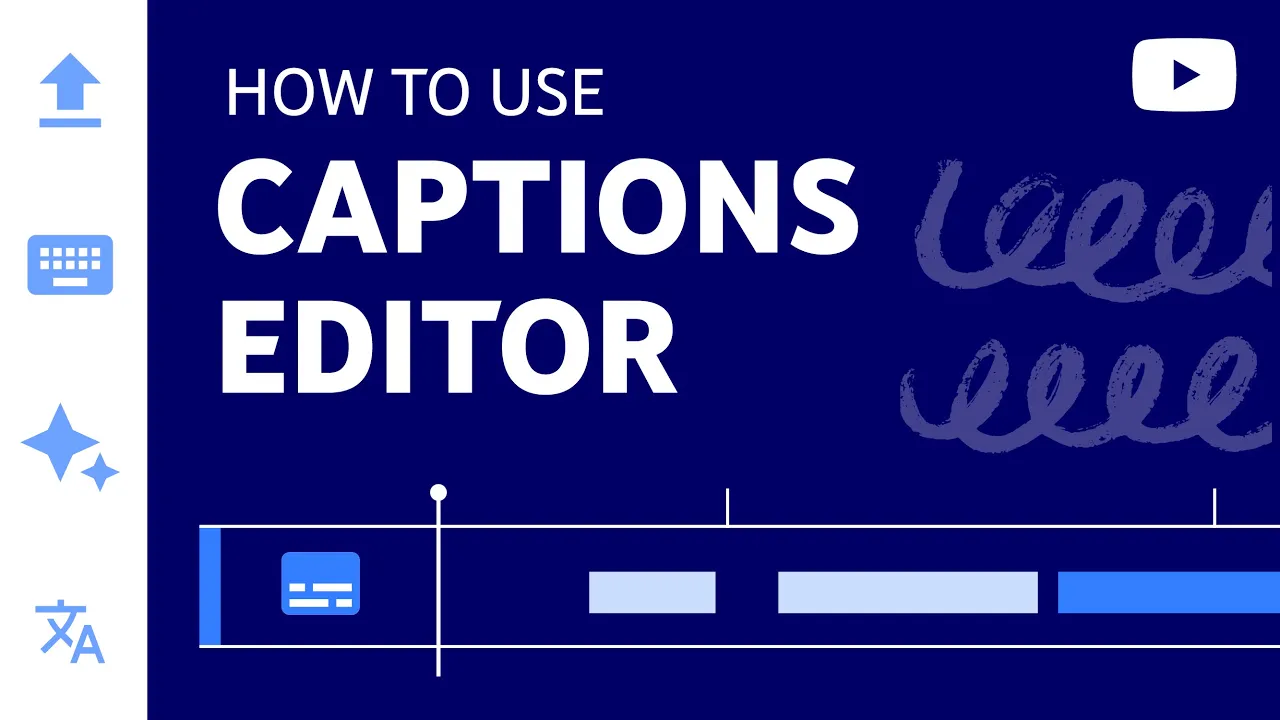
In this video, we'll give you an overview of the captions editor in YouTube Studio which makes it easier to create and edit captions for your videos. When you add in captions, you may be able to reach a wider audience including deaf or hard-of-hearing viewers and viewers who speak another language. On average, videos that are captioned see an increase in watch time compared to videos that don't have them.
There are two ways you can use the tool. While uploading your video or once your video has already been published. When you're uploading a video, you can get to the captions editor by looking for the Subtitles section and clicking Add on the Video Elements page.
If you want to add captions to a video you've already uploaded go to the Subtitles page in YouTube Studio by clicking into it from the left-hand menu or from a specific video's Details page. Now that you know how to get to the captions editor let's walk through how to add captions and the different options you have to enter them. If the video already has automatic captions pre-populated and you'd like to make changes to them click Duplicate and Edit.
If the video doesn't have automatic captions and you want to add your own click Add under the Subtitles column. If there's a specific language you'd like to add, click Add Language here. There are three ways you can add your own subtitles.
You can upload a transcript paste captions from a transcript directly into the editor tool and sync them or type out the captions manually as you watch the video. To upload a transcript, select Upload file if you already have a file that contains formatted text of what's said in the video. When you choose this option, select if the file has timings or not which will allow YouTube to process the file correctly.
If you want to paste captions in and sync them, select Auto-sync. With this option, you can paste in your full transcript of the video and subtitle timings will be set automatically. Once you paste your transcript here, click Assign Timings which will automatically set the caption timings for you.
And finally select Type manually to create subtitles by typing them in as you watch the video. To the right of here, you can manually set the timings or delete the caption. To add additional captions, click Caption at the top or hover over the caption line and click the Add caption line icon.
To give yourself more time to add in captions enable the Pause while typing option. You can also check out the keyboard shortcuts to make this faster and easier. For example, press Shift + Space to pause and resume your video.
You have more control over timing your captions at the bottom of the editor. To better sync your captions they'll appear over the audio of your video as they're entered. You can click and drag the caption to move its position and also shorten or lengthen the caption.
For even more control, you can zoom in and out on the captions timeline here. After your captions are added in, click Publish. You can always click Edit to make changes to your captions.
If you have any questions about captions, let us know in the comments below. Thanks for watching.


![I Replaced ALL my ADOBE APPS with these [free or cheaper] Alternatives!](https://img.youtube.com/vi/5EfqHg49kMk/maxresdefault.jpg)