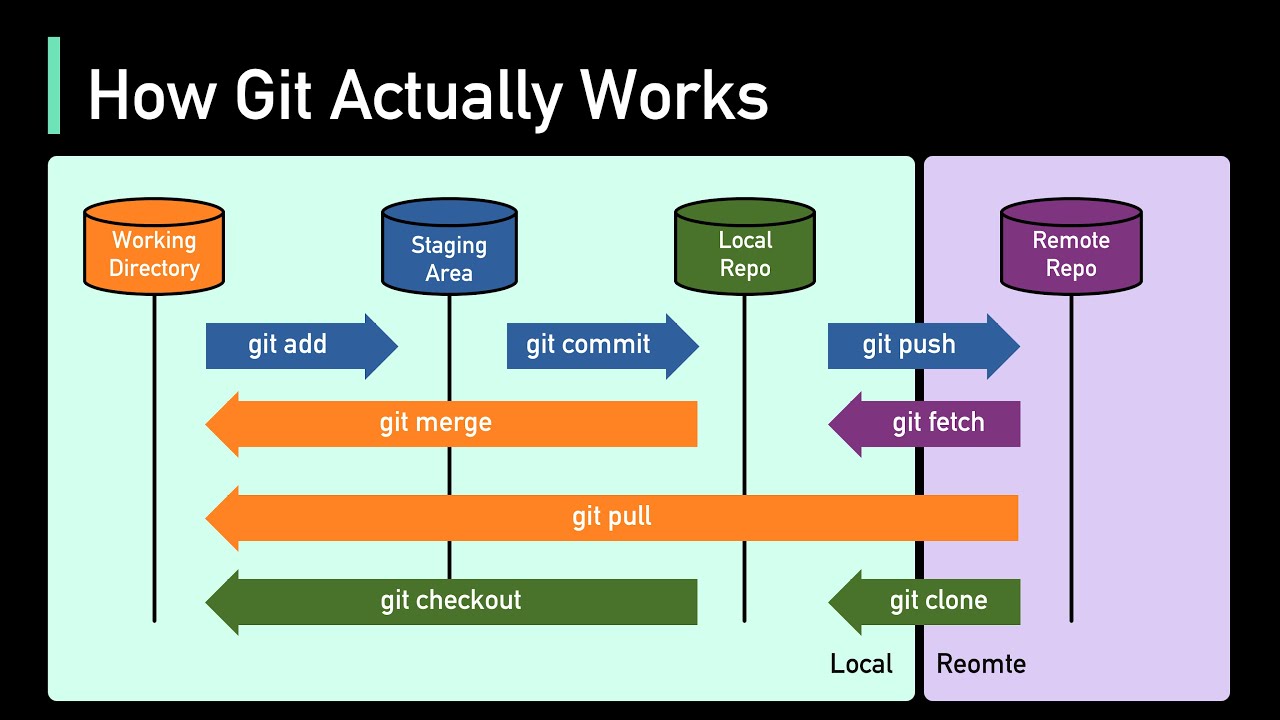
if you don't know the first thing about git or Version Control or the basic concepts you need to be successful with Git then this video is for you today I'm going to teach you everything you need to know to get started with Git if you're an absolute beginner this video will help you feel more confident installing configuring and understanding git and Version Control you learn all the fundamental concepts you need to install configure and get started started using git on your machine I'm kadaa and I'm so excited that you're here with me today if you're new to the GitHub Channel be sure to hit the Subscribe button below so you don't miss any of your future uploads let's get into it now what is git and why do you need to know it well git is the most widely used version control system in the world Version Control is a system that tracks changes to files over a period of time so think about your resume for a moment if you're like me you may have a few different versions of your resume over the course of your career so you may have resumé rum V2 ré V3 and resume final saved on your laptop as four different files and they may look something like this with Version Control you're able to keep just one main resume file because the Version Control System AKA git tracks all the changes for you as long as you save them this means you're able to have a history where you can view all the changes made to your resume and have copies of previous versions of your resume without creating a new file every time okay so now that we know what git and Version Control are let's get into some basic git Concepts that will be good to know the working directory is where you make changes to your files it is like your workspace holding the current state of your project that git hasn't yet been told to track the staging area or index is where you prepare your changes before committing them it's like a draft space allowing you to review and adjust the changes before they become a part of the Project's history your local repository is your Project's history stored on your computer it includes all the commits and branches acting as a personal record of the Project's changes a remote repository is a version of your project hosted on the Internet or a network it allows multiple people to collaborate by pushing to and pulling from the shared resource branches are parallel versions of your project they allow you to work on different features or fixes independently without affecting the main project until you're ready to merge back into them a pull requ is the way to propose changes from one branch to another it's a request to review discuss and possibly merge the changes into the target Branch often used in team collaborations and finally merging is the process of integrating changes from one branch into to another it combines the histories of both branches creating a single unified history to use Git You need to download it on your machine so let's do that right now I'm using a Macbook and while Mac OS comes with a pre-installed version of git we still want to download it so we have the most up-to-date version let's go to the link on the screen then click Mac OS then we'll follow the onscreen instructions first we'll install Homebrew Homebrew allows us to easily install software on our machines so let's copy this Command right here pop open our terminals then paste the command and hit enter this will take a while to run so let's give it a few moments once home bre is installed let's return to the download page and copy the command to install git open up your terminal and paste the command Brew install git this will run the installer so we can have git on our system when it runs successfully you now have get on your machine open up your terminal and run the command get and you should see a list of all the commands available now if you're using a Windows machine let's take a look at the downloads page click on the Windows icon and then select the link that says click here to download and this will give us the most recent version of git for Windows once you have that folder on your machine double click it and follow the onscreen wizard prompts click next to accept the terms click next for the location to save G click next to keep the default settings let's reset the default Branch name to main though as that's the new convention click next to accept the recommended path click next to accept the bundled open SSH program don't worry about that right now and let's just click next for all the other options and then click install once get is installed in the machine click finish and open up your terminal run the command git and you should see a list of all the commands available you're now ready to start configuring and using git now that we have git on our machines let's configure it open up your terminal and type git config d-g Global user. name space then your username in quotes like this git config dglobal user. mail space and then your email address tells get who made the change and gives you credit for the work that was done if we run get config you can see all the other configuration options that are available but we don't need to worry about those right now for now we can check our settings by running git config d-list and this will return the configuration options we just set press the q key on your keyboard to exit this screen okay now that we have a basic config let's go over some of the most basic terminal and get commands so you can start start using the tool let's first get started by creating a new folder open up your terminal and type mkdir get- practice to create a new folder then type CD get- practice to go into the folder that you just created open the folder in a code editor okay great let's go back to the terminal and type touch hello.
MD to create a new markdown file in our folder navigate to your code editor and you'll see the file right there hello. MD okay let's go back to the terminal and type get status this will return an error message because git is not initialized to initialize git is to create a new git repository this is the first command you run in a new project so let's run get in it in this folder which allows get to start tracking our changes then let's run get status again and you'll see that it's currently tracking the m hello. MD file great this will show us our changes and whether they have been staged and it will also show us which files are being tracked by git okay now let's run git ad period this will add all the changes from the working directory to the staging area if we run git status we'll see a different color of the tracked hello.
MD file this indicates to us that it's currently in the staging area go back to your code editor and and type the following hash I am learning to use glit exclamation point save the file and return to your terminal if I type get status this will show me that there's been a change to the hello. my file let's run get add again then let's create another file touch new file.