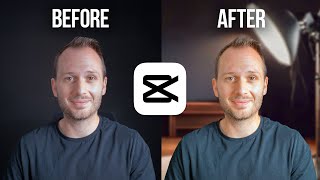
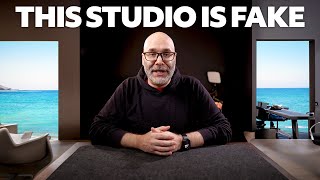
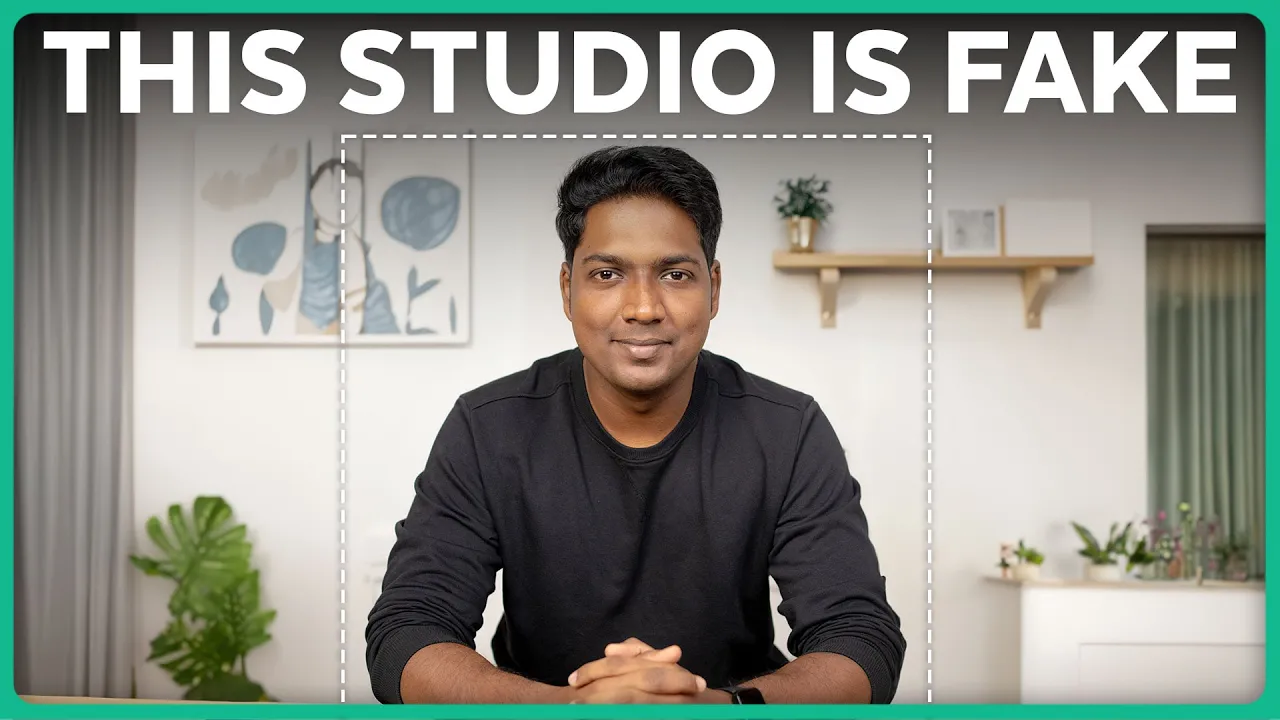
you know that feeling when you see a video and the background is just mind-blowing well guess what you're about to discover how to create this jaw-dropping backgrounds yourself without spending any money or having to use a green screen sounds intriguing right also this is just a regular living room yet with the magic of AI I can transform this into something extraordinary in mere seconds want a mural background or Statue of Liberty maybe even turn the space into a Cozy Cafe with AI the options are endless and here's the thing everything within this Frame is real
and the rest is all ai's work ofart so buckle up as I'm going to show you the best way to accomplish this I'm brand from upsite Learners and let's get started first up we need to shoot the video before we begin there are a couple of key things that you have to keep in mind number one make sure you have a consistent lighting and there's no Shadow or disturbance and for topnotch results don't forget to use a tripod to keep the camera steady number two pick a background that's not too busy or distracting number three
while recording stick to a specific frame and make sure you don't move out of it once you're done with the shoot let's move on to step two which is to take a snapshot from the video to do this you can use any editing tool like Premier Pro or filora but as we keeping it completely free I'm going to use an online tool called vidmix DOA this editing tool is incredibly user friendly and makes the whole editing process easier so let's go to vidmix DOA now you need to upload the recorded video here just click open
and select your video file there you go it's in now choose a specific frame and click export here select PNG then click okay and the snapshot will be downloaded once you get the snapshot let's change the background so let's move to step three which just to change the background using AI in this step we're going to edit the snapshot and make a creative background for our video to do that I'm going to use Adobe fly Adobe Firefly is an exciting new addition to adobe's family of creative tools which allows you to quickly perform edits like
removing or replacing backgrounds with just a few clicks so just go to fly. adobe.com head over to generate a fill and click sign in now here you need to upload the snapshot of your video so just just drag and drop the snapshot here you can remove any element that you don't want in the image for instance let's say you want to get rid of this lamp select remove here and erase the object like this and click remove see it has been completely removed from the image now say you want to add a new element to
this area just click on insert and here it'll ask you to save the edit you just did so let's click save now go to the place where you want to add the element and select it then here you can describe what you want to add in this area imagine you're thinking of including a wall decco so type it and hit generate now you will be presented with the range of options to choose from you can also click here to view more options now simply select the one that suits your background and click keep as you
can see it seamlessly becomes a part of this image in the same way way you can add any element you want to your background now let's add a bookshelf over here but first let's select the screen and then search for bookshelf now select the one you like and click keep and it will be perfectly added and in the same way you can find any element you want okay once you're satisfied with the new background click download then click continue and your image will be downloaded let's open it and as you can see the image has
a watermark on it but do not worry I'll show you a way to remove it so let's go to the next step which is to add a new background to the video now let's go back to vid miix our video editor and here you can see that we have our original video and just add a new image which we just created in Firefly here here so let's click open file select the image from here click open and it'll be added here now extend the image to fit the entire length of your original video now if
we play the video you can see that we just have the still image we need to make this new background appear on our video so we need to mask only the background portion of our video to add a new background we need to mask it masking let you change specific parts of the image while the rest stays unchanged to do that select this brush option now go ahead and erase the part that you want to hide just make sure you play the video and arras areas completely as you can see the watermark is also removed
now click export set the bit rate and click okay now give a name for the video click save and that's it your video is now saved right on your computer now if we open our video and you can see the background fits perfectly and it gives a realistic look so that's it guys this is how you can make creative backgrounds for your videos using AI so go ahead and make your videos stand out from the crowd if you found this video helpful don't forget to give it a thumbs up and subscribe to website learners for
more exciting tutorials thanks for watching I'll see you guys in another cool video Until then take care bye-bye [Music]