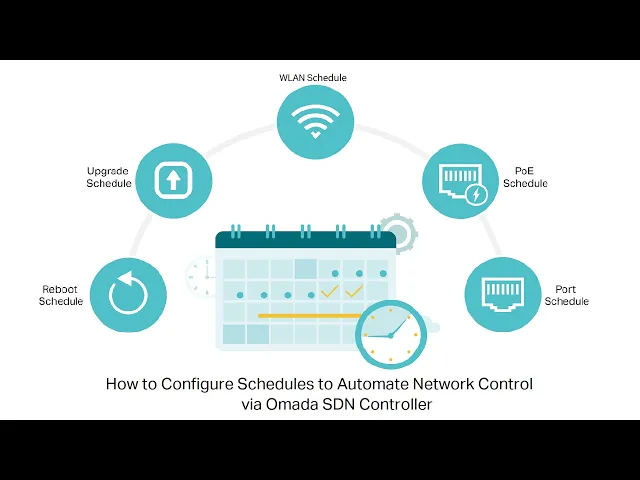
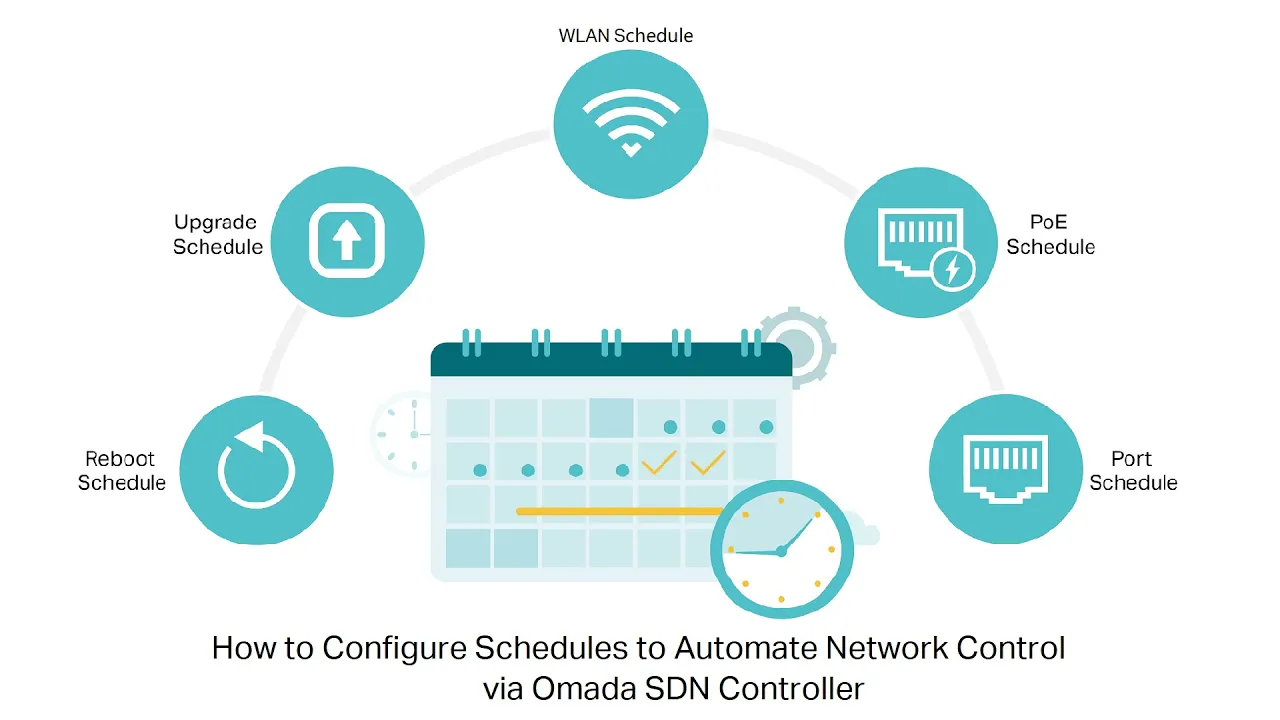
[Music] the omada sdn controller provides multiple scheduling features to automate Network control including WL upgrade Port Poe and reboot scheduling in this video we'll show you how to configure each of these schedules to easily and automatically control your [Music] network a w land schedule allows you to set periods of time when your Wi-Fi network turns on or off so you can have your wireless devices automatically disconnect from the internet as needed select a site from the drop-down list of organization go to settings wireless networks click inside the action column of the wireless network you want
to configure click W land schedule enable W land schedule choose to enable or disable Wi-Fi for this schedule for example selecting radio off will turn off the Wi-Fi during the specified time range and reactivate it afterwards set the time range for the schedule then click apply to put the settings into effect Port schedule includes Poe and Port schedules the poe schedule Powers Poe devices connected to your switches only during specified times like business hours for Energy Efficiency conversely the port schedule controls switch Port activation allowing for disconnection of devices from the network after work hours
for security select a site from the drop- down list of organization go to settings Services Port schedule click create new Port schedule enter the name to identify the schedule entry check the box to enable the schedule specify the schedule type according to your needs Poe schedule only affects Poe Power Supply Port schedule affects land connections of ports but does not affect Poe power supply to avoid network problems please check your topology and related configurations before turning off the ports set the time range for the schedule [Music] select the devices which the schedule will be applied
to when the type is poe schedule select the poe switch and Poe port to apply the schedule when the type is Port schedule select the switch and port to apply the schedule if you have a device that requires a constant power supply you should not configure Poe schedules for that Port click create the new schedule entry will be added to the table and the schedule will take effect during the specified [Music] time keeping the device up to- date with the latest firmware version is very important to ensure the device functions at its best although the
upgrade may take some time you can use the upgrade schedule to schedule the upgrade at a time and date that is convenient for you select a site from the dropdown list of organization go to settings Services upgrade schedule click create new upgrade schedule enter the name to identify the schedule entry and check the box to enable the schedule specify whether to execute an auto upgrade once or repeat it specify the time for automatic upgrades select the devices that will upgrade according to the set schedule click create then to have the setting take effect then the
schedule will check for updates for the selected device at the set time and if a new firmware version is available the device will be upgraded reboot schedule can make your devices reboot periodically according to your needs it is specific to the EAP and works directly on the EAP which will reboot at regular intervals with one or more set entries select a site from the drop-down list of organization go to settings Services reboot schedule click create new reboot schedule enter the name to identify the schedule entry and check the box to enable the schedule specify the
date and time for the devices to [Music] reboot select the devices which the reboot schedule will apply to click create the new schedule entry will be added to the table the device will reboot during the specified time [Music]