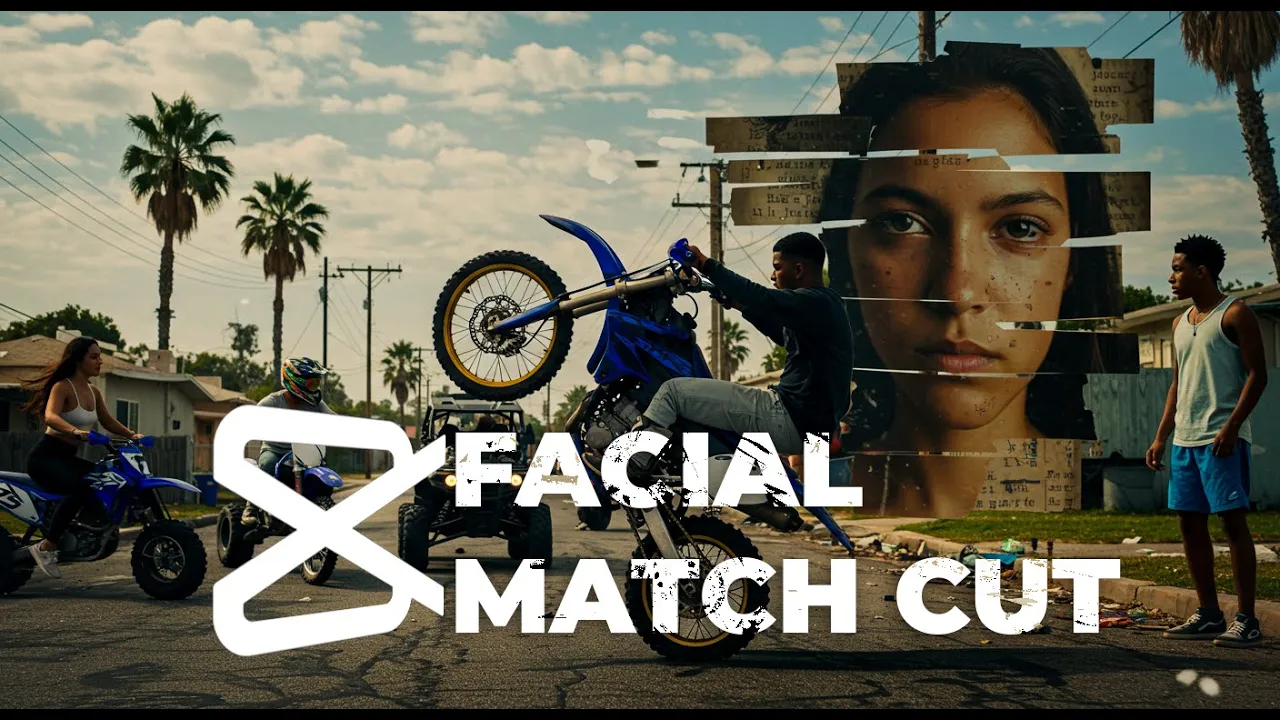
To create this facial match cut effect, we first need a documentary-style background. Open Pinterest and search for “Documentary background. ” You’ll find plenty of results—choose one that best fits the documentary aesthetic.
Selecting an image will generate more similar options. Pick the one that looks good to you and download it by clicking the three dots. Next, we need some front-facing portraits that resemble individuals from forensic archives.
Search for "Front view forensic portraits," and you’ll see a variety of options. Choose ones that match a documentary-style investigative look. Clicking on an image will bring up more similar faces—download a few different ones to add variety.
Make sure to include faces of different ages for a more realistic effect. Let’s go with this age group—click on it and download a few faces. Now, import all the assets into CapCut.
First, set the background music to something that gives a strong documentary intro vibe. I’m speeding up the music slightly for a fast-paced effect. Next, bring in the background image and set it to full screen.
Go to the Adjustment tab and reduce the saturation to zero. Scroll down and add a black vignette effect to create a more dramatic look. Then, open the Effects tab, search for "retro effect," and add the Nostalgia Light effect.
Adjust the settings as needed, or copy mine. Now, bring in the first face and position it where you want to start the match cut effect. Go to the Adjustment tab and lower the saturation.
Increase the particle intensity to create a noise effect. Then, add the Nostalgia Light effect from the Effects tab and tweak the settings as needed. This gives us a nice, stylized look.
To separate different facial features, we’ll use masking. Go to the Videos tab and add a mask. Select the feature you want to highlight in this layer—eyes work well for a dramatic start.
For the next facial feature, duplicate this layer and move the mask to another part of the face. Repeat this step for different features, creating multiple layers. Now, cut these layers into random sections to create a blinking effect, which forms the base of the facial match cut.
Select all layers and make a compound clip. Next, bring in the second face and position it where you want it to start appearing. Repeat the adjustment and masking steps, and add the Nostalgia Light effect.
Just like before, cut different layers into small sections, but this time, take a small piece of each layer. Align the second face’s eye layer above the eye of the first face to create a smooth match cut. Copy this section and place it randomly along the timeline to create dynamic cuts.
Repeat the process for other facial features, ensuring they align properly. Adjust the duration of some layers to keep them visible for longer or shorter periods as needed. Once done, create a compound clip.
Now, repeat the process for the third, fourth, and additional faces. Here, I’m adding one more using an older man's face. Once all faces are in place, create a compound clip of all layers.
Next, we’ll add zoom effects using keyframes. Start with a subtle zoom-in effect. Add the first keyframe at the beginning, move the playhead to where you want the zoom to end, and add another keyframe.
Scale up to 108% to create the zoom. For a sudden zoom effect, place the next keyframe close to the previous one. Then, right-click on the keyframe and select Show Variable Speed Animation.
This allows us to smooth out the zoom effect. Select the keyframe, choose Free Curve, and adjust the zoom path for a more natural transition. Add a third keyframe and adjust the main video in the preview panel.
Use the playback handle to check the smoothness of the zoom, and if needed, adjust the curve again using the Free Curve button. Continue adding keyframes for additional zoom effects. Keep in mind that if the curve slopes downward, it zooms out; if it slopes upward, it zooms in.
Open the X and Y tabs, select each keyframe, and hit Free Curve to smooth the motion path. Once satisfied with the zoom effects, hide the panel. Now, let’s enhance the edit with sound effects.
I added a paper effect from the Audio tab. Go to Sound Effects and search for it. Finally, we’ll add a noise effect to the entire video.
Open the Effects tab, go to Retro, select Black Noise, and apply it across the timeline. And that’s it—we’ve completed our facial match cut effect.


![Upbeat Lofi - Deep Focus & Energy for Work [R&B, Neo Soul, Lofi Hiphop]](https://i.ytimg.com/vi_webp/THh4fT0O7IY/mqdefault.webp)