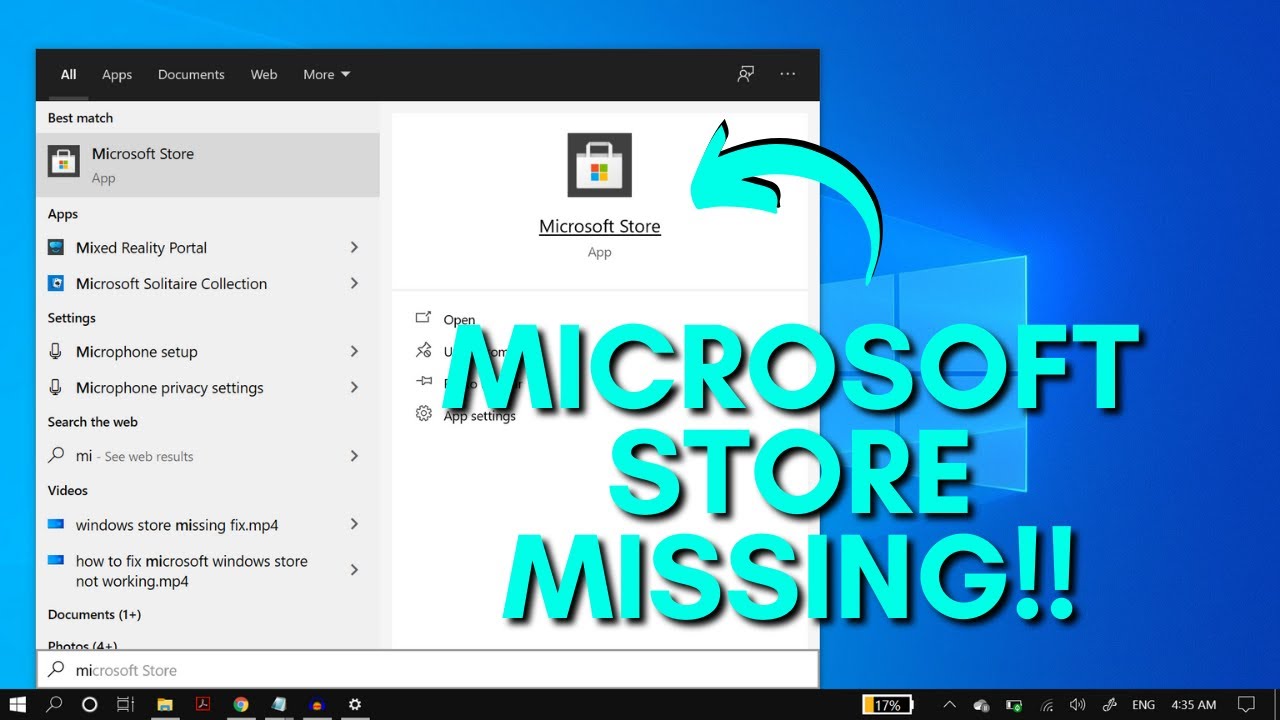
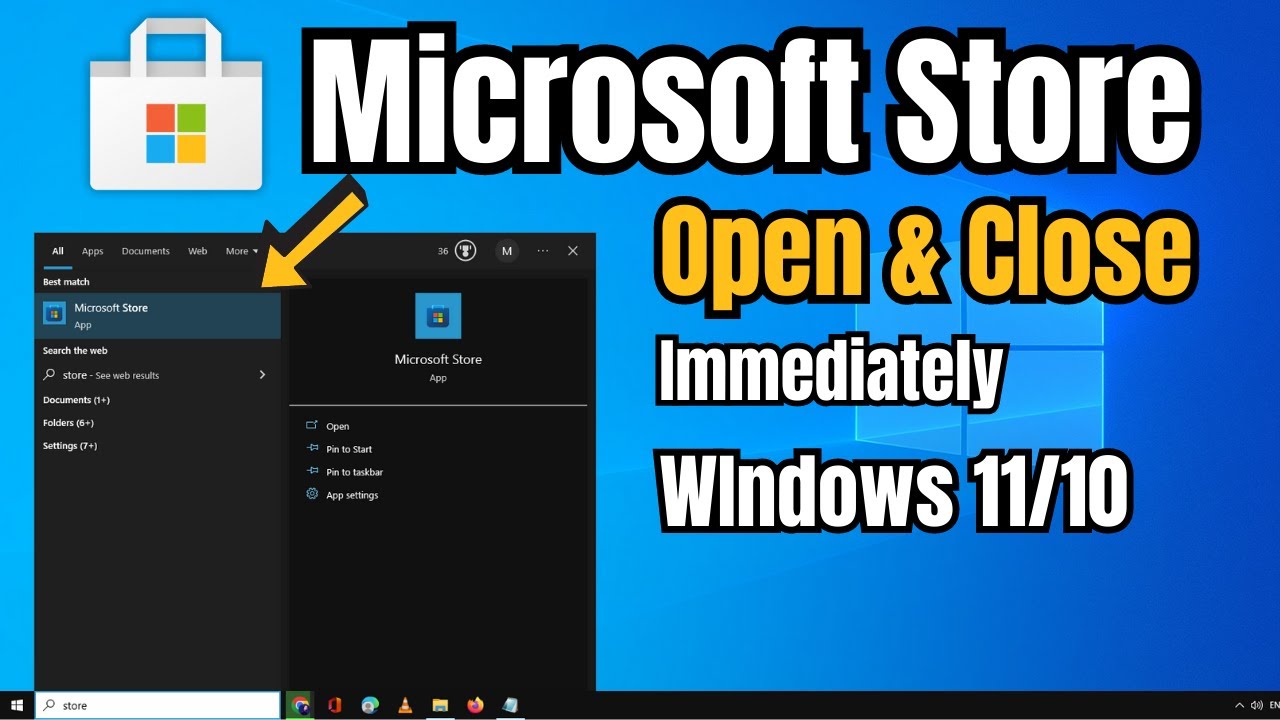
Hello Windows Universe! This is Michael with The Windows Club bringing you more helpful and useful tips to make your digital life just a little bit easier. Now, one feature that set windows 8 and 10 apart from earlier versions is the Windows app store or the Microsoft Store, whatever you really want to call it.
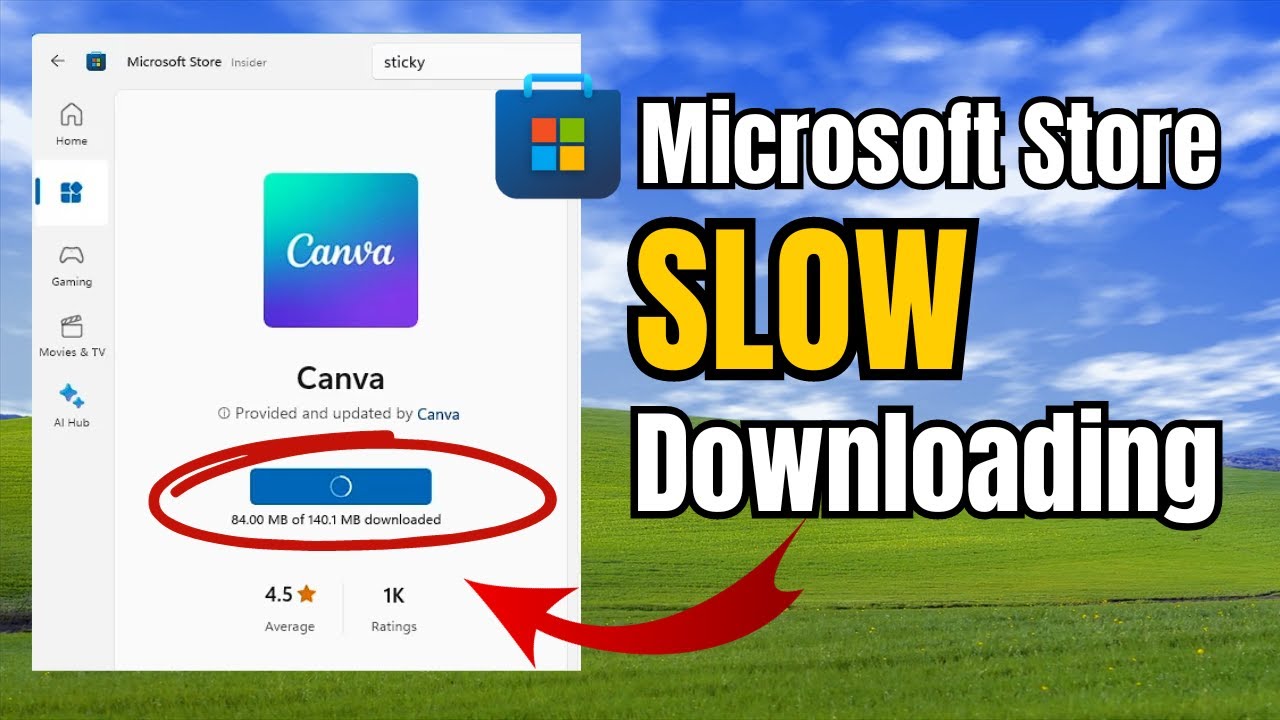
Now, in it you can find all sorts of neat apps and programs to download things that will help you get a lot more productive things that give you a little bit of a of entertainment - Netflix, Hulu, or if you really want to waste a lot of time, and I just waste a lot of time here, Gaming. However, you might encounter issues where an app is just not downloading completely and when you go to install it or update it on your PC, it just doesn't work. Now, in this video, we're gonna look at resetting the cache for the Windows Store without changing your Account Settings or deleting installed apps; and as usual, we will link a more in-depth article in the description below.
Now, you can clear the cache with the WS Reset or you can reset it in Settings. So, let's go ahead and get started. Now, the WS Reset it's a pretty simple fix but it's a little time consuming.
In the search, type wsreset. Now, you'll want to right-click on it and run it as an administrator. You'll have a Command Prompt come up.
Now, the first time I did this, it took a while and expect it to take a while because if you have a very heavy cache, it will take a while to reset it. This is a perfect chance to maybe go online and read some other Windows Club articles or just kind of like, you know, play around with the computer, just have a nice cup of coffee. When WS Reset is done, the Windows Store will open.
Some people will get the message that says, that you the cache is cleared, you can now browse the App Store for more apps. I haven't gotten that message but I do have the App Store opening. Now, as you notice the Windows Store just popped up.
Now, if you're receiving like an error messages that might say could not clear cache or any number of little things, I would suggest trying our Freeware Fix Win 10. Now, we did a video earlier on this which we will link in the description at the bottom. Now then, we have the option of resetting the Microsoft Store.
Go into Settings, then apps, and let's find, here we are, Microsoft Store. Click on it and go to Advanced Options; and let's go and find Reset. That's it!
Now, if you have any other solutions to give us some information in the comments below of the more in-depth information on this or any other Windows tips you might be interested in, visit our page at thewindowsclub. com and if you liked this video give us a thumbs up and subscribe to our channel where we are always releasing new videos with helpful how-to vids to make your digital life just a little bit easier. Thank You for watching and until next time this is Michael with The Windows Club wishing you a great day!



![How To Clear & Reset Microsoft Store Cache In Windows 10 [Tutorial]](https://img.youtube.com/vi/IUybxoN7VRc/maxresdefault.jpg)