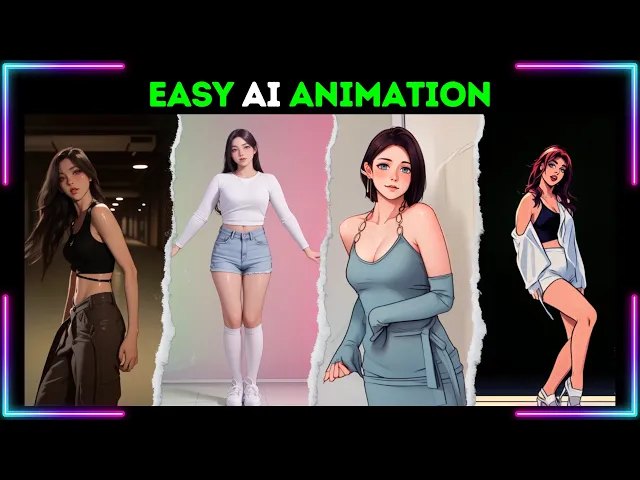
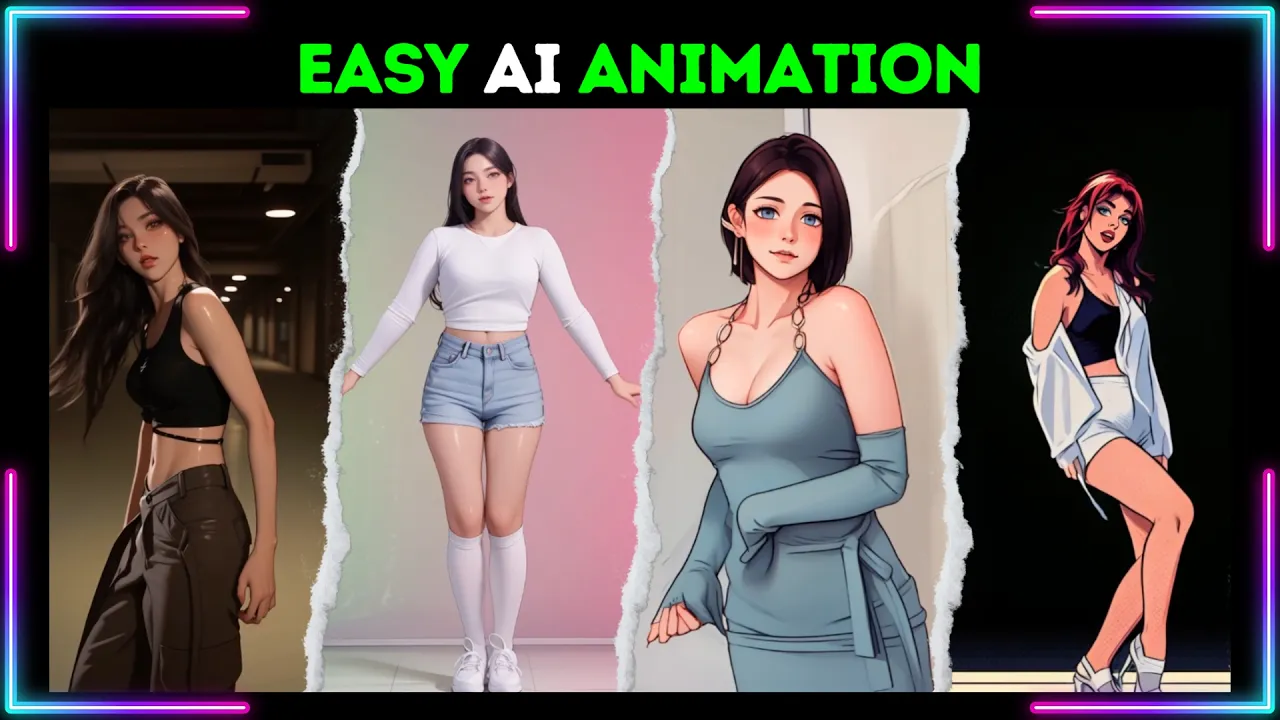
here we go is this right you don't have video editing skills but want to create mind-blowing content with just a few clicks in this video I'll show you how to use a single AI tool that can handle many tasks like transforming boring Dance videos into stunning anime Dance videos creating realistic deep fake videos generating images and videos from text and even creating videos from images or photos and the best part you'll get free credits to try it out for yourself so let's get started part one get free credits to get free credits follow these steps
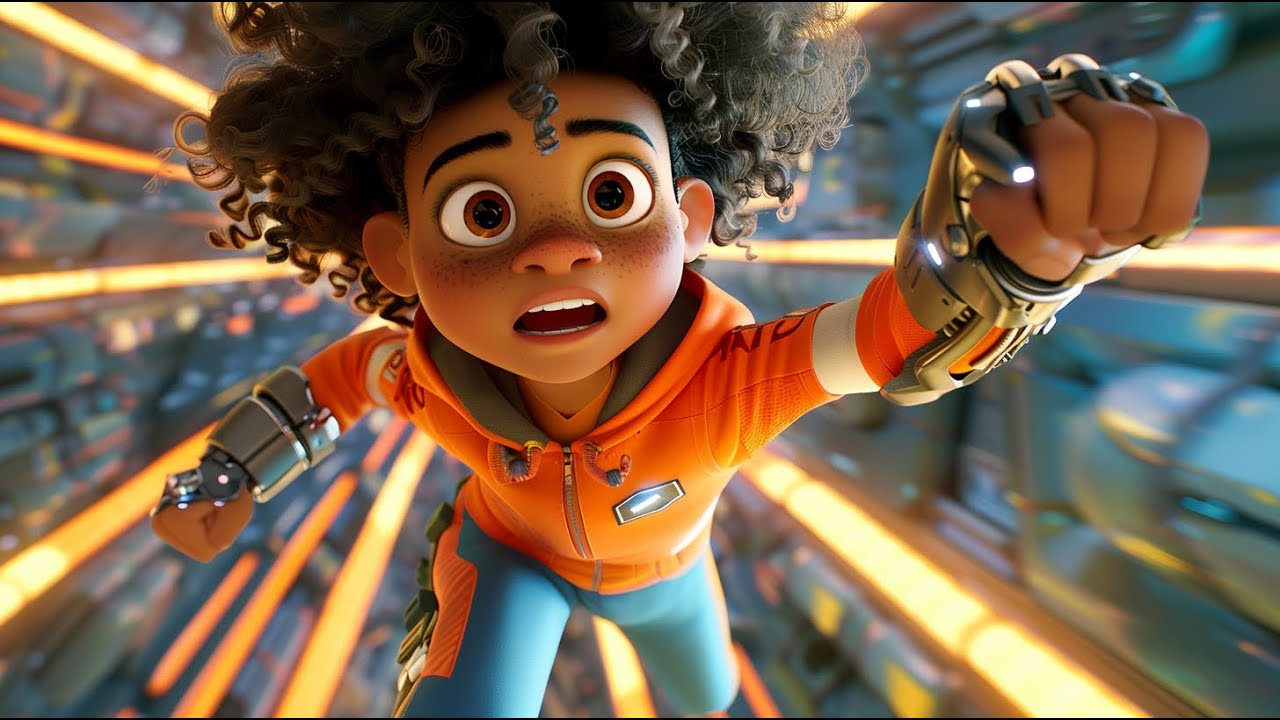
first go to the go inhance AI official website the link is in this video's description click the try go enhance for free button log in and continue using your Google account you will receive 45 free credits allowing you to try this AI tool for free part two create an anime dance video to create a dancing anime video with go enhance AI you can use the videoo video feature from your account dashboard click the video to video option first upload your Source video then select a video style in this example I will select the anime style
choose the video duration if you have a video seed you can enter it in the seed section activate the subject je only option and select person click the generate button to start creating your AI dance video if you are satisfied with the result upscale it to 2K or 4K click the download button to save it to your local computer here is the result video from this part part three AI face swap in this part we will create a deep fake video using go enhance AI from your dashboard select the video face swap option first upload
your reference image then upload the target video you can adjust the video duration if needed and click confirm to continue click the generate button to start creating your AI face swap video click the download button to save it to your local computer here is the result of the deep fake video from this part part four text to image AI now let's try go enhances text to image feature from the the dashboard select the text to image option enter your prompt in the prompt bar and continue by adding a negative prompt if needed after that select
the AI model you want to use in this example I will use the flux AI model select the image aspect ratio from the list click the generate button to start creating your AI image click the download button to save it to your local computer here is the result image from this part part five text to to video ai go enhance AI is also capable of generating cool AI videos from text prompts from the dashboard select the AI videos option then the text to video tab write your prompt in the prompt bar and set the creativity
level if needed lower levels mean the result will be closer to the given prompt click the generate button to start creating your AI video click the download button to save it to your local computer here is the result video video from this part part six image to video AI now let's try the image to video feature from the dashboard select the AI videos option then the image to video tab first upload your reference image then write your prompt in the prompt bar click the generate button to start creating your AI video click the download button
to save it to your local computer here is the result video from this part thank you for watching this go- enhance AI animation tutorial visit my channel for more free AI tutorials see you there [Music]