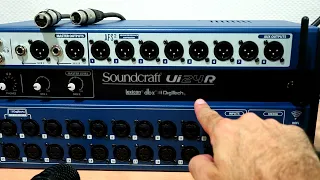
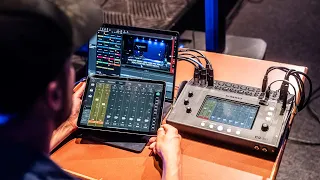
[Music] Hi guys, Elliot here from the product team at Soundcraft and welcome to chapter 5 of our UI series tutorial videos. Today I'm going to be talking about sending to buses and primarily our orc sends and effect sends buttons here on our L1 navigation tab. My previous tutorial I mentioned channel bus.
In my previous tutorial I mentioned channel ccentric bus sends. This is my channel one. I'm now sending channel one to orux one to orux 2.
We call that channel ccentric. But on the UI console you can also mix bus ccentric. Now to do that what we can do is we go back to our mix page here and then we select orc sends and now we are mixing two monitors in our bus ccentric view here are my input channels and now I'm sending them to orcs one you can see this page has again some familiar appointments but there are some key differences between this and the mix page first is the addition of the L2 tabs up here we have orcs one and two that are lit up and three and four.
I'll talk more about those later. The channel strips themselves have a dB value. We have a mute button, a pre or post switch, which is per channel.
I'll talk about that in a second as well. A combined PFL and AFL meter, the same as on our main mix page, including peak meter here. Our fader level for our contributions or our sends.
You can also notice this little yellow line here underneath the fader. Now, this is what we call fader glow, and I'll explain more about that in a second. And of course, at the bottom here, we have our channel label, which remains the same.
You also notice on the screen that we have our master fader to the far right for our main left right speakers, but we also have ours one master here that has been pinned beside the left right fader. So if I move the fader bay here, you can see the orcs one master is remaining the same as well as the left right master. This is so it's always accessible to us if you need to make any quick changes or turn the wedge down quickly, anything like that.
Now first I want to talk more about this fader glow system here. And we use fader glow so that the user of the console can get a very quick visual cue as to what the faders are controlling. As you can see on the mix page, the faders have no fader glow.
That means those faders are the main sends to the left right in the orc sends page. Yellow means that the fader is adjusting a prefade send. A prefade send is great for sending to things like monitor wedges or inear monitoring systems as the prefade send is not affected by the left right position of the fader.
We also have another color which is green. Now this is for a postfade send. Now straight away on this page you can see very visually that these faders are not controlling the left right mix.
So it's pretty difficult to get messed up and to start adjusting these faders thinking you're adjusting the left right. That's why this fader glow system is so great. So I spoke about this switch briefly.
But what this switch does is it toggles the send for this channel to aux one between prefader and post fader. As I mentioned, prefade is great for things like monitor sends, things like that. But for some applications, a postphase send would be great.
For example, say we have a playback coming from our USB channel over here. Here's a USB channel here. Now, I want to send a little bit of my USB player to the monitors just so that the musicians know what's going on in the front of house during an interval, something like that.
But when I turn the faders down on the main mix page, so when I turn these down, I want my sends to my ores to be cut off as well. At the moment, as these are prefade, it doesn't matter where these faders are set, my musicians are still going to hear my USB player. So, what I can do is I can set these sends to be post fade.
So, you see that they're green, green fader glow. Everything's cool. Now, if I go back to the mix page, when I turn the faders up on the mix page, it will increase the send to orx one.
But ultimately, if I turn the fader all the way down on my main left right, the my musicians will not be able to hear this send, which is great. It also prevents any mishaps where playback is still going through the monitors when it's not in the front of house. Each of the channels can be made postfade on the fly like this.
But we can also turn a whole bus into postfade by simply clicking and holding a post fade selection. Set all channels to post and then clicking okay. Now the whole bus has been set to post fade.
Again we can make some sends pre some post or we can just select pre hold down and press okay. Now all the sends go back to prefade. This very same setup exists for the Orcux one and Orcux 2 tabs, but as I keep mentioning, we also have Orcs three and four up here that have been apparent in a few of my tutorials.
Now, now these correspond to the headphones output on your UI console. Out of the box, your headphone output is configured as a standard PFL bus. So, you solo a channel and that is sent directly to the headphones bus, which is perfect for front of house applications.
However, if you're in a band and you need extra orxes and or maybe the UI is by a drummer and they want to use a pair of headphones, we can repurpose those headphone outputs to be aux 3 and aux 4. And we can do that from the settings menu. And I'm going to show you that now.
So, if we select the settings cog here and we enter settings, which I'm already in now, our very first setting here is for headphones out. out the box. As I said, it is set as a master/solo bus.
But if we switch that to orcs like that and now return to our orc sends, orcux 3 and 4 are now lit up and available for me to mix to. And now 3 corresponds to the first headphone output on the UI and orcs 4 corresponds with the second headphone output on the UI. each have their own individual output and they now have their own individual processing as well.
This means on a UI2 you can double the outputs if you need to for a specific application. As I mentioned, say the UI was by a musician and they wanted a stereo in-ear mix. We can actually pair these buses together to create two stereo orc sends for things like in-ear monitoring and for the headphones outputs on the console itself.
Now we can do that from the mix page here. If we go back to the mix page and scroll across until we see our four or masters here. If I click and hold or one, I see an option for stereo link.
If I engage stereo link, you can see now that the two masters are tied together. We have this yellow handlebar up here, which indicates the buses are now stereo. And now, if we go into orcs tab up here, we can center one and two in parallel.
And the final telltale sign that this orcs is now set as stereo is this pan control up here. It is now available to us to be used in this configuration. XLR outputs one and two will act as the left and right outputs for your single orcs.
If I want to make ores three and four stereo, I can do that in the exact same way by going into the mix page, pressing and holding or 3, and enabling stereo link.