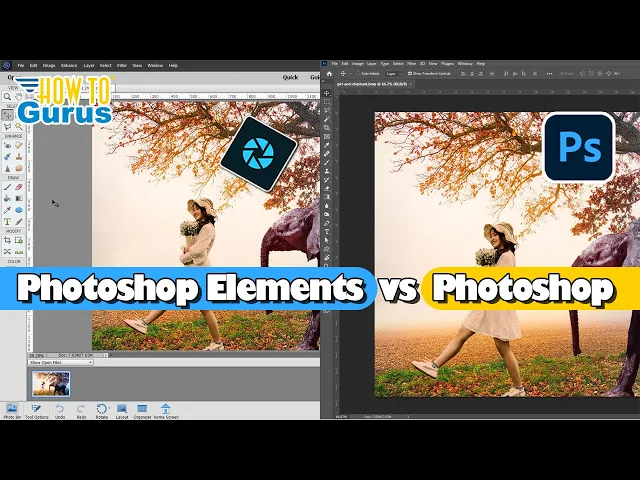
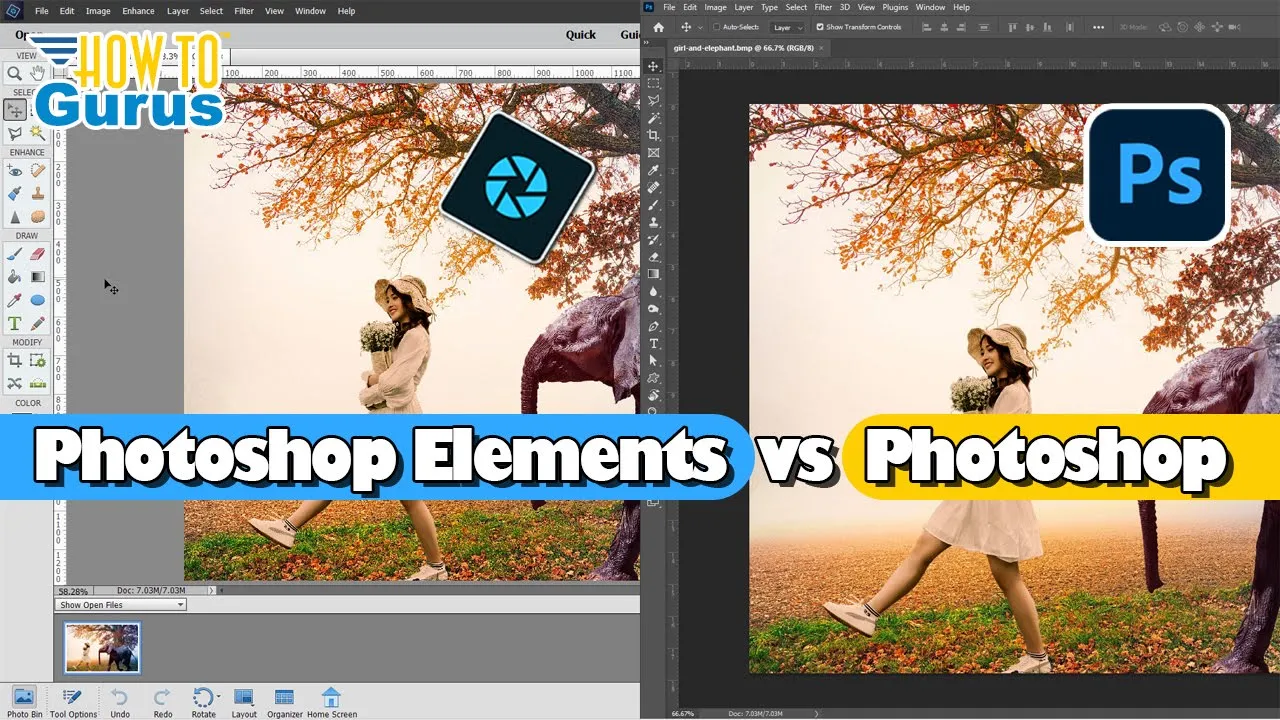
hi George here and today I wanted to compare Photoshop Elements with Adobe Photoshop now most of the time when people do this kind of video they talk about how elements is so similar to photoshop they'll show you the same tools and how they work on both sides and I really don't think that that's the right way to approach this question the real question is why would you want to use one program over the other and there are some big differences there on why you might want to make that decision now the biggest difference is price
and most people tell me that they have switched from Photoshop to elements just because of the price and that's a very fair choice to make Photoshop Elements is a one payment program you buy the program and you have it for life at that version if you want the newer versions you'll have to then repurchase a program again to get the newer versions with Adobe Photoshop it's a subscription service and you always have the latest version it's constantly being updated there's two or three major updates throughout the year and every time an update comes in it
automatically is applied to your copy so you always have the latest version when you're working with adobe's Photoshop program it's one of the reasons why I happen to like that program I like that concept of it being constantly updated with Photoshop Elements if you want the updates you have to buy the next version that's basically adobe's model for making profits from the elements program is to charge for the updates let's take a quick look at the prices and also see which program Adobe is pushing and that's pretty obvious here we are at the Adobe website
and across the top creativity and design here's your Lightroom and your Photoshop right there right at the top feature products there's your Photoshop right there notice that you're not seeing Photoshop Elements any place up here you won't find it at all anywhere in the upper menu system up here and that's because Adobe is pushing Photoshop and the reason they're pushing it is that they make more money from it you know that's fair enough not going to be faulting them for that if you want to find elements you have to scroll all the way down to
the bottom of the Adobe page all the way down here and there's a little link right down here elements family that's the only place you're going to find elements here inside of the aw website and they normally push the elements over on sites like amazon.com as opposed to pushing on their main website now on the prices on this let's take a look at the Photoshop Elements prices the current price and right now we're at the beginning of March 2023 now it says 80 dollars right here 79.99 actually if you come down just a little bit
here it is Photoshop Elements basically a hundred dollars for Photoshop Elements so if you wanted to have the upgrade every year they have a limited time where you can get the upgrade for about 20 bucks off but if we ignore that you can figure about a hundred dollars a year if you always got the upgrades and you always wanted to stay current on that we're not going to be looking at the Premiere Elements in here since that's their video program we'll just focus on the photo editing program right here so a hundred dollars a year
year if you always do the upgrades let's now take a look at the least expensive way to get it'll be Photoshop I can repair creativity and design and Photoshop right here and if we go up here to the buy now button and here's the plans and pricing page for all the different kind of cloud apps and the cheapest that you can get Adobe Photoshop right now is on the photography plan at 19.99 a month this gives you a Lightroom Lightroom classic photoshop on the desktop and iPad so you get a lot in there Photoshop and
Lightroom for 20 a month so compared to the elements Photoshop runs about 240 dollars a year as opposed to a hundred dollars a year for elements if you're doing upgrades every year and most people don't do that so elements is much less expensive than Adobe Photoshop and again this is the main reason why people will choose elements over Photoshop let's not talk about the programs themselves and what they have and don't have that may be a deciding factor in choosing one program or for the other as far as basic editing inside of both programs they're
very similar here's Photoshop Elements we're in the expert mode which is the one that most closely matches Adobe Photoshop we have our tools left hand side standard tools right hand side we have different panels available over here right now I have the layers panel showing you can do the effects panel filters panel and so forth right hand side and both programs do a very good job of all your basic photo editing needs take a fast look over it it'll be Photoshop which is right here same thing left hand side is your tools panel same tools
even have the same icons they're in black and white over here but they're the same icons it wouldn't be any confusion if you went from one program to the other right hand side maybe a little bit more confusing and that's just because Photoshop has multiple panels showing up on the right hand side not just one panel the layers panel right now is right down here at the bottom I have the color panel open up as well you just hide that one here's the layers panel all of these are quick links to other panels in here
for instance here's the histogram panel right down here is the brush settings panel we have our channels paths adjustments Library so it's very easy E2 quickly work through the different panels over here there's our layers again inside of Photoshop so in a production setting where speed is important it's actually easier and faster over here in adobe's Photoshop so if you're working in a professional field at all then Photoshop is the obvious choice if on the other hand you're doing this as a hobby you're just having fun with it you're doing things for family and friends
that elements is a perfectly fine choice for that let's take a look at another example in here let's take a look at the layer Styles layer layer Style style settings and here's the style settings dialog box we have drop shadow glow bevel and stroke each one of these has a few settings in here not a whole lot it's fairly limited but most of what you would normally use the top choices are all right here inside of the style settings dialog box for your layer Styles if you want to add a little bit more to this
you can go over to the Styles panel right hand side and then get a head start on these things with some of these Styles here and then adjust those styles from the layer Styles down like box over on Photoshop same thing again layer layer style bring up our layer Styles dialog box right here and you can see it's far more advanced so here's the bevel and emboss we have that over there here's the stroke we had that here's our drop shadow we have Inner Glow and outer glow right here there's a lot more available and
when you're in here you have a lot more options available as well including being able to change Contours of the effect that's being applied okay let's now talk about why you would want to use one or the other and why anybody would want to use Photoshop Elements aside from the price cut instead of using Adobe Photoshop and that's very easy to answer as well and that's the differences between the two programs first difference of course it's a lot cheaper second difference is it's a lot simpler and I happen to like Photoshop Elements because of that
even though I have both programs I do most of my work in Photoshop Elements because I don't have to worry about all that extra stuff that just gets in the way sometimes is too much I prefer the simpler program so all that's been removed here from elements if you don't need that professional level stuff there's no reason to have it it just gets in the way another reason that I like Photoshop Elements better than Photoshop is that it comes with tools to make this much easier to use without having to even get into all this
expert level stuff for instance we have the quick edit section right here we can go through with your smart fix adjustments your exposure adjustments in here your lighting adjustments color adjustments and just choose from thumbnails to find the one that you want to work with much much easier to use and a very fast quick way to do your basic image editing and exposure lighting balance and sharpening and color options if you want to do the fancier fun stuff then there's a whole series here of guided edits Basics color black and white fun edits special edits
photo merge a few of these things are available if you know where to look over in Adobe Photoshop but they're kind of hidden but it's all here and easy to find inside of Photoshop Elements for instance object removal real simple here with a guided edit that actually walks you through the steps so that you can come out with professional level results without having to be an expert on the program just walk through this series of guided edits so this is where Photoshop Elements really shines is that it helps you along and works with you if
you are a beginner or just hobbyist with photo editing and you don't want to become an expert or a pro then you can do that level of work without having to have that level of expertise so I prefer Photoshop Elements and that's what I normally use on a day-to-day basis and I do use it every single day I also keep Adobe Photoshop that's because of the thing things that photoshop can do that elements cannot do again it's the differences in the programs that will make you decide to use one or the other or in my
case to use both one of the biggest differences is how the programs handle color up here to image come down to mode and here are the color options we have RGB color that's the default 8 bits per Channel which is fine in most cases index color this is your GIF color mode grayscale and bitmap which is just a straight black and white no Grays now where does this come into play primarily if we're talking about professional print output and that uses color die separation mode which is CMYK mode cyan magenta yellow and K stands for
black so CMYK and Adobe Photoshop can work in CMYK mode so let's switch over there and go up here to image and mode and here we go the top section here aside from the duotone and you can make duotones over in elements so that doesn't really count so aside from that the top stuff is the same and we also have the addition of CMYK Color Lab color multi-channel color 8 Bits 16 bits and 32-bit channels so the options for color is far greater in Adobe Photoshop and primarily the most important part about this is for
professional printing so if you're going to be doing any kind of printing whether that is images for a magazine or a book or album covers or posters or if you are doing t-shirt designs a lot of people do t-shirt designs I also do t-shirt designs as well and if you want to be doing that then you have to be able to see how this works with inks printed on surfaces and that's where the CMYK mode comes in and that's the primary reason why I keep Adobe Photoshop is for working for print output so again it
isn't the similarities between the programs that are important for making a decision on which one to use it's what your output is it's what the differences are between the programs and which one can handle the output better so the way I look at the two programs is if you are an amateur if you are a hobbyist if you're just doing this for fun or even if you have a small business if you're only doing things that are going to be used on the internet like websites and so forth or you're doing YouTube channels I do
all of my YouTube thumbnails in Photoshop Elements if that's all you're doing then Photoshop Elements is perfectly fine very Advanced if you know how to use it obviously if you watch my channel we do some very advanced stuff in Photoshop Elements if though you need a more professional level you need all of the options you also need things like CMYK color mode for printing professional professional printing then the only choice is Adobe Photoshop because it has those options available and Photoshop Elements doesn't if you want to learn more about how to use Photoshop Elements I
have a complete training course for that and I also have a course for adobe's Photoshop program and both of those are linked down in the description and if you enjoyed this video make sure you hit that like button click on share click on subscribe that really helps my channel a lot and I'll see you next time