[Music] hello and welcome in this video we're going to add a couple of more sites to our living extend hotels and resorts platform so let's go ahead and get started by clicking on the menu up here at the top left if it's not already expanded out we'll head over to the control panel followed by sites and then sites one more time from here let's head over to the right hand side and we're going to click on that blue plus button just as we've done previously from here we're going to create an intranet site so we're
going to use that internet site site template let's give our new site a name we'll call it livingston loop and then let's check the box here so all the pages are going to be created as private pages again private pages are only viewable by those who are members of the site so livingston loop followed by that checkbox once you have all those things confirmed go ahead and save now as we've discussed in the lecture right there are different ways in which we can gain access to the site this is controlled using those membership types that
we see right around here so again just as a refresher there are three different types open allows anybody any user who's signed in to be able to join or leave the site as they please the opposite is private private is completely up to the administrator as to who is a member and who is not a member of that site and then finally the last one is restricted restricted is kind of the combination of the two where the end user who signed in is able to request access to the site and then the administrator is the
one who then decides whether to approve or deny that request right assuming that the request has been accepted the end user can then leave the site as they wish but if they want to rejoin they have to go through that process one more time so in this situation we're going to select private once you have private selected let's scroll down and then click save so very good we've created our first private site in which the membership type is private so making the differentiation between the private pages and how users become a member of the site
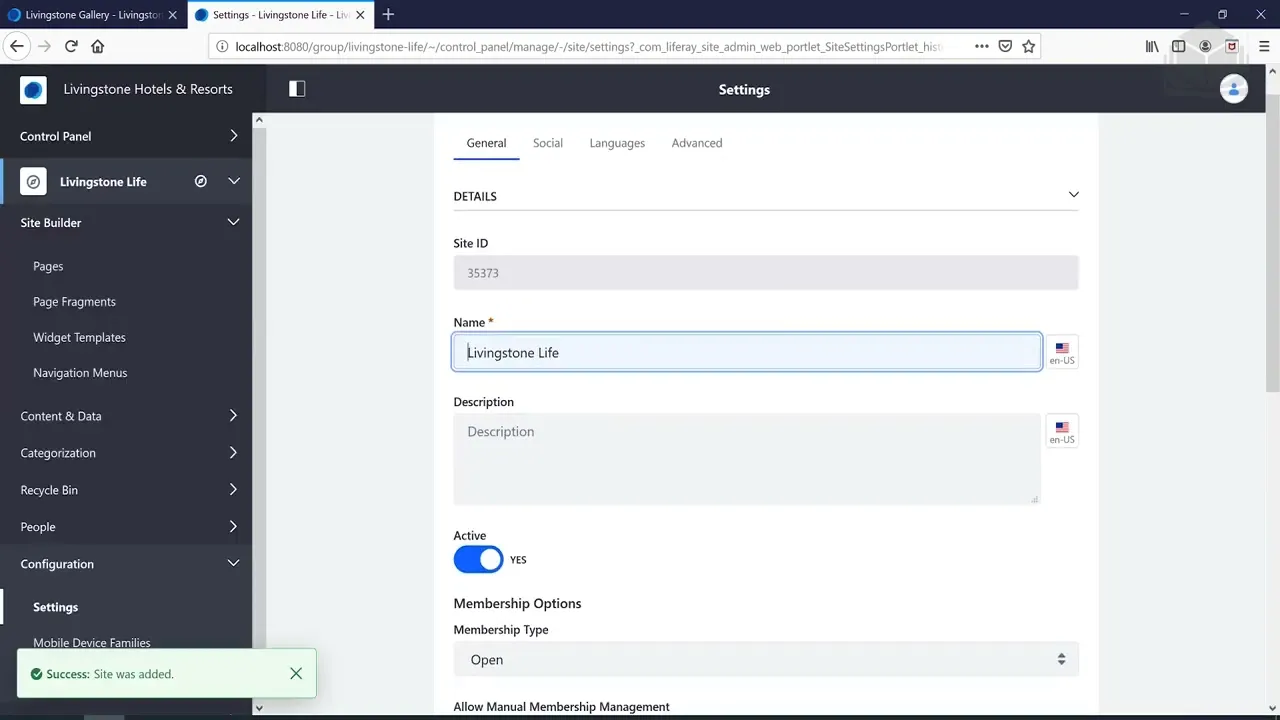
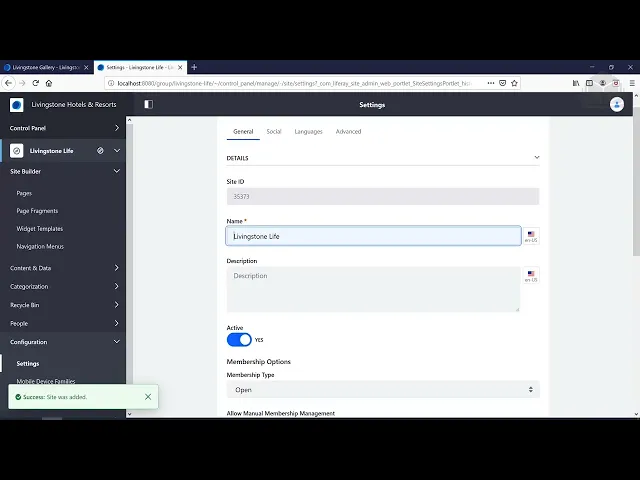
so that they're able to view the private pages let's go ahead and create one more site let's head back over to the control panel going to sites and then sites again let's click on the plus button one more time and this time around we're going to use the blank site template giving the site a name livingston life is going to be the name of the site it's going to be a blogging site once you have the name go ahead and click save let's scroll down a little bit if you need to under the membership type
drop down we're then going to select restricted so the end user will request access to be a member of the site administrators will then accept or reject that request let's scroll down and then click save very good one last thing we want to do before we wrap it up is just to take a look at all the sites that we have created between all of the different exercises we've gone through so we want to be under sites so let's recap so we created a site template a few videos ago and then we created three child
sites within the livingston hotels and resorts right all of those sites are left as membership type open so end users can join and leave as they so desire the next one is the livingston loop right that is a private site right so it's all up to the admin to either add users or remove users from the membership list and then finally the last one here is restricted right end user can request access admins will then accept or reject that access so very good feel free to do the bonus exercises if you want or any of
the other bonus exercises from the previous videos so this wraps it up for this exercise and i will see you in the next video



![Upbeat Lofi - Power and Energize Your Workday - [R&B, Neo Soul, Lofi Hiphop]](https://i.ytimg.com/vi_webp/ONcY0BM5EAg/mqdefault.webp)