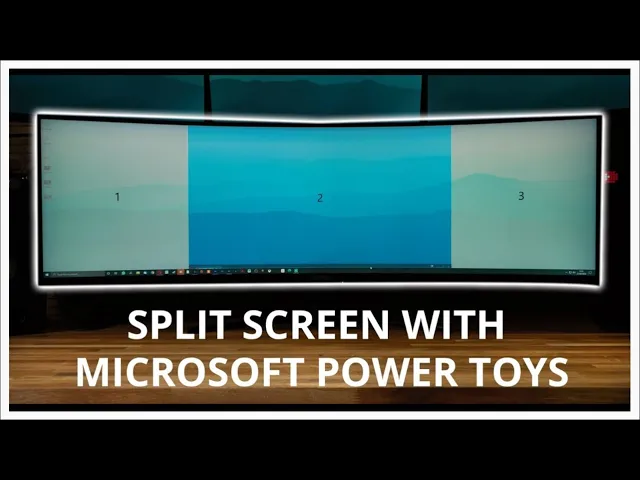
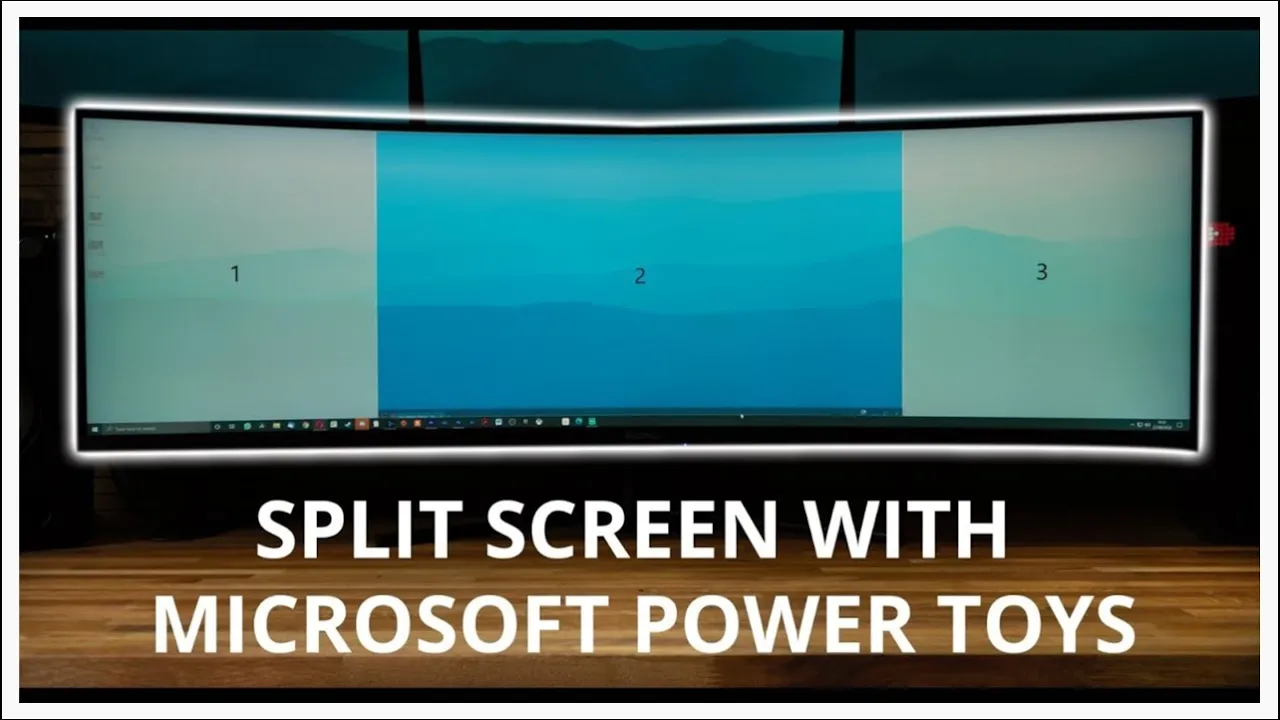
i've owned the electric 49-inch qled super wide monitor that one over there for about eight months now and i love it more today than the day that i first got it for gaming for productivity for editing it's a joy and i urge you to try it if you haven't already the only bug bear that i have with it is that you can't split the screen into segments out of the box in my original video i talked about a program called display fusion which does help with this issue but i found it a little bit clunky
and when i wanted to put my timeline full screen in premiere it didn't quite do what i wanted it to do and it wasn't perfect and it was a paid for application so i uninstalled that app and i haven't used it since and i've just dealt with having to resize every window as i went along that was until i discovered microsoft power toys it's a really powerful program and there's lots of different features in microsoft power toys but the one i like the most and the one i'm going to be talking to you about today
is called fancy zones and what fancy zones does is it allows you to split your screen into as many different segments as you want and if you hold shift whilst you move one of your windows around then you can snap it to that segment of your screen if you want to make a window full screen you can you just do it normally but if you want it to be smaller then you hold shift genius this is what i wish display fusion had done in the first place let's jump over to the computer and i'll show
you how to install it and how it works okay so i'm going to show you this on a normal 24 inch monitor just because it'll look better on youtube you'll be able to understand more clearly but it works exactly the same way on a super wide monitor so the first thing i want you to do is click on the link in the video description and it will take you to github and we're going to download the released version of this software so just click on release scroll down and then click power toys setup that will
start the download it'll ask you where you want to download it to download complete so just open that up and it will bring you to this setup wizard so you just want to click next follow the steps through the setup wizard i've already got it installed so it's not going to work for me once you've installed it just go down to your system tray right click on it and click settings this will bring up this window and it affects whichever monitor this window is on if i brought this window down to my super wide monitor
then it would affect my super wide so we're just going to launch the zones editor this is nice there's lots of different options within this program and you can even make your own as well so focus basically makes a little folder kind of stack columns allows you to split your screen into three columns you can have rows you can have a grid you can have priority grid which is what i use on my super wide monitor so i have a large application in the center and little applications off to the side so we're going to
do this one for the time being space around each zone is basically a buffer in between each window i don't really like that so i'm going to change that to 2 and press apply and now if i move this window whilst holding shift it'll snap to that part of the screen if i bring an explorer window up and i hold shift i can snap it to this side of the screen and if i want to bring my web browser up as well i mean i can do that i mean it's not very useful on that
side screen but on a super wide screen it's super super useful something else you can do as well is you can adjust the amount of columns up to 40. that's a lot so four on a grid would be nice as well so we're going to take our explorer window pop it up into that grid our settings down into there our web browser to there and calculator into the bottom right corner you can see how on a super wide monitor this program is super super powerful there we go all done a free solution that does exactly
what i wanted it to do hopefully this helps some of you out thanks for watching if you like the video then like the video and subscribe so you never miss another episode i'll see you again next time you