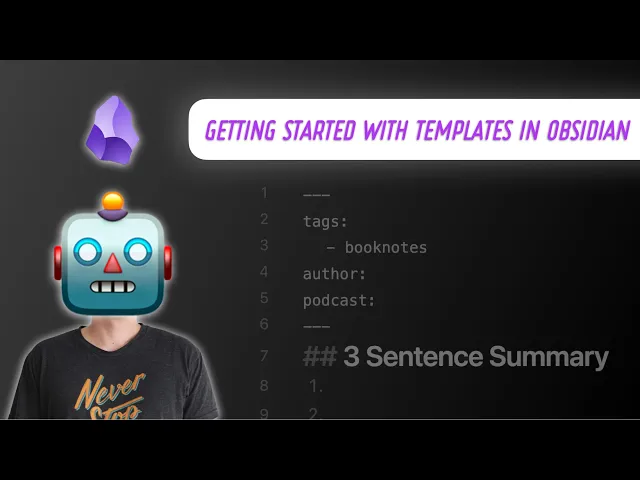
are you wasting precious Time by recreating note structures in obsidian every time you create a new note in this video I'll show you step by step how to create use and customize templates in obsidian to boost your productivity and save you time let's dive in and consider why even use templates in the first place it really isn't that hard to retype things as you need them is it while it's true that templates do offer an efficiency bonus that's not the real reason you should use them the real benefit of using templates is that they provide
consistency and they prevent user error so for example if you mistype a tag in your obsidian Vault you've now created a duplicate tag and you make it harder to find what you're looking for in the future and if you reproduce even a couple of these formatting errors pretty soon all the metadata in your vault is a complete mess so the real reason to use templates in my opinion is to make sure that everything in your vault is formatted the exact same way so it's usable by plugins like dataview in the future I like to use
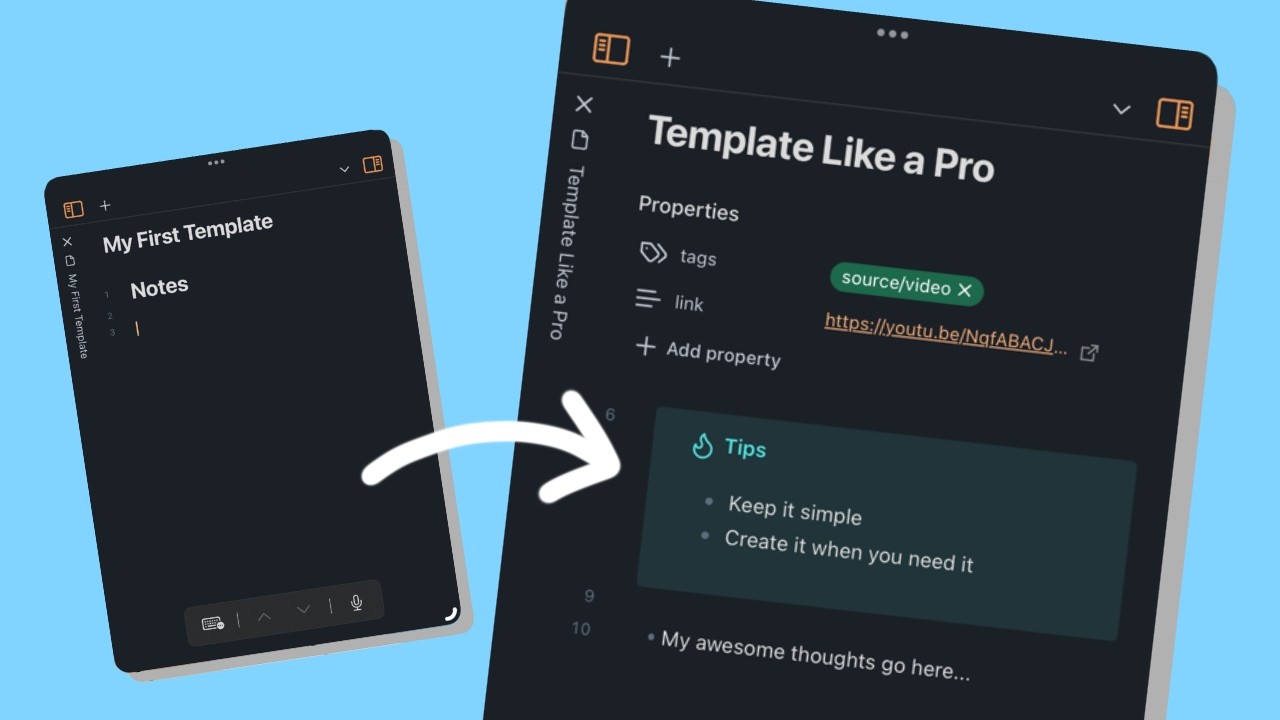
templates to make sure that all my metadata is formatted correctly when I'm creating a new video script for videos like this or when writing articles that I'll publish either on my site or places like the suite setup I also have automated file management rules that will move things to an archive folder automatically when I update the status of a note to published but these automations require that that metadata be formatted correctly and I've messed this up more than once when I do it by hand fortunately using templates is really easy because they're built into the
obsidian app to get started all you need to do is have a few templates in your obsidian Vault and then enable the template's core plugin I've actually got 15 free templates included in my obsidian University starter Vault you can download that for free by going to obsidianuniversity.com Vault or clicking the link below this video I recommend you keep all your templates in a single directory and I like to call mine templates so that it's easy to find them in the future once you have all your templates added to your obsidian Vault you can enable templates
in obsidian by clicking the gear icon in the lower left corner to go to the settings selecting core plugins and toggling on the templates core plugin once that template score plugin is enabled go to the plugin settings and point the templates folder location at the folder in your Vault with all of your template files now you can create a new note in obsidian trigger the command palette with the keyboard shortcut command p on the Mac or Ctrl p on a PC trigger the insert template command and select the template you want to add to the
current node now if you just have plain text in your template files that's all you really need but you can also use template variables in your template files which replace the variable with the appropriate value when the template is triggered there are a couple of built-in template variables in obsidian including title which adds the title of the active note date which adds the current date and time which adds the current time all of the template variables must be placed within double curly brackets in the template file and both date and time can be customized further
by adding a colon after the variable name and using a format string like year year Dash month month Dash day day you can also set this in the template plugin settings which eliminates the need to use the formatting most of the time if you don't want to when you're creating notes from your template files I use this formatting most of the time anyway so that if I share the template file I can control how it renders when triggered even if the person I shared the template with has a different default formatting in their obsidian template
plugin settings these template variables are handy letting you add date stamps to the files that you create from the templates on creation for things like meeting agendas or journaling templates I used to just add these as links to the top of the note as they were linked to the Daily note for that day when they were created but recently I've modified this and I started adding them inside the metadata as a date property instead I just like the way this looks a lot better there's also a community plugin called templator that lets you do some
really crazy things like place the cursor in a specific place in the note or even run scripts when the template is triggered now I don't do any of that but I do use templator to automatically apply certain templates in specific folders when a new note is created in those folders so for example I have a book notes template that I use when I bring my book notes over from my node and with the templator plugin I can add the template automatically when I create a new note in that book notes folder so to use templator
this way you need to install and enable it from the community plugins then go to the templator settings and make sure that trigger templator on new file creation is toggled on this creates a new section below that called folder templates and make sure that enable folder templates is also toggled on then choose the folder you want the template to apply to and select the template that you want to automatically add and now when I go add a new note for example in that book notes folder the template gets applied automatically so there you go that's
how you can get started with templates in obsidian but remember the real value comes from the templates themselves so spend a little bit of time thinking through the types and notes that you create often and make a few templates of your own you can build your own from scratch just by creating a new note inside the folder that you designated as your templates folder in the templates plugin settings but you can also add templates by simply dragging markdown files into that templates folder and remember if you want to get access to my template files plus
a bunch of other obsidian tips and resources check out my free starter vault at obsidianuniversity.com vault all the tips are organized by category and I've got a couple other goodies in there as well like a markdown reference note a list of all the supported callout formats and all of my recommended obsidian settings