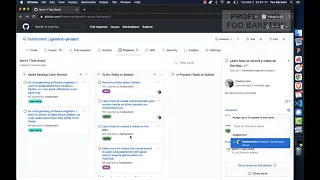
we're going to use github's projects here now GitHub kind of revamped how they handle their their projects and and actually before I get too much further than that projects is kind of an overloaded term here because a lot of times we think oh I have a GitHub project we think of just the repo itself and and whatever that kind of project is that we're building but GitHub when we click on the projects tab this really means kind of an abstract concept of a project so it's not necess neily like a oneto one with a repo
you could have one project that is maybe your payments project and that might actually correspond to several different repos maybe your mobile repo and some backend service repos and and maybe even like a QA repo and a design repo depending on how you're tracking these things so project in terms of like GitHub projects is really more of an abstract concept around managing all of the work needed to complete some deliverable here here so in our case here if we go to projects we see that we have nothing set up so far if we click on
templates you can see here that there are ways to sort of create and provide templates for your kind of organization we're not going to do that right now we're going to focus on just a single project additionally you'll see here that this looks familiar to issues in the sense that you have open and closed we have similar filtering here you can do and the the thing that we're really looking for at the moment is this big green button we see link project and if I click on that you'll see that it kind of pulls up
this selector that basically will allow me to uh link this repo to some other existing project or I can create a new project um similarly if I just click the drop drop down here I can go directly to create a new project um so we want to select this new project option here which is just going to change that green button and so now I'll select this now what this is going to do is actually going to take us up a level kind of in the organization here and it's going to allow me to create
this project actually at that that org level and the first screen I get here is this sort of project creation wizard so you can see there's you know different types here they've got template here for like Team Planning feature release um and if we start scrolling through this if I click like the feature tab we can see they have other options here can band bug tracker iterative development product launch road maps team Retros a lot of different styles of the same type of you know columns or tables that we use to kind of manage and
review these things Additionally you can you can again see the the predefined templates coming from your organization if you have them but you don't have any of those at the moment more interestingly if you want to just get a better sense of how these things are working and kind of learn with them a little bit more at the the lower level you can just create either table which like I said here you can kind of see this preview table here is really just the it almost looks like a a spreadsheet effectively of like issues fields
and things or you can select a road map a view that allows us to sort of Define the the kind of the bars of when we're going to be working on these things and dependencies potentially between them and the last one the most basic one the one we're probably most common with is just kind of this left to right horizontal board uh that you can use for like basic can band or or maybe scrum different styles of basically having a column A associate with the status and then the list of issues kind of with that
status so we're going to start with this um we're going to start with just a basic board here and we're going to give this name stream tracker call this goobar stream tracker and this will allow us to to track different uh you know issues and stuff for what we want to do in these upcoming streams so once I go ahead and click create project here we'll see that it's going to give me this this new project View and it starts off with uh these status columns and and nothing really else so before we kind of
dig into this and how to make this actually useful I'm going to take a step back and I'm going to go back to the projects view again at the org level here so I mentioned that even though we got to this projects tab from the repo the project itself was created at the org level so now when we're at this org level and we click on Project we now see that we have one open here um additionally we see that we've got four closed as I was just kind of messing around with this a little
bit earlier today to get a a feel for how some of the changes might impact what I wanted to do but now we've got this one open uh project here so now if we open into this we we've got kind of the the the stubbed out template of something that looks like it might be useful here but you know notice that we don't have anything added to this by default so let's go ahead and change that let's add some items so if we come in here and just click the bottom row here add item and
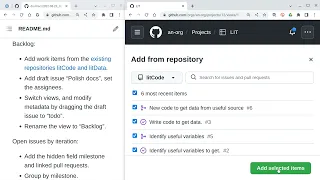
then I click this plus Mark we'll see that we have a few options and really I guess mainly just two options we can create a brand new issue or we can add an existing item from a repository so in our case that's what we're going to do here we select new item from repository and we get this uh panel that slides over and by default it's showing me this uh last used project that we were working with however I can actually pick from other projects in my org and so this is why it's important to
kind of keep in mind that distinction of projects being at the org level because they allow you to link to issues from different repos which is really useful so so again if you have four different repos maybe an iOS repo an Android repo and a backend repo and a QA repo you could have one project and pull in tickets from all of those to help manage your projects in our sense though I'm just going to select the the repo we set up for the stream I'm going to grab the 10 most recent items which happens
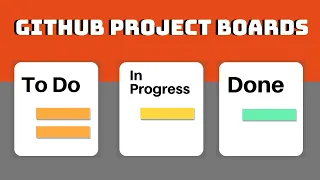
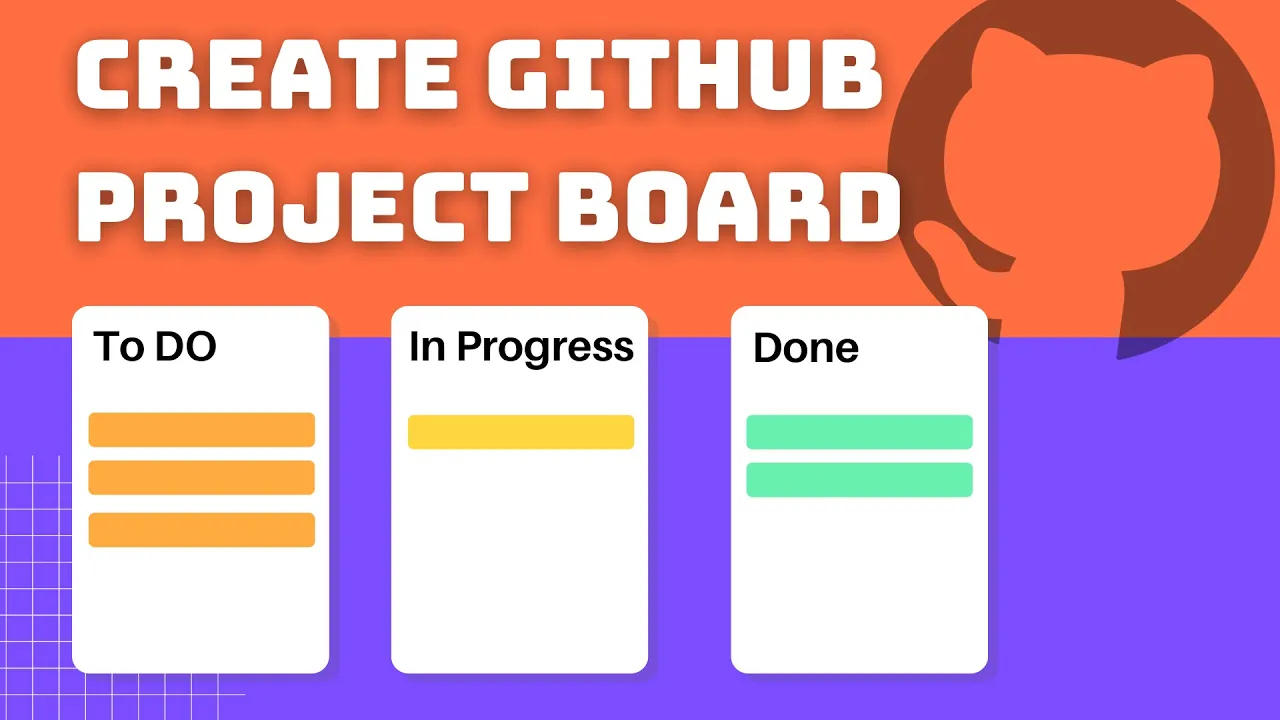
to be all of the items we created and go ahead and add the selected items perfect so now once that is done now we see that in the to-do column here we've got our scrolling list of all these items that we've uh um added excuse me all the all the issues that we've we've added and so now by by doing that they kind of have this implicit status to them of too and you can see here the the other statuses we have we've got to-do in progress and done which is you know kind of a
a basic three status setup that you might find in a kind of a simple can ban um style uh project now you can customize these things so again from my project view here if I come up to this upper right corner and I select kind of the the Overflow options there and go to settings you can come down here to the custom field and uh select status Additionally you can actually create other fields we'll look at that in just a second um but for status you can see here that we can um edit these uh
statuses so we can change like to-do we can change the color the description Etc or we can add a completely new one so what I want to do here create a new status which is just kind of like the short list of the next thing I want to work on um so so maybe I'll just call this like up next and I want to kind of change the look and feel of that a little bit so maybe I will make that uh let's say blue and we'll just call this the short list of upcoming um
tasks for the Stream and now I can reorder this so that kind of the expected General flow for how a tasks life cycle might go would be kind of to-do up next in progress and then finally done now we'll go back real quick and now we see that we have that new status here in up next let's populate um our our board here or update our board more on we've already populated let's update the board so for for this stream we're already working on setting up the GitHub project for the stream um so we can
move it from to-do kind of it was implicitly up next before I even started the stream and now it's in progress for the next stream I know that I want to set up the Kor project maybe the last one would be enforce conventional commits when uh when they're used on the repo this is kind of give us an outline for the next one or two streams here and we can make use of the different statuses so this is kind of a nice view of just kind of the high level like what is the status of
our work before we move on also I recommend um updating the name of this particular view so in this one I'm just going to rename this to cand board um so that I have some better sense of what this is rather than just like vew one or board one whatever was we can come in here into into the workflows and we can um create effectively automations around these issues um so for example we could go Auto add to project so if we wanted to edit this we could say anytime a new issue is added to
the goobar URL shortener project with um it it's it's preset to create the label of or to it's preset to only add issues with the label of bug I want to add any issue it's also set up to say if um if it's an issue or a PR is open I don't want to add PRS so I'm going to do just issues so basically any query matching is issue you can automatically add to the project let's go ahead and save this and then let's go and create a new issue now notice here we could go
ahead and automatically add this to our project that we just set up but we want to test the automation so let's not do that let's submit this new issue it worked so you can see we didn't select the project but once we created the issue our automation kicked in and it automatically added to our project now notice here that it added it to the project but it has no stat status initially so from the issue here I can select a status or if we go to the board itself we can see that any issues that
are added to the project board but don't have a status show up in this extra column so now I can you know come in here and just move it into the to-do status and notice now here back in the other window we automatically see that it's been marked as to-do