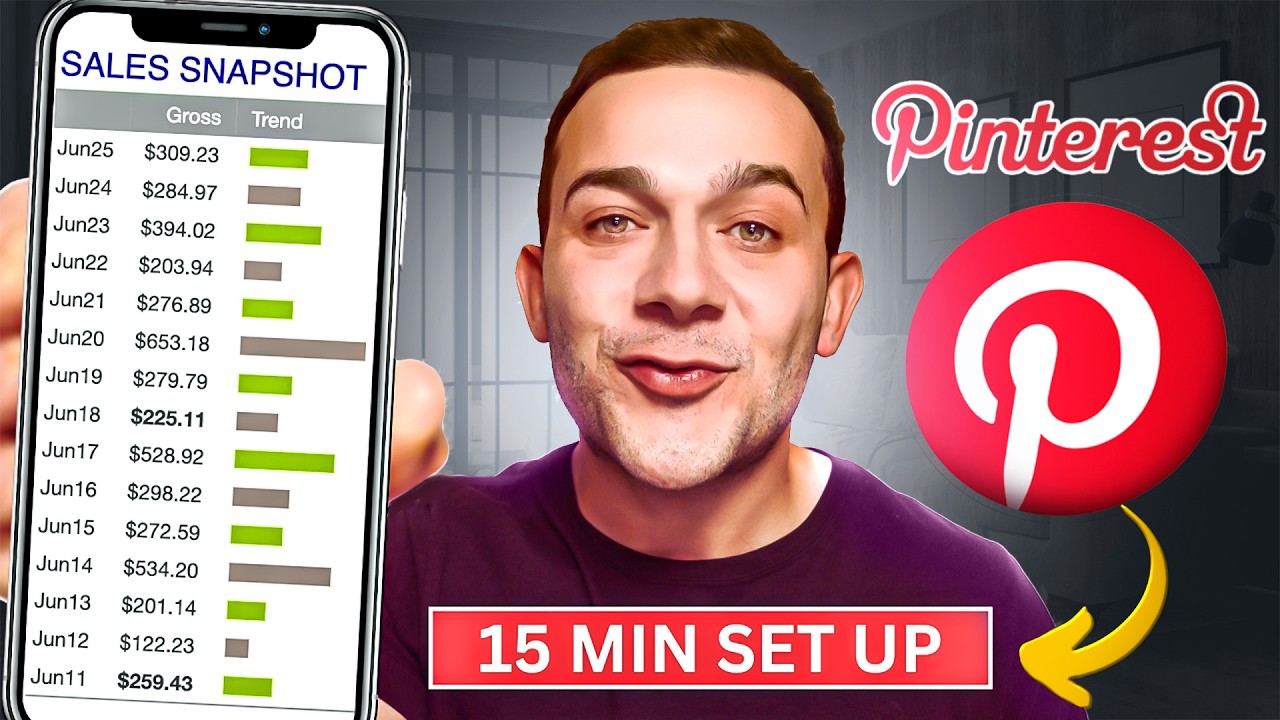
hey guys in this video I want to show you the easiest Pinterest affiliate marketing strategy that I've been using that's allowed me to earn almost three thousand dollars in the past week alone and by using chat GPT I was able to automate almost the entire process and I'm going to show you the exact steps that I took so that you can replicate this highly profitable strategy in today's step-by-step beginner friendly Pinterest Affiliates marketing tutorials and this method is completely free anybody can do this and before I show you exactly how to set this up or that I ask from you is that you smash that like button and subscribe to the channel because I'm about to show you the exact steps that you can follow to very easily start making money with Pinterest affiliate marketing so let's get into it so before we dive in I want to show you why Pinterest is an absolute Cash Cow for affiliate marketing with over 1 billion people visiting the platform every single month which is 100 free traffic almost 40 percent of that free traffic comes from the United States which is high converting Tier 1 buyer traffic and it's not just me making an absolute killing with affiliate marketing on Pinterest there is an endless amount of other people doing exactly the same and I want to show you one example of someone doing that right here so this Pinterest profile called weight loss Haven gets almost 500 000 viewers to their profile every single month and we know that is 100 free traffic and if we look at the different pins that they post on to their profile that these very simple images some of them short form videos of these different smoothie recipes and as you can see guys you've got these links on each of these pins and anytime that somebody clicks onto one of these links I'll click onto this one over here for example they're taken through this very simple article on five smoothie recipes for weight loss and if I scroll down in this article you can see a wide range of these different clickable links right here and if I click onto any one of these links I'm immediately taken to this smoothie diet sales page and this is how these guys are making an absolute Fortune I immediately recognize this smoothie diet product and sales page guys this is an affiliate product if I go over to ClickBank which is an affiliate marketing Network that I'm very active on you can see that exact affiliate product right here that pays them almost 30 dollars every single time that somebody clicks or it's one of those links in that article and purchases that smoothie diet product and if I click onto this link over here guys you can see this is the exact product that they're promoting and by linking a higher converting article to every single one of these pins as opposed to linking them directly to the sales page is definitely more effective in driving sales this is absolutely a solid strategy but right now I'm going to show you a way more effective highly profitable strategy so that you're able to make even more in affiliate marketing commissions and I'm super excited guys because I know firsthand that this does work and if you do Implement exactly what I'm about to show you in the next few steps then you'll be able to absolutely crush it with these Pinterest affiliate marketing commissions so you first want to head over to digistore24. com which is an affiliate marketing Network containing a wide range of different affiliate links for different products that we can promote on Pinterest and you just want to click onto register now so that you can get signed up and logged into the platform absolutely for free and once you are logged in you want to make sure that you click onto the marketplace drop down right here and you want to click onto where it says all offers on the affiliate Marketplace and on the left hand side here you'll see a wide range of these different categories and niches that you can choose from each one of these categories contain a wide range of different affiliate marketing products that we can promote with this strategy now guys you can select from any one of these categories you can even promote different affiliate marketing products from other affiliate marketing networks other than digestore24 that will absolutely work with this strategy and if you want to complete list of affiliate marketing products that I'm personally promoting I'm going to leave it in the pinned comments section below so that you can access that list absolutely for free if you did want to choose from any one of those products that you can promote for this strategy but for the sake of this video guys I'm going to select from one of my favorite categories and niches on digital 24 which is the fitness and health category and a high converting products within this category that I'm personally promoting with a lot of success is this custom keto diet product right here and anytime that somebody clicks onto this link which we can retrieve right here and purchases this custom keto diet products we're going to get paid over 25 for every single person who chooses to purchase this product via that link so you want to make sure that you copy this link right here and you just want to save it somewhere safe I'm going to paste mine into this sticky note right here now before I show you exactly how to make money with the most effective way that you can promote this affiliate link on Pinterest I first want to show you an extremely common issue that 9 99 of affiliate marketers too often Overlook and by overlooking this extremely common issue they miss out on a ton of money and by solving for this issue extremely easily we're able to absolutely maximize the amount of affiliate marketing commissions that we can earn and let me show you exactly what I'm talking about guys if we head back over to that Pinterest page that I showed you earlier weight loss Haven we know that anytime that somebody clicks onto any one of these links they end up to this page right here which is this article right for the five smoothie recipes and what that actually does guys for the potential customer who clicks onto that article it gets them more familiar with the products they'll actually start reading the article it's very enticing they'll then click onto one of these affiliate links right here and there's a very strong likelihood that they then go ahead and proceed to actually purchase the product via this page but the issues that I'm talking about guys is that the vast majority all those potential customers who do end up to this page will close the window and they'll never be seen again which means that we've literally just lost out on a potential customer knowing that they're already interested in the products that we're promoting since they clicked onto that link they landed onto the sales page but they're gone forever and the way that you get around this guys is you want to make sure rather than letting that potential customer go forever you actually want to direct them to a lead magnet landing page just like this so anytime they click onto our Pinterest pin for that keto product that we're going to be promoting on Pinterest to access it they'll need to enter their name and email address before clicking on to access now and they'll then be taken directly to the sales page and again some of them will purchase the product there and then the vast majority of them actually won't purchase the product and they'll go ahead and close the window but the huge difference in this instance guys is we've now collected their email address which means for those who didn't purchase the product we're able to send them an automated email broadcast reminding them of that custom keto diet products that we know that they're already interested in and that is where the vast majority of my affiliate sales have been generated not on the initial visit to the sales page via my pin but it's actually come on the back of those automated email broadcasts so I'm going to show you how we can create a simple landing page just like this and a corresponding automated email broadcast which literally only takes a few minutes so that we can earn considerably more in affiliate marketing commissions and the website that we're going to be using to create this landing page and automated email broadcast guys is get response and I'll leave a link in the description box below and once you click onto that link you want to click onto where it says sign up for free right here so that you can create a free get response account and once you are logged in to get response you'll be taken to this dashboard and you want to click onto where it says contacts right here here once you've clicked onto contacts you then want to click onto where it says create a list and this is the list where we're going to be storing those email leads that we'll be collecting via our landing page which we're going to create in a second and you want to give your list a name I'm going to call mine keto Pinterest leads since that's exactly what they are and you then want to click onto where it says create right here you will then see your created list and to create that landing page you just want to click onto tools right here click on the landing pages you'll be taken to a screen like this and then you want to click onto where it says create a landing page you then want to click onto where it says blank templates and you want to scroll down and select this template here blank template 0 and click onto where it says use template once you've clicked onto use template here is where we're going to very easily create our landing page and to do that guys the first step you want to click onto this plus symbol right here where it says add elements and the first element that we're actually going to be adding is an image to this landing page and to retrieve that image you want to go go back to your Digi store 24 product that you'll be promoting in our case it is this custom keto diet product and you want to click onto where it says affiliate support page once you've clicked onto affiliate support page you will see a bunch of these different resources that the vendor for this product provides us to help us to promote this product and if I scroll down here you can see a bunch of these different images that we can use and for our landing page I'm actually going to be using this image here so I'm going to right click this image save image as and download it to my computer I'm then going to head back to our getresponse Landing Page Builder and again you want to make sure that you've clicked onto this plus symbol here to add elements and underwear it says Advanced elements I'm going to select this Gallery element right here and I'm going to drag it in to our landing page like this and I'm going to drop it into not this first section but this second section right here I'm then going to select this image over here where it says masonry by clicking onto it and once they've clicked onto to this image in our landing page builder on this Gallery section on the right hand side where it says image number two you simply want to delete that by clicking onto this x button right here now we want to replace this image with that image that we downloaded from our digistore24 affiliate resources page and to do that you want to click onto the image right here and simply click onto where it says replace and you'll then be taken to this files and images repository which is where you can upload your image that you just downloaded from your digistore24 affiliate resources page which is exactly what I've done by clicking on to add files right here so once you've uploaded your image to this repository you simply want to hover over it before clicking on to use and you then want to format your image so that it looks good on this landing page and the first thing you want to do is you want to scroll down on the right hand side here and select this drop down on the display style to replace slideshow with masonry now the next step you want to make sure that you delete all of this white space over here and to do that you need to do two things the first thing that you need to do is to slide this vertical images spacing toolbar all the way to the left like that and we can see there is still some space and to remove that final bit of white space you want to scroll down you want to go over to block settings and you want to toggle this padding option to the left just like that so now that we've added in our image for our landing page we now want to add in that sign up form as an element so that we can collect those email address from those potential customers so that we can send those automated email responders to them containing a link to our affiliate product which we're going to be promoting on Pinterest and to add that sign up form you want to click onto where it says add elements again right here now under where it says Advanced elements you will see this element right here called form and you want to drag it in directly under your image just like that and here you can select from either a contact or a sign up form I'm going to click onto where it says sign up and you can select any one of these sign up forms guys for the sake of this video I'm going to be selecting this one right here and to format this sign up form you literally want to click onto it I'm then going to click onto this drop down right here where it says design and then click onto where it says button So currently this button or this CTA says sign up we want to change that so that it says access now in all capital letters I'm then going to scroll down and adjust the font size and change it from 16 to about 28 this is looking much better we're then going to change this button background color so that it matches this sort of image up here and to do that I'm going to click onto where it says button color and so it matches this exact color I'm actually going to click onto this pencil tool right here hover over this color and you'll see the color has been changed but you'll notice when we hover our Mouse over this button it still has that previous blue color which doesn't really match with our landing page style so we're going to update that by clicking onto this hover color option right here I'm going to change it to maybe a red color so that it matches maybe this one right here let's take a look this is looking good now we want to make sure when anybody clicks onto access now via this landing page that they're taken directly to this sales page right because we know the majority of potential customers that land on their sales page won't actually go ahead and purchase this custom keto diet plan the majority of those sales will actually come when we retarget those customers via those automated email broadcasts right and I'm going to show you exactly how to set up that automated email broadcast in just a second but before I do that guys we want to make sure that they do get redirected to this page when they click onto this button and to set up that redirect you want to click onto back right here you then want to click onto this drop down next to success View and you want to make sure that you selected this option which says redirect to another page or site I'm then going to get my affiliate URL that I saved earlier and I'm going to paste it into this text box right here under where it says URL and that will ensure whenever anybody clicks onto access now they'll be taken directly to that sales page via my affiliate link and of course whenever anybody purchases that custom keto diet plan via that link that's when we're going to get paid a commission and to finish creating this landing page we're going to exit this we're then going to go to add elements again and under basic elements we're going to drag in this text element right here between this image and this sign up form I'm then going to click onto this format right here where it says add your title and I'm going to replace this so that it says get your custom keto diet plan I'm then going to highlight this text click onto font color click onto this pencil tool again and hover over this orange so that it matches that color formatting I'm then going to click onto the drop down next to where it says block settings I'm going to toggle the padding to the left to remove that white space and finally I'm going to scroll down on this landing page I'm going to drag this all the way to the top before clicking on to continue right here and you want to make sure that you select in this drop down that list that you created earlier I called mine keto Pinterest leads you then want to scroll down before clicking on to continue right here and here is where you can give your landing page a name I'm going to call mine keto diet plan and you can also edit the free get response domain right here to anything that you so choose before clicking on to publish and our landing page has now been published and here is the unique URL to that landing page you want to make sure that you copy this URL and you want to save it somewhere safe because this is the URL that we're going to be linking to our Pinterest pin and anytime that somebody clicks onto that URL they will be taken to our landing page and they'll enter their name and email address before clicking onto access now and they'll be taken directly to the custom keto diet sales page and we we know a small percentage of potential customers will proceed to purchase that custom keto diet plan straight away which is really good they're going to get that plan we're going to get paid an affiliate marketing commission but we also know that the vast majority of those potential customers won't proceed to purchase that custom keto diet plan but that's absolutely fine we've captured their email address and we're going to be able to send them an automated email broadcast reminding them of that custom keto diet plan that we know they're already interested in and to create that automated email responder it's super easy guys in get response you want to click onto tools right here and you just want to click onto where it says autoresponders once you've clicked onto autoresponders you want to click onto where it says create autoresponder and you then want to select by myself so you want to give your automated email responder a name I'm going to call it keto diet plan leads and you want to make sure that you select your linked list which we created earlier mine was called keto Pinterest leads under also respond to settings here is where you're going to specify exactly when you want that customer or potential customer to receive your automated email responder I've said on day two same time as the sign up time which basically means they're going to receive this automated email exactly 24 hours after they entered their name and email address into my landing page now you want to scroll down and you want to select your from and reply to email address and for the subject line and design of this email you want to go back over to digistore24 to this custom keto diet plan product and you want to click onto the affiliate support page right here and you want to scroll down near to the bottom of the page where you see email swipes and here is where the vendor has given us access to a bunch of high converting pre-written emails so that we can literally copy and paste these into our automated email responder and to access those email swipes you want to click over here where it says click here to to access it'll then open into a new word document and here you'll see they've given us a bunch of these different subject lines and pre-written emails so I'm going to copy this subject line right here your own custom diet plan I'm going to go back over to get response and I'm going to paste it right here and for the email itself you want to click onto where it says design message and you want to click onto where it says blank templates before selecting this specific template right here all you then want to do guys is drag in a text block element by dragging it in as such and you then want to go back to that word document containing those subject lines and pre-written high converting emails which we can literally just paste in so I'm going to select this email right here copy it all the way to the bottom select copy and I'm literally going to paste it in to this text element right here and I'm also going to click click onto where it says logo right here and on the right hand side where it says show logo I'm going to toggle this left since we don't need to display that now we know that this email is going to serve as a reminder to those potential customers who we know are already highly interested in that custom keto diet plan so the aim of this email is to get them to click onto the affiliate link inside this email and purchase the custom keto diet plan upon receiving this email right and to insert that affiliate link into this email where you see all of this blue highlighted text you want to highlight each of these blue highlighted text Snippets you want to go back over to your link that you would have saved earlier and you want to copy it and you just want to click onto this link symbol right here and you want to paste it in and click onto insert and you want to do the same for each and every one of these blue highlighted text Snippets and what you want to do guys where it says talk soon your name you literally want to replace is it with your name once you've done that you then want to click onto next right here and you just want to make sure that all of these options that we selected earlier are correct you want to scroll down and you just want to click onto where it says save and publish and if you're getting value from this content guys please make sure that you smash that like button and subscribe to the channel if you haven't already because right now I'm about to show you how we can bulk create and schedule an entire month's worth of high converting Pinterest pins which we're going to be linking our landing page to and I'm going to show you how to drive traffic to these pins so that we can absolutely maximize the amount of affiliate marketing commissions that we can earn with this Pinterest affiliate marketing strategy so the first thing you want to do you want to head over to pinterest. com and you simply want to click on the sign up right here so that you can create your Pinterest profile and I've just created a new Pinterest account and once you've done the same you want to click onto this drop down box right here and you want to click onto where it says convert to business you then want to click onto upgrade so that you can upgrade to a free business account for your profile name you want to make sure that it contains a keyword related to the product that you'll be promoting via your Pinterest pins on your profile for the sake of this video I'm going to call mine real keto strategies where it says do you have a website you want to actually click onto yes and you want to go back to that link that you saved earlier for your get response landing page you want to copy it and you simply want to paste it into this text box right here select your country and region and language and then click onto next right here it's then going to ask for the focus of your brand I'm going to click onto health and fitness and then it's going to ask me what my goals are just click onto where it says not sure yet before clicking on to next where it says describe your business that's absolutely fine guys again click onto I'm not sure I'm not sure again before clicking on to next and now your business profile is gonna be created it's going to ask you where you'd like to start you can simply close this by clicking onto this x right here now before I show you exactly how to make money with this strategy what you first want to do guys is you want to upload a background image and you want to upload your profile photo as well for your background image I've chosen to go over to pixels.
com and I've searched for keto diet in the search bar right here and I've actually downloaded this image right here and so upload that image onto your Pinterest profile you literally want to click onto this plus symbol right here for your banner image for your profile photo I'd advise going over to canva. com and quickly signing up once you are signed up and logged into canva in the search bar I've literally typed in diet logos for example you can then select any one of these logos which you can modify for your brand name and I've done exactly that I've selected this logo and I've written real keto strategies I've then downloaded this logo along with that pixels image image and I've uploaded them to my Pinterest profile and to create an entire month's worth of Pinterest pins which we can then schedule onto our Pinterest profile so that we can actually start making money with this strategy you first want to head back over to canva. com you then want to click onto where it says create a design right here and you want to click onto where it says Pinterest pin once you've clicked onto Pinterest pin you will be taken to this canvas right here and you want to search for a pin related to the niche that your Pinterest profile is about so in the search bar right here I'm going to type in the word diet for example and you can select from any one of these different Pinterest pin templates which we can then use to actually bulk create and schedule an entire month's worth of high converting Pinterest pins which I'm going to show you exactly how to do right now and you can select any of these templates guys some of them do require the paid version of canva if you see this sort of pro Crown version right here many of them are also absolutely free and the free ones are also perfect for this strategy for the sake of this video I'm going to select this template right here and I'm going to adjust the formatting of this text slightly for this sort of title text I'm going to bring it down to around 85 that is looking perfect and for this text over here I'm going to increase the font so it's about 30.
all right and right now guys I'm going to show you how we can bulk create using this template an entire month's worth of Pinterest pins that I'm also going to be showing you how we can schedule those pins for the entire month so that we can quite literally let the affiliate marketing commissions roll in as a stream of passive income and to bulk create those pins you want to head over to chat GPT if you don't already have an account guys it's chats. openai. com and you can get signed up absolutely for free and we're gonna set this up so that three pins are going to be posted every single day for the next month to our Pinterest profile file which we're going to be able to schedule automatically so let's say three pins per day over the next month that's around 90 pins so I'm going to ask chat GPT to give me 90 tips for losing weight with keto with one column specifying the tip in capital letters another column specifying the elaboration of that tip and a final column stating in all capital letters click here for the ultimate keto diet plan I'm then going to hit enter and you can see the chat GPT has given us an entire month's worth of these different tips for losing weight with keto in column one we have the tip itself in column two we have the elaboration and column three has a call to action which says click here for the ultimate keto diet plan now let me show you exactly how we're going to transform all of these tips in conjunction with this Pinterest pin templates that we created in canva to bulk create in literally a few minutes an entire month's worth of Pinterest pins which we can then automate automatically is scheduled to be posted onto our Pinterest profile every single day and to bulk create those pins the first thing you want to do guys you want to head back over to canva and on the left hand side here you want to click onto where it says apps now in the search bar here you just want to search for bulk create and you want to click onto this first element right here and you want to click onto where it says enter data manually you then want to head back over to chat GPT and you want to copy this entire table enough for tutorial's sake I'm only going to select the first few rows but you want to make sure that you copy the entire table you then want to right click onto your selected rows click onto copy head back over to canva and you want to click onto this first cell right here right click and then click on to paste once you've done that guys you then want to click onto where it says done now on the left hand side here you can see these three column header names tip elaboration and this last one right here and these are the column headers for the table the chat GPT gave us so what you want to do you want to copy each one of these individually I'm going to copy tip I'm then going to paste it into this first text element right here I'm going to do the same for elaboration and the last one as well and I've done just that and I'm going to right click onto each one of these three text elements and for tip for example I'll right click onto it click onto connect data and you want to click onto tip right here you want to do the same for elaboration right click onto it click onto elaboration and for this final text element I'll do exactly the same now what you want to do you want to click on to continue on the bottom left hand corner right here and then simply click on to generate and you'll see that canva has quite literally Ball created all of these different pins to correspond with the different rows of data that we selected from chat GPT which is all about different tips that you can do to lose weight with the keto diet so let's take a look at this first pin over here for example where the tip is to set clear goals it's got a bit of text underneath saying define specific weight loss objectives and very importantly at the bottom here it has a very strong call to action which says click here for the ultimate keto diet plan which is how we're going to be generating those clicks to our pin and ultimately earning those affiliate marketing commissions now the only thing we need to do before we download these pins and upload them to our Pinterest profile automatically by scheduling them is to switch up these images right here so for this first image in this pin where it says set clear goals in canva you can literally click onto photos right here and I'm going to type in something goal related such as running for example and you can select any of these images guys again some of them are only available on the paid plan some of them are absolutely free but you can use 100 so I'm going to scroll down and click onto one of these images that I like the look of let's bring this one in right here and they're going to drag it across so that it covers this image at the top here all right easy as that drag it a bit further and this is already looking absolutely fantastic that is pin number one for pin number two where it says eat Whole Foods in a similar fashion gonna go back over to the search bar and just search for an image of Whole Foods I'm gonna go with this one for example I'm gonna drag it in and I'm going to drag it across so that it covers that image easy as that all right once you've done that guys for all of your different pins it will take a few minutes that's the only manual thing that we need to do here you then want to make sure that you download these pins to your computer because right now I'm going to show you how we can upload these pins to Pinterest and generate a large amount of traffic so that we can absolutely maximize the amount of affiliate marketing commissions that we can earn and to download those pins you just want to click onto file right here before clicking on to download and then download again right here now to upload and schedule your pins to your Pinterest profile you want to click onto create and then create a pin you then want to click onto this right here and you want to click onto any one of those pins that you just downloaded and where it says add a destination link very important you want to make sure that you paste in that link that you generated for your landing page that we created earlier and I'm going to show you a super easy way to generate a title and description by using chat GPT for every single one of our pins which we're about to schedule now the way that you drive traffic to your Pinterest profile into your individual pins guides is by incorporating a bunch of Highly searched keywords into your Pinterest pin description and the way that you retrieve those keywords you want to go back over to your product on digistore20 4 you want to click onto the affiliate support page once you're on that page you just want to scroll down to where it says keywords right here and you want to click onto this link to open up a complete list of keywords that we can utilize related to this custom keto diet plan product and you just want to select four or five keywords from this list and you want to copy them and I've selected these four keyword terms right here and you then want to head back over to chat GPT and you want to write a prompt saying for each of the above keto weight loss tips for example write me an enticing title for a Pinterest pin that will drive clicks and also write me a corresponding description containing the following keywords that we just copied over I'm then going to hit enter and chat GPT has given us a complete list of Highly enticing click bait titles that we can use for each each one of our Pinterest pins and the corresponding description filled with those highly searched keyword terms so for this title for this Whole Foods pin right here I'm going to copy it as such I'm going to paste it into this title text box right here and I'm going to do exactly the same for the description you then want to click onto this drop down box over here to create a board and I'm going to call it custom keto diet before clicking on to create and to also schedule your pins into the future you want to click onto where it says publish at a later date and you want to specify the time that you want your PIN to go out now I do recommend making sure that three pins are posted to your profile every single day one in the morning one in the afternoon and one in the evening for example so for this pin we're going to schedule it for the 2nd of October and we're going to go for the morning let's do 9 00 a.




![FREE Course: Master GoHighLevel in 1-Hour [Tutorial & Review for Beginners in 2024]](https://img.youtube.com/vi/EuDI3utWDoU/maxresdefault.jpg)