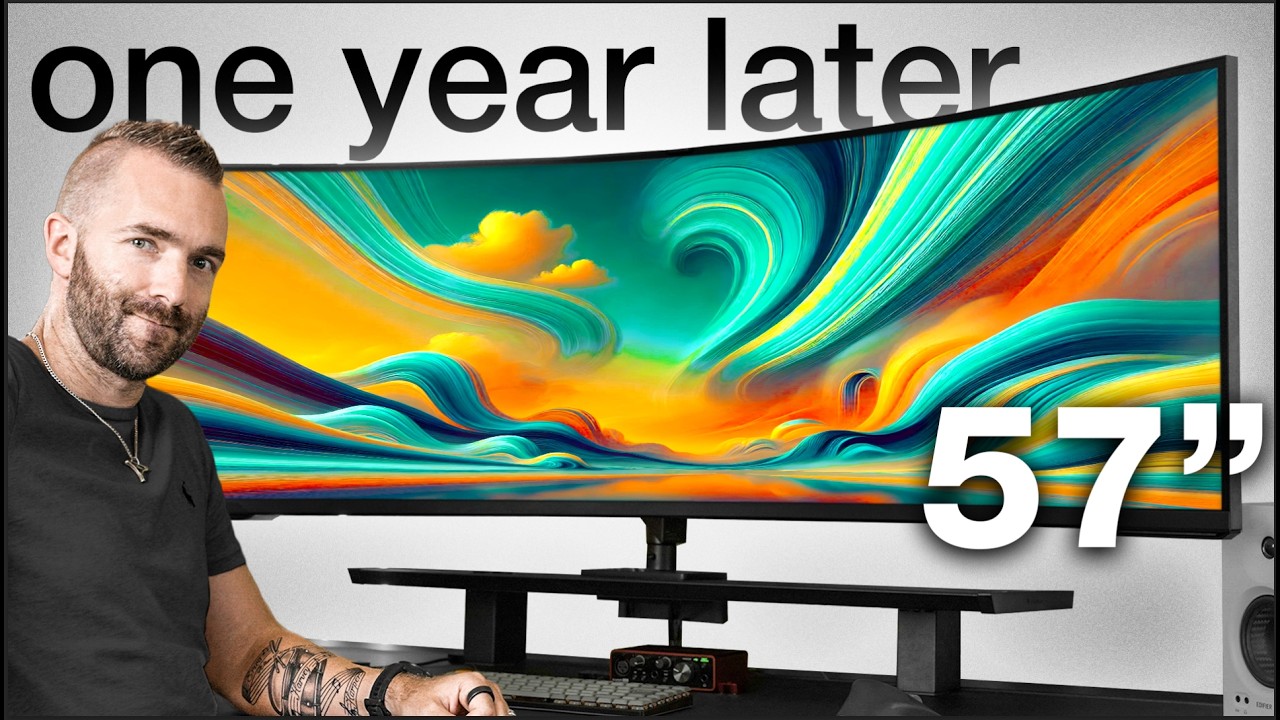
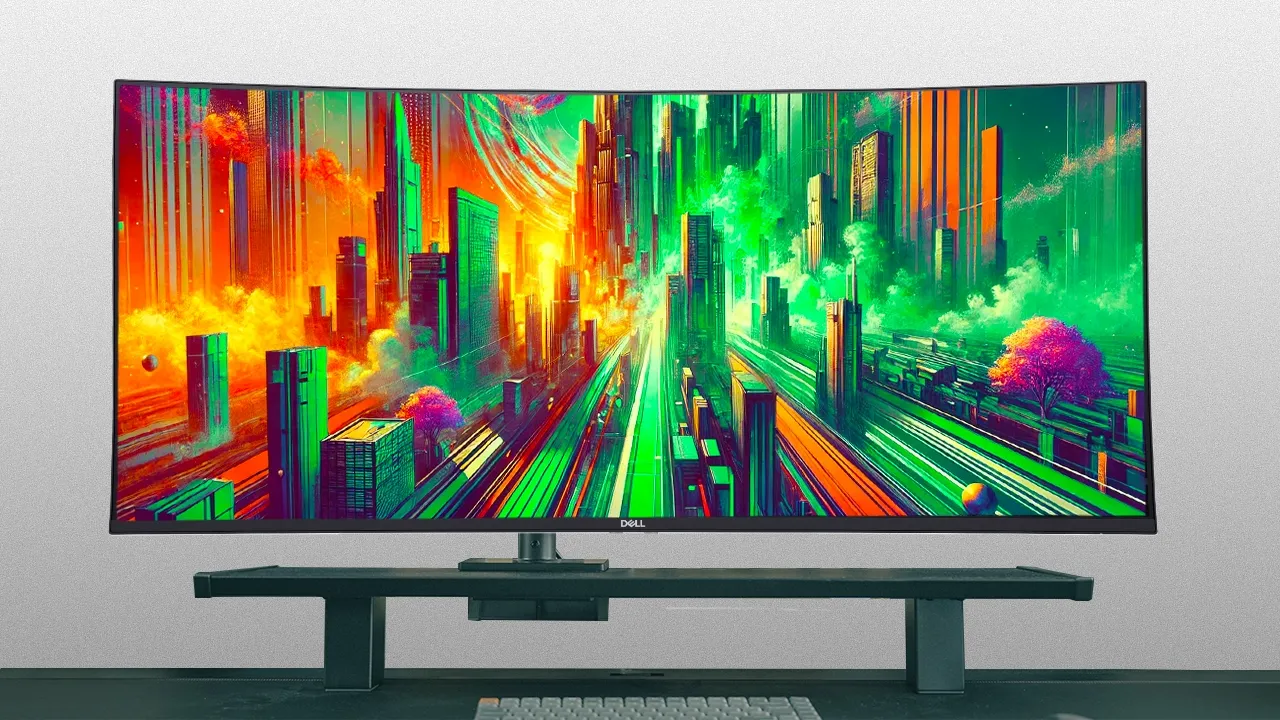
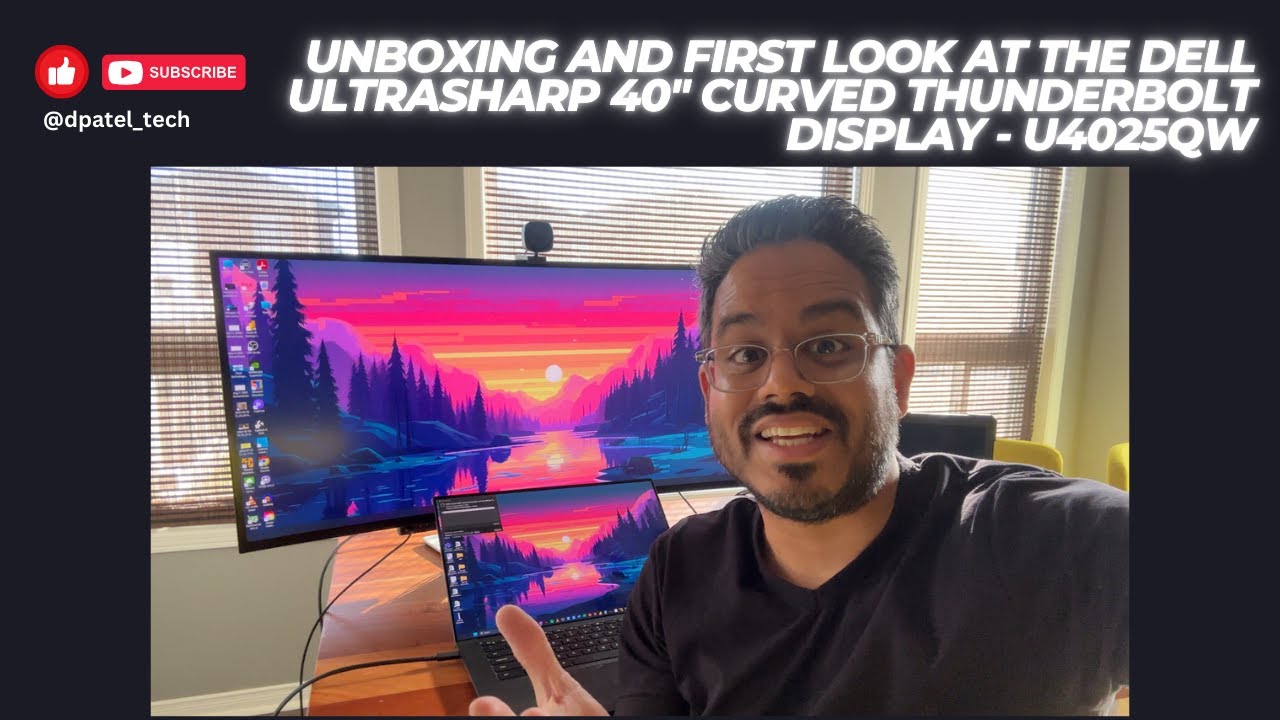
if the extremely large 57in Samsung Odyssey G9 was my current favorite alltime monitor this Dell 40-in Ultra shop comes in either joint first place or a very close second place but for different reasons now this isn't a sponsored review Dell isn't paying me to make this video I bought this monitor with my own money all £1,800 of it or so at the time but I wanted to make this video because for the majority of people who put productivity first and gaming like second or even third I think this is one of the best if not
the best monitor that I think most people don't even know exists now starting off with the unboxing experience which I'll be honest I actually forgot to shoot because this is literally one of the very rare purchases where I bought this for my own use thinking it would be like a medoc could purchase and you know live in my home office never see the light of day in its own video but unboxing is pretty straightforward the stand is easy to attach minimal efforts and the size of the screen means it's easy enough to do single-handed whether
using the included stand or even mounting onto an external monitor arm now you get everything you need in the box but the included USB cables for the KVM connections are like really really short so unless you have both say you know Mac and PC physically sat on your desk you're going to want to pick up some longer cables seems that they could have included longer in the box but hey ho now it does seem like a bit of an oversight but that isn't unique to Dell for example the Samsung G9 USB cables don't even reach
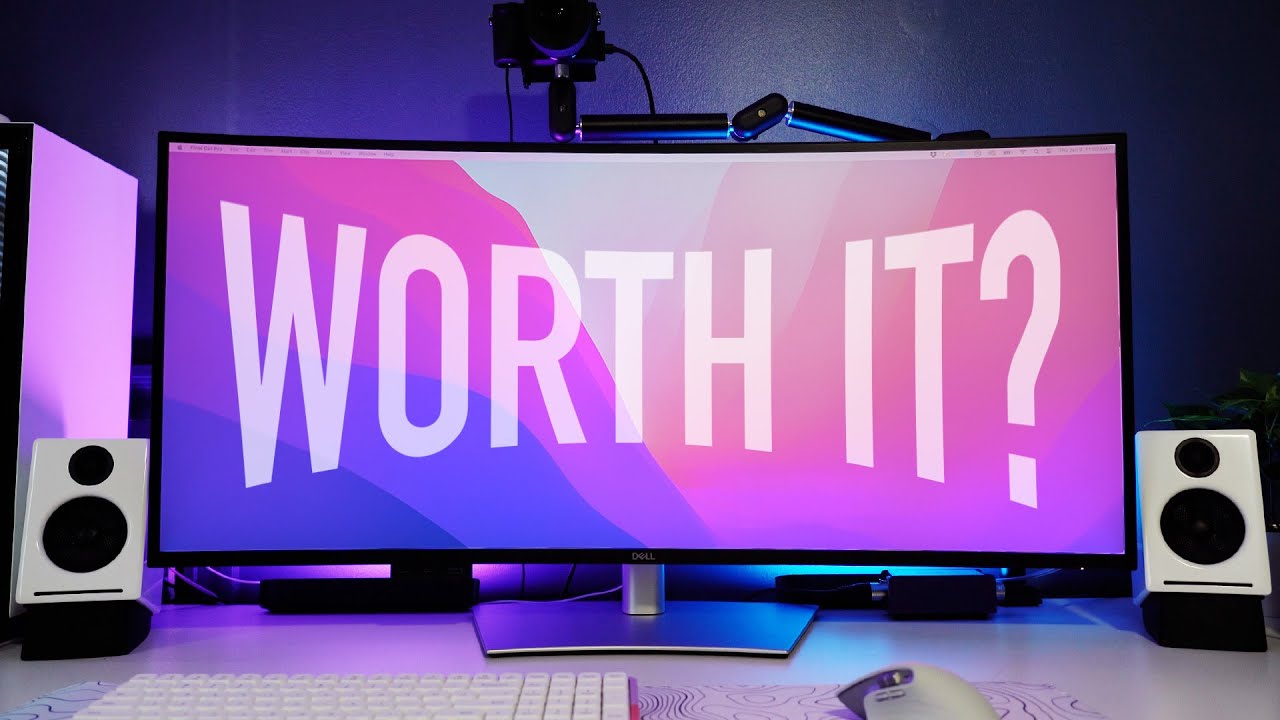
beyond the side of the Monitor and that's before you then put them through Cable Management so yeah that's that's a thing but let's get on to the specs now because this is where this monitor like really stands out for me now it's a 40in 5k 120 HZ refresh rate 2500r IPS black curved monitor with a thunderbolt dock included in the back that includes a 2 1/2 gig ethernet port 140 W power delivery for charging a laptop and a plethora of other features such as a KVM including handy little pop out tray here to connect and
charge other USB devices absolutely love this thing now really the only spec I can argue with here is the response time of 8 millisecs in normal mode and 5 milliseconds in fast mode but when this isn't a gaming monitor per se well I'll get on to that a little later when we get on to benchmarks some games now so this is a curve monitor although a very very shallow curve you can hardly notice it at 2500r unless you like try laying it flat on a desk and you obviously really will see it then and I
know there's definitely personal preference involved with whether you like a curve or don't like a curve and the smaller the monitor the less pronounced curve that you would need but personally I would have liked to see a deeper curve here as with like day-to-day use I just find the reflections you get on the edges here a little bit distracting depending on how you know bright and the lights and the windows and all those kind of things that are around you but generally speaking the curve is great no real issues other than those and this monitor
does have an anti-glare coating but Dell seems to have gone for a very very light coating to avoid you know affecting the color reproduction of this monitor as it is predominantly marketed as a professional kind of monitor where color accuracy is more important but generally speaking the curve is okay Reflections are okay and with a peak brightness of 450 nits and 600 nits in HDR the monitor does great in almost all like day-to-day typical you know home office work offices like all kind of just general environment situations now one area where Dell really really hasn't
slouched on though is is the design of this monitor I really like this super super clean design it's not trying to be anything but Sleek with its metallic off-white color on the back easy access to all of the many many many ports that are included and available on the back here with a simple quick release stand system with included Cable Management that just lets you hide pretty much all of the cable if done properly now from the fronts everything looks symmetrical with an even bezel aside from the bottom being slightly thicker of course for that
Dell logo the all important Dell logo to include now I really do love this design so much there's no bold design with like tons of Vents and LEDs and things just a super clean back which means if you are the type of person who you know wants to Jazz up your desk with some lighting mounted on the back there is tons of space for it now you've also got easy access to the screen controls on the back right of the screen again really really clean interface there's no messing around with like slower smart interfaces that
most modern moniters tend to go for nowadays with you know live TV and Xbox game streaming which just result in a bad overall R experience where you'd be better off hooking up you know external devices that aren't horrendously laggy and whilst there isn't any included remote control those onscreen controls just just work fantastic there's no issues there's quick access to everything you need and you can set custom shortcuts to your most often used features there's even support for DDC slci so you can actually adjust many of the screen settings from within software on your computer
so you don't even have to touch the controls on the monitor you can easily assign USB inputs so when switching between devices you can enable or disable charging when the monitor is powered off it is just so customizable with like seemingly everything covered from what you would you know anyone would want from Monas settings now the stand itself is absolutely solid like I said built-in Cable Management down the bottom here and with a footprint that's not huge and causes you issues with like intruding on the rest of your desk like some of the other big
monitors we reviewed recently now you can change the height tilt and swivel but it not pivot and I usually just end up throwing my monitor onto a good monitor arm anyway it just frees up all of that desk space below it as as well as gives me you know all the adjustability push pull up down everything that I need speaking of which this is the heavy duty monitor arm by secret lab who kindly agree to sponsor this video thank you very much and it's currently the only arm I've come across that actually takes the weight
of the biggest and heaviest Ultra wide monitors like the 57in Samsung G9 now I've been very fortunate to use it for the past few weeks and legitimately this is my new favorite monitor arm for a few reasons now I've tested it across different monitors varying sizes and weights and it is by far the most secure and most stable monitor arm that I've used so far and even just the level of detail that goes into making this like the double lock mechanism that makes it way easier to get everything set up properly it also has a
heavyduty tilt pivot so I never have to worry once about like the screen drooping over time which I've had with other arms no matter how heavy it is and the detachable handles make it so much easier to adjust to the most ergonomic position now it does fit onto any desk but I love how it fits onto the secret lab Magnus pro desk which is by far by the way my absolute favorite desk all time like it's not that often someone sends you a desk and you're like huh it's a desk this is a really cool
desk buy a long shot and the cable management on this arm is insane which I hope to dive into another time so you guys can have a closer look at how clusterf free everything is on my desk but um all I will say now is magnets are freaking awesome so grab one using the link down below or by scanning the QR code on the screen now the absolute like chef's kiss of perfection when it comes to this Dell monit though is its connectivity I don't normally use the word plethora although I think I might have
actually said it earlier in this video so there's too few but this thing's got everything from a 140 W Thunderbolt 4 Upstream port HDMI 2.1 display port 1.4 a thunderbolt 4 Downstream Port that supplies 15 watts for Daisy training extra devices youve got a further 10 gig USBC Upstream four 10 gig USB 3.2 Gen 2 type a downstream ports a 2 and 1/2 gig ethernet port a further two USBC ports with 15 WS charging and a USB a port charging alsoo tucked away in this handy little like drop down area it is an absolute Powerhouse
when it comes to Ports and that's because being a thunderbolt monitor it's a full-blown Docking Station built in with KVM supports to switch between those devices quickly you know with the only real challenge being how you then cable manage all of those devices being plugged into the back of one monitor now like I said I bought this monitor without actually realizing how good it was and if there is just one thing you can do to help me to make more videos like this for you it would be to subscribe to the channel down below and
also using the links I'll have down below this video if you plan on buying one it costs you but absolutely nothing and it really helps support this Channel and just helps me make more videos like these oh and I legit plan on keeping this monitor for like the foreseeable future so if you have any questions then I'll be responding to each and every question in the comment section which as the channel grows is getting quite challenging but um I'm going to do my my very best now resolution wise this screen runs at 5120 by 2160
and at 140 pixels per inch which is technically the same pixels per inch as the 57in G9 same vertical resolution but the G9 is obviously just wider but I don't know how to explain it but the clarity just looks whole lot better on this Dell moniter even though they are both 140 pixels per inch maybe the Dell is just better quality pixels really don't know but it definitely is here now it is most likely to do with the G9 Quantum mini LED versus the Dell IPS black panel but it is like it's really really good
so no issues at all productivity I think they've kind of really nailed The Sweet Spot here great resolution great PPI also 120 HZ refresh rate which again for most people productivity first gaming second is ideal like I definitely find that 120 HZ makes a big difference even on productivity like moving Windows around feels a whole lot smoother so if you are going from a you know an older 50 or 60 HZ panel to this it will be a dramatic Improvement now in terms of color accuracy this is where the Dell monitor really shines over you
know more consumer or gaming focused monitors with 99% DC3 coverage and you can also use Dell's own software to calibrate adjust the settings but combined with the 5K resolution it is good to know you're getting a just great overall experience and one that is definitely aimed at the you know more professional market for for graphics video and just anything that requires accurate colors the colors on here are rich and the black levels make use of that newer IPS black technology which gives you an increased 2,000 to1 contrast ratio which is kind of double that of
the standard IPS panels although it is less than OLED and Quantum mini oleds like my favorite G9 models but without getting mixed up with all the terminology IPS versus OLED versus you know all these other things I actually made a whole video about picking the best monitor for productivity which I'll link to at the end of this video and in the description down below but for those interested in this screen I've been sat in front of it long enough to know that it has better image quality than my 57in G9 now the only real issue
here though is that the monitor itself is still EDG lit so in like HDR scenes it doesn't look great so this is really like a a productivity first content second and probably gaming like Third Kind of monit but again you'll only really notice this if you binge watch content which has you A lot of very very dark scenes but generally speaking HDR is kind of a bit of a no-o with this screen SDR content looks great but HDR is just a bit but on to the most important part of this monitor productivity and first up
let's talk because I have this screen hooked up to both a Mac and a Windows PC and as far as the Mac goes as long as you make sure that you install the Dell drivers and the software it's just been a great experience now here in the studio we have a 14in M3 Max MacBook Pro and a 14-in M1 Pro MacBook Pro now neither of these have any issues reaching the full native resolution at full 120 HZ it is it is just so refreshing to be able to just hook up a single cable just one
cable and have it charge display and pass through all of the devices which you can then hook up to the monitor now you do get access to Dell's display manager if you do want some help multitasking with you know multiple windows on such a big screen which is useful at times but on Mac I tend to stick with using my own kind of display manager software that I've used for like decades maybe not decades a few years now called Mo M oom since I've been using it for you know so long that it's just second
nature to save and recall where all the windows positions should be also having 2 and 1/2 gig ethernet is really really welcome since this is the like the one thing I was missing from swapping my Mac Studio for the more I guess portable MacBook Pro Pro is the 10 gig ethernet ports so now at least when I upload footage to the nas here in the studio it transfers like much much faster than on the you know Standard 1 gig connection you get on most other docking stations and because it's a thunderbutt 4 display there are
zero issues to worry about like with getting a full resolution and full 120 HZ refresh rate like I said which when you compare this to a lot of other monitors and I guess Samsung specifically I'm calling you out right now because there is no consistency between the G9 series of screens as to like what level of like black magic you need to do or what you need to buy to get that full performance out of their monitors maybe one day but not there yet and we're only on like what the the fifth generation so maybe
the Seventh Generation anyway over in Windows it is a very similar story here no issues whatsoever you can use again the Dell display software for multitasking or use something like fancy zones if you prefer like a Windows native solution instead it's just going to be what you'll prefer to using here now we are using a fairly top-of-the-line fairly very top-of the line gaming PC here now we're getting to some bench marks in some games in a moment but I am able to get the full native resolution and refresh rate again without any issues but as
always you just need to check that your system is capable of getting the best from this display now the same goes for you if you want to run two systems side by side like I do here with mac and PC we've got both picture in picture and picture by picture again no issues whatsoever here at all and I really really like the fact that you can hardwire the built-in Network ports to one of your inputs so like for me for example my PC is already hardwired into the network so I can choose to have that
2 and a half gig ethernet permanently attached to my Mac when it's connected or I can have it move when I change inputs but I just really like that they've thought about this feature and giv you the option because of course like the worst thing for you to do would be you know start a large file transfer only for it to then cut out because you've swapped inputs so yeah that's pretty great and they've also got it right when it comes to like the rest of the connectivity puzzle plenty of USBC usba a and I
just love this little pop down tray down here that you can use to you know tuck out of the way when not using it that gives you even more options to you know charge and connect in USB devices it just feels like Dell have really thought about everything here there's not one thing that I can really Grumble about when it comes to Ports and connectivity but with all of the great things about the screen and productivity how does it fair with gaming because I know that a lot of people would be interested in this for
the like the IPS black panel without going full OLED but you still get the resolution you still get 120 HZ refresh rate so how does it perform overall okay so we've got the Xbox plugged in to the screen via HDMI we're on our our like third or fourth h my cable right now but it doesn't support 120 HZ whatsoever so we can cannot get 120 HZ um it supports you know 50 60 4K 10 bit all the kind of HDR stuff there's no Doby Vision support obviously that's like wasn't the feature anyway but I am
very surprised that on the Xbox series X we're not able to get 120 HZ and I tried between like 1080P and like lower kind of resolutions and we just cannot get 120 HZ so not quite sure what's going on that but just be aware if you have an Xbox want to use this screen with an Xbox it's not going to be you you know not you're not going to get the most from the console out of this screen uh okay so same situation with the PlayStation you cannot do uh 4K 100 well you cannot do
120 HZ like it just just won't work um also forgot to mention the last one um regardless of whatever console you're using so PlayStation 5 Xbox series X or Xbox series s um you do need to set this to um automatic or manually change the aspect ratio because by default it will just stretch the image and like make everything look horrible um but once you get that of course you get the black the black bars down the side but but if you're happy with you know 60 60 HZ gaming then um yeah it's it's okay
so for reference the PC I'm running here is running a 4090 card along with an Intel 149900 K CPU loads of specs full specs will be in the video which I'll link down below which is when we built this whole PC so you'll have it there as well and I'm going to show you what sort of FPS I was able to hit with each game mode set to like native resolution at 120 HZ and with like all of the quality settings completely maxed out whether that's like epic or Ultra or just whatever the maximum each
game supports and I've also got results from other monitors which I'll show you to compare to the 45 in LG Ultra gear as well as the 49 in G9 OLED and the 57in G9 as well and these aren't like super accurate results I basically look at the rough sort of FPS that I was able to get when I was playing the games and I've gone somewhere in the middle as the numbers just you know fluctuate so just basically so you can see what you'd expect to get with a similar spec PC and this particular monitor
so first up spreading glorious democ Y in Hell divers 2 reaches around 100 FPS cyber Punk reaches a surprising 90 FPS kind of shows how graphically intense the hell divers 2 game is to be so like close to that good old fortnite was hitting around 125 FPS on average got war zone 110 FPS which is pretty good for war zone Forza Horizon 5 180 FPS and the king of all FPS and no matter what screen you're using OverWatch 2 at 450 FPS although that number can hugely swing up or down by like 100 FPS depending
on what's going on in the game so just like crazy numbers going on and so far overall as performance goes it actually sits somewhere between the G9 OLED and the 57 in G9 in terms of FPS but of course that's going to be mostly driven by the difference in resolution between these monitors the lower resolution the better the results so those are the headline FPS figures but one thing I would say here is that when going from the G9 Ultra wides even the 45 in LG Ultra gear all of those have a 0.03 m second
response time but going to 8 millisecond or even 5 millisecond in fast mode on this D is quite noticeable there's also some noticeable ghosting when in that same fast mode and whilst the I guess the overall experience wasn't bad I would definitely say that if you plan to do a lots of gaming on this you know like you you finish work for the day then you switch over to gaming for like the next 6 hours or until the early hours of the morning then it might be worth looking at either some Alternatives or just getting
a separate like gaming Focus monitor instead but that said whilst you are kind of gaming or just day-to-day productivity use it doesn't get too warm either it generally sits around 33° which is a fair few degrees cooler than the 57 in G9 that we've also tested here today uh I'm also going to mention the built-in speakers because they're there but generally speaking forget they exist and invest in a a good pair of speakers or rather even a mediocre pair of speakers because that will perform much better than well any real built-in Monas speakers [Music] as
far as energy consumption goes it does get fairly hungry when it's been pushed but nowhere near the like 380 Watts stated on the website I guess maybe if you plug in all the devices and charge at the maximum possible speeds but maybe but yeah generally speaking it performs around pretty average for energy consumption and of course if all else fails having a threeyear warranty with Dell is actually something to be reassured when spending you know this level of money on a monitor it's definitely concern when buying from I would say specifically Samsung given my interactions
with them so far have been okay to questionable at times thankfully I've not had any issues with this screen that's you know involved me having to contact Dell but I do know from my background experience of working in it Dell support is pretty damn good and you can expect very very good support from them but what about the problems now for me there aren't many and it depends on what your specific use case is here obviously the 8 millisecond or 5 millisecond response time the the ghosting limited HDO are and of course if you are
gaming on this then you do need a pretty beefy PC to drive you know decent frame rates if you are wanting to hit like the max resolution but as far as productivity goes and like I started with this is a damn solid option now me personally this is like really really hard I think I've decided to stick with the 57 in G9 for now I just I hate the haloing on that monitor I hate there's no Thunderbolt or USBC but for God I just love that like Ultra like Ultra Ultra wide resolution but then again
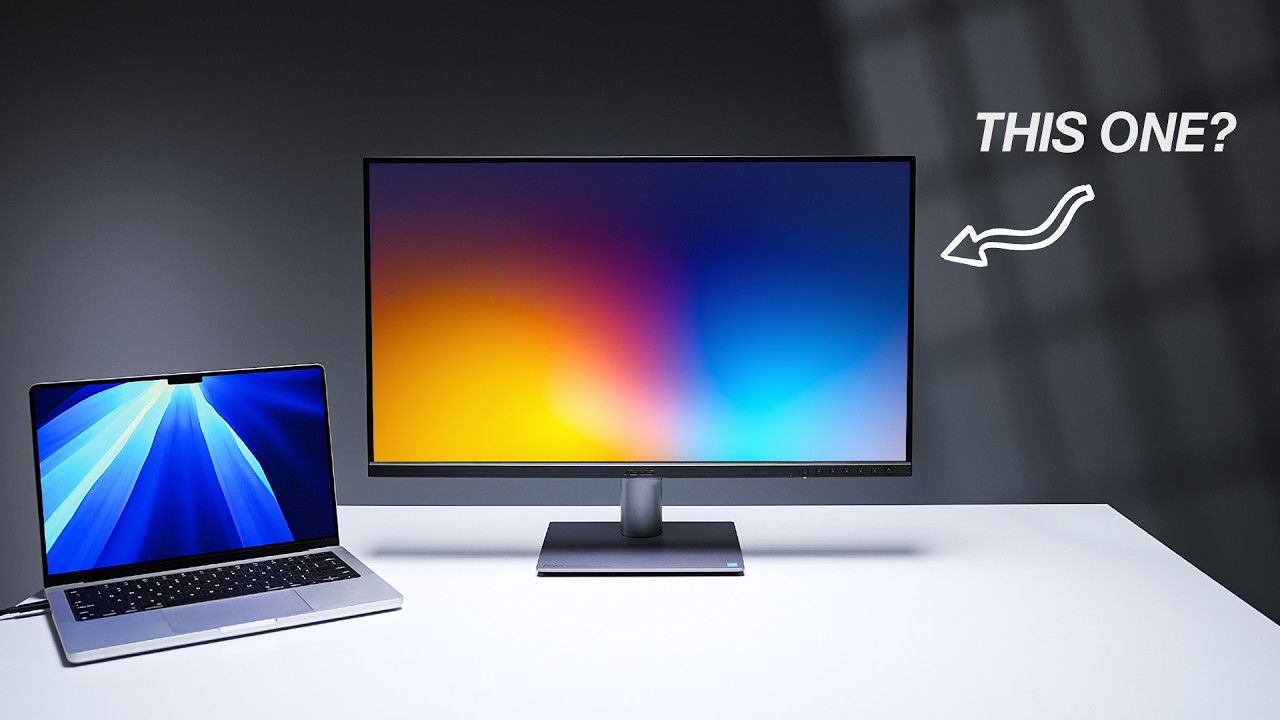
again it is more expensive than this monitor now I think brands have a lot to learn from this monitor the the sheer number of ports the Thunderbolts power delivery ethernet the clean design the stands all of these are things that other brands should be taking notes on here but until next time don't forget to check out secret lab use the links down below this video and check out the buyers guide from productivity monitors right here


![Monitor Buying Guide - What You NEED to Know! [2024]](https://img.youtube.com/vi/ptUchraop3c/maxresdefault.jpg)