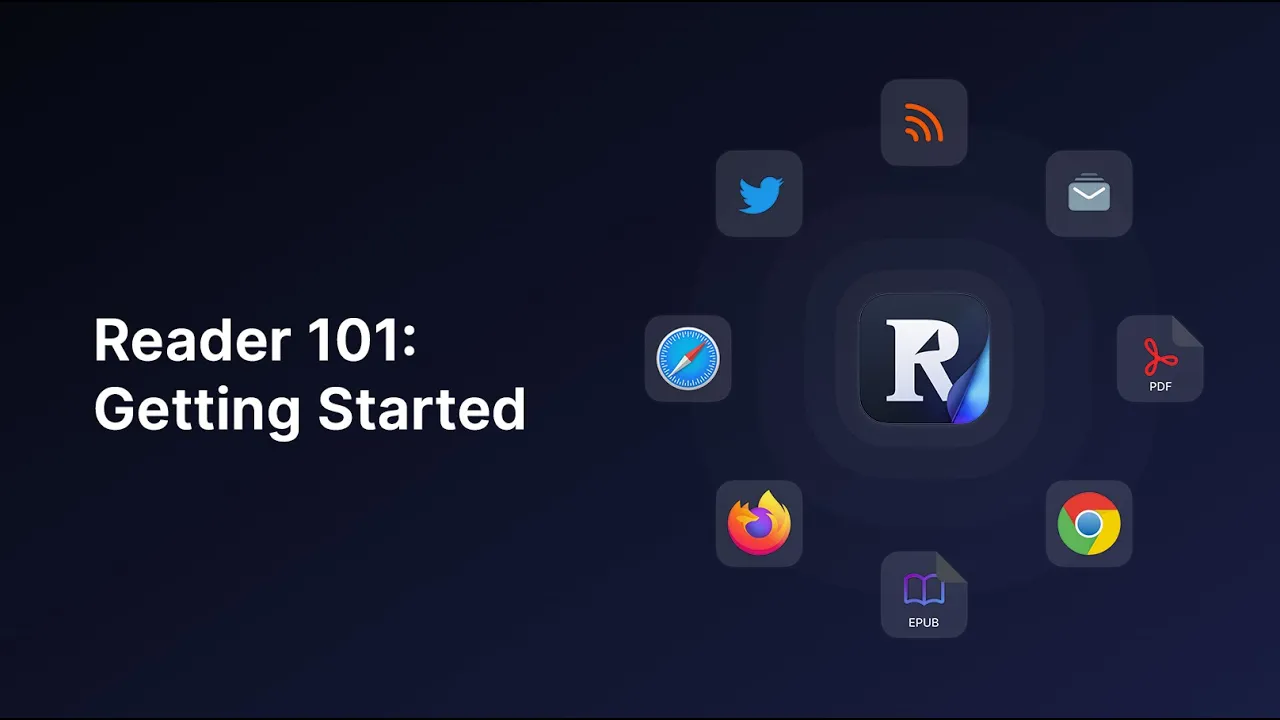
hey there it's Erin here at read wise and I'm here today to help you get set up with reader reader is the very first read it later app built specifically for power users and it's going to enable you to finally bring all your content into one place this includes web articles email newsletters PDFs epubs RSS feeds and so much more so let me show you how to get started quick disclaimer before we dive in this product has a massive amount of surface area we've basically built five different reading apps into one and this app needs
to work on Chrome Firefox and Safari as well as IOS and Android devices for this reason reader is still in what we would call public beta said we've had thousands of beta testers battle testing the software over the past year and unless you have a unique configuration it should be rather reliable if you hit any snags while using radar you can easily submit feedback for our team right within the app I'll show you how to do this later to get started head to read.readwise dot IO to import your existing insta paper or pocket Library if
you have one download the reader web extension for your preferred web browser and install or mobile app one thing you should know about reader is that it's cross-platform meaning it works on both desktop and mobile devices with automatic syncing across both platforms for the purpose of this onboarding I'm going to demo our desktop interface welcome to your reader account if you've imported your existing library from insta paper or pocket you'll see your 10 most recently saved items in your inbox location all your archived items in your archive location and everything else in your later location
you'll also notice this document called getting started with reader which is a really fun and easy to read walkthrough on how to get immediate value out of the software to save articles and to reader on web you'll use our browser extension which I highly recommend pinning to your toolbar for easy access just click on the extension and you'll receive this notification letting you know this article was saved into your reader account from here you can jump into the app and start reading the price version in addition this extension also enables you to highlight the open
web you'll notice this extension even works on paywall articles assuming you're logged in to save articles in the reader on your phone you need to First install the mobile app and then you can save things from the share sheet in addition to saving articles to read for later just like you can do in insta paper or pocket reader also supports a variety of other content types including RSS feeds email newsletters subscriptions books in the form of epubs PDFs plus videos and podcasts coming soon you can learn how to import these other content types simply by
clicking into the section and reading the instructions on the right hand sidebar or clicking this blue plus icon for additional options in building an all-in-one reading app we notice there are two types of content there's content that you manually say for yourself like web articles PDFs epubs and then there's content that's automatically pushed to you like RSS and email newsletters to keep this content separate reader has two broad sections the library and the feed library is where things you manually save go for safekeeping feed on the other hand is where things that are automatically pushed
to you are going to wait until you review them and decide whether you want to save them into your permanent library or not you can learn more about setting up your reader feed and our special feed tutorial which I'll link below one thing you should know now as you're getting started is that if you want to quickly import your existing RSS feeds from another feed service you can do so by exporting an opml file and then uploading that to reader you'll also notice this home section which offers a quick look at everything in your library
and your feed and can help you decide what to read next you can also customize and rearrange the sections in your home screen by clicking configure you can learn how to create and Pen your own custom views to this home screen and left hand sidebar in our filtered views tutorial which I'll link below we designed reader with power users in mind meaning you can navigate this entire interface using keyboard shortcuts you can learn these shortcuts by hovering over any action in reader and seeing the tooltips hitting command K to pull up readers command palette or
simply hitting the question mark on your keyboard these keyboard shortcuts are unfortunately not customizable at this time but we hope to make that work in the future now I'm going to show you how to use keyboard shortcuts to triage your reader inbox to cue an article for later hit L to Archive an article simply hit e on your keyboard and to undo any action hit Z you can tag any article by hitting T and if you click on this document tag you can see all the documents in your library that contain this tag you can
also search your entire Reader Library using our Lightning Fast full text search by hitting the forward slash key these keyboard shortcuts also translate to your reading and annotating experience you can use your up and down arrows to scroll through an article you can hit H to highlight the entire paragraph or drag your cursor over a specific sentence you can also highlight images and preview any highlights and annotations in this notes tab to the right hand side last but not least if you're looking to get into a super focused reading mode you can use your bracket
keys to collapse one or both of these sidebars right now you can think of reader as another reading app that integrates with readwise albeit seamlessly because they share the same database every highlight you make in reader instantly syncs with read wise and then from read wise cine note taking app you've connected in your readwise dashboard for now any pre-existing highlights from other services such as Kindle will not be displayed in your reader account over time though our vision is to create a unified experience between read wise and reader we can see and manage all of
your highlights right within the reader interface as I mentioned at the start of this video reader is still in early beta so if you have any suggestions or hit a bug while using this product we've made it easy for you to alert us right within the app on desktop click on this chat icon in the bottom left hand corner on mobile click the three circles in the bottom right and then select provide feedback our Founders see every single piece of feedback that comes through and we do our best to respond personally and promptly to your
input okay so that's what we've built so far with reader thank you so much for taking the time to get on board with me today and I can't wait to hear what you think