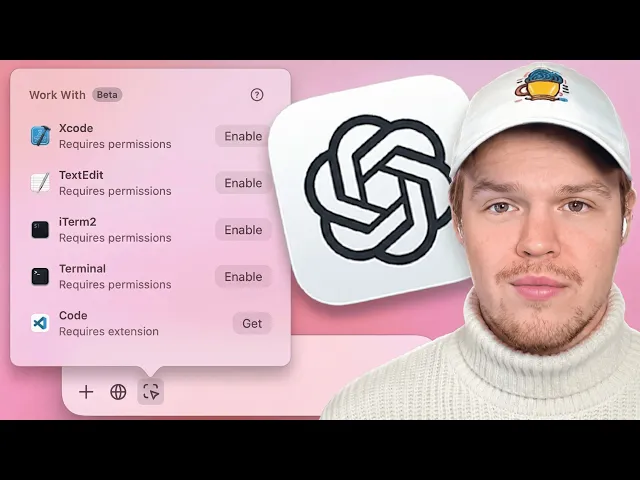
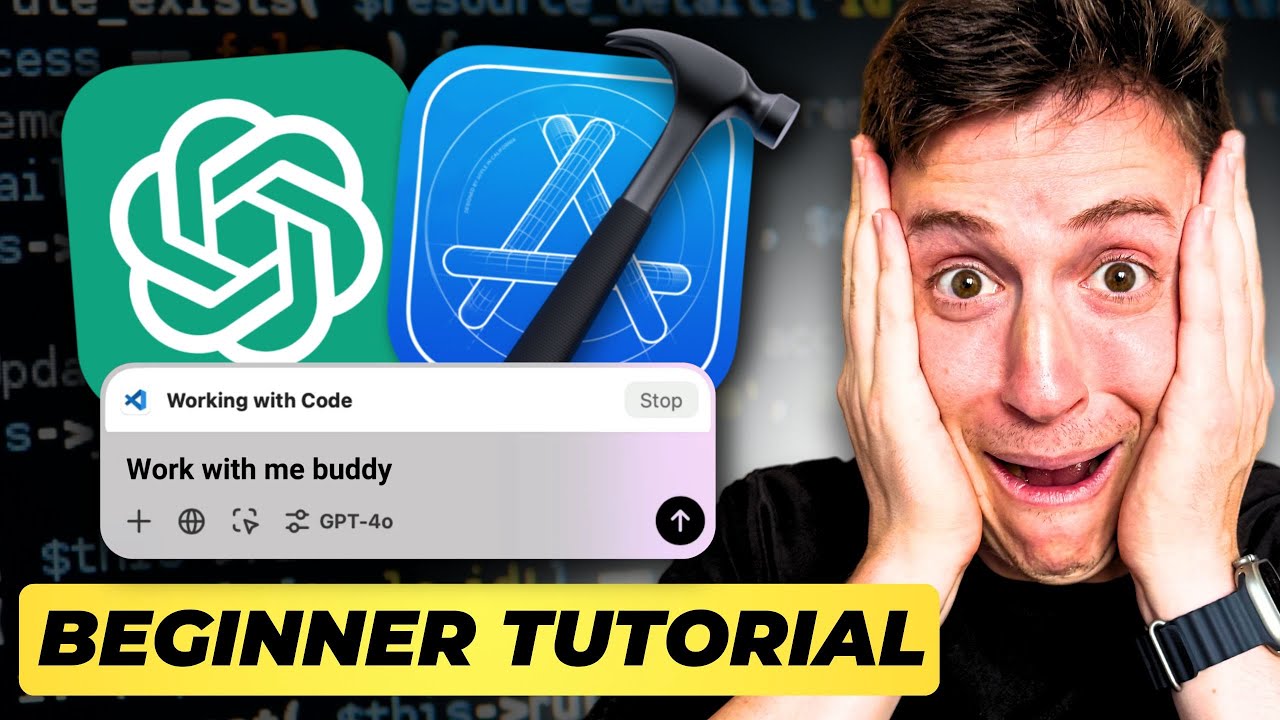
therefore we now have the ability to use a Chad gbt desktop app within our vs code and any other type of application we would want with this simple new extension the Chad gbt desktop app got a pretty significant update this is pretty cool as now we're able to connect to different apps found on our computer and interact with them therefore in today's video I'm going to show you how to connect it to vs code but in theory this could work for any type of app you want to connect it with does that sound good let's
jump in welcome back y'all today's video is going to be a fast one I just want to show you how to connect this new feature on your chbt desktop app it makes sense why they did this as we see a lot of hype around connecting artificial intelligence and our idees EG like a big one being cursor AI therefore let's see how we do it I'm going to go ahead and leave the link to this open AI Doc in the description down below so you can follow along as well but the first thing we need to
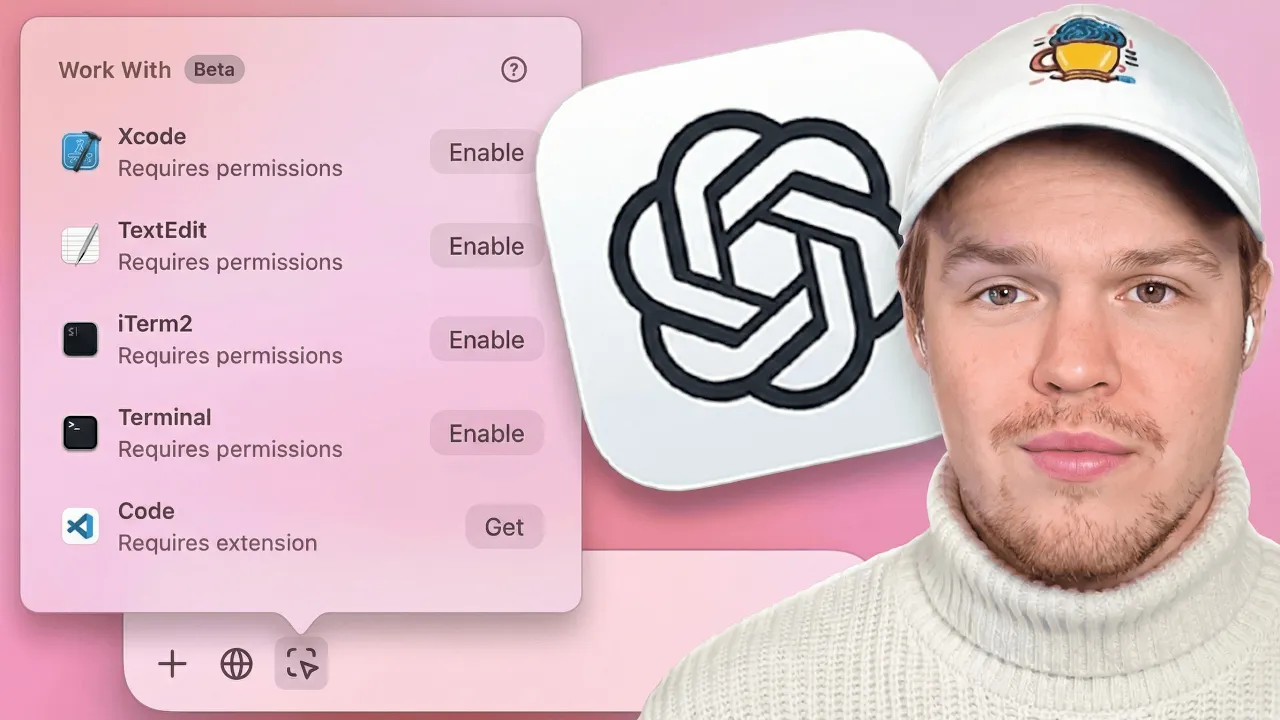
do is make sure rgbt is up to date as a side note as some of youall might be like what even is the point of this feature point of this feature is to interact with files found within the application egg right here you see with xcode it's interacting with that specific file and you can kind of conversate with it back to the tutorial to make sure you're up to date come up to your top bar here hit Chad gbt and check for updates I'm all good to go but what happens sometimes is that even if
you check that little box that says automatically install updates it won't automatically do it so there's a chance that you need to install an update for this first step to know whether you have the update or not you should see this kind of stuff in your bar right here Step One is down step two simply click this link right here and download vsix this is an extension for vs code once you've downloaded that go ahead and come to your VSS code sometimes you got to drag it to your desktop the file you just downloaded hit
command shift p this is going to open up our search here and then we're going to look for a very specific query extensions is the beginning of it specifically what we're looking for here is extensions install from vsix once you do command shift p you'll simply put in extensions semicolon ins it'll show up right here click once this incurs go ahead and find the file we just downloaded so for me it's in my downloads here I'm going simply select it and hit install you should see a little notification right there in addition if you want
to confirm this installation come over to your app extensions and you'll see see it right there now that it's installed in our vs code there is one last step we got to do in the chat gbt desktop app to see it we're going to come up here to chat gbt we're going to hit settings once we're in settings here we're going to scroll down and we're going to find the setting for work with apps we need to make sure we enable this we're going to click that so right off the bat as you can tell
this is where you manage your apps so if I click this you can see that right now we have vs code ready to go in addition we can do other apps like text edit terminal and then of course xcode this is where we enable them enable permissions Etc so now that I've enabled it in our settings I come back here I can click it right here and we're going to go there are two ways we can interact with this feature first way is that obviously we just open up the Chad gbt desktop app here hit
add and then proceed now when you do it this way it's going to grab the specific file that you're currently looking at within VSS code newsletter ca. JS and as you can see over here that's the current file we have selected so that's the first way here's the second way the second way is you're going to go to the file you like simply do option shift one and it'll pop up right here this is probably the better way to do this this as it feels a little bit more interactive so for example if I'm in
the top fold. JS I can simply go like you know what rename content catalog to just my catalog hit enter and it's going to open up a little chat and what's important for you to recognize here is notice how it actually has contextually the code that's in this file content catalog button come down here it is content catalog button he knows what's up I can simply copy it and paste over therefore we now have the ability to use a Chad gbt desktop app within our vs code any other type of application we would want with
this simple new extension if you want in-depth tutorials when it comes to coding with artificial intelligence I encourage you to check out two major playlists on this channel the first one is titled let's build out a web app it is over 3 hours and 30 minutes long and I show you step by step from zero lines of code how to code out an entire front end with Chad gbt the second playlist that's currently live and I'm currently building out episodes 4 is called let's build out an apps backend in that playlist I show you how
to build out an entire software's back end using AI without further Ado I'll see you in the next video there's been an update Chad gbt desktop app vs code to random videos that's my face I'll see you in the next video