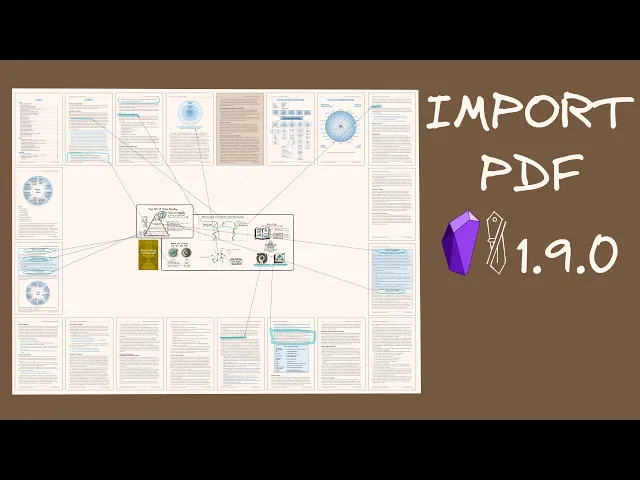
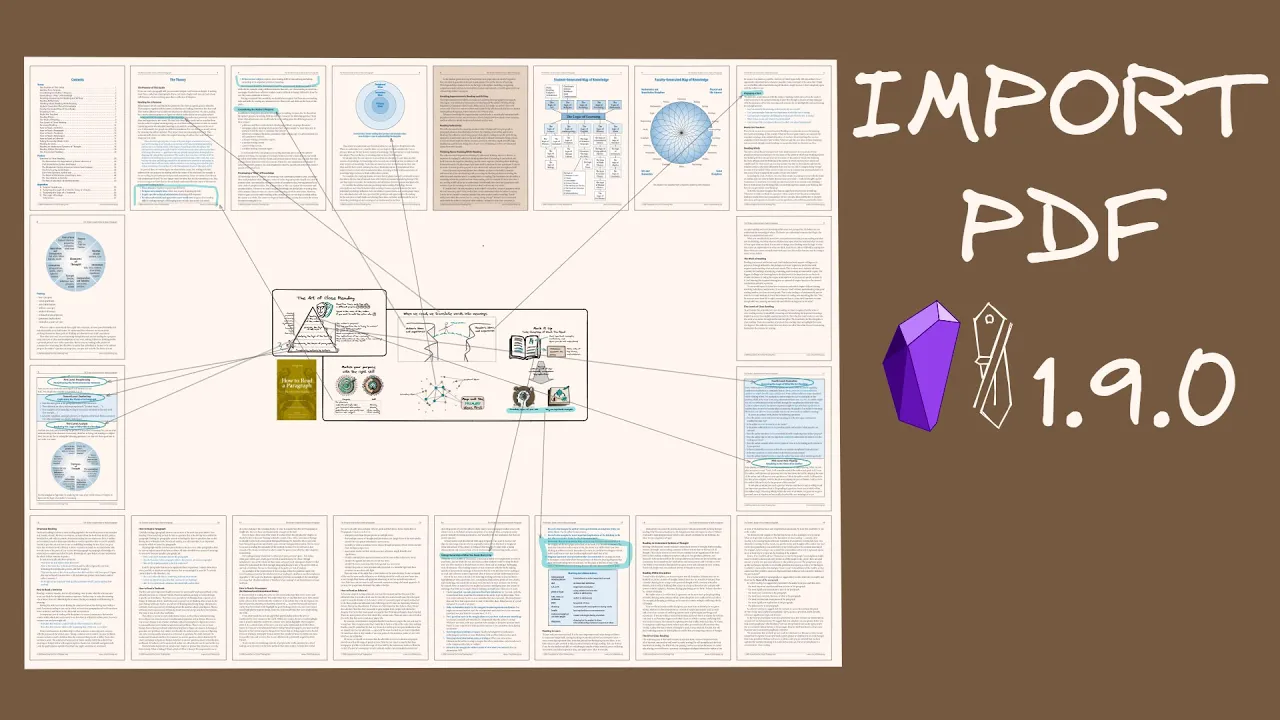
hey everyone I'm so excited about this new feature of obsidian EXC colol that I decided to bump the version to 1.9.0 here's what you can do you can import a PDF document like in this case I did with how to read a paragraph by Richard Paul and Linda aler you can arrange these pages on your whiteboard whichever way you like and then you can add highlights and different elements so you can see here I highlighted text there I added couple of circles you can even add these highlights into your markdown document so here's my reference
to this highlight and if I click here then it will take me back to my whiteboard to the location on the Whiteboard where I had that page what you can do with this is I have my article on a page my visual summary of this article in the center and I have the arrow pointing to the parts of the original document from where each of the parts of this visual summary came from and by the way if you're interested in creating similar visual summaries for books for articles for whatever you're working on take a look
at cohort 4 starting on the 27th of May at the visual thinking Workshop so let me show you how you can do all of this I'm heading over to My Demo Vault there are three three different ways how you can insert a PDF document into excetra the simplest is to open the tools panel here and click on the PDF button when you do this then this dialogue opens and you can just simply type in the title of your PDF document this will then immediately display that this PDF document has 68 pages you can set which
Pages you want to import so I'm now going to import page three and then 5 to 23 you can do a couple of settings you can add a border box which means there's going to be a line around the page so you know where the page starts and ends you can automatically lock the imported pages on the canvas so you don't accidentally move them around you can set that when you're importing the pages how many columns you want to import you'll see the effect in a second you can set the gap between Pages as well
as you can change the imported page size now if you change this the resolution of the import doesn't change so you can leave it at whatever value the resolution is going to be the same what this sets is the relative size of the page compared to other drawings or text on your exol canvas I like to keep this relatively small but you have the slider and you can choose your size now if I click on import PDF then you can see that there's a counter that shows you the progress and it's important to note that
if you're importing many pages this is going to be resource intensive and is going to take a lot of time so I actually do not recommend importing more than something like 20 Pages definitely I would not import something like a 200 Page PDF that is most likely going to result in a very poor performance but once you've imported your pages you can arrange the pages whichever way you like so now I'm just repeating the arrangement that you saw on the previous page like this and once you've arranged your pages you can start to add highlights
so for example if I zoom in here I can click my highlighter pen by the way I'm going to include a link for you to learn how to add a highlighter pen to the site like that you can add some highlights like this or you can use the excal draw drawing objects and draw on this page so for example if I want to create an arrow between this and this I can just simply add that arrow and I can start to create my visual summary there are a couple of things things you can do with
the pages as well so for example here I'm going to change the background color of this page to Brown so you can see that here now this page has this background color and you can use the different excolo fill effects so you can use all of these there's one thing to note that with the highlighter pen so let me start a highlight from here and show you the issue so this is right now A limitation I hope to fix this in a later release but for now with the minimum valuable product this is how it
works so you can see that the highlighter pen will go under the color of the page so if now I would turn this back to transparent then you can see that the line is there also a limitation is you cannot highlight pictures so here you see if I highlight it like this it doesn't show so imag is within the document cannot be highlighted and also depending on how the PDF document is created sometimes highlights in sections like this so this blue section if I start to highlight again unfortunately highlights don't work there but you can
use these components from exol draw and you can do your highlights with boxes or circles or whatever now if you want to include this part of the document in a markdown page as I did in the example previously let me create a new markdown document like this here and now I want to paste this area of the page into my markdown document so how do I do it I go to my obsidian tools panel right here and I click on the copy markdown link for selected element to clipboard button so when I click this this
lock comes up and you need to choose the area type of link and I will include another video here that will explain about area group and Link if I click area then I can head over to my markdown document and I can just simply paste whatever is on my clipboard it will take a little time for exol draw to process the document but here you go so I've now inserted this section of the document by selecting the object that I wanted to use as my marker for the area and this way you can embed this
into your markdown documents so you can also lock these elements and you might want to do that because so if I now click here to lock the element this means that this cannot be selected and that's good because accidentally then I would move pages around if it's logged then I cannot accidentally move it around so that is an option for you so there are a couple of limitations here first of all when I highlight text this is just an image so when I do my highlights this is not going to copy the text you need
to either type it or go to the original PDF document to get the text second that in dark mode these Pages don't look good that is currently a limitation so let me show you how this looks in dark mode this is really not very good so it's hard to uh read the text and also the images and the different objects in the document are going to look not so good so right now the background color of your page should match the color of the PDF document and in that case this is going to look good
if you want to use this in dark mode then I'm sorry that is not something that is supported today so now let me quickly show you the two other ways how you can import PDF so you can open the common pallet and you can just simply type in PDF and select the insert PDF file from Walt which will bring up exactly the same dialogue box as we saw earlier as well as you can go to the file explorer in this case I'm opening recent files and you can drag a PDF document and if you hold
down shift then you're going to be embedding an image then again the import PDF dialogue will come up and you can set the page that you want to import so let's say I'm going to import page 24 I click import and now page 24 of the document is imported so that's all I wanted to share with you today I think this is a super powerful feature that I am going to be using regularly and as such I'm sure that over time I'm going to add some improvements but already today I think this is just simply
awesome enjoy thank you hey everyone I'm so excited about this new feature of obsidian EXC colol that I decided to bump the version to 1.9.0 here's what you can do you can import a PDF document like in this case I did with how to read a paragraph by Richard Paul and Linda aler you can arrange these pages on your whiteboard whichever way you like and then you can add highlights and different elements so you can see here I highlighted text there I added couple of circles you can even add these highlights into your markdown document
so here's my reference to this highlight and if I click here then it will take me back to my whiteboard to the location on the Whiteboard where I had that page what you can do with this is I have my article on a page my visual summary of this article in the center and I have the arrow pointing to the parts of the original document from where each of the parts of this visual summary came from and by the way if you're interested in creating similar visual summaries for books for articles for whatever you're working
on take a look at cohort 4 starting on the 27th of May at the visual thinking Workshop so let me show you how you can do all of this I'm heading over to My Demo Vault there are three three different ways how you can insert a PDF document into excetra the simplest is to open the tools panel here and click on the PDF button when you do this then this dialogue opens and you can just simply type in the title of your PDF document this will then immediately display that this PDF document has 68 pages
you can set which Pages you want to import so I'm now going to import page three and then 5 to 23 you can do a couple of settings you can add a border box which means there's going to be a line around the page so you know where the page starts and ends you can automatically lock the imported pages on the canvas so you don't accidentally move them around you can set that when you're importing the pages how many columns you want to import you'll see the effect in a second you can set the gap
between Pages as well as you can change the imported page size now if you change this the resolution of the import doesn't change so you can leave it at whatever value the resolution is going to be the same what this sets is the relative size of the page compared to other drawings or text on your exol canvas I like to keep this relatively small but you have the slider and you can choose your size now if I click on import PDF then you can see that there's a counter that shows you the progress and it's
important to note that if you're importing many pages this is going to be resource intensive and is going to take a lot of time so I actually do not recommend importing more than something like 20 Pages definitely I would not import something like a 200 Page PDF that is most likely going to result in a very poor performance but once you've imported your pages you can arrange the pages whichever way you like so now I'm just repeating the arrangement that you saw on the previous page like this and once you've arranged your pages you can
start to add highlights so for example if I zoom in here I can click my highlighter pen by the way I'm going to include a link for you to learn how to add a highlighter pen to the site like that you can add some highlights like this or you can use the excal draw drawing objects and draw on this page so for example if I want to create an arrow between this and this I can just simply add that arrow and I can start to create my visual summary there are a couple of things things
you can do with the pages as well so for example here I'm going to change the background color of this page to Brown so you can see that here now this page has this background color and you can use the different excolo fill effects so you can use all of these there's one thing to note that with the highlighter pen so let me start a highlight from here and show you the issue so this is right now A limitation I hope to fix this in a later release but for now with the minimum valuable product
this is how it works so you can see that the highlighter pen will go under the color of the page so if now I would turn this back to transparent then you can see that the line is there also a limitation is you cannot highlight pictures so here you see if I highlight it like this it doesn't show so imag is within the document cannot be highlighted and also depending on how the PDF document is created sometimes highlights in sections like this so this blue section if I start to highlight again unfortunately highlights don't work
there but you can use these components from exol draw and you can do your highlights with boxes or circles or whatever now if you want to include this part of the document in a markdown page as I did in the example previously let me create a new markdown document like this here and now I want to paste this area of the page into my markdown document so how do I do it I go to my obsidian tools panel right here and I click on the copy markdown link for selected element to clipboard button so when
I click this this lock comes up and you need to choose the area type of link and I will include another video here that will explain about area group and Link if I click area then I can head over to my markdown document and I can just simply paste whatever is on my clipboard it will take a little time for exol draw to process the document but here you go so I've now inserted this section of the document by selecting the object that I wanted to use as my marker for the area and this way
you can embed this into your markdown documents so you can also lock these elements and you might want to do that because so if I now click here to lock the element this means that this cannot be selected and that's good because accidentally then I would move pages around if it's logged then I cannot accidentally move it around so that is an option for you so there are a couple of limitations here first of all when I highlight text this is just an image so when I do my highlights this is not going to copy
the text you need to either type it or go to the original PDF document to get the text second that in dark mode these Pages don't look good that is currently a limitation so let me show you how this looks in dark mode this is really not very good so it's hard to uh read the text and also the images and the different objects in the document are going to look not so good so right now the background color of your page should match the color of the PDF document and in that case this is
going to look good if you want to use this in dark mode then I'm sorry that is not something that is supported today so now let me quickly show you the two other ways how you can import PDF so you can open the common pallet and you can just simply type in PDF and select the insert PDF file from Walt which will bring up exactly the same dialogue box as we saw earlier as well as you can go to the file explorer in this case I'm opening recent files and you can drag a PDF document
and if you hold down shift then you're going to be embedding an image then again the import PDF dialogue will come up and you can set the page that you want to import so let's say I'm going to import page 24 I click import and now page 24 of the document is imported so that's all I wanted to share with you today I think this is a super powerful feature that I am going to be using regularly and as such I'm sure that over time I'm going to add some improvements but already today I think
this is just simply awesome enjoy thank you