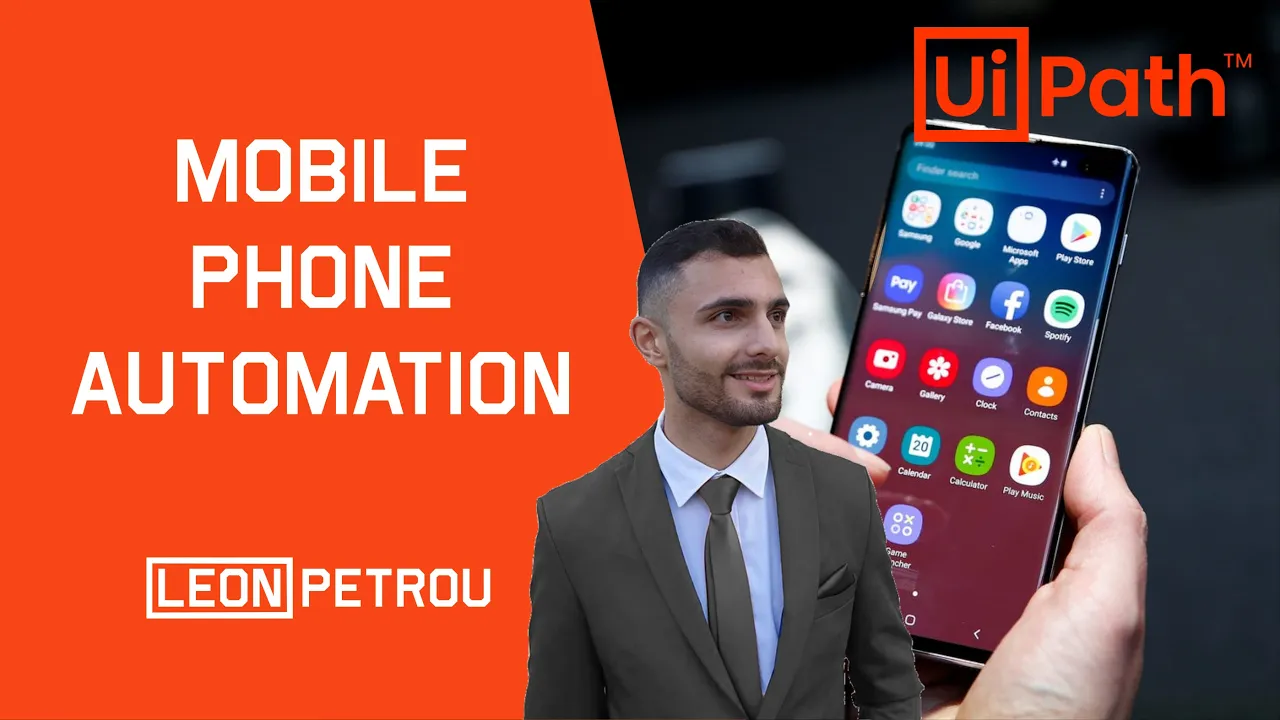
hey what's up guys in today's video we are going to be doing something very unique uh something i actually haven't seen being done anywhere else on the internet before um this was asked by one of my students and i figured hey that may make a pretty cool youtube video so that's basically what i'm doing here so basically we are going to be automating your mobile phone so basically usually with your ipod we automating anything on your pc but what i'm going to show you in this video is how to automate any application on your mobile
phone [Music] all right so in order to do this we actually need to mirror the screen on your mobile phone on the desktop and then we are able to automate whatever is visible on your on the screen mirror projection on your pc so in order to do this we're going to need a software so i have a samsung so there's a there's a app specifically for mirroring a samsung screen on your pc which is called samsung flow all right and you can download that on the microsoft app store so i'm going to search microsoft app
store and i'm going to open up the first link whatever okay let me just say go to south africa english because that's where i'm based all right and then i'm going to search for samsung flow there it is so this is the icon and it's free so you want to click on that and then you want to click this get button right and it will then install right so it's saying open microsoft store i'll just say open it'll open it up on your machine all right you may need to sign in into your microsoft account
in order to install it if you don't have an account you're gonna have to create one and this is the app all right i already have it installed but then you can click launch and then it'll open up just like that all right so in order to use samsung flow you're going to have to have samsung flow installed both on your pc and on your phone so to do that you can just go into the play store on your samsung device and search samsung flow and then download the samsung flow app once you have the
samsung flow app installed you'll then be able to connect your phone to your pc so now that we have installed samsung flow i'm going to open it so i'm just going to search for samsung flow there it is and here it is so it says to use samsung flow verify your identity using the authentication method you've turned on make sure your phone has samsung flow turned on and it's connected to the same network so i'm connected to wi-fi on my pc so what i'm doing now i'm just connecting to the same wi-fi network on my
phone scan for devices right so i'm going to click start okay so here it is there's my device do you want to register a new device i guess i'll say yes and how will we connect let's just say wi-fi confirm the pass key or idle pop-up came up on my mobile screen i'll say okay okay setup complete done in order to mirror your phone screen onto your laptop you want to click this smart view button so i'm going to click start now on my phone and it should then start the mirror there it is so
if i just come to my home screen here is my mobile device that is now mirrored onto my pc so i can open apps like say instagram and there you have it so now i'm busy using instagram which is on my phone on my pc let's build a bot which will come and like all the recent photos on my instagram feed all right so i'm going to open up uipath studio and i'm going to start a new process and call it mobile phone automation i'll click open main workflow so my guess is that this is
a gonna act like a remote desktop would that this entire thing is one image so what i'm going to do is i'm going to come here and i'm just going to test this out actually i can just use it with a normal ui explorer over here so i'm going to click indicate element and i'm going to try hover on instagram here and you'll notice that i'm actually unable to click on any buttons um within the um phone mirror projection over here so in order to enable us to click elements inside here we are going to
have to use computer vision all right so there's a suite of activities for that so we can come to activities and search for computer vision here it is um so these are all the computer vision activities all right so let me just see here the computer vision is part of this ui automation activities package so if this isn't installed then you won't find the computer vision activities next step in order to attach to this window what we want to do is we want to use a computer vision screen scope all right so i'm going to
drag that in so just note that this is like using say a excel application scope where you put all the other activities within so it's telling us here that when using computer vision with cv uipath server ui path may store development information and screenshots for analysis blah blah blah so basically they're saying that they can use our data and it says by default the community or trial plan you use can have up to 30 megapixels per minute higher number of server calls may be provided by contacting your sales team right so if you want to
use more than 30 megapixels per minute you're going to have to upgrade to the enterprise plan and pay for it so click ok or i agree and here it is so you'll see that it requires an api key so to get that i'm going to open up google and i'm going to go to cloud.jripart.com right and i'm then going to go to admin and it should be under licenses and other services there it is computer vision so you can see here there's an api key right so i'm going to click copy api key and i'm
going to come to your path and i'm going to paste the api key into this field over here so i'll put the double quotes and paste in the api key and click ok great so now next step is you want to indicate on screen so i'm going to click indicate on screen and i'm then going to click shift f2 and open up samsung flow our projection over here and i will then select that entire mirrored projection all right detecting screen elements and labels there you go so now if you click on this menu and you
come here to show informative screenshots it'll show us which elements are recognized as buttons so you can see those are all all have a square around it so those are being recognized as buttons the text so these are all clickable elements basically so that is good um so what we wanted to do is we wanted to be able to click on the heart button so if i scroll down a bit we want to click on this heart button so manually if i click it it'll like the photo then we'd scroll down and i'd like the
next photo that was an ad but it's fine and etc so i'm just going to come here and i'm going to indicate on screen again all right and then i'm going to use a computer vision click activity check is to check a check box drop down to select an item in a drop down this is to check if an element exists this is to get text or copy text into variable this is to highlight text this is to hover over text this is to refresh the image on your cv screen scope so basically you need
to use this refresh every time the screen changes because this is being recognized as an image so every time you navigate to a different page or if you scroll down or whatever happens you're going to need to refresh the cv refresh the computer vision scope so that it's able to recognize the element on the page right so i'm going to use a click activity and i'm going to drag in the click over here and i'm going to test it out i'm going to click on this heart so you'll see if i hover over it's able
to recognize these as buttons which is great so i'm going to click on this heart but you'll see here with this little message box it says duplicate matches try adding an anchor right so basically what this means is i selected this heart and you can see it has a little target here which is me which means this is the one i selected but then it's also circling this heart in yellow which it's telling us that this is a duplicate of the original target we selected so usually when this happens you need to select an anchor
of another element so that it knows which of the elements you are referencing so now if i set this as an anchor it will be able to only recognize the heart which has the speech bubble on the right hand side so then it will know that it's not this one because this one doesn't have a speech bubble on the right hand side so i'm going to select this and there you go it's now done so we have our target which is the heart and we have our anchor which is the speech bubble or the comments
button all right so there we have it so now that is the click so let's test this out and i'm going to run this and i'm going to see if it's going to click hard on that photo so i'm going to click run there you go so it's attached now we just need to wait for it to click there you go it liked the photograph right so let's say what we want to do now is you want to scroll down and click hot on the next photo so what you can do is you can use
the hotkey on your keyboard which is page down it's usually top right hand corner of your number pad on your keyboard if you click page down it should then scroll down to the next photo and you can see now the heart is available for the next photo so let's try and add in that page down so i'm going to come here to activities and i'm going to use a send hotkey i'm going to drag in that and i'm going to select page down that is the hotkey we are looking for right so i'm going to
test this out um before we do that i'm just going to need to re-indicate on screen because now the image has changed from before right so detecting great i'm going to click run and now let's see if the page down works so it's attached to the the screen clicks hot but you'll see that it didn't page down all right so sometimes this happens when you're using a remote desktop and for some reason it fixes that when you have when you just copy paste um so you so you trigger the same activity or the same hotkey
activity twice so that usually fixes the issue and let's see if it fixes it now all right i think now it's actually going to unlike the photo because it's already liked it let's see what happens oh i see okay so now it's struggling to find the heart because the computer vision before had a different image meaning that this wasn't red before and now it's red so now it's actually detecting this as a different image and then that's why this is breaking and not working so what i'm going to do is i'm going to click stop
here and i'm going to unlike this right and let's try run this again and see if it will now click like properly there you go all right so and look at that it page down so that is great so then we know now that the page down is working so basically what we can do now is we can actually put this click and these page down activities into a loop so i'm going to use a while loop i'll drag the while loop in and i'll copy these activities into the body of the loop just like
that then i'll create a condition ctrl k and then i'll say photos or quantity likes so basically the amount of likes so let's set the condition while the quantity likes is less than or equal to let's say where is it less than or equal to and i'll just put 10 for now so we're basically saying the first 10 images i'm also going to set the quantity likes variable in our variables panel to 1 and i'm going to make sure the variable type is an integer i'll also set the scope to the sequence and the sequence
in this case is the main sequence so i'll just rename this to main cool so we're also going to have to increment the quantity likes variable so i'll do that at the bottom of this body which is within the while loop so i'm going to drag in an assign activity i'll drag a sign put it there and i'll say quantity likes is equal to quantity likes plus one so this is going to add one to quantity likes until 10 is reached and then it'll stop liking the photos right so one last thing we need to
do before we try and run this is we need to refresh the scope because we saw from before whenever this image changes whatever's display this changes the computer vision doesn't work so basically every time we click page down it's actually changing the image so we're going to have to refresh the scope every single time so i'm going to drag in a refresh type in cv so we want to use the cv refresh and i'll put that in the loop right at the bottom right there so what it's going to do here is it's going to
refresh the image i'm going to come here and set continuous error to true for all of these activities so if an error does happen it doesn't just break the bot and exit the loop then i'll set the timeout over here to let's say 2 000 milliseconds which is two seconds and i'll do that for the send hotkey as well so what the timeouts will do is instead of it waiting 30 seconds before it runs into an error it'll only wait two seconds before it runs into an error so let's say for instance if it's not
able to identify the height on the screen it would usually run into an error and then the the bot will stop and then it won't even continue for the remaining likes whereas if we have this continuum error set to true and a timeout of two seconds it'll then wait for two seconds if it hasn't found the heart it'll then continue in the loop so it's just a way to handle errors on your activities it's quite useful great so that should be it so i'm going to click run here and let's see if this is now
working so it should click like on this photo there you go so now it click page down now it's going to click hot on the next photo and it's going to click page down and then it's going to click hot on the next photo there you go and it's going to keep going for 10 different photos so it's going to click like on the first 10 photos because that's how we set it and there you have it it has now liked the first 10 photos and this is our output panel but that is basically it
that is how you would do mobile phone automation it's the same way you would do remote desktop automation so let's say you have a rdp session remote desktop and you connect to another pc if you want to use your path and automate that remote desktop console without having your path installed on that machine you would use these computer vision activities because it detects the entire screen as a single image all right so that is basically it i hope this was helpful and that you learned something new if you do want to do instagram automation i
wouldn't recommend doing it this way i would rather recommend you use the web version of instagram since it is available but if you have any apps which are only available on mobile and you would like to automate them then this would be a good approach or a good way to do it so yeah if you enjoyed this video please like and subscribe to my channel and leave a comment if you have any questions and i'll answer you down there thanks for watching cheers











![The Rachel Maddow Show [9PM] 2/28/2025 | 🅼🆂🅽🅱️🅲 BREAKING NEWS Today February 28, 2025](https://img.youtube.com/vi/0NTVdRAHyyQ/maxresdefault.jpg)