- Welcome to the Vertex AI Studio course. Vertex AI Studio is a primary tool for a cloud developer to access Google's cutting-edge Generative AI, or gen AI, models. It facilitates the testing, tuning, augmenting and deployment of these models, enabling the creation of gen AI-powered applications.
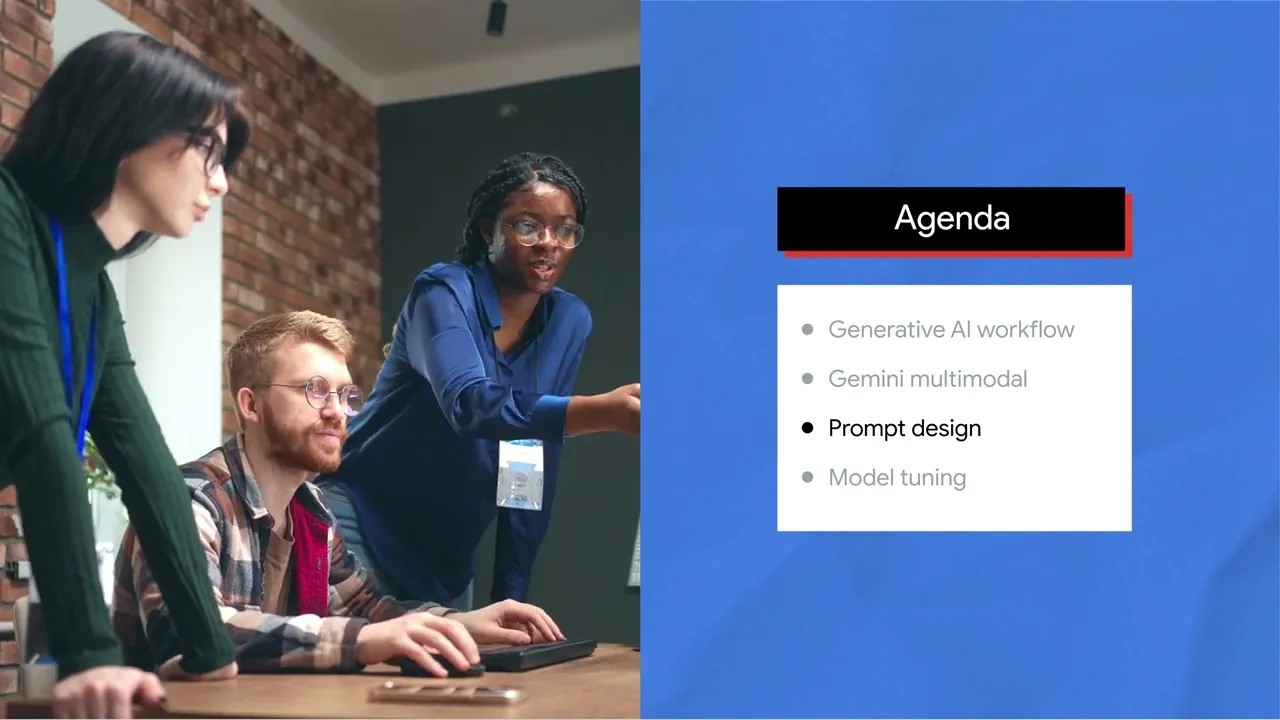
This course teaches you the know-how of Vertex AI Studio. It starts from explaining the gen AI workflow to introducing the major features of Vertex AI Studio, including Gemini multimodal, prompt design, and model tuning. To enhance your learning experience, a hands-on lab at the end of the course provides an opportunity to practice the skills you have acquired.
Generative AI is transforming how we interact with technology. So what is Generative AI? Simply put, it is a type of artificial intelligence that generates content for you.
What kind of content? Well, the generated content can be multimodal, including text, images, audio and video. When given a prompt or a request, gen AI can help you achieve various tasks, such as document summarization, information extraction, code generation, marketing campaign creation, virtual assistance, and call center bot, and these are just a few examples.
How does AI generate new content? It learns from a massive amount of existing content. This includes text, image and video.
The process of learning from existing content is called training, which results in the creation of foundation models. A foundation model is usually a large model in terms of the significant number of parameters, massive size of training data, and high requirements of computational power. An LLM, or large language model, like PaLM, which stands for Pathways Language Model, is a typical example of a foundation model.
Other foundation models trained by Google include Gemini for multimodal processing, Codey for code generation, and Imagen for image processing. Note, the list may change as foundation models advance. Also note that Gemini may replace some of these models as it is capable of processing data in multiple modalities.
The pre-trained foundation model can be used to generate content and solve general problems, such as content extraction and document summarization. It can also be further trained or tuned with new datasets in your field to solve specific problems, such as financial model generation and healthcare consulting. This results in the creation of a new model that is tailored to your specific needs.
How can you use the foundation model to power your applications and how can you further train or tune the foundation model to solve a problem in your specific field? Vertex AI is a comprehensive machine learning platform offered by Google Cloud. It supports end-to-end ML processes, including model creation, deployment, and management.
Vertex AI provides two primary capabilities: Predictive AI and Generative AI. In Predictive AI, you can build ML models for forecasting. In Generative AI, you can use and tune gen AI models to produce content.
So how can you access the gen AI models with Vertex AI? Let's walk through the workflow. Input prompt.
Via the Vertex AI Studio UI, input a prompt, a natural language request to gen AI models. Responsible AI and safety measures. The prompt undergoes responsible AI and safety checks configurable through the UI or code.
Foundation models. The screened prompt proceeds to foundation models, like Gemini multimodal, or other gen AI models, like Imagen and Codey, based on your choices. Model customization.
Optionally customize gen AI models to fit your data and use cases by further tuning them. Results grounding. Gen AI models return results that undergo grounding and citation checks to prevent hallucinations.
Final response. The final response appears on the Vertex AI Studio UI after a final check through responsible AI and safety measures. In essence, Vertex AI Studio provides an intuitive interface and enables you to build gen AI applications in a low-code or even no-code environment where you can rapidly test and prototype models, tune and customize models using your own data, augment them with real-world, up-to-date information, and deploy models efficiently in production environments with auto-generated code.
Vertex AI Studio facilitates multimodal, language, vision, and speech-related tasks. As you progress through this course, the range of supported tasks may expand. With multimodal capabilities, data can be processed across various modalities, like images, videos, and text.
This versatility enables the execution of multimodal tasks, such as extracting text from an image. For language, you can design a prompt to perform tasks and tune language models. For vision, you can generate an image based on a prompt and further edit the image.
For speech, you can generate text from speech or vice versa. In the upcoming lessons, you will explore the capabilities and applications of multimodal and language. Let's first explore Gemini multimodal, Google's most capable and general model yet.
So what is a multimodal model? It's a large foundation model that is capable of processing information from multiple modalities, including text, image, and video. The generated content can also be in multiple modalities.
For example, you can send the model a photo of a plate of cookies and ask it to give you a recipe for those cookies. Gemini, a Google-trained multimodal model available on Vertex AI Studio, provides input-processing capabilities for text, images and video. Currently, its output is limited to text.
However, this might change as you progress through the course. How can Gemini help you with your business use cases? Gemini excels at a diverse range of multimodal use cases.
Here are some notable examples. Description and captioning. Gemini can identify objects in images and videos, providing detailed or concise descriptions as needed.
Information extraction. It can read text from images and videos, extracting important information for further processing. Information analysis.
It can analyze the information it extracts from images and videos based on specific prompts. For instance, it can classify expenses on a receipt. Information seeking.
Gemini can answer questions or generate Q&A based on the information it extracts from images and videos. Content creation. It can create stories or advertisements using images and videos as inspiration.
Data conversion. It can convert text responses into various formats, such as HTML and JSON. Can you think of a real-world use case to apply Gemini multimodal?
In light of these exciting advancements, how can developers engage with Gemini and create applications that leverage multimodal capabilities? There are three primary approaches, each essentially achieving the same objective. Using a user interface (UI) with the Google Cloud console, this no-code solution is ideal for exploring and testing prompts.
Using predefined SDKs with notebooks like Colab and Workbench, which are seamlessly integrated within the Vertex AI platform. Utilizing Gemini APIs in conjunction with command-line tools like cURL. Regardless of which method to access the Gemini multimodal, you start with a prompt.
So what is a prompt? In the world of Generative AI, a prompt is a natural language request submitted to a model in order to receive a response. You feed the desired input text, like questions and instructions, to the model.
The model will then provide a response based on how you structured your prompt. Therefore, the answers you get depend on the questions you ask. Let's look at the anatomy of a prompt, which includes one or more of the following components: input, context, and examples.
An input represents your request for a response from the model. It can take various forms: a question that the model can answer, question input, a task that the model can perform, task input, an entity that the model can operate on, entity input, partial input that the model can complete or continue, completion input. For instance, "What should I do when my computer freezes?
" Here, "What should I do when my computer freezes? " is a question that you expect the model to provide an answer for. Context can serve multiple purposes.
Specify instructions to guide the model's behavior. Provide information for the model to use or reference in generating a response. When you need to supply information or limit responses within the scope of your prompt, include contextual information.
For instance, you could assume the role of an IT help desk and consistently advise users to restart their computers regardless of the nature of their inquiries. Examples are pairs of inputs and outputs that demonstrate the desired response format to the model. Incorporating examples in the prompt is an effective technique for tailoring the response format.
For instance, you can enter input-output pairs in the following manner. "Lost internet connection: reset". "Couldn't find the network printer: restart".
Subsequently, you can type in the prompt, "What should I do when my computer runs slowly? " The model will likely suggest that you reset the computer. Context and examples are extensively utilized when training or tuning Generative AI modes to behave as you desired.
The process of figuring out and designing the best input text to get the desired response back from the model is called prompt design, which often involves a lot of experimentation. You'll learn more about prompt and prompt design later in this course. Let's explore the Gemini multimodal feature within Vertex AI Studio.
Navigate to the Vertex AI Studio Overview page and click on Multimodal Powered by Gemini TRY IT NOW. You'll see three sections: a Prompt field at the top, a Response field at the bottom, and a configuration panel on the right. Click INSERT MEDIA and upload an image.
For example, let's use a departure board image from an airport. Enter your first prompt, "Read the text from the image". Before clicking SUBMIT, let's look at the configuration on the right.
You can choose from a list of models. The default model is usually the most recent, cutting-edge model, which is currently Gemini Pro Vision. The temperature setting controls the degree of randomness in the response, with 0 being the most expected answer and 1 being the most creative.
The safety settings allow you to adjust the likelihood of receiving a response that could contain harmful content. Content is blocked based on the probability that it's harmful. For example, for hate speech, you can choose from block few, block some, and block most.
Adjust these settings based on your use case and click SAVE. In the next lesson, you'll learn more about advanced settings such as top K and top P. Once you've completed the configuration, it's time to get the response.
Click SUBMIT and wait a moment. Here's the result. If the result is not easy to read, you can further adjust your prompt to "Read the text from the image and put it into two columns: time and destination".
Does the result look better? You can also be more adventurous and do some analysis. For example, you can change the prompt to "Calculate the percentage of the flights to different continents and put them into two columns: percentage and continent".
Here is the result. If you desire to further develop the application and make the process productionalized, you can click the code located on the top right corner. There, you'll find the code describing the prompt and the settings in the user interface.
Alternatively, you can retrieve cURL, which serves as the API to call in a command-line interface. Additionally, you have the option to open a notebook with the SDK's code of your preferred programming languages, such as Python. These automated generated coding and the integrated development environment significantly simplify the production process.
Hopefully this provides a straightforward guide on how to utilize Gemini multimodal with Vertex AI Studio. At the end of this course, you practice with prompts and settings in a hands-on practice. You explored Gemini multimodal in the previous lesson.
Now it's time to focus on the language capabilities offered by Vertex AI Studio. Let's explore what you can do with the language models. Design prompts for tasks relevant to your business use case, including code generation.
Create conversations by specifying the context that instructs how the model should respond, and tune a pre-trained model to get better performance for a specific task or use case. You'll walk through prompt design and model tuning in detail. Let's first delve into the art and science of prompt design.
To get started experimenting with the gen AI models, click on new prompt. Let's start with a free-form prompt. One way to design a prompt is to simply tell the model what you want.
In other words, provide an instruction, for example, "Generate a list of items I need for a camping trip to Joshua Tree National Park". We send this text to the model, and you can see that the model outputs a useful list of items we don't wanna camp without. This approach of writing a single command so that the model can adopt a certain behavior is called zero-shot prompting.
Generally, there are three methods that you can use to shape the model's response in a way that you desire. Zero-shot prompting is a method where the model is given a prompt that describes the task without additional examples. For example, if you want the LLM to answer a question, you just prompt, "What is prompt design?
" One-shot prompting is a method where the LLM is given a single example of the task that it is being asked to perform. For example, if you want the LLM to write a poem, you might provide a single example poem, and few-shot prompting is a method where the model is given a small number of examples of the task that it is being asked to perform. For example, if you want the model to write a news article, you might give it a few news articles to read.
You can use the structured mode to design the few-shot prompting by providing a context and additional examples for the model to learn from. The structured prompt contains a few different components. First we have the context, which instructs how the model should respond.
You can specify words the model can or cannot use, topics to focus on or avoid, or a particular response format, and the context applies each time you send a request to the model. Let's say we want to use the model to answer questions based on some background text, in this case, a passage that describes changes in rainforest vegetation in the Amazon. We can paste in the background text as the context.
Then we add some examples of questions that could be answered from this passage, like, "What does LGM stand for? " or, "What did the analysis from the sediment deposits indicate? " We'll need to add in the corresponding answers to these questions to demonstrate how we want the model to respond.
Then we can test out the prompt we've designed by sending a new question as input, and there you go. You've prototyped a Q&A system based on background text in just a few minutes. Please note a few best practices around prompt design.
Be concise. Be specific and clearly defined. Ask one task at a time.
Turn generative tasks into classification tasks. For example, instead of asking what programming language to learn, ask if Python, Java or C is a better fit for a beginner in programming. And improve response quality by including examples.
Adding instructions and a few examples tend to yield good results. However, there's currently no one best way to write a prompt. You may need to experiment with different structures, formats and examples to see what works best for your use case.
For more information about prompt design, please check Text Prompt Design in the reading list. So if you designed a prompt that you think is working pretty well, you can save it and return to it later. Your saved prompt will be visible in the prompt gallery, which is a curated collection of sample prompts that show how generative AI models can work for a variety of use cases.
Finally, in addition to testing different prompts and prompt structures, there are a few model parameters you can experiment with to try to improve the quality of responses. First, there are different models you can choose from. Each model is tuned to perform well on specific tasks.
You can also specify the temperature, top P and top K. These parameters all adjust the randomness of responses by controlling how the output tokens are selected. When you send a prompt to a model, it produces an array of probabilities over the words that could come next, and from this array, you need some strategy to decide what it should return.
A simple strategy might be to select the most likely word at every time step, but this method can result in uninteresting and sometimes repetitive answers. On the contrary, if you randomly sample over the distribution returned by the model, you might get some unlikely responses. By controlling the degree of randomness, you can get more unexpected and, some might say, creative responses.
Back to the model parameters. Temperature is a number used to tune the degree of randomness. Low temperature means to narrow the range of possible words to those that have high possibilities and are more typical.
In this case, those are flowers and the other words that are located at the beginning of the list. This setting is generally better for tasks like questions and answers and summarization, where you expect a more typical answer with less variability. High temperature means to extend the range of possible words to include those that have low possibility and are more unusual.
In this case, those are bugs and other words that are located at the end of the list. This setting is good if you want to generate more creative or unexpected content. In addition to adjusting the temperature, top K lets the model randomly return a word from the top K number of words in terms of possibility.
For example, top two means you get a random word from the top two possible words, including flowers and trees. This approach allows the other high-scoring word a chance of being selected. However, if the probability distribution of the words is highly skewed and you have one word that is very likely and everything else is very unlikely, this approach can result in some strange responses.
The difficulty of selecting the best top K value leads to another popular approach that dynamically sets the size of the short list of words. Top P allows the model to return a random word from the smallest subset with the sum of the likelihoods that exceeds or equals to P. For instance, P of 0.
75 means you sample from a set of words that have a cumulative probability greater than 0. 75. In this case, it includes three words: flowers, trees, and herbs.
This way, the size of the set of words can dynamically increase and decrease according to the probability distribution of the next word on the list. In sum, Vertex AI Studio provides a few model parameters for you to play with, such as the model type, temperature, top K, and top P. Note that you are not required to adjust them constantly, especially top K and top P.
Having explored prompt design, a fundamental aspect of interacting with gen AI models, let's progress to a more advanced topic: model tuning. If you've been prototyping with Generative AI models like an LLM, you might be wondering if there's a way you can improve the quality of responses beyond just prompt design. Let's learn how to tune and customize a gen AI model and how to launch a tuning job from Vertex AI Studio.
You have different choices to customize and tune a Gen AI model, from less technical, like prompt design, to more technical, like distilling. You're already familiar with prompt design, which lets you tune a gen AI model using natural language without ML background. The prompt which serves as the input text is designed to elicit a desired outcome from the model.
To enhance the model's performance, you can provide context and examples to guide its responses. Prompt design does not alter the parameters of the pre-trained model. Instead, it improves the model's ability to respond appropriately by teaching it how to react.
One benefit of prompt design is that it enables rapid experimentation and customization. Another benefit is that it doesn't require specialized machine learning knowledge or coding skills, making it accessible to a wider range of users. But producing prompts can be tricky.
Small changes in wording or word order can affect the model results in ways that aren't totally predictable, and you can't really fit all that many examples into a prompt. Even when you do discover a good prompt for your use case, you might notice the quality of model responses isn't totally consistent. One way to address the issues is to tune the models using your own data.
However, fine tuning the entire model can be impractical due to the high computational resources, cost, and time required. As the name large suggests, LLMs have a vast number of parameters, making it computationally demanding to update every weight. Instead, parameter-efficient tuning can be employed.
This involves making smaller changes to the model, such as training a subset of parameters or adding additional layers and embeddings. This approach has gained significant attention in the research community as it aims to reduce the challenges of fine tuning large language models by only training a subset of parameters. For example, you can have adapter tuning, which is supervised tuning lets you use as few as 100 examples to improve model performance.
Reinforcement tuning, which is unsupervised reinforcement learning with human feedback. If you wanna learn more about parameter-efficient tuning and some of the different methods, please check out the summary paper included in the reading list. Distillation, a more technical tuning technique, enables training smaller task-specific models with less training data, lower serving costs and latency than the original model.
This technique is exclusive to Google Cloud. Through Vertex AI, you can access the newest techniques from Google Research available with distilling step-by-step. This technology transfers knowledge from a larger model to a smaller model to optimize performance, latency and cost.
The rationale is to use a larger teacher model to train smaller student models to perform specific tasks better and with improved reasoning capabilities. The training and distilling process uses labeled examples and rationales generated by the teacher model to fine tune the student model. Rationales are like asking the model to explain why examples are labeled the way they are.
Similar to how you learn better by understanding the reason behind an answer, this type of teaching makes the student model more accurate and robust. Now let's move to Vertex AI Studio and see how to start a tuning job. Please note the UI may change when the product progresses.
From the Language section of Vertex AI Studio, select tuning and distill. For model details, you can choose from either supervised tuning, which is the adapter tuning as mentioned earlier, or unsupervised tuning, which is reinforcement tuning. Give the tuned model a name, choose the base model, the region, and the output directory.
Parameter-efficient tuning is ideally suited for scenarios where you have modest amounts of training data, can be as low as 100 training examples. Tuning dataset is where you specify the location of your training dataset. Please note it needs to be uploaded or existing on cloud storage.
Your training data should be structured as a supervised training dataset in a JSON file. Each record or row contains a pair of text data, the "input_text", which is the prompt, and the "output_text", which is the expected response from the model. This structure allows the model to learn and adapt to your desired behavior.
You can then start the tuning job and monitor the status in the Google Cloud console. When the tuning job completes, you'll see the tuned model in the Vertex AI model registry, and you can deploy it to an endpoint for serving or further test it in Vertex AI Studio. In this course, we've covered a wealth of valuable information to assist you in embarking on your own gen AI project.
Let's recap the key points. Vertex AI Studio serves as the primary interface for accessing Gen AI models, allowing you to test, tune, augment, and deploy them. You began with the concept of gen AI, the gen AI workflow on Vertex AI and the significant capabilities provided by Vertex AI Studio, including multimodal, language, vision, and speech.
You then focused on Gemini multimodal, which is Google's most capable and general model yet. You learned different ways to interact with gen AI models and walked through a demo to use Gemini multimodal with Vertex AI Studio. Next, you explored prompt design.
You learned different types of prompts, zero-shot, one-shot, and few-shot, and the configuration of model parameters like temperature, top K, and top P. Finally, you explored model tuning, an advanced topic. You learned different ways to customize and tune a gen AI model, from less technical, like prompt design, to more technical, like distilling.
You were also showed a demo to start a tuning job with Vertex AI Studio. All right then, with this new knowledge in hand, it's time for some hands-on practice with Vertex AI Studio. In the lab, you'll have the opportunity to analyze images with Gemini multimodal, explore multimodal capabilities, design prompts with free-form and structured mode, and generate conversations.
By the end of this lab, you'll be well equipped to perform various tasks using Gemini multimodal with Vertex AI Studio. Please note that this course is a brief introduction of Vertex AI Studio, the tool and product used to access Generative AI (gen AI) models. For a more in-depth understanding of language models and transformative technologies, such as decoder, encoder, transformer, and LLM, please refer to the course titled Natural Language Processing on Google Cloud, which is included in the reading list.
We hope you enjoyed this course. Be sure to check out other Google Cloud courses for continued learning. Thank you for watching.
Please feel free to check out our other videos for more topics like this one.