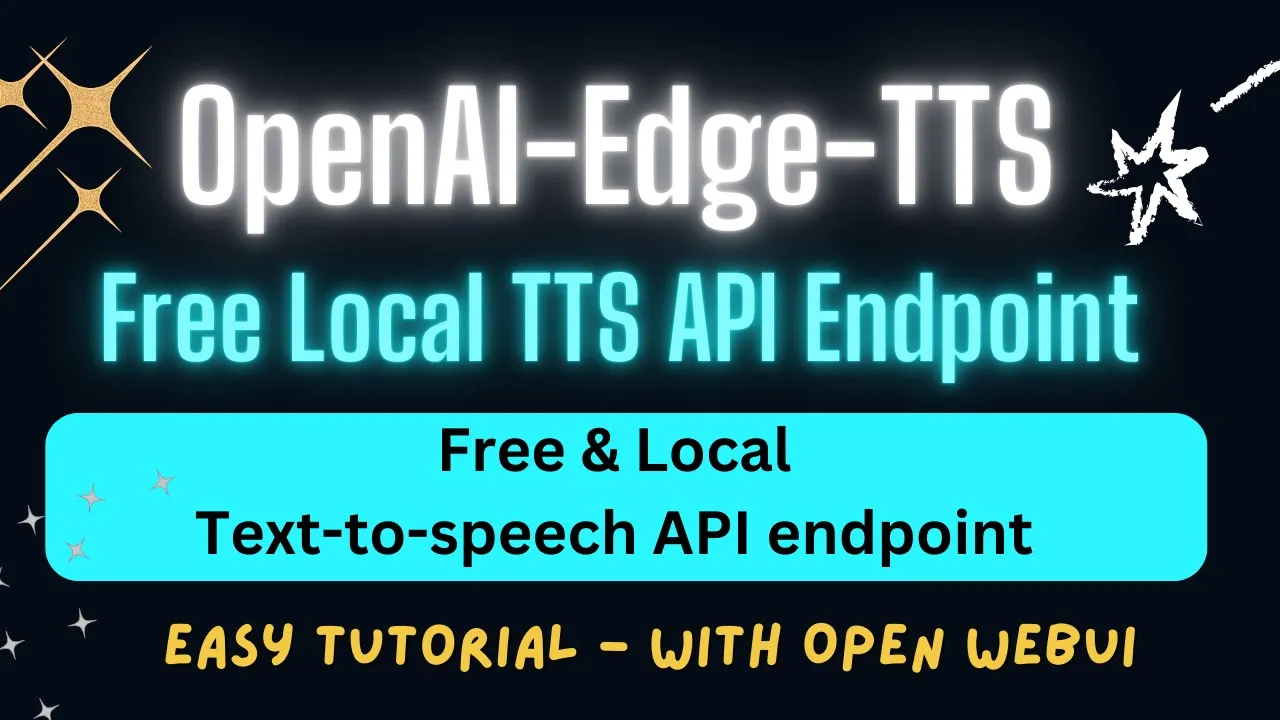
hello everyone welcome to the channel in this video I'm going to show you a very interesting project which has really picked my interest recently so if you look at this project this is simply a free API which is based on htts API endpoint primarily this is a local replacement for open AIS TTS API and that really warms up my heart because whenever I see someone creating a free API which is compatible with a paid option it's always great now this Creator he has been experimenting with local llm and then he tried various interfaces and settled
on open web UI and from there um you can enable open Text to Speech endpoint in the settings and I will show you shortly so in very simple words this project what it does is it simply provides you a text to speech a API endpoint which is compatible with open AIS TTS API endpoint and it uses Microsoft Edge TTS to generate speed for free locally that's what it does and that is what we are going to do after installing it locally and I will also be using open web UI GUI interface L later on so
that we could integrate this server with that but if you don't want to use open web UI you can simply use its API as a service which is really cool and I will all show you what what that means shortly before that let me give a huge thanks to Mast compute for sponsoring the VM and GPU for this video If should looking to rent a GPU on good prices I will drop the link to their website in video's description plus I'm also going to give you a coupon code of 50% discount on a range of
gpus so do check them out I'm using auntu system but you can get this installed anywhere you like also I am using this GPU card Nvidia RTX a6000 with 48 GB of V Ram courtesy M compute but you don't need that much vrm for this project to work even you can use it on CPU so let's first create a virtual environment there are multiple ways you can get this project installed but I feel you can get it the docker but it doesn't work with the docker V2 so it means that you cannot use Docker compose
uh so that is why I believe the best way at the moment in my opinion is to use it with python so that is what we are going to do so first up after creating this virtual environment let's create these prerequisites which are Usual Suspects like torch and Transformers let's wait for it to finish this is going to take a minute or so maybe 2 3 minutes and while that happens let me also introduce you to the sponsors of this video who are agent ql agent ql is a cery language that turns any web page
into a data source which is python SDK and live debugging tool you can scrape and interact with web content agent ql works on any page it is resilient it is reusable and it structures the output according to the shape of your cury and I will also drop the link to their website in video's description let's go back and check out our progress here on the terminal it is still running while that happens let me tell you a bit more about it so as I said it provides you open a compatible endpoint and you can use
if you're using using the open a API endpoint for your speech requirement you can use it as a drop in replacement it also supports lot of voices which have become quite known like Shimmer Nova Onyx Fable Echo and few others also it has uh it supports multiple audio formats like MP3 wave PCM flak Opus andac and you have the option to modify playback speed from point to 5times to four times also you can use either open a voice mapping or specify any htts voice directly how good is that okay so it's almost there let's wait
for it to finish and all the prerequisites from there are done next up let's install FFM Peg after updating my OS FFM Peg is simply a multimedia framework which is used in a lot of audio and video setups it's always good idea to install it if you you're dealing with audio by the way so let as you can see that I have just installed it it is should be done any second now and that is done let me change the background a bit so that you'll be able to see properly there you go okay now
this is done as I said that I will be using open web UI so I'm just first going to install this open web UI with Pip in this virtual environment let's wait for it to get installed and and if you don't know what open web UI is go to my channel search it with open web UI and you should be able to get various videos around it as how to install it and how to use it installation is as what I'm doing right now as you can see on the screen and also it basically it's
an offline graphical user interface which enables you to run large language models and tools offline privately so let's wait for it to get installed and I will be using it as a GUI and open web UI is installed before you start it let's also get clone the repo of this H open a htts and I will drop the link to it in video's description and we have installed it and we have seeded into it next up let's install all the requirements from the root of it from the root of repo I mean so let's wait
for it to finish shouldn't take too long okay it's already done that is cool now here what we need to do we just need to create a an environment file and so for that let's do this and then just maybe we'll first check if there is any sample available no so let's create it T.V and then open it in editor of your choice and paste this stuff here you don't need to give any API key because we are not using any API base it's all local if you want to change the port you can here
and the default voice I'm using andreo neural you can use any other voice like Nova and I mentioned others and then of course you can change the speed of two let's keep all of it as is let's save this environment file here and now that is all we needed to do next up in order to run this TTS all you need to do is to run this command where I'm running it with server doy so let me run it it shouldn't take too long and you can see that now this open htts is running on
our local system it's a free htts or htts whatever you can call it and you can of course you can access it through your APA calls like for example if you want to use Curl you can do something like this this is simply a restful API where we are using the curl with the post https function on our local host at Port 50/50 and same endpoint like like open a is compatible one with the V1 and audio speech and you can just give it any prompt like input is hello I am your a assistant and
then the voice is Echo and we are asking it to create convert this text into the speech here and as soon as I run it it has created this speech. MP3 file which you can readily run so if I do LS ltrr here you will see we have that speech. MP3 so there you go this is my speech. MP3 file let me play it in the browser hello I am your AI assistant just let me know how I can help bring your ideas to life you see how cool is that how good is that okay
let's go back and maybe I will show you one more example let's go back to the terminal where we have generated it I'm just going to say maybe I'm this is vad mza please subscribe to the Channel Center and look at the speed how good is that let me move it to my uh browser again and then play it for you so listen to this this is fod mza please subscribe to the channel that's good so our open AIS this um free a TTS or open a TTS API is running for free and you can
see that it is giving us 200 um code when we have ran two inferences on it with the Cur command now as I mentioned earlier if you want to integrate it with open web UI you can also do that so let me quickly show you how so we already have installed open web UI in order to run it on your local system you just need to run this open web UI serve and it is going to start it on your local system so let's wait for it to get up and running and you can see
that now it is running on our local system on this port so let me access it here in the browser I'm just accessing it in the local host and first of you just need to sign up just give it your name and email so let me do that and once you create your account and just click on login you will be presented with this screen you can just click on let's go now here you can set your settings and I'm not going to go into the detail of open web UI because I already have uh
shown you that in other videos so let's focus on this one let's click on admin panel here and then you see that these are the users and all that stuff you can click on settings on Tab and then click on audio and here you see that you can go with your uh lot of stuff sorry I'm just going to cancel it you can go with whisper local you can go with lot of stuff here but for us we are just going to go with DTS setting for the web API and then you see okay so
you can simply click here you see it says web API or open AI API so you just select the open Ai and then instead of giving the open A's end point we just need to give this TTS is fine you can just keep as is we not giving any API key here and then you can click on okay so it is asking for something you can just say test or something anything doesn't matter click on Save and setting saves quickly and you can just then go back here to dashboard and then you can exit from
um admin panel let me exit from here let's click on new chat so that we could chat and then from here you can just record your voice or just say anything here so hello there hello so the reason is it won't work here because I am on my I think it worked because I on my VM hello hello there hello hello let's click here let's see what it does because I'm logged in with my thin link VM there you go so it is working now you see it has done it that is quite cool so
this is how easy it is this person has made it very very impressed by the effort here I will drop the link to it repo in beaut description if you like the content please consider subscribing to the channel if you're already subscribed please do me a favor and share it among your network as it as it helps a lot thank you for watching