Hello there. Like many businesses, Stealthy Wood is always looking for the most interesting price for goods and services. To get the best price creating some competition between our suppliers can be useful.
To bring out their competitive spirit Stealthy Wood will use call for tenders. This is a special procedure to request offers from multiple vendors so we can choose the best to purchase from. By doing this we will also be sure our suppliers won't take us for granted.
Call for tenders will also help us save time, when contacting each vendor and choosing the best offer. And when it comes to the public sector, organizations are often legally bound to release a call for tenders, for the purchase of goods or services. So why don't we try this at our company.
Let's see how we can do this right now on Stealthy Wood's database. All right, here I am on my database. Let's go ahead and jump to the purchase application, and then we're going to go to configuration, settings.
And from the settings page we're going to activate the option that will allow us to use call for tenders. So under those section, orders section, excuse me, we're going to activate purchase agreements. And once this saved, let's go ahead and set up our agreement type.
So I can click on this button right here or I can go to configuration, purchase agreement types. So I have to, by default, I have the call for tender, which is what we're going to discuss in this video. And I also have the option to use blanket orders but I do talk about that in another video so, be sure you check it out.
So let's go ahead and click on call for tender and click on edit so that we see all of our options. So first of all, we have our agreement type. So what the type is called, call for tender of course.
And then right below that, we're going to have the agreement selection type. So we have a couple of options. So first of all we can say that we would like to select only one RFQ, which means that once we have confirmed one RFQ, turning it into a purchase order, it will cancel the others that we created related to a call for tender.
Or we can select multiple. So we can say that even though I have confirmed one purchase order, I want the others to remain open. So you do have that option but I am going to select only one RFQ, so exclusive.
Then on the right side we can decide how we would like to add the data to the RFQ so we can have it, be added automatically based on what we added to the call for tender. So we can use the lines of agreement and also the quantities, or we can do it manually. But I'm going to use the lines of agreements and also the quantities because of course that will save me some time and effort.
Which is always good. So let's go ahead and save this, and then we're ready to create new call for tender. So let's go to orders and then we're going to go to purchase agreements.
Let's simply create a new one by clicking on the create button. All right, so first thing we want to do is be sure that our agreement type is call for tender. And not blanket order because if we want our call for tender, we need to be sure that we have selected the correct agreement type.
We can add a purchase representative and also some other specifications or details. Such as the agreement deadline, ordering date, delivery dates and more. But, what I want to do now is actually add the products that I want to purchase from the vendors and also specify the quantities as well.
So I simply just want to purchase my office lamp. I'm going to keep it simple. I just need 4 office lamps.
Nothing crazy. And then we're going to go ahead and save this. And once it's saved we see we have the draft call for tenders and the stage draft, but once I confirm.
We will then see that it's confirmed and Odoo is going to suggest that I go ahead and start creating some new quotations. So let's do that right now. I click on new quotation and first of all the product that I specified on the call for tender and the quantity is automatically added to this RFQ since I did select that option on my purchase agreement type so again saves me time and effort which I love, and we're going to choose our vendor.
So let's go ahead and select Azure Interior. Oh I get a warning for Azure Interior saying they don't deliver on weekends. That's good to know.
Okay, and I'm going to send this by email. You'll notice that I'm not adding the unit price because it's up to the vendor to decide how much they want to sell me these products for. So we're going to send this.
Then let's go back to the call for tender and we're going to create a second quotation. So I'm going to choose my vendor Chair Up! (Furniture) Again I don't have to add the product or the quantity because it's done automatically for me, and I'm going to send this by email as well.
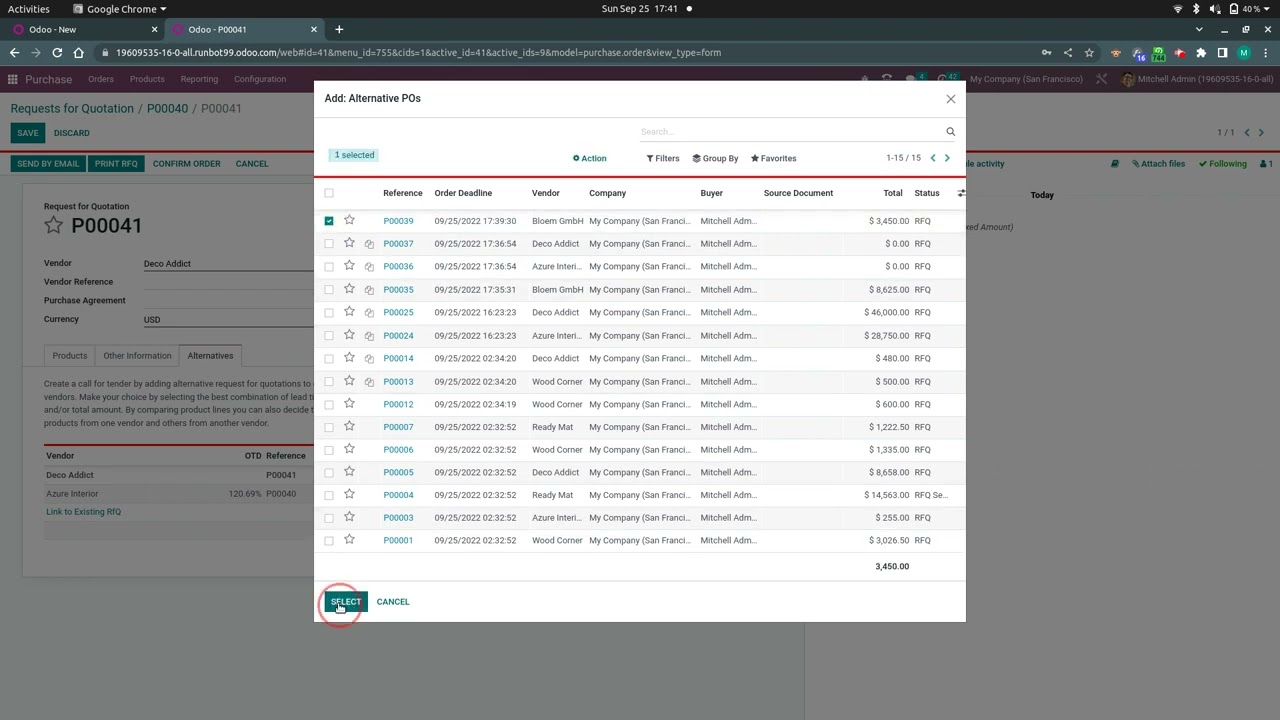
Once I have sent it by email, I'm going to go ahead jump back to the call for tender and I'm going to be able to quickly and easily, get an overview of the RFQs by clicking on the RFQ smart button right here from the call for tender. But before I do that, I know that I'm not going to create any other requests for quotations for any other vendors. So I'm going to go ahead and validate this.
When I click on validate, it goes from confirmed to bid selection. So I'm just waiting to hear from the vendors, to see how much they will offer. Are the price that they're going to give me for these products.
I can always create a new quotation, but I don't need to do that because I will not be asking for any more from any other vendors. So let's go ahead and have an overview of the RFQs, I'm going to click on this button. I haven't changed anything, so I haven't added the price just yet.
But I already have the overview. I see that the request for quotations have been sent. I see the related call for tender, the company, the vendors, and of course the RFQ references as well.
But now let's imagine that I have received the offer from the vendors. So I'm going to go ahead and say that Azure Interior is going to charge $15 per unit. I'm going to save this.
Go back to my RFQs and I'll say that Chair Up! (Furniture), is going to offer me only $10 per unit, and then we're going to save. Now if I go back to my request for quotations, I'm going to be able to compare the two.
So this will give me the total for the entire order. It's not just the unit price. This is really convenient.
Imagine that Chair Up! (Furniture) or Azure Interior they called my office, I wasn't able to answer. But someone else was able to say, okay you're going to, offer us $10 per unit and they can go ahead and add it.
So then when I'm ready to decide on what vendor to use, all I have to do is go to the overview and I can see what's the best deal. And in this case, it's clearly Chair Up! Furniture.
So I'm going to go ahead and select this request for quotation and confirm. Once it's confirmed, it turns to a purchase order and then I have a receipt generated as well. Then if I go back to my overview for the RFQ's, I see that the other one I had created as automatically cancelled, so I don't have to worry about that at all.
There's no manual intervention that needs to be done there, and it is because I selected the exclusive option on the purchase agreement type. Now if we go back to the call for tender, it's automatically closed. Since I did agree to the one RFQ so the one purchase order, it's no longer in the bid selection because I've made my decision, so it's closed automatically and Odoo does that for me, which is so nice and so convenient.
Now if I go to my purchase dashboard or my purchase orders I'm going to see the purchase order that was just generated. And I see the source document as well. So I see it's related to that call for tender.
So, it's super easy and super convenient. So you should definitely take advantage of this feature. That's all for this video.
Thank you for watching. And if I don't see you, good afternoon. Good evening and good night.