Mark: In Google Cloud Platform, you'll need a billing account to pay for any services you use. Let's walk through how to manage and set up permissions for a billing account. To start, we'll need to go to the page for the billing account.
On the left hand side, choose billing, and then click on manage billing accounts to see a list of all your billing accounts. Here, you can see each billing account as well as the number of projects associated with each one. You can click on an account to see more detailed information about the account and get an overview of the costs.
To manage this billing account, click on Manage in the top right. From here we can see the associated projects and manage permissions. In order to make sure others can see cost for this billing account, let's show how to add a user.
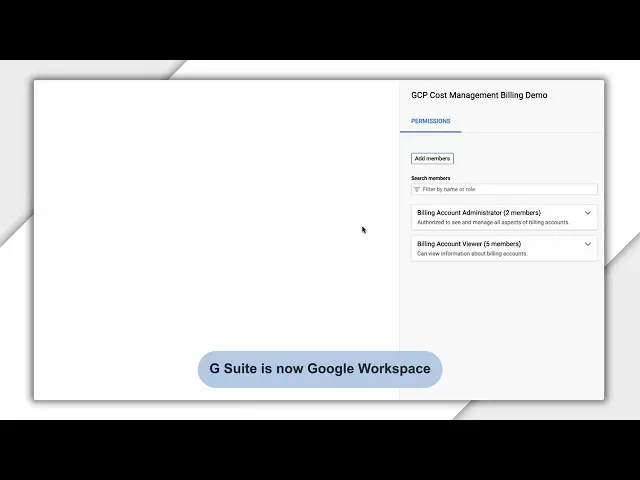
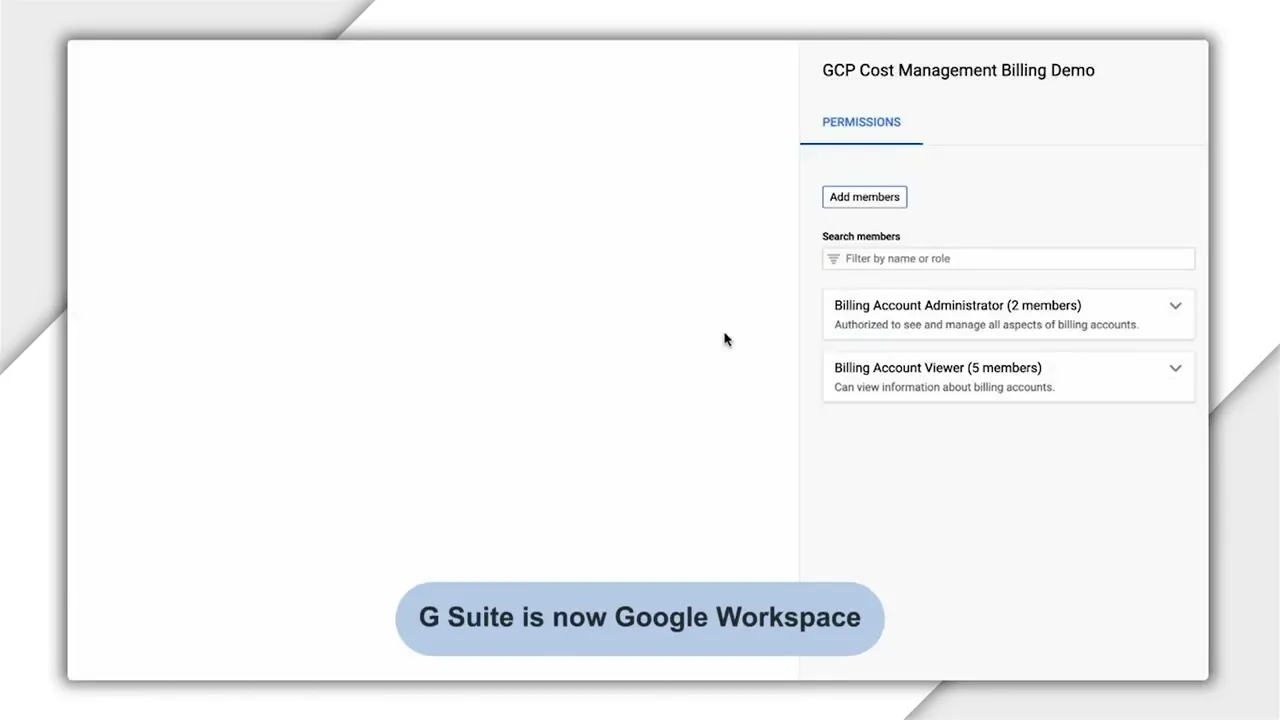
Click Add Member and type in a user's email address, then choose a role. The default roles for billing accounts are viewers, users, and admins. Billing Account viewers have access to see the cost associated with the billing account, while users can view costs and add projects to the billing account.
Billing Account Administrators can do all of that plus manage the billing account itself, such as assigning permissions, managing export settings, or contacting billing support. For this example, let's add someone as a billing account viewer so that they can see the cost for this billing account and all the associated projects without being able to associate any additional projects. You can also add a group and assign roles so that all users in the group will share the same permissions, users and groups can be managed via G Suite or Cloud identity.
If you want a user to only see the costs for individual projects rather than all the costs for projects attached to a billing account, give them the project viewer role on each project rather than billing account viewer on the billing account. Similarly, for all permissions, you can even assign a group to the project viewer role and then add users to that group. Now, if you're a billing account user or admin on a billing account, you'll be able to link that billing account to a project when you create it.
If you want to change the billing account for a project, head back to the Billing Account Management page and click on the Options menu next to that project, choose Change billing, and then pick a new billing account. You can also disable billing for a project which will shut down all paid resources for that project. So be careful.
Now you should be able to start managing your billing account and assigning permissions to them.