I'm Mack and today I want to show you how to use Krita to make your own animations. I'll introduce you to the basic tools and guide you through the initial steps of what you need to know to use Krita's tools to create an animation even if you're starting from scratch. Getting straight to the point, first let's create our animation screen.
We can do this by going to the File → New menu. In the window that opens, we only need to define the Image Size and Resolution of our animation screen. The configuration will vary according to the project you are working on, my tip is to research and take a look at the most common resolutions for the type of project you are doing to at least have a starting point.
After deciding these values button to Create. It's important to know that at any time you can still change the size of the canvas you have to draw by going to the Image menu → Resize drawing area. So, for example, if by chance I need this screen to have more or less width and height than it currently has, I can go here to the Width and Height parameters and change these values.
As I only want to expand the width of my screen as an example, I click on this aspect ratio lock icon to unlock the chain and be able to individually change the width or height of my screen. Ok to confirm and here is our adjusted screen. This type of change only changes the drawing area you have to work with, either more, adding more space, or less, reducing the size of the screen.
Generally, Krita's default interface is not adapted for animation, we need to change our workspace to something that works for what we want to do. A practical way to do this is to activate the animation workspace by going to the Window → Workspace → Animation menu. It will provide us with the main panels we need to start animating, but you can set up your own workspace keeping only what you really need.
Here for example, although we have other options to access our brushes very quickly too, it could be useful for some people to have the Brush Presets panel appearing on the screen. And to activate any panel that is not visible here in the interface, we can access the Settings menu → Dockable areas → and select the panel you want to add. So just click, hold and drag this newly added panel wherever you want.
When a panel is not that useful, you can remove it by clicking on the “Floating dockable area” icon to highlight the panel from the interface and then clicking on the X icon to close it. Now let's get to know each of the main panels that we will use when creating the animation. And I will show you this in practice.
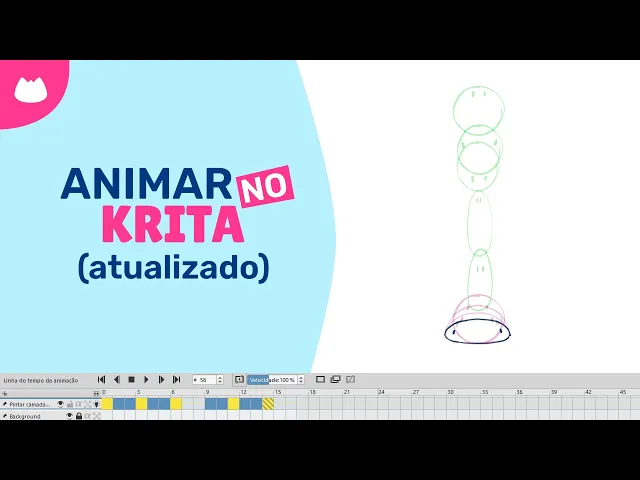
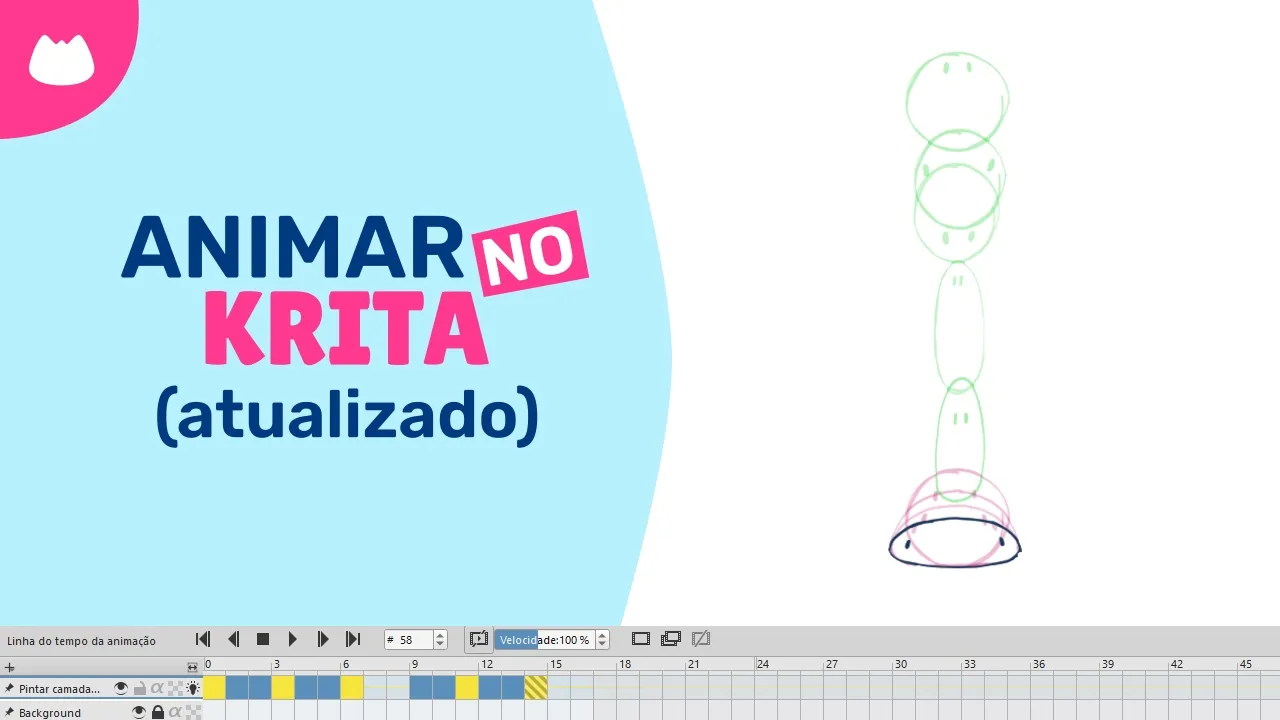
The Timeline is basically where everything will happen. It is through this that we can control each frame of the animation. And it will work in conjunction with the Layers panel .
So for each new layer you add here in the timeline, it appears in the Layers panel and vice versa. By default, Krita has already created a white layer for us to serve as the background. See that it's already locked so you don't run the risk of drawing on it accidentally.
And on top of this layer he created another layer, now a transparent one, which are the layers that you will see with a checkerboard pattern. Generally, it is on this type of layer that we want to draw each frame of our animation. Each cell you see on the timeline represents a specific frame of the animation.
Note that in addition to the numbers above, the exact number of the selected frame will also appear here in this space on the panel. For now these frames are empty but I can select one of these frames → right-click and choose the Create a whiteboard option. When adding our first frame our paint layer became an animated layer.
You will see that a small light bulb icon will appear here on the layer where the frame was created, but I'll talk about that in a moment. Well, now in this same selected frame we will draw the first frame of the animation. With just this picture we don't have a animation yet, so we'll add a new frame for this animation right away.
This time we will do it by clicking on this button. The way it is here and depending on what you're doing, it's difficult to know how to continue the animation if you can't see the previous frame at the same time, and that's one of the reasons we activate the onion skins. With onion skins it is possible to visualize both the previous and next frames of an animation, and here in Krita we can activate the onion skins of a layer by clicking on that light bulb icon that I just showed.
See that now I can view the previous frame of the animation while creating the sequence. We select the first frame of our animation → hold SHIFT on the keyboard and then select the last frame of what we have done so far. Let's press "play" to see how our animation is turning out.
We can also click and drag these frames further away from each other to better control the animation time, because everything is very fast. I select again the section I want to see happening and press the Play button. Now what I want to do in this animation is that the last frame of the animation is exactly the same as the first.
I select the frame I want to duplicate, hold Ctrl and drag this first frame to the end of my animation. This way we can duplicate any frame. If I wanted to remove, right click on the frame I want to remove → Remove Keyframe.
I'm going to undo the removal here because I was just to show you how to do it. Now that I have three frames created and with some content in them, we can select the frame that is between the two to be able to see the frames that are coming before and after the selected frame. As here the frame that comes before and the one that comes after are exactly the same, the colors end up overlapping because of opacity.
But if I change the content of these layers a little, you can see better that it shows the content of the previous frame in red and the content of the frame following the one we selected in green. This is basically how onion skins work in animation. Taking a quick look at the Onion Skins panel we can decide how many frames before or after we want to see → define different opacities for each of them → and choose other colors to represent the previous or following frames as well.
I'm going to return everything to how it was before and let's continue the animation. Another way to play the animation without having to select the frames as I just showed is to go to the Animation Settings Menu and define the beginning and end of what you want to play. So just play it back to see what's happening.
And so you adjust things until it's the way you want. Let's look at some more tips that you may need during production. The first tip is to save your file in Krita format to ensure that you can continue it here after the way you left it.
Also get in the habit of saving with Ctrl + S every time you remember. Another thing I do is save my things incrementally, even Krita already has an option that does this for you. Basically what it will do is duplicate your file with a different number at the end.
This way you guarantee that if the file you are working on becomes corrupted, which sometimes happens in any software, you have a previous copy at a not so distant stage. Of course, if you always make copies when important changes are made. After the work has been completed, you will delete what is no longer useful and then everything will be clean.
You can also make changes to all frames of your animation at once. In my case I want to move all my animation more to the center. Right click on the layer where your animation was done → Add transformation mask.
Then just use the Ctrl + T shortcut transformation tool and make the adjustments. If you have many layers created, by default, they will be fixed here in the animation timeline, and you are not always using these layers. To unpin it, we can just click on this icon.
AND To pin it again, you can do it by right-clicking on the option → Pin to Timeline. Or, by selecting the layer you want to pin, it appears on the timeline whenever you select it, but to pin it, press the same icon again. And when you start drawing, before creating the frame, right-click the Duplicate frame option to store this drawing in the selected frame.
Use a layer's visibility button to hide its content when it gets in the way. And it can be very interesting to change the color of key frames and intermediate frames to better organize your animation. Don't forget that you can zoom in on the timeline to see just those frames you're working on.
Now, I'll show you how to export your animation. If you are using Krita from version 5. 2 onwards to export, let's go to the File → Render Animation menu.
. . Now it comes with ffmpeg built-in so you can save it in some very interesting formats.
To export a ready-made video, select Export as Video → Choose the format, I will save it as a gif for example → choose a location and click OK to export. We can also test saving in . mp4 format.
This time I'm going to save it in a folder to show you something. . .
see that the file exported correctly. I create a new folder but now I'm going to name this folder with some special character and try to render again the same way we did before. .
. And then we have an error when rendering. To organize myself, I was doing this in some folders that I have here on my computer and in this case, when we try to save a Krita animation in a folder with special characters or icons, as I did here, it ends up not being able to interpret it and generating this error .
This is as a detail in case you are having the same problem and also as an example of what not to do. We can also export our animation as a sequence of images to assemble the animation in another software as well. We select Export as image sequence → select a folder where we want to save these images and give the file a base name.
The suffixes will be generated by placing a number at the end. And here are the images of our animation. Now just make your next animation and export!
See you in the next video. See you later Apprentice!