in this video I'm going to show you how to AI automate 95% of a newsletter to really really good quality we're going to grab the latest like piece of news article for your need we're going to run it through everything we're going to create a oneliner assistant we're going to create an overview you're going to be able to review it in this table open it up see the URL from the article see what it's about see if you want to include this topic or not in your email you can then approve it or deny it
do you not want it do you want it once that's done and then runs through this really cool automation that will create bullet points it will create key takeaways it will create a tldr it will create everything we want I based this automation G2 a request on the rundown people love the rundown I said this is exactly how you create something similar to this and then the output at the end of it would look something like this where you get a nice little header that summarizes everything you get an AI generated image that we're going
to use and build a mid Journey you're going to get a tldr of what this is in just a couple of sentences and then you're going to get four bullet points they explain each part of the article and finally why this matters and this will automate guys 95% of the entire process for you and as always guys all the prompts the blueprints the trainings the additional support it's all available down here in my school Community we can access absolutely everything with all the uploads which basically means if you just wanted to upload this automation you'd
come here you'd come down you'd click import blueprint you choose the file You' select it you'd save you'd increase it and you'd also get access to all the agents that we're going to cover in this video the overview the on line the bullet point agent I mean I could go on there's a couple we're going to be using this video and you access to all that stuff plus support in the community down below so come down say hello we'd love to have you but in any case we're going to jump in I'm going to show
exactly how to build this automation out step by step so you can automate like most of your AI newsletter and do it to great quality so if you haven't already grab that coffee and let's jump straight in and if you're new here my name is Jack and this YouTube channel and my community is all about the latest AI it's about incredible automations and most importantly it's about the stuff that actually works so to kick this video off what I'm going to I'm going to run you through it end to end to show you how it
works in practice then I'm going to tell you exactly what you need to Automation and then we're going to build it together step by step okay so this video starts off with an RSS feed now when I've thought about how we automate a newsletter one of my top thoughts was we don't just automate for the sake of automating it needs to be good quality has to be great quality and if we're doing a newsletter if it's news focused it needs to be relevant it needs to be top of mine that's why built an approval system
and that's why I'm Autos scraping the internet for information so for example we start over here in RSS feeds for the example of this I've pulled AI news thing right we're going to do AI news we an AI Channel I'm going to show an example of AI news and basically I've just said look pull these articles from this website here just pull it from this particular website again I'll show you all the configurations the opportunities are literally endless with this stuff it could be tweeters it could be anything you want so this is going to
pull a record for the latest article on that particular topic so look I'll click on this I'm going to say pull down two awesome and I'm going to run this automation okay so this is part two going to come over here to part one I'm going to click on my RSS guy going to click on I want let's just say we want to get five options okay then we click okay then we click run and bear in mind guys this is going to be running in the background automatically the news pops up we add off
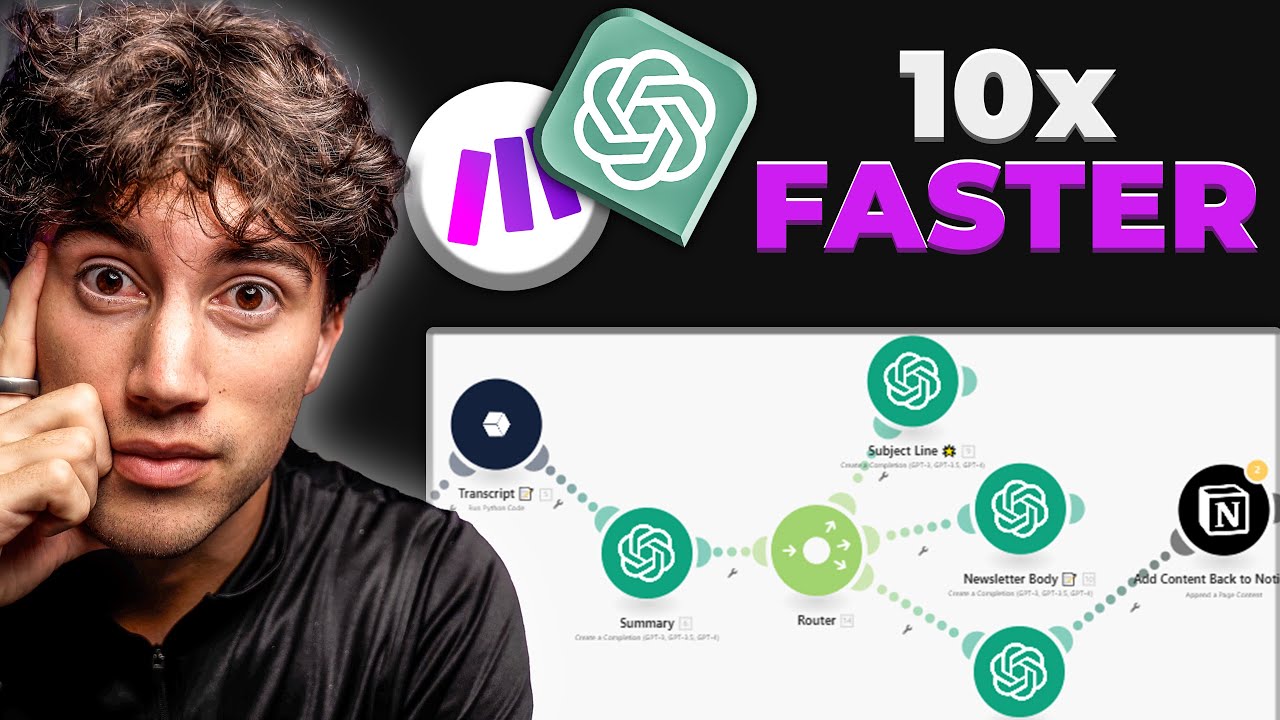
filters to see what we want and then this just keeps running and running and running and running in the background so what happens the RSS grabs our particular like article all the things we convert that to a file then we convert that from the HTML to text so we can understand it then what happens here is that this GPT agent is going to take all that information and say look just explain it to me in one single line and then the overview agent is going to say cool well I've got all this information what's it
really about right what's the Key summary what's the key things we need to know and then we add it to the air table so if I come to my air table you see here for example let me delete this one it's getting nice and pretty we come down and we can we can literally increase the size it look PS AI conference Sparks to bate okay that's interesting what's it about article summary I'm a new I'm the new up andhe my soul destroying day at paler first ever AI Warfare Council so we can look through this
it gives us key developments and insights impacts and significance this is just for your benefits and bear mind guys you need to touch anything this just happens for you the purpose of this okay is to basically just give you context about whether or not you want include it in your article I didn't want to set this up in a way that just fired stuff so you're actually going to review this and think let's see what I think AI Warfare deception panties air conference do you know what let's say I like the sound of that and
I say you know what I want to add that to the newsletter boom then what happens we come to the second part of the automation we click on this guy we click okay and then we're going to run this whole thing once cool so this has then grabbed that record for we just created so look I click on plus one it's got two here you see AI Warfare and deception key insights and P's conference box debate but the only one that's going to come through is this one because that's the one I selected add to
at to newsletter so it's got an approval filter right bullet points we're creating key bullet points for this guys which is essentially I've built this in the style of this so if you look at what these guys do they have a short sum up the top they have an image they have a summarize this in a sentence and then they have like here four bits of detail to explain what it's about and then we've got a why it matters or so what so I've used this as an example obviously do your own style I just
want to show you the kind of thing that's possible here I come back over to automation right we've built the bullet points we've got the key takeway we've got the to Long didn't read but we've got the tile created and then this guy here is creating a specific prompt for us to use a med Journey now you might have seen I've done videos on how to automate the med Journey but for the purposes of this video to keep it simple I'm just going to have it create a prompt that we can just enter into mid
journey and bring the image back for us and as I'll show you later this mid Journey promt works like a charm it covers things like the subject the action the setting the additional details and I've coded it and developed this prompt in such a way that you'll get consistent results it's going to be the same style that really looks like a genuine you know an actual fotter that's taken by a human being and not one of those wild wacky like obviously AI things so we've entered that into mid Journey let's go grab that image now
and as you can see guys if I come over here now I've just add a little bit formatting to make it easy to read but this is essentially everything you get you get the title here you get the description for the mid Journey image you get the tldr just in a couple of sentences you get bullet points and then why it matters so let's then head over now to Mid Jour to grab that image and look at this guys like this is the AI Warfare B I mean like this is phenomenal right so if you
check this out like this is absolutely ridiculous so I can copy that for example let's copy that head it back over okay we come back over to our AI news and then essentially what we would do is we just can pop that in there and there you go and essentially you'd have like this is just all like automat I could say 95% done and then you would just simply input this into Emil template send it off and you're completely ready to go obviously you can add a little flare that you want to but that's a
whole automation now I'll also say for jump in I've got automations I think you can pretty much automate every single step in other words it will also create the HTML but that is going to be for the next video if you want to see that video let me know down below and I'll show you how you cover that last 5% but I didn't want this video like 2 hours I want to show you the basics you can get started jump in have some fun with it and we CLI at do the bits afterwards so with
that in mind what tools do you need well if you're new to the Channel all the automations we're building here are in make.com make.com is a no code automation tool it basically just allows us to be like no code no no code developers so to speak so you need access to me.com again I'll put all the links down below for you once you've done that you need access to RSS doapp RSS doapp has lots of like free options so you can come and have a look and they have like a pay plan that isn't that
expensive now this could really be any trigger if you watch other videos I have on the channel you'll see that you could do it based on IDE you could talk to GPT 40 as an idea then that turns into a newsletter any trigger you want literally anything you want we can do but for the purposes of this I've just done newsletter okay so you need RSS the next thing you need and you've got me obviously then you get access to GPT so that's platform. open.com and that's basically the API version chat gbt you buy like
$5 of credits for that and if all this is signing like quite complicated I've got really specific trainings in my school Community for this I've also got a video show on screen where I build it live all these other specifics so you can still to do that step by step and I'll also cover on this video but if you're more support I I've got resources to help you with that so we've got make we've got RSS we've got GPT me access to air table that's a completely free piece of software I like to describe it
as XL on steroids it looks like this it's pretty easy to set up again I'll show you exactly how you set everything up so you'll be flying by the end of this video and then finally Google Docs or a place that you want to throw your your your output into but obviously if you want to use mid Journey you can access to Mid journey in terms of cost uh mid Journey Pro is like 11 or so dollar make is free to use up to a certain amount RSS is free to a certain amount and obviously
the API you can just get started with $5 so with that in mind we're now going to build this entire automation from scratch now I've covered a little bit but don't if it sounds overwhelming don't worry I've got you back you'll know exactly how to set this up by the end of this video if you follow it step by step and I'm sure you will I think I think you're going to absolutely love this one so let's jump pen so to start off we need to do the formalities which is naming it balloons letter one
out of two so I said our trigger is going to be rssed night so let's head over to RSS doapp and you'll see a page that looks a little something like this okay I'm going to come back I'm go back to the hom page so you can see you'll see a page like this all right just create an account and sign in so we sign in okay then I want you to come down to the explore tab on the left hand side now the cool thing about if you're not familiar you can basically get feeds
it's basically pulling data from the internet for you to use your purposes so say for example a lot of people know this but let's just say that I love the guardian right the guardian is a newspaper uh in the UK what a lot of people don't realize is you can actually do this by website so for example I've just come on here to the guardian AI all right so look I've got this web page they are publishing topics I can actually take the URL from that web page or multiple web pages if I want to
and I can enter it in and then I can click search and what it will do is basically every time an article does look familiar it should do cuz we just saw it a second ago right look this looks eily familiar was the exact same thing so every time the guardian in this case the guardian you know newspaper it will pull down the article and everything they've done now you don't have to do it that way you could also search by terms so for example I could just say artificial intelligence and now essentially any article
on artificial intelligence will appear but if I've got favorite newspapers I've got favorite things I like to use that I trust and I think is good I can search for them and grab them you can also do this by individuals twitters there's like a million different things that you could do but for the purposes of this and just to make it simple I'm just going to grab the Guardians one uh and we can go from there so we're going to call on Save feed and the other quick call out by the way is like filters
if I didn't want the word piece coming up and I type that in there and add it you see how that just like Grays out that means that we'll get no articles with that you can also do things like replace and remove so it's like whatever you know the name the guardian bought up or ai's bought up call it something else I've got another video covering this in a bit more detail but I just want to give you the Whistle Stop tour cool now when you've created your feed you'll see this XML I just want
you to copy it okay then we go back over to our Automation and we click this big shiny purple button here and we type in RSS like so buil in now you got watch and retrieve watches basically every time a new article comes fire and retrievers just bring back the last x amount that that you've done so for the purpose of this video I'm going to click on retrieve you could just say like hey every 6 hours bring me like 10 articles or something whatever you want right and because we're approving it we can have
as many as we like and we can just sort of find that we enter the URL so look I come back over to my RSS feed I copy I come to our article and I enter it you don't worry about date from date two for the moment maximum number of returned items let's just say that we want two just for the sake of this in fact let's make it really easy and do one and then we click one on Okay cool so look if I run this scenario once bottom left we should see the latest
article we click on this it's given us Ur that it's pulled out but what's the output look we're the peace activist my surreal soul sucking day at palen's first AI Warfare conference it's cool you kind of get educated on what's happening in AI World whilst we're learning some incredible cut and Edge automations cool and then it's given us URL so we found the article we want the question is D how do we actually find out what the article says so we click onug we come over here and we're going to look for HTTP get a
file now this module will just download you see here right we feeded the URL I'm going to zoom out a little bit so you can see as I hover over where's URL here you see that it's pulsing just means it's related to that module so I just click on URL cool right then I click okay now what this guy will do is every time I give it Ur off marss it will just download the whole page for us which is really cool so look I run this again there you go look it's given his the
output and it's got all the data there sweet but the problem is guys it's in pesky HTML so what we need to do is get the HTML into the queen's English so we just come over here we type in HTML to text awesome click on this and what we're looking for is the data cool and then what that will do guys is basically take that into something that you and I could probably actually understand awesome so then the question is that well what do we need to do next well let's go back to the module
that I book to find out we're here a oneliner assistant and an overview agent right so that's cool so let's start off with our oneliner assistant okay our oneliner agent he's a cool guy I'm going to I want to run you through so you understand how to build these yourself so that like you can build all these amazing cations and we can all benefit so I'm going to give you a quick whistletop tour of how these work so basically what we're what we're asking here is for a concise and engaging summary there's like 50 characters
maximum like you need to be able to explain it quickly succinctly and not be too you know not too verbos about it so you may see lots of information on that about a website such as the guardian the times or another website disregard all information pertaining to the website we are only interested in the article and that's because there are certain things you can do by the way that like only that starts with the text and ends with the text because we're pulling the website out you're going to get loads of stuff like news politics
all the other stuff so we just kind of as a really simple workaround just educating the AI agent to be like look ignore this focus on this if we want if we're really conscious about our token count and our pricing we can build those extra measures in but for the purposes of this this all how as out then we give instructions analyze the data Give me a summary that's 50 characteres long ensure the summary is attention grabbing informative use strong active language avoid filler words blah blah blah 50 characters out there so then what we
do is we copy the whole thing and then we over to platform the open.com we click on create in the top right we give it a name so we'll call this guy one liner agent and then just paste the instructions in the model you use any model you want to gb4 Turbo 3.5 whatever you want based on your purposes I always recommend starting with a high level model and then working way down gp40 is Rock Solid at the moment basically select the model that you want um and essentially that is entirely complete so then look
I come back over now to Here and Now I need to add the guy in so I come in here I'm going to find message an assistant now if you're unfamiliar with what assistant is versus a prompt so when I add chat gbt I can do two things I can either create a completion which in other words is hey just send this to chat GPT and I can put it in a prompt and I'll get an answer an assistant is a precoded predefined think of it like an agent or an assistant right and the reason
I like assistant is if I want to build up several automations maybe I want to use this one line about in another automation tomorrow I don't have to keep recol rewriting the entire prompt I can just slot them into 50 different things things and if I ever want to change anything I just go back over and I improve it so I just think it's if it's something you might use more than once just use an assistant for it as well you could obviously use Claude for this if you want to I'm just using GPT to
show you the process and you can build out and pick and choose the models that you like as you go cool so the message we want is what the message is the output from the text passer and then the assistant is the one liner agent so we s that guys we click okay and then we're going to give him a name let's call him here one liner and of course he's going to need a little bit of emoji right so let's give him number one as an emoji where is it okay sweet awesome and then
we click okay sweet then the next thing we need to do is to summarize the agent right so what's that guy well look not this guy it is overview agent cool so the reason I like the overview agent I built this before in automation it helps you understand how to build scripts but essentially this is like the tldr of it a little bit so it's like gives you bit more information about it so with this guy look we pre-process the article we analyze the article we write a summary we give context and background from 70
to 80 words we're going to give key developments and insights and repeat that as is needed so basically you'll have what it's about what the insights and developments are and we can repeat those two things based on how long the article is and then we talk about the impact and the significance we talk about formatting a presentation we detail things about how we want it to log and the reason that we do that so if I come back over now to show you for instance the reason I've done it is we've got the option to
read the article if you want to so look click on that let's grab it let's just say I want to come and have a look I can read through if I'm interested I can read through right awesome or if I just want to get like what's the contacts what developments I can read it all within the thing and it just makes it a little bit easier so that's why we include that so if I come back over now to our automation what we're going to do is let's just clone this guy bring it over call
this one here rename it and we'll call this guy over overview agent overview and what should we give him thing let's give him a little fire Emoji awesome and then all we do is we write the overview agent if that's what you want to add uh where is he here again same process copy it all and do the exact same thing we did last time with the one liner agent over there okay exact same thing do this guy do it with that guy we copy it go to platform. open.com enter it in grab the B
bring it back over and I I'll wait here if you way you do that and then we can we can jump straight in cool all right so we've got this guy and then we just select the agent that we just built and once again the input is the text that we got and then we click okay awesome and so the next thing we now need to do guys is create an air table so if I come back to this automation you'll see here the last part is just create a record thing so look we come
back over here we click on plus and we click on air table now you can send this over if you want to to Google Sheets I always recommend air table for beginners I just think it's way more robust and just a lot easier to use so cck on air table and click on create a record again if this is something that you're struggling with I have got like guides on how to set all these things up uh in my school Community but the TDR of it is that when you create an account in air table
you just open a new a new base it's like really like it's a step-by-step thing to do and essentially all you do is it'll ask you to sign in you open a new page you give it the access levels that you want and then the things will be connected together so I've not going into too much deta about how do the connections but if you follow the process it'll be simple and there's more support down below if if you'd like some help doing that cool so then once we've done that right I've got this base
here so I'm just for the sake of this just going to delete all of these so we can start from a a blank slate so to speak so we're going to name this one I've called this one here AI automation newsletter okay I come back over here I've selected create a record I click on the record it loads up I click on the base and then you just select the thing that you named it which is a automation newsletter it lets me pick the table so I created two tables one's for a future automation not
in this video and one is so this one it's just creating newsletters cool so I come back over you can see creating newsletter News Review so we need the news review awesome perfect and then you're going to see this right you're going to see URL oneliner summary and Status so look what I'm going to do is I'm going to delete the I'm going to show you how you build these okay so you're going to right click you going to edit field you're going to typee in url and then you're going to type in here URL
that's number one and then we click okay then we click on the second guy and if it's not there you can right click insert right if there's no field there you need to create a new field we edit field we type in one liner up here and we type in long text and let's enable Rich formatting and then click save and then we come over repeat the process again we click on summary you won't see summary you'll see some bare Fields but this is how you do it you D summary long text en Rich formatting
click save and then you got status so for this one you're going to right click edit field or insert field for example I create a new one for the sake of this look I come over here I type in status I come down I type in status I come down I type in single select and basically add my options so the options I want to add is let's just say like approval and let's change the call to this guy and then deny like this and change his color to red and then we say CL Cay
field status one okay cool so basically what that means is that like I can click on this and I can say great do I approve do I deny and then that will know if the things happened or not okay so that's how you build up the status format and the one that I've used I've used at a newsletter or no thank you hey there guys Jack from the future here at at this point in the automation it got so hot my camera decided to shut down so for the rest of the video it's going to
be an audio tour with some screen sharing I didn't want to delay the video getting out so you can get jumped in I'll see you in person in the next one right let's jump straight back in so get rid of this guy and then there's two Fields you need to add at the end which is created time and last modified time and that just helps us understand create time we need to know when a field was created and last modified is it'll say hey if you've got like a 100 fields in this sheet like and
let's just say we approve 77 and 65 this will say hey look 77 and 65 have just been approved and that will tell on next automation where it needs to look in this table so to do that we add new field all we look for is created time and select created time and then call it create a time at the top like this sweet right perfect and then you're going to add a new field I'm deleting this as I go cuz I already pre-built these but for you I'm just showing you how you do the
process so again we're going to date sorry last modified time click on the field last modifyed time will be there we click on it and then put on create field awesome and then whenever we edit a field that will update with the latest time and then we click delete and now we've created our table and that's all you ever need to do now in this in this basically in this entire air table that's the only thing you're ever going to need to do so we've created that right we come back over and what you'll know
notices you may need to refresh this if you've changed like the tables and stuff and it'll bring through the new headings for you and the really cool thing about air table guys is it will show you every column look URL oneliner summary status URL oneliner summary status cool that's what I like to see so the URL what do we want well let's grab the URL from the article here and that's just in case in case I want to read it maybe I want to read it maybe we want to have a look and then we've
got oneliner so we come over to oneliner and we click result and then we want the summary so come over to overview and I click result and then status we don't need to worry about that until next part of the Automation and then we click okay and then we're going to click this Auto align button down here to make it nice and pretty and then guys we're going to run through the entire automation so let's run it once what's going to happen RSS is going to find our article we've grabbed the file text pass has
turned it from that Goble theg HTML into the queen English which we' love to see oneliner agents made the oneliner explainer the overview agent is now creating a cool beautiful overview us to read and enjoy and when that's done it will go to air table and by the way if it looks like I got a black eye it's cuz I caught a straight elbow in Jiu-Jitsu the other day like I literally woke up two days later like nothing going on and I was like oh my gosh D my eyes like black it was like so
rarely ever happen so I was like just in case you're wondering I'm not like walking into doors or something so I want to set the record straight on that for the conspiratorially minded viewers out there awesome so that's correct guys we come out over here and we should see it right perfect I mean that's awesome right it's literally just all come in automatically pales peners AI conference ignites controversy there's our summary there's the article if we want to go and check it out impacting significance impacting significance awesome and guys you just completed the first part
of the utation I mean think about what you've done right you've got literally news the second it drops you've grabbed it automatically you've ran it through this cool stuff and you just got an approval table and all you ever really need to do for this plation is just say yeah sounds all right or no I'm okay and that's it we're going to open up a new Automation and of course we're going to need to name it right so let's come back over here to get the base cool and we're going to name this one newsletter
two out of two so what we need to do here guys is we need something to watch the table that says look I want you to watch this air table and tell me the second that this status is approved I don't care about if it could be 100 articles in here we don't care in fact I'm going to run a few articles here just to pop it out let's just show some love just get five coming out there that but let's just run this get five coming out there but I could have 100 in there
but maybe for my newsletter I just want to Cher pick the best four every day and this is why I built it this way cuz I I absolutely want it to be the best quality possible and I genuinely believe to do that we need some selectivity because we have we can use AI about what's good and viral but maybe you want a little bit of control and you can do this aate if you want to but I bought this one to give you a little bit of control okay so we may have loads of them
but we only want the ones that we approve if we're doing it in this way so how do we do that well we start with you might have guessed air table okay cuz that's how we ended the last Automation and all I want it to do is watch records amazing now look at this comes over here to the left we select the base which is the AI automation newsletter we canum the table we're going to click on news review is that what we called it over here it is right news review and look at this
guys already already like bam B bam let's throw any other ones in there that's what I like to see we on news review and then we click on trigger field so click on trigger field and what we want last modified time so in other words we've got a billion in here I'm only interested in the one that was modified last if I modify five last five last will pop up that's cool then the label field just looking for status and then we click okay awesome and then we've got to build out now all these really
cool modules and by the way one of the things I love about the way that um The Rundown AI have done it is it gives you like small data more data and it's really digestible but of course this is just an example build it however you like so what need first we need the bullet point assistant okay cool well how do we build that well you remember from last time when I click on message an assistant okay cool we're here so what is the what is the bullet point guy about right well let's go find
out sh we've got the overview agent here we've been through him we need the bullet point agent so what does this guy do well look he is a helpful bullet point creation agent an expert in taking an article summary and extracting four key Sal iant points he speaks in full senses and makes points the reason why he makes points is in there if you knew the building process for this you would chuckle so I would like you to create four bullet points excuse me well type them that oh my goodness man how much better is
it going to be now I'd like you to create four bullet points with no additional text you'll receive a summary create four bullet points maximum of 17 words per bullet point and look at this guys I give it examples like this is good here's another example here's another example and here's an example of the kind of UT that you would receive we copy all of that we add it to uh again platform to open.com we create a new bot and then once we do that we'll be able to find that assistant over here and it's
the exact same process we used in the first part of it now you might be wondering how do we get the message there so let me start by adding in the assistant so I've added the overview agent in okay but where's the message right well the message is just going to be the summary and look it already knows what it is so it'll pull through the summary for us so I click on summary that's Ace then we click okay and we're going to rename this one right call this guy what would we call what I
call the last guy what did I call him I called him bullet point so let me just copy that because you know what it saves us like a couple seconds so it's it's absolutely worth it all right cool so we had him in there bullet point guy love it you know I will say bracket guy got a lot of hate last week and you know I'm not happy about it man bracket guy bracket by was unfairly you know targeted so I'm hoping bullet point guy will not be as harassed in the comment section as bracket
guy was now this guy what do we want next well we've got our four bullet points so this guy's going to C our four bullet points the next thing that's going to happen is a key takeaway which is like the TLD drr of the whole situation right so we need to understand what the tldr is and just pulling this up for reference we've got the title there's an image there's the bullet points and there's a tldr now the tldr is what these guys refer to is the rundown which is if you're just in a rush
like just give it me in two sentences is essentially what we're saying so we need to build the tldr agent right so there's a bullet point there's our key takeaway agent here awesome okay helpful analytical expert will explain the significance impact of the data he'll use a maximum of 50 words he'll receive lots of bullet points do not write anything else any articles and we give it an example here okay so look why this matters example two example three cool copy all this we head over to platform. open.com and then we create the key takeaway
agent and then we come back over here and then we select him cool and then we' selected the key takeway agent and then we click okay so we've got the bullet points we got the key takeaways now we need to add in the different data points right so for this for the key takeaway we click on this guy we've got the summary but we also want the output from the bullet point awesome then we click okay sweet now what's the next one we need to add in come over here let's take a look the TL
DR bar we love this guy this guy is great so what do we do we come back over we duplicate we clone in we bring him over here we're going to rename TL Goodness Me Oh my goodness t l d r if I can spell TLD drr properly of course which apparently I am unable to do and I think shrugs Emoji is good for this right let's give it a little shrug awesome so what is it with the tldr bot then tldr bot basically 30 words maximum doesn't write anything just gives us the bottom line
of what it is and again we've given examples so that we can actually just for the users just want to Prov they can just grab that go and then they're ready to rock and roll awesome so then we do the same thing we basically copy all that text or write your own TDR and then we just add it to the agent and then we just import the agent at platform. open.com and we select the tldr bar cool and then we click okay sweet and this guy's lost his emergy oh my goodness what is going on
here there you go that's better all right of course we've got the bullet points we got the key takeaway we got the tldr and again because we duplicated it we just got the same inputs as exactly before so come back over now to see what we do and you can see this exactly the same we had as last time then we need a title but so the title but itself essentially is going to summarize it in a sentence so for example if I come over here what the title B does is he creates this at
the top an emoji and just a couple of sentences explaining what it does so look the title B is a really simple but quite powerful agent so you're a helpful title B that summarizes the essence of a text you're given in eight words or yes you'll receive a summary of your article and key bullet points use a maximum of eight words don't write anything else explainers just give us is the out part and what I found really well guys what prompting tip for you is give it good examples give it bad examples sometimes if you
only give it good examples it won't quite fully capture the essence of what you want so you see how here I've given it like Nvidia share prices Skyrocket El mus purchase Twitter and there Emoji at every end I've then taken like the classic like AI mistakes which is Emoji at the beginning and I don't know why it does that we need we we to shake it out of them but I've included this anyway Elon Musk purchase a Twitter 8 billion deal multiple emojis we don't want that and no Emojis so beginning multiple and no we
copy all of this we do the exact same thing platform. open.com we create it then we come back over and then we need to create the line bot right so what did we call the last one we called this guy tile bot so let me rename it let's grab title bar come back over here click in here click okay cool and then basically that's that part done so if I come back over and double do little H check on title but what did we give it as an input it's exact same thing we're giving it
the summary plus that key detail there and we sorted so we come back over now to our automation which is awesome the next thing we want to do is the mid Journey bot so again let's come here let's clone it let's come over here let's remove this little gray thing awesome and then we're going to call this one mid Journey bot so let's rename it there you go awesome cool perfect now the mid Journey bot let's go check this out cuz this one's really fascinating so look you're going to receive text or data about a
topical post I want you to analyze the text identify the elements for subject action setting additional details use information extracted from the text to fill in the following prompt template now if you've ever use mid Journey you know it's so temperamental you put one combo one hash out of place and boy you're in for a world of pain I tell you so this formula I found just works Tre it's just so good so subject action setting additional details the image must be natural realistic in 2018 Styles raw AK Tak on iPhone I like that because
kind of burm it's there but guys you know you can maybe you don't want an iPhone maybe you want it to be taken on an Android phone or maybe you want it to be in 2020 I don't know you can like change this you can change aspect ratios however you want I've got a full guide on all the different aspect ratios I think actually I have that in the group that I built that quite recently so if I come through classroom I just want to check this because I built out quite a few different ideas
for that so if I look at my mid Journey prom blueprint here the aspect ratios yeah you see we've got all the key ones that we need here for example it's got a really good guide on the so basically you know take a screenshot of this or if you're in community you can just grab it but essentially it's got all the ratios that we need I think the ones that we've got work really well that's why I'm using the the 16x9 in this particular case so cool we come back over now tobot the subject should
be the main focus of the image like a person object creature or concept be really specific the action describe what they're doing use descriptive verbs the setting should paint a vivid picture of the location the background the environment then additional details and obviously at the end we believe me like if you you knew how many time you have to specify this always end with the exact phrase blah blah blah and that just means that every image you ever create with mid journey is going to be consistent if you're doing a newsletter consistency is key and
one of the things I've not touched on this video guys is how monetizable newsletters are they're like literally insane so I'm hoping that you can take all this stuff for free and just run with it and make lots of money and just tell me down below how how many dollar signs you made from this cool automation ensure the final prompt is well formatted includes over necessary components avoid incomplete or polyu PRS output the complete ma Journey prompt ready for use I give it an example input text and I've given it an example output text you
might guess what we do next we copy all of it we head over to platform. open ey.com we insert it we create the agent and then we come back over to our Automation and then we just select the one that we need and then on this one guys I just want you to click here and I just want you to select the result just to keep the input slightly less for the mid Journey bar and of course we need to select the mid Journey one right so we come here we've selected him then we click
okay and guys this is looking almost complete so the only thing we need to do now is just add it to our articles this guy cool so this one I've called AI is new I mean just the images guys the image quality is just phenomenal in this so I'm looking for AI newsletter so what do we do we come back over we come here click on this put on google doc Google Docs and I'm going to put insert a paragraph into a document okay we let the document ID so the order you want to go
for guys for the Google Doc is we start off with number five which is basically the title bar that we got here then we want the mid Journey prompt here which is perfect so we do those guys out the way after that we want mat tldr which is like explained to me really briefly if I don't have the time we close this guy down once we've done that we've got two left we want to go for the bullet points so explain it in four bullet points for me and then finally the key takeaway at the
end then we click okay now finally just set up this one filter and you're ready to go you come over you right click here C on set up filter we call this one approval the condition is that status contains let's come down and have a look contains case insensitive or what did I call it over here let's have a look what's my status add to newsletter cool so I come back over right add to news letter and then we click okay so check this out right if I click run once nothing will come through because
I haven't approved anything you see it's pulled up everything but nothing's comes through I haven't approved it so let's R this automation again right from the top I'm going to click here and going to put maximum entry is one I click okay I click run ones there are s items grabbed it HTTP is done his job text passer then we're going to create our on liner we're going to get the overview and then it's going to be added over here to our automation newsletter we've got six things already this works properly we'll see a number
seven appear very shortly the overview is been creating which is awesome we in the background well well it quietly does its work and the thing about newsletter is like you can automate it but you really want like the best quality possible and I think this really hits in my opinion you know a tool tool kit that you can just take you can apply it to any Niche you doing you can customize the input you can customize different bits and pieces the images and really like I feel a thousand people could watch this video and correct
thousand different things that's what's really exciting to me and that's why I really love sharing this stuff with you guys look and we should see number seven up any moment now and there we go look there you go it's pulled it up perfect we love it let's say we look at it and we think you know what I like it add that to the newsletter please I come here I click run once it's picked up on it it's picked up on the fact it was an approval the bullet point guys making his four bullet points
he's working but bullet point guy he takes his time but his quality is excellent and we really appreciate him for it which is a we got the key takeaways we need to know exactly what's going on what the bottom line is and everything else in the next timation if you want to see that what we're going to try and look at doing is add all this to the HTML we're going to hardcode it into the HTML so literally there's a million ways that we can do this till the bot's complete title bot's working his magic
in the background the mid Journey bot's cting a really cool prompt for us and once that's done guys that will go straight into our Google document that we signed up and connected and now it's done it's complete so let's find our Google doc when it lands in guys the format is not great but you can change that pretty quickly and there's some stuff that we can do there but just to get you up and running you can see so I bought this over I just realized I added like the wrong button so I like I
used I didn't use the title but cuz I cloned it so that's a really good one to watch out for we've got this we got the tldr we've got the text here so all we would do guys is copy that we'd come over to Mid journey and then you can grab an images from mid Journey if you want so just come here let's copy that let's go back over now enter that in and it's just a couple seconds dialogue and you've got all this stuff ready for your newslet so guys I hope you find that
interesting it's been a pleasure chilling out with you on my YouTube video drinking the coffee in any case guys have a wonderful wonderful week and I'll see you in the next video