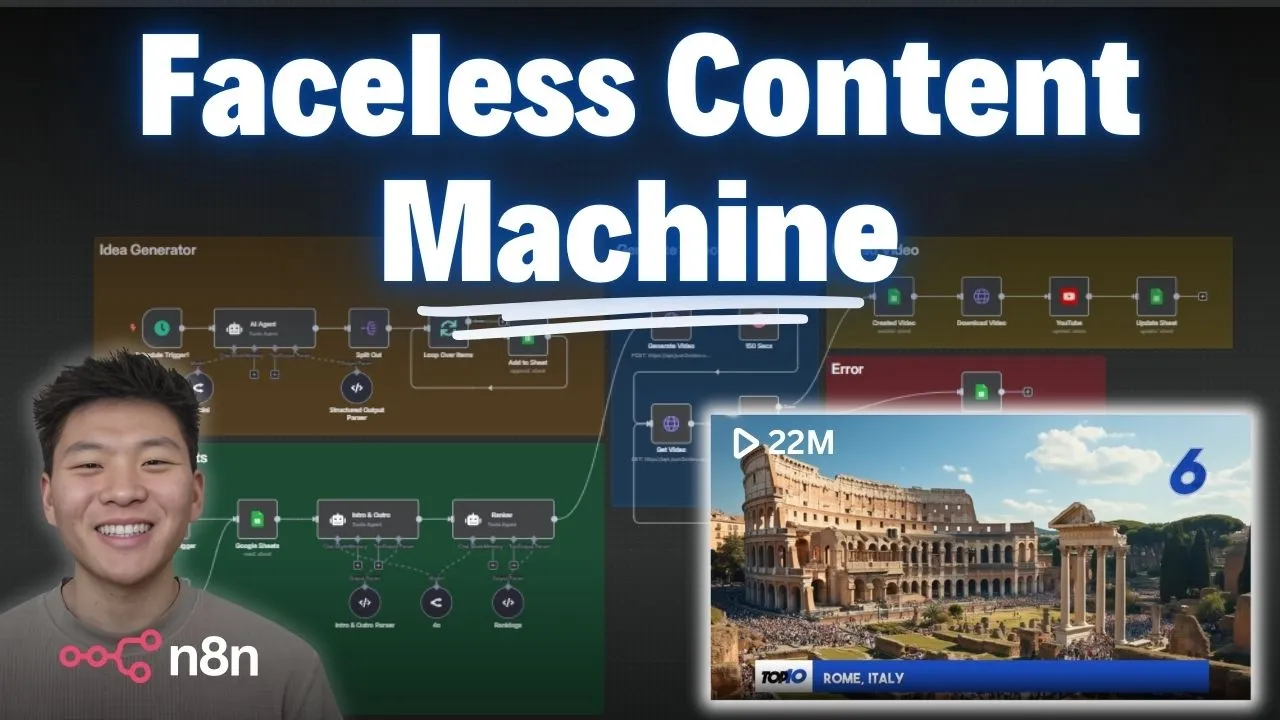
Okay, so I'm going to go ahead and hit test workflow. And we're going to see that we're hitting a Google sheet with our ideas. And now we're hitting an intro and outro agent.
So this one's basically creating an introduction and an outro. And then we're going to hit a ranker agent that's actually going to be taking the initial idea and it's going to be creating that top 10 ranking list as well as the image prompts for the video. So what's really cool is we're going to be using an API right here called JSON to video.
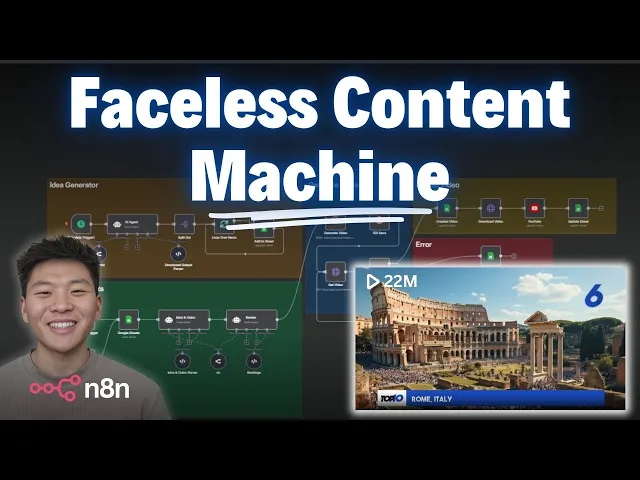
And if you notice in this workflow, we're not hitting any sort of other thirdparty API to turn our text into images. We're just hitting JSON to video in order to turn our text into images and also render everything together with a voice over and everything like that. So, I'll dive into what that looks like.
And this basically takes a few minutes to render. So, while we're waiting for that, let's head over to the channel I just spun up and take a look at a previous example. So, here is my new YouTube channel, uh, Top 10 Rankings.
And here we have top 10 cities in Europe. So, let's take a look. Welcome to our thrilling top 10 countdown of the most incredible cities in Europe.
From historic wonders to modern marvels, get ready to explore the unique charms that make these destinations must visits. Whether you're a history buff or a culture enthusiast, this list has something for [Music] everyone. Starting off our list at number 10, it's the scenic city of Ljubljana in Slovenia.
Known for its picturesque architecture and green spaces, Ljubljana is a hidden gem that offers a cozy, inviting atmosphere. Coming in at number nine, we have the vibrant city of Lisbon in Portugal. So, you get the idea, right?
Let's let's skip ahead to number seven is Vienna, Austria. Number six is Italy. This is a really cool picture.
Rome offers a journey through centuries of and obviously all of the images are AI generated. Number five, we have Amsterdam. Number four, we have Barcelona.
Paris comes in at number three. Zurich is coming in at number two. And number one is London.
So, as you can see, they all have different images. They all have relevant voiceovers. And then they all have a little blurb at the bottom of what the city actually is.
And then I'll just show the outro real quick. And there you have it, the top 10 European cities that delight and inspire travelers worldwide. What was your favorite city on the list?
Let us know in the comments. Thanks for joining us on this journey through Europe. [Music] Cool.
So, that video definitely earned a like from me. Anyways, back in the workflow, you can see it's finished. It's generated.
It has been downloaded, and now it's publishing to YouTube. And then we'll go ahead and check the actual Google sheet where our ideas are coming from. So, there we go.
Workflow just finished up. And let's hop into our Google sheet where you can see this is the first one we just looked at with cities in Europe. And now we have classic movie characters which has been created.
It has been published as unlisted. And we have a video URL. So, let's head over to YouTube and make sure it's there.
So, here's my channel. We can see that this video is being uploaded. If I click into it, we can see we already have a title and a description.
And I'm going to click on the YouTube link so we can view [Applause] it. Classic movie characters. Welcome to our captivating countdown of the top 10 classic movie characters.
From iconic heroes to unforgettable villains, these characters have transcended time and left an indelible mark on cinema history. Get ready to relive the magic as we unveil the legends who have shaped the silver [Music] screen. At number 10, we have the unforgettable Marty McFly from Back to the Future.
This time traveling teenager captures our hearts with his adventurous spirit and clever problem solving skills, making him a beloved Okay, I'm going to go ahead and just skim through to see the other rankings. At number five, we have Indiana Jones, the adventurous archaeologist from the Indiana Jones series. Number three is Dorothy Gail from the Wizard of Oz.
Cool. And of course, who do we have at number one? Topping our list at number one is none other than Forest Gump from Forest Gump.
His endearing simplicity and profound impact on the lives of those around him make him an unforgettable icon of cinema. And there we have it. The most unforgettable classic movie characters that have captivated audiences for generations.
So, as you can see, we have a different intro video. We have a different outro video. We have every single, you know, actual ranking has a picture.
And then we have our titles at the bottom. Okay. So, now we've seen a live demo.
We're going to hop into sort of analyzing this workflow and seeing what's going on within each node. But I wanted to mention if you want to download this workflow for free as well as this Google Sheets template that you're going to need, um you can get it all for free by joining my free school community. So the link for that will be down in the description.
All you got to do is join the community. You'll come in here and search for YouTube resources and then you'll click on the post associated with this video. And then you'll have the JSON to download right here as well as the Google sheet template.
And then it's just a matter of importing that JSON file into your nitn hooking up your Google sheet template and then plugging in your different credentials for um you know open router or for JSON to video and then of course your own YouTube channel. Okay, cool. So before we actually start digging into this workflow, I just wanted to talk about this Google sheet and what it's doing.
So the idea here is that it's pulling in a subject and it's only going to do that if the creation status is set to to-do because we don't want to do that for created videos already. So then obviously it's just going to use this subject to create the intro, the outro, the rankings, and all of the image prompts we need. So what I'm going to do real quick is show you guys the idea generator.
So you can see that this system can really be completely hands-off. I'm just going to duplicate this tab so we can run this idea generation thing up here. I'm just going to move the manual trigger up here so we can trigger this bad boy.
I'm going to get rid of the to-do right here. And what this is going to do is it's going to basically create 10 new rows in here. Um, so it's going to create 10 and then it's going to loop through and add them to the sheet.
So, as you can see, there goes the first one, there goes the second one. If we come in here, we can see that they're being populated as we speak. So, we've got cities in the US, iconic movie quotes, breakfast meals, famous landmarks, classic literature, and they're filling in with to-do.
So, now the second part of this workflow can actually pick these up as subjects. Okay, cool. So, now that that's out of the way, let's start to dive into what's going on.
Obviously, right now we're doing a manual trigger, but what you could do is have both of these be scheduled. So every day um you know we're going to create 10 new records and then every day we're going to run this thing 10 times something like that. So the first node that's going on here is we're accessing our Google sheet.
So obviously we're connecting the document name which is top 10 videos in your case. Make sure that you have this linked to the correct sheet and we're pulling from sheet number one. It's the only sheet on the template.
And then what we're doing is we're creating a filter. So we only want to look for videos if the creation status column is set to to-do as we talked about earlier. So there may be more than just one that is set to to-do.
In this case, we have 10. And so, what you have to do is just add an option down here that says return only the first matching row. And then you can see over here, we're only going to get one row, which in this case was classic movie characters.
So, from there, we're moving on to an intro and outro agent. What we're doing here is every agent has a user message and a system message. The user message is a bit more dynamic.
It's like every time you're talking to ChatBT, you're sending a user message, but behind the scenes in chatbt, it's got a system message that's trained it on how to act and what its job is. So, in the user message, all we did was I said subject colon and then I dragged in the subject from the Google sheet row so it knows what subject to make this whole video about. And then in the actual system message, what I did, I'm not going to read this entire thing, but keep in mind if you download this template, you'll have access to the prompts.
But I basically told it, you are a creative assistant that helps generate engaging content for top 10 ranking videos on various topics. Your job is to take a subject and create two parts of the script, an intro and an outro. And each part should include a voiceover script as well as a corresponding visual image prompt.
So, as you can see here, we're telling it to output four things. An intro voiceover text, and then we define what that was in a quick example, an intro image prompt, an outro voice over text, and an outro image prompt. So, all of these things are lining up.
And actually, what I'll do is I'll throw all the prompts in this workflow into a PDF, and I'll also put that in my free school community. So, what's really important here is that we turned this button on that says require specific output format because as you can see on this right hand side, it's outputting four different fields super cleanly. We have our intro text, our intro image, our outro text, and our outro image.
And we were able to do this because we used a specific output format, which is down here. It's a structured output parser. And basically, we just gave it the four JSON fields that we want it to return.
Otherwise, they would have all been lumped into one field called output, and it would have been tough to split them up to send them off to JSON to video. Cool. So, at this point, we have our intro and outro elements thanks to this agent.
Now, we're just moving on to a different agent to create the rankings. And the reason I didn't just lump this all into one agent is because that's a lot of responsibility for one agent. You want to see if you can sort of segment them out as much as possible just to get more consistent and high quality results.
So anyways, both of these agents, by the way, I have hooked up to Open Router and they're both hooked up to GPT40. Whereas up here in the idea generation, I did open router and I hooked up to 40 Mini just because we don't need as much power to generate ideas compared to creating image prompts and dealing with making a top 10 ranking. As you can see, this one's outputting 10 different rankings, but for each of the rankings, it needs a text, an image prompt, and sort of a title.
So, let's dive into how this works. So, for the user message, I did the exact same thing. I just gave it subject colon and then I dragged in the subject from the Google sheet.
So, it's looking at classic movie characters. So, now let's take a look at the system prompt for this puppy. Open this up and we can see the overview is kind of similar.
You are a creative assistant for a top 10 rankings video channel. Your task is to generate a full top 10 countdown for a given subject. Your output must include 10 ranked items starting from number 10 and counting down to number one.
So, same thing we laid out for each, you know, item, what do you need to output? The first thing is a voiceover text. So I gave it a little explanation as well as an example.
Then we said obviously an image prompt that has to line up with the voiceover text. And then finally something called lower third text which is just you know when number eight pops up or you know number one forest Gump. It just has to say down there Forest Gump.
And then we just gave it some important rules like starting with the number 10 counting down to number one. Making sure that the voiceover text is concise not anything longer than two to three sentences or the video is going to be way too long. And then I said to use a variety of language so that each entry is kind of fresh and not repetitive.
And then same thing, we had to require a specific output format. This one's a little bit more complex than the previous one, but not too bad. You know, I basically told chat, "Hey, this is what my agent's doing.
Help me write a JSON structured output to give it. " And threw it in there. And now you can see every one of the entries are coming through the same.
And so this is super helpful because now we have a really clean set of data to drag into our API call to JSON to video. Okay, so now let's talk about this actual API call that we're making to JSON to video. So this is JSON to video.
You can get in here and get your free API key to get started. And you can also use the link in the description. And as you can see, it's a video creation API that's going to boost your video automation.
And what's really cool about it is that we're basically just going to send it all the information and it's going to compile that video together. So, those of you guys that watched a previous video I made where I automated faceless shorts, as you can see right here, we had to turn our text into images and then we had to turn those images into videos and then we could finally render them all together. But what we're doing in this workflow is basically just sending in a ton of text and it's going to take care of the image generation and also the narration.
In this previous one, we had to use 11 Labs to either create a narration or an audio and then stitch it all together with this API call. But in this video, JSON video is basically taking care of all of that. So, it's super cool.
So anyways, the first thing that you're going to do is you'll get your API key from JSON to video and then you set that up in here as a generic credential type a header off and basically you're going to put in your API key and you're going to name this value right here x-appi- key and that's how you authenticate yourself with JSON the video and if you go ahead and save your credentials a header off we can use this later without having to go back and grab our API key. So from there we're passing over a body request. So, make sure that you're doing a post method.
And when I open this up, it may look really intimidating, but we're going to explain. It's not too bad. You just have to drag in some variables.
So, here's what this request looks like. The only reason it's so long is because we had to send over 10 rankings. But, let's start from the top and work our way down.
So, obviously, we're asking JSON the video if it can stitch everything together for us in one video. And we're accessing a specific template, which in this case, I put the template ID. And this is already predefined for top 10 ranking videos.
So, it makes our job really easy. And now we're basically just defining the variables that are going into this template. So the first thing that we need to define is what's the title of this video.
That is what shows up right here. In this case, classic movie characters. And so we just have to drag that from our Google sheet that started this whole process right here.
So I just dragged subject right into here within the quotes for the title of the video. And then we have a few things to configure for the actual narration. The first one is the voice model.
In this case, we're using 11 Labs. Then we have voice. connection connection ID, which is basically we're giving JSON to video our API key for 11 Labs so that we can access our credits.
You don't have to configure your own connection. You could just use JSON to videos connection, but then you're just going to get charged more credits for that. And so if you want to connect your own account, what you'll do is you'll come into JSON to video.
You'll go to connections. You will create a new one if this one thing loads up. So this is my connection ID.
I just named it my 11 Labs connection. And so when you're adding this, this is where you'll give your 11 Labs API key. And also, if you don't have an 11 Labs account, you can sign up with the link down in the description.
You'll make an account. You'll come down here and then in your profile, you can click on API keys. And then this is where you can create a new one and copy it over to JSON the video.
Okay. So, because we've already set up our connection, I can just put it right there. So, my 11 Labs connection.
And the last thing we need to do is set up the actual voice ID. So, when we're in 11 Labs, we can go over here to the lefth hand side and click on voices. And we have a ton of different voices to choose from.
And what you'll notice is that each one has a voice ID. So let's say I think for this video I was using Rachel, but if we went to Archer and we clicked on view down here there's a button for ID and we would just copy this ID right into this section between the quotes. And then this is just telling JSON the video and 11 Labs which voice do you want to use for your video.
And then we have an image model. So obviously we're passing over a bunch of text and it needs to use AI to create those images. So right now I'm going with Flux Pro just for the sake of this demo.
But if you used Flux Chnel, um, which I will put somewhere in the setup guide, that one won't cost you extra credits, but Flux-Pro will cost you extra credits. I believe it is 20 credits per video. And at the end of this video, I'll do a little section about the pricing of everything that goes into this.
Okay, cool. So, now we're feeding in the intro and the outro. And this comes in the form of an image prompt and a voiceover text.
So, I'm going to open up the agent that we had that created these four elements, which were the intro and outro text and image prompts. And all we had to do is drag them in. So, this first one right here, let me actually make this a little bit bigger so we can see the first one that we needed to drag in was the intro image prompt.
So, I grabbed that from right here and I put it between the two quotation marks. And also, if you guys just download this template, you won't have to configure any of this. It'll all be set up.
But anyways, just explaining you how I did this. Then, I did the exact same thing with the voiceover text. And then the exact same thing for the two outro elements.
And then what we're doing is we're setting up the 10 rankings. So I'm going to close out of the intro and outro agent, open up the ranker, and now we can see we have at number 10 we have Marty McFluff or Marty McFly. And then at number nine, we have Holly Gallet.
I don't know who any of these people are. Anyways, number eight is James Bond. I know who he is.
So we basically just dragged in the voiceover text, the image prompt, and the lower third text. And so then at this point once we did that for all 10 rankings we have all the information that JSON to video needs in order to you know basically render it all together. And when it does that what happens is we get this message over here that says success is true.
We get a project ID and we get a timestamp. And so obviously the video is not ready yet. It takes a few minutes to render.
If I go into my JSON of video and I go to render logs, you can see I had a few errors down here, but on average they're taking 180 seconds to actually render and they're coming through between three maybe a little over 3 minutes as far as the actual duration of the video. Okay, so basically the next step is to wait for the video to render and then we want to pull it back. And what you can do is actually, you know, this is a cool trick.
If you go here, you can click through to the next node or the previous node. So anyways, the next node is a wait and we're waiting about 150 seconds. um probably could increase that, but it's okay because what we're doing is we're using a basically a technique called polling as you can see down here.
So, this just means if we make the request and the video isn't done yet, it's going to wait over here for 10 seconds. And in this first live demo, you can see it had to do this three times. And then it's going to check again.
If we still don't have the video, we're going to come back, wait 10 seconds, and continuously check until we're done. And I'll explain what's going on in this switch logic in a sec. But let's look at the actual get video request where once again we are using our JSON to video credential.
So that's why it's great if in the previous step you already saved it as a header off. We're using a get method to this endpoint. And then all we have to do is pass in as a query parameter the actual project that we're looking for.
So as you can see this project is O2J. If I come into here we have O2J as our most recent project. And how we're getting that is we're pulling it from the previous node that actually generated the video.
So all the way down here, it's not here right now because it was pulling and it lost it basically. But as you can see, it came from the generate video node and we're just pulling in the project which is right here. And then it finally comes through over here as status equals done.
But as you can see there were four times we tried. The first time the status was running. The second time the status was running.
The third time the status was running. And then finally it was done. So then that's how it knew to pass on because we set up this switch logic right here which basically just says if the status equals done, you're going to go down the done branch.
If the status equals error, you're going to go down the error branch. And if the status equals running or preparing, because according to JSON the video's documentation, you may get either of those values. So if it equals running or preparing, in this case it equal running three times, you're going to go down this way.
So as you can see, we basically have different logic defined based on the status of the video. And so real quick, all I'm doing if it does error is I'm just updating the row in the sheet and I'm just updating the final URL section. So right here where we're giving the URL, if it errors, you're just going to get a message here that says error.
So that's all I set up right now. But more interesting is the upload video section when the video is done. So what we're going to do first is we're just basically going to update the sheet and we're going to say that, you know, we're changing the created status from to-do to created.
And we're just able to do that by, you know, we're we're using the operation of update row in a sheet. We're choosing our document. We're choosing our sheet.
And then we're mapping on the column of subject. And so what we do is we go all the way down to the trigger that started this workflow. We dragged in the subject of the the video.
And basically what that's saying is, okay, I'm going to update any row where subject equals classic movie characters. So obviously you want to be a little careful. And that's something I was thinking about working in up here is making sure like maybe we're going to do a check so we don't duplicate any subjects.
But anyways, this is just a V1. So then it's going to update that row. It's going to change the creation status column to created.
And then it's going to upload the video URL in the video URL column. And so that's how this gets changed as well as this. But the posting status at this point would still be to-do because we have that coming in later over here.
Anyways, what's next is we have to download the video as binary data so we can actually pass it into YouTube. So, what we have is we were given a video URL. And so, if I come into here and we click on the video URL, you can see that we can access [Applause] this, right?
So, there's the full screen video for cities in Europe. As you can see, it's the exact same thing that we looked at earlier with all these different cities and explanations, but we only have the link at this point. So, what we have to do is we just make a standard get request.
We drag in the URL of the video because it's a public URL. We don't have to authenticate every anything at all. And then when we test that step, we're getting it over here in our NAN as binary data.
It's going to take a little bit to load up because it's like a 3 and a half minute video. Sorry for that loud noise. But as you can see, we have the full video now.
This one's classic movie characters obviously. So we have our classic movie characters video. And now that we have it here in Nadn as binary data, we're able to pass it into YouTube.
So here is the YouTube node. If you're having trouble connecting to YouTube or Google Sheets, then I would definitely recommend checking out this video up here where I walk through, you know, how to set up your Google credentials. Essentially, you're just going to go to your Google Cloud Console.
You'll come into your enabled APIs and services and make sure you have YouTube data v3 enabled. And then you just have to set up like your OOTH consent screen. Make sure you have yourself as like a test user or that your app is published.
Make sure you have a OOTH client ID set up. And then you'll get a client ID and a secret. Like I said, um the video I linked will walk through that in more detail.
Anyways, all we're doing now is we're setting first of all the title of the video. So, I just made it top 10 colon and then I dragged in the subject that we've been pulling in this whole time from the original Google sheet. I set up my region code category.
The input binary field by default. You're just going to want to leave this as data because as you can see right here, this is the binary data that we're working with right over here in a field called binary. And if we click back into it, it's it's in a field called data.
So, that's why we're pulling in data right here. And then I just did two more things. I added a description and I put it as unlisted rather than just a public video just so we can go in and manually check it if we want to.
But the description just basically says here are our top 10 rankings of the subject. So classic movie characters. Do you agree with us?
Let us know in the comments down below. If you go into the video, you can see that the description right here comes through exactly how we defined it. Cool.
From there, we're pretty much done. All we had to do is we wanted to update that sheet once again and just say that the posting status is now unlisted rather than what would it be to do. So that's pretty much it.
As you can see, these are the first two runs that we did. They got posted to our YouTube and now we have, you know, 10 more that we could run through and we basically get updates on the status of all of them. Okay, so now let's talk about pricing.
So with JSON a video you can get started for free and that's going to get you free access to all of the API features. 600 seconds of video rendering. So maybe two and a half to three of these videos.
Um but you can only do movies up to 1 minute long. And then you also get access to the template editor where you could come in here and create your own custom templates. And then for the paid plans here's what you've got.
You know different amounts of credits or different subscription options for you to get started. And like I said, you can either connect your own 11 Labs and, you know, pay your credits through there or if you use JSON to videos credentials to use 11 Labs, then you'll just be charged a little bit extra credits. And then also when you're thinking about the actual text image models, if you use Flux Snell or Freepick Classic, it won't charge you any extra credits.
But if you use Flux Pro, it'll be 20 extra credits per image. Okay, so a couple things to keep in mind here. The first one is that we're basically just having AI create these rankings.
What you could do is you could basically hook up some web search functionality in order to go do different types of videos where you're kind of research backing them. Also, these don't have to be long form videos. You could do them as, you know, vertical Tik Tok shorts, YouTube shorts, Instagram reels, and they could be top 10, they could be top five.
You know, you can really get in here and customize exactly what you're looking to do. But anyways, this workflow will be available to download for free, as well as the template you'll need for Google Sheets. You know, just make sure you're linking your Google Sheets to this workflow and all of these Google Sheets nodes.
You've obviously got to link up your own open router account, your own JSON to video API key, and your own YouTube account. But that's going to be it for this one. There's so much more that we can do with JSON the video.
So, if you guys appreciated this video and you want to see some more stuff, let me know what else you'd want to see with JSON the video. I definitely love to make some more content on it. As always, I appreciate you guys making it to the end of this one.
If you enjoyed the video, please give it a like. Helps me out a ton. And I will see you guys in the next video.
Thanks.


![🔴 [TEMPLATE] Crie e Publique vídeos motivacionais usando N8N no seu computador (Sem API Paga/Código)](https://img.youtube.com/vi/A_czkHtwQ3k/maxresdefault.jpg)